
CZEview ZY-D4
CZEview Uživatelská příručka pro vnitřní bezpečnostní kameru ZY-D4
Model: ZY-D4
1. Úvod
Thank you for choosing the CZEview ZY-D4 Indoor Surveillance Camera. This manual provides comprehensive instructions to help you set up, operate, and maintain your camera for optimal performance and security. Please read this manual carefully before use and retain it for future reference.
2. Konec produktuview
Česká republikaview ZY-D4 is a high-definition indoor surveillance camera designed to provide clear and reliable monitoring of your home or office. It features advanced capabilities such as dual-band Wi-Fi connectivity, motion tracking, two-way audio, and enhanced night vision.
2.1 Obsah balení
- CZEview ZY-D4 Indoor Surveillance Camera
- Napájecí adaptér
- Napájecí kabel USB
- Montážní konzola
- Montážní šrouby
- Uživatelská příručka (tento dokument)
2.2 Součásti kamery

Figure 2.2.1: CZEview ZY-D4 Indoor Surveillance Camera. This image shows the camera unit alongside a smartphone screen, illustrating its connectivity and monitoring capabilities.

Figure 2.2.2: Internal Components of the Camera. This diagram illustrates the sophisticated internal design and lens system that contribute to the camera's high performance.
- Čočka: Zachytí video footage.
- Mikrofon: Pro audio vstup a obousměrnou komunikaci.
- Reproduktor: Pro audio výstup a obousměrnou komunikaci.
- Kontrolka stavu: Indikuje stav kamery (např. připojena, nahrává).
- Napájecí port: Připojuje se k napájecímu adaptéru.
- Resetovací tlačítko: Used to reset the camera to factory settings. (Located by tilting the camera lens upwards)
- Slot pro kartu Micro SD: For local storage of recordings (supports up to 128GB, not included). (Located by tilting the camera lens upwards)
3. Nastavení
3.1 Zapnutí
- Připojte napájecí kabel USB k napájecímu portu fotoaparátu.
- Zapojte napájecí adaptér do standardní elektrické zásuvky.
- The camera will power on, and the status indicator light will illuminate.
3.2 Instalace aplikace a vytvoření účtu
- Download the official CZEview application from your mobile device's app store (iOS App Store or Google Play Store).
- Otevřete aplikaci a postupujte podle pokynů na obrazovce a vytvořte si nový účet, nebo se přihlaste, pokud již nějaký máte.
3.3 Připojení k Wi-Fi
Česká republikaview ZY-D4 supports both 2.4 GHz and 5 GHz Wi-Fi networks for flexible connectivity.

Figure 3.3.1: Dual-Band Wi-Fi Connectivity. This image highlights the camera's compatibility with both 2.4 GHz and 5 GHz Wi-Fi networks, ensuring a stable and smooth connection.
- In the CZEview app, tap on "Add Device" or the "+" icon.
- Vyberte model fotoaparátu ze seznamu.
- Follow the app's instructions to connect the camera to your Wi-Fi network. This typically involves scanning a QR code displayed on your phone with the camera's lens or entering your Wi-Fi password.
- Ensure your Wi-Fi password is correct to avoid connection issues.
- Once connected, the status indicator light will change, and the app will confirm successful pairing.
3.4 Montáž fotoaparátu
The camera can be placed on a flat surface or mounted to a ceiling using the provided bracket and screws.
- For Ceiling Mount:
- Choose a suitable location on the ceiling.
- Attach the mounting bracket to the ceiling using the provided screws.
- Secure the camera to the mounting bracket by twisting it into place until it clicks.
- For Flat Surface Placement:
- Umístěte kameru na stabilní, rovný povrch s volným view oblasti, kterou chcete monitorovat.
4. Ovládání fotoaparátu
4.1 Živě View a ovládání otáčení/náklonu
Access the live video feed and control the camera's movement through the CZEview aplikace

Figure 4.1.1: Ultra Clarity and Zoom. This image demonstrates the camera's 3K 5MP resolution and 4X zoom capability, providing clear and detailed visuals.
- Otevřete CZEview app and select your camera from the device list.
- Zobrazí se živý video přenos.
- Use the on-screen controls to pan (355° horizontal) and tilt (100° vertical) the camera to adjust the viewúhel.
- You can switch between SD, HD, 5MP, and AUTO resolution modes in the live view nastavení.
4.2 Obousměrný zvuk
Komunikujte s osobami v blízkosti kamery pomocí funkce obousměrného zvuku.

Figure 4.2.1: Two-Way Talk Functionality. This image humorously depicts the camera's ability to enable two-way communication, allowing users to speak through the camera.
- Zatímco v přímém přenosu view, klepněte na ikonu mikrofonu a mluvte přes reproduktor fotoaparátu.
- Klepnutím na ikonu reproduktoru si můžete poslechnout zvuk z mikrofonu fotoaparátu.
4.3 Detekce pohybu a zvuku
Receive instant alerts on your phone when motion or sound is detected.

Figure 4.3.1: AI-Driven Tracking and Alerts. This image illustrates the camera's intelligent motion and sound detection, providing real-time alerts for activity in monitored areas.
- Enable motion detection and sound detection in the camera settings within the app.
- Nakonfigurujte citlivost upozornění a předvolby oznámení.
- The camera will automatically track detected movements.
4.4 Noční vidění
The camera automatically switches to night vision mode in low-light conditions, providing clear video footage.

Figure 4.4.1: Clear Night Vision. This image demonstrates the camera's ability to capture clear video in low-light environments, ensuring continuous monitoring day and night.
- Night vision is automatically activated when ambient light is insufficient.
4.5 Režim soukromí
Activate privacy mode to temporarily disable live streaming and recording for enhanced privacy.
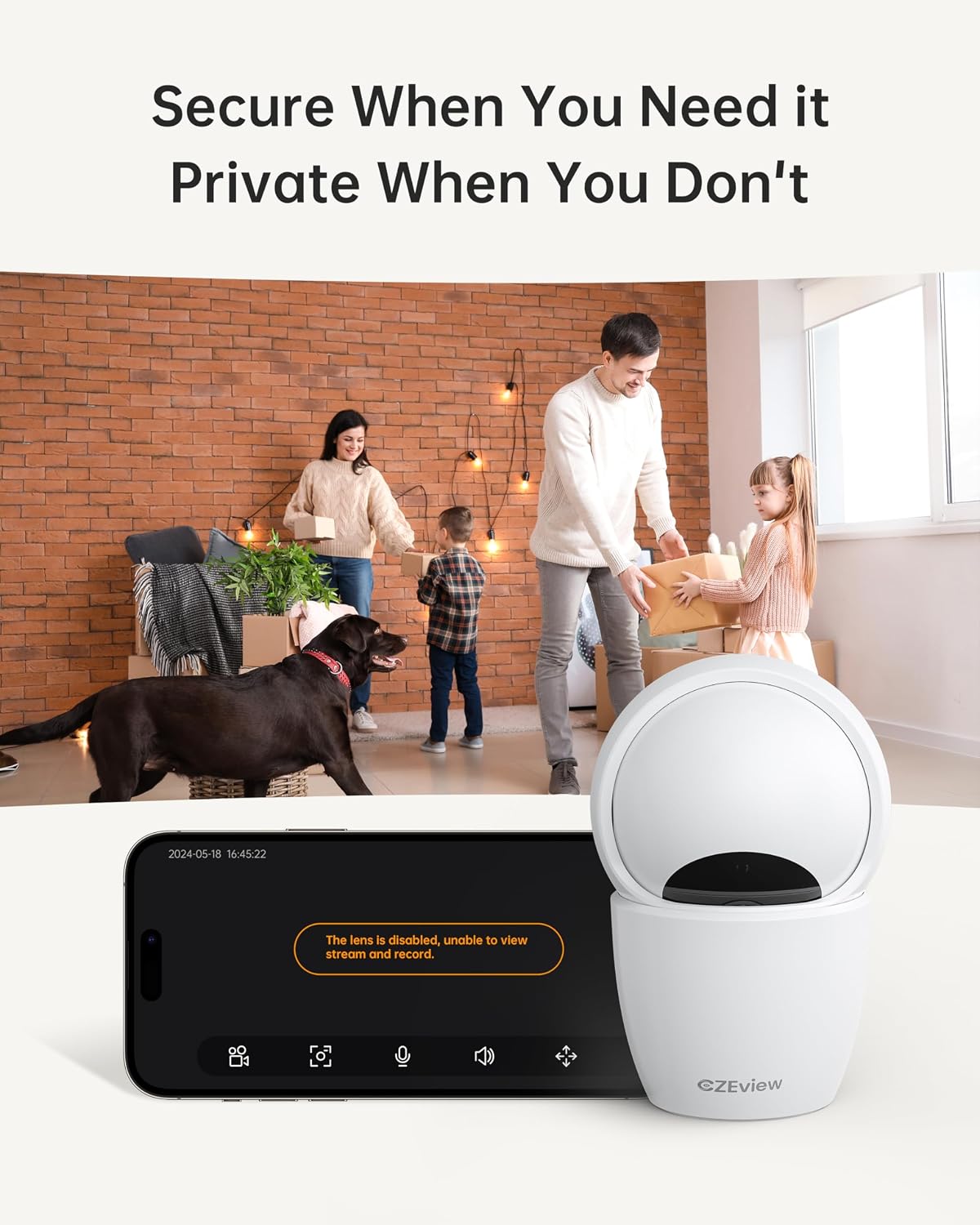
Figure 4.5.1: Privacy Mode Activation. This image illustrates the camera's privacy feature, allowing users to disable the lens for temporary suspension of streaming and recording.
- In the app, locate the privacy mode setting.
- Tap to activate or deactivate privacy mode. When active, the camera lens may physically retract or turn away.
4.6 Možnosti úložiště
The camera supports local storage via a Micro SD card and optional cloud storage.
- Micro SD karta: Insert a Micro SD card (up to 128GB, not included) into the designated slot. Ensure the camera is powered off before inserting or removing the card. The slot is located by tilting the camera lens upwards.
- Cloudové úložiště: Refer to the CZEview app for details on available cloud storage plans and subscription options.
5. Údržba
5.1 Čištění fotoaparátu
- Před čištěním se ujistěte, že je fotoaparát vypnutý.
- K otření těla fotoaparátu použijte měkký, suchý hadřík.
- For the lens, use a lens cleaning cloth specifically designed for optics to avoid scratches.
- Nepoužívejte tekuté čisticí prostředky ani abrazivní materiály.
5.2 aktualizací firmwaru
- Periodically check the CZEview app for available firmware updates.
- Follow the app's instructions to update the camera's firmware to ensure optimal performance and access to new features.
6. Řešení problémů
| Problém | Možná příčina | Řešení |
|---|---|---|
| Kamera se nepřipojuje k Wi-Fi | Incorrect Wi-Fi password; Camera too far from router; Router issues; Incorrect Wi-Fi band (2.4GHz vs 5GHz) | Double-check Wi-Fi password. Move camera closer to router. Restart router. Ensure you are connecting to the correct Wi-Fi band (camera supports both). |
| Žádný živý video přenos | Camera offline; Network issue; Privacy mode active | Check camera's power and Wi-Fi connection. Verify internet connectivity. Disable privacy mode in the app. |
| Špatná kvalita videa | Low bandwidth; App resolution setting; Dirty lens | Ensure stable Wi-Fi connection. Change video quality setting to HD or 5MP in the app. Clean the camera lens. |
| Detekce pohybu nefunguje | Detection sensitivity too low; Feature disabled in app; Obstruction in view | Adjust motion detection sensitivity in app settings. Ensure motion detection is enabled. Clear any obstructions from the camera's view. |
| Cannot insert Micro SD card | Incorrect orientation; Lens not tilted up | Ensure the card is oriented correctly. Tilt the camera lens upwards to reveal the SD card slot. |
If you encounter issues not listed here, please refer to the CZEview app's help section or contact customer support.
7. Specifikace
| Funkce | Detail |
|---|---|
| Model | ZY-D4 |
| Značka | CZEview |
| Rezoluce | 5 MP (3K) |
| Konektivita | Wi-Fi (2.4 GHz a 5 GHz) |
| Rozsah otáčení/naklánění | Horizontální 355°, Vertikální 100° |
| Skladování | Micro SD Card (up to 128GB, not included), Cloud Storage (optional) |
| Moc | 3 wattů |
| Rozměry (D x Š x V) | 7.62 x 7.62 x 12.7 cm |
| Hmotnost | 322 gramů |
| Materiál | Kov |
| Typ montáže | Držák na strop |
| Barva | Ecru |
8. Záruka a podpora
For warranty information and technical support, please refer to the CZEview oficiální website or contact their customer service directly. Details can typically be found within the CZEview application or on the product packaging.
Ask a question about this manual
Ask about setup, troubleshooting, compatibility, parts, safety, or missing instructions. Manuals+ will review the question and use this page’s manual context to help answer it.