
1. Úvod
Thank you for choosing the Elprico Dash Cam. This device is designed to provide reliable video recording while driving, enhancing your safety and providing evidence in case of incidents. This manual will guide you through the installation, operation, and maintenance of your dash cam.
2. Bezpečnostní informace
- Ujistěte se, že je palubní kamera bezpečně nainstalována a nebrání řidiči ve výhledu. view nebo zasahovat do ovládání vozidla.
- Nepoužívejte zařízení za jízdy. Nastavení upravujte pouze tehdy, když je vozidlo bezpečně zaparkované.
- Používejte pouze dodaný napájecí kabel a příslušenství, abyste předešli poškození nebo požáru.
- Chraňte zařízení před extrémními teplotami, delším vystavením přímému slunečnímu záření a vlhkosti.
- Nepokoušejte se zařízení sami rozebírat nebo opravovat. Požádejte o pomoc zákaznickou podporu.
- Regularly check that the dash cam is recording correctly.
3. Obsah balení
Zkontrolujte prosím balení, zda neobsahuje následující položky:
- Elprico Dash Cam Unit
- Car Charger (with USB cable)
- Mounting Bracket (with adhesive pad)
- Uživatelská příručka (tento dokument)
- Note: A MicroSD card is required for recording and is typically sold separately.

Image: Elprico Dash Cam unit shown alongside its car charger and USB cable.
4. Konec produktuview
The Elprico Dash Cam features a compact design with a 140° wide-angle lens, HD video recording capabilities, and built-in Wi-Fi for app connectivity.

Obrázek: Přední strana view of the Elprico Dash Cam, showing the lens and "FULL HD HIGH DEFINITION" label.

Obrázek: Detail view of the side of the dash cam, showing the USB port, MicroSD card slot, and ventilation holes.

Image: Close-up of the dash cam's wide-angle lens.
5. Nastavení a instalace
Follow these guidelines for proper installation of your Elprico Dash Cam:
- Choose Installation Location (A): Mount the dash cam unit on the upper edge of the front windshield. Ensure it does not obstruct your view. Route the connecting wire along the roof gap and through the A-pillar to the fuse box or cigarette lighter.
- Power Connection via Fuse Box (B): For 24-hour parking monitoring, connect the dash cam to the vehicle's fuse box using a special intelligent voltage reduction line. This ensures normal power supply and includes a low voltage automatic power-off feature to protect your car battery.
- Power Connection via Cigarette Lighter (C): Alternatively, power the dash cam using the car's cigarette lighter socket. Route the cable along the passenger side, hiding it through the storage compartment to the center console cigarette lighter.
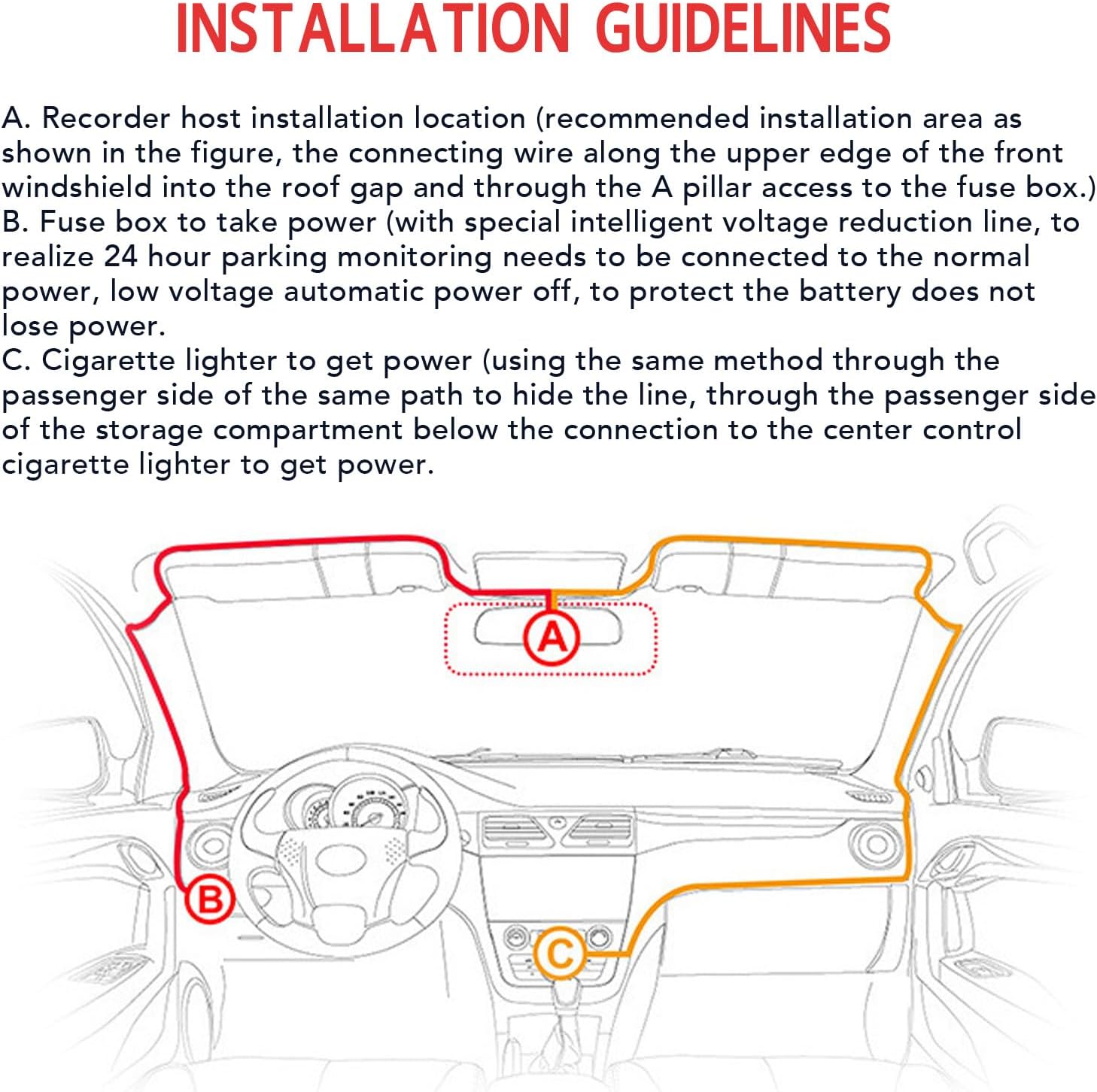
Image: Diagram illustrating recommended installation points (A, B, C) for the dash cam and cable routing within a car interior.
5.1 Vložení karty MicroSD
Insert a high-speed MicroSD card (Class 10 or higher, up to 32GB recommended) into the designated slot on the side of the dash cam. Ensure the card is inserted correctly until it clicks into place. Format the card within the dash cam settings before first use for optimal performance.
6. Návod k obsluze
6.1 Zapnutí/vypnutí
The dash cam will automatically power on and begin recording when connected to a power source and the vehicle ignition is turned on. It will power off automatically when the ignition is turned off.
6.2 Režimy nahrávání
- Nahrávání ve smyčce: The dash cam continuously records video in short segments (e.g., 1, 3, or 5 minutes). When the storage limit of the MicroSD card is reached, the new video will automatically overwrite the oldest unlocked video.
- Nouzové nahrávání (G-senzor): In the event of a sudden shake or collision, the built-in G-sensor will detect the impact and automatically lock the current video segment, preventing it from being overwritten by loop recording. These files are saved in a separate folder.

Image: Diagram illustrating the loop recording function, where new video overwrites older, unlocked footage, while important events are saved.

Image: A visual representation of an emergency recording event, indicated by a lock icon, signifying that footage of an incident is protected.
6.3 Wi-Fi Connectivity and App Usage
The dash cam features built-in Wi-Fi for easy connectivity with a dedicated mobile application. This allows you to:
- View živé footage z palubní kamery.
- Playback recorded videos directly on your smartphone.
- Stáhněte si nahraná videa do telefonu.
- Upravte nastavení palubní kamery.
- Sdílet jídlotage to social media (via the app).
Refer to the app's instructions for detailed pairing and usage steps.
6.4 Infračervené noční vidění
The dash cam is equipped with infrared night vision capabilities. It automatically increases exposure in low-light conditions to capture clear video footage, helping to record details such as license plates, drivers, and passengers even in dark environments.
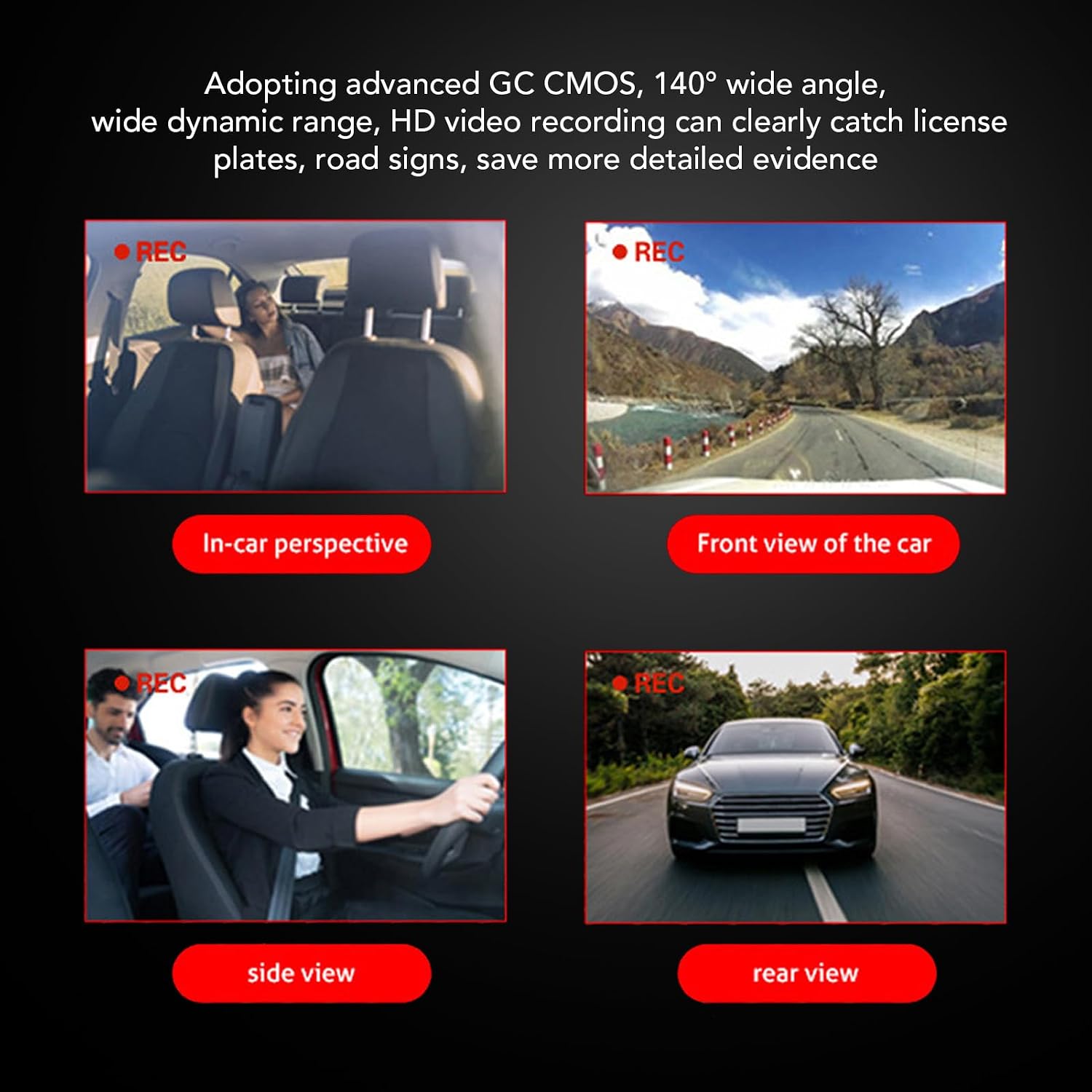
Image: Four panels showing different recording perspectives: in-car, front view of the car, side viewa zadní view, demonstrating the camera's wide coverage.
7. Údržba
- Čištění: Use a soft, dry cloth to clean the lens and the device body. Do not use abrasive cleaners or solvents.
- MicroSD karta: Format the MicroSD card regularly (e.g., once a month) to maintain optimal recording performance and prevent data corruption. Back up any important files před formátováním.
- Aktualizace firmwaru: Zkontrolujte výrobce website or the mobile app for any available firmware updates to ensure your dash cam has the latest features and bug fixes.
8. Řešení problémů
- Palubní kamera se nezapíná:
- Check the power connection to the car charger and the dash cam.
- Ensure the car's cigarette lighter socket or fuse box connection is working.
- Try a different power source if available.
- Problémy s nahráváním (např. zastavení nahrávání, poškození files):
- Ensure a high-speed (Class 10 or higher) MicroSD card is used.
- Pravidelně formátujte kartu MicroSD.
- Zkuste jinou kartu MicroSD.
- Check if the card is full (loop recording should prevent this, but emergency files can accumulate).
- Problémy s připojením k Wi-Fi:
- Ujistěte se, že je Wi-Fi na palubní kameře povoleno.
- Restartujte palubní kameru i chytrý telefon.
- Ujistěte se, že jste v těsné blízkosti palubní kamery.
- Reinstall the mobile application.
- Kvalita obrazu je špatná:
- Vyčistěte čočku palubní kamery.
- Ujistěte se, že z objektivu byla odstraněna ochranná fólie.
- Check settings for video resolution.
9. Specifikace
| Značka | Elprico |
| Název modelu | Elpricow3txqsc8gy |
| Technologie připojení | Wi-Fi |
| Kontrolní metoda | Touch (via app) |
| Kompatibilní zařízení | Auto |
| Typ služby vozidla | Auto |
| Maximální rozlišení videa | 1920x (HD) |
| Široký úhel | 140° |
| Skladování | Karta MicroSD (není součástí balení) |
10. Záruka a podpora
Specific warranty information is not provided in the product details. Please refer to the retailer or manufacturer's official webzáruční podmínky naleznete na webu.
For technical support or further inquiries, please contact Elprico customer service through their official channels.