
Cleyver ODHCAM360
Cleyver ODHCAM 360° Webuživatelská příručka kamery
Model: ODHCAM360
1. Úvod
Thank you for choosing the Cleyver ODHCAM 360° Webcam. This device is designed to enhance your video conferencing experience with its panoramic view, intelligent features, and high-quality audio-visual capabilities. Please read this manual carefully to ensure proper setup and operation.
2. Konec produktuview
The Cleyver ODHCAM 360° Webcam integrates a 5 MP Full HD CMOS sensor, omnidirectional microphones, and a 3W HD speaker into a single, compact unit. It offers a 360° field of view and intelligent features like voice tracking and automatic framing to keep participants engaged.
2.1 Obsah balení
- Cleyver ODHCAM 360° Webvačka
- USB kabel
- (Potentially) Driver/Software CD
- (Potentially) Lens Cap
2.2 Součásti zařízení
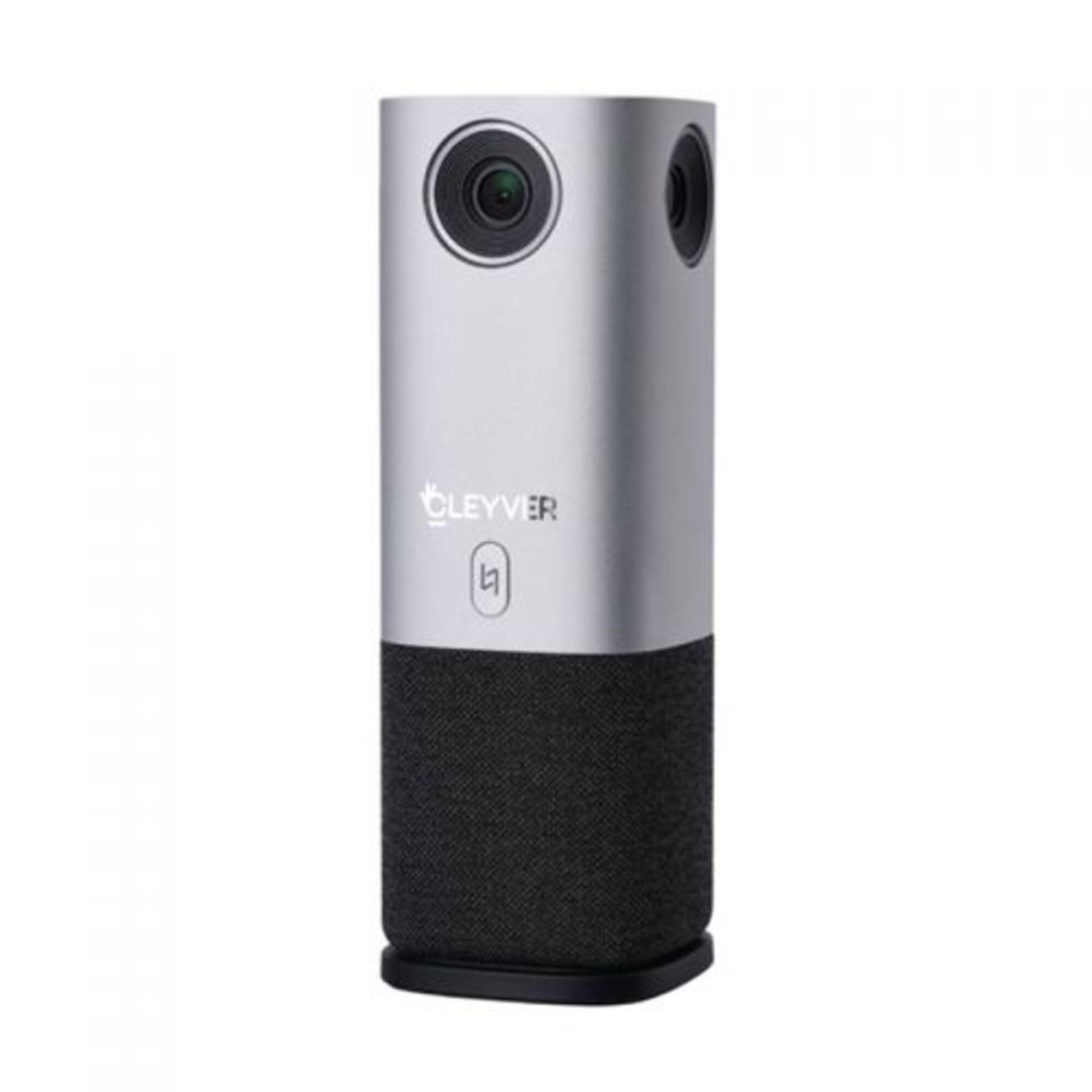
Obrázek 1: Přední strana view of the Cleyver ODHCAM 360° Webcam. Shows the main camera lens, Cleyver logo, and a button.

Obrázek 2: Zadní view of the Cleyver ODHCAM 360° Webcam, highlighting the USB and power ports.

Figure 3: A hand pressing the mode selection button on the Cleyver ODHCAM 360° Webvačka.
3. Nastavení
The Cleyver ODHCAM 360° Webcam is designed for Plug & Play operation, requiring minimal setup.
3.1 Připojení zařízení
- Umístěte webcam on a stable surface in the center of your meeting area.
- Connect the provided USB cable to the USB port on the webvačka.
- Připojte druhý konec kabelu USB k volnému portu USB v počítači.
- Připojte napájecí adaptér k webcam's power input and then to a wall outlet. The device requires external power for full functionality.
- Your computer should automatically detect and install the necessary drivers. If not, refer to the (potentially) included driver CD or download drivers from the official Cleyver webmísto.

Figure 4: USB and power cables connected to the Cleyver ODHCAM 360° Webvačka.
4. Návod k obsluze
Po připojení se webcam is ready for use with your preferred video conferencing software.
4.1 Selecting a Presentation Mode
The Cleyver ODHCAM 360° offers 6 distinct presentation modes to suit various meeting scenarios. Press the mode selection button on the device to cycle through the available modes.
- Full Screen 360°: Displays a complete panoramic view místnosti.
- Vše kolem View: Presents a split view with a panoramic top section and individual speaker views níže.
- Host Mode: Focuses on the primary speaker while showing a panoramic view.
- Dual Host Mode: Highlights two main speakers simultaneously.
- Singl View 90°: Provides a standard 90-degree field of view, focusing on a specific area.
- Široký úhel View 120°: Offers a broader 120-degree field of view.
The device uses AI voice tracking and automatic framing to dynamically adjust the view based on who is speaking, ensuring optimal visibility for all participants.
4.2 Zvukové funkce
- Omnidirectional Microphones: The integrated microphones capture clear audio from all directions.
- 3W HD Speaker: Provides clear sound output for incoming audio.
- Funkce ztlumení: A dedicated button on the device allows you to quickly mute/unmute the microphones. An indicator light will show the mute status (e.g., red for muted, green for active).
4.3 Kompatibilita
The Cleyver ODHCAM 360° Webcam is compatible with most popular video conferencing platforms and operating systems, including Windows and macOS. It is designed to work seamlessly with applications such as Zoom, Microsoft Teams, Skype, Google Meet, and others.
Video 1: Demonstration of the Nuroum C50 Webcam (similar to Cleyver ODHCAM 360°) features, including panoramic view and voice tracking. This video illustrates how the camera automatically focuses on the active speaker during a meeting.
Video 2: Unboxing and initial setup of a CZUR Halo webcam (similar to Cleyver ODHCAM 360°). This video demonstrates the physical components and how to connect the device.
Video 3: Konecview of the j5create 360-degree meeting webcam (similar to Cleyver ODHCAM 360°), showcasing its various display modes and omnidirectional microphone capabilities.
Video 4: Promotional video for Nuroum C20 (similar to Cleyver ODHCAM 360°), highlighting its all-in-one conference camera features, AI noise cancellation, and effective voice capture.
Video 5: Instructions on how to use the CZUR Halo webcam (similar to Cleyver ODHCAM 360°) with Zoom, demonstrating camera selection within the application.
5. Údržba a péče
- Udržujte zařízení čisté otíráním měkkým suchým hadříkem.
- Vyhněte se používání agresivních chemikálií nebo abrazivních čisticích prostředků.
- Ensure the lens is free from dust and smudges for optimal image quality.
- Uložte webcam in a cool, dry place when not in use.
- Nevystavujte zařízení extrémním teplotám nebo vlhkosti.
6. Řešení problémů
| Problém | Možná příčina | Řešení |
|---|---|---|
| Žádný obrazový/video výstup |
|
|
| Žádný audio vstup/výstup |
|
|
| Špatná kvalita obrazu |
|
|
7. Specifikace
| Funkce | Detail |
|---|---|
| Značka | Cleyver |
| Model | ODHCAM360 |
| Barva | Stříbro |
| Speciální funkce | 360° Video Conferencing, Voice Tracking, Automatic Framing |
| technologie Sensor | CMOS |
| Efektivní rozlišení | 5 megapixelů |
| Rozlišení videa | 1080p |
| Technologie připojení | USB |
| Mikrofony | Všesměrový |
| Reproduktor | 3W HD Speaker |
| Rozměry (D x Š x V) | 6.76 x 6.75 x 18.2 cm |
| Kompatibilní zařízení | Laptop, Personal Computer, (potentially) Tablet, (potentially) Smartphone |
| Typ zaměření | Auto Focus, Manual Focus |
| Úroveň odolnosti proti vodě | Není vodotěsný |
8. Záruka a podpora
For warranty information and technical support, please refer to the documentation included with your product or visit the official Cleyver webUschovejte si účtenku jako doklad o koupi pro případ reklamace.
Ask a question about this manual
Ask about setup, troubleshooting, compatibility, parts, safety, or missing instructions. Manuals+ will review the question and use this page’s manual context to help answer it.