
1. Úvod
Welcome to the user manual for your new HP Victus 16.1" Gaming Notebook. This document provides essential information to help you set up, operate, maintain, and troubleshoot your device. Please read this manual thoroughly to ensure optimal performance and longevity of your notebook.
The HP Victus 16.1" Gaming Notebook is designed for high-performance computing and gaming, featuring an AMD Ryzen 5 7640HS processor, NVIDIA GeForce RTX 3050 graphics, 16GB of RAM, and a 512GB SSD, all complemented by a 144Hz Full HD display.
2. Bezpečnostní informace
Observe the following safety guidelines to prevent damage to your device or personal injury:
- Use only the power adapter supplied with your notebook.
- Do not expose the notebook to extreme temperatures, humidity, or direct sunlight.
- Avoid placing heavy objects on the notebook.
- Keep liquids away from the device. In case of accidental spills, disconnect power immediately and contact support.
- Do not attempt to disassemble or repair the notebook yourself. Refer to qualified service personnel.
- Zajistěte správné větrání, aby nedošlo k přehřátí. Neblokujte ventilační otvory.
3. Obsah balení
Ověřte, zda jsou v balení produktu přítomny všechny položky:
- HP Victus 16.1" Gaming Notebook
- Napájecí adaptér a napájecí kabel
- Stručný průvodce (pokud je součástí dodávky)
- Informace o záruce (pokud jsou součástí dodávky)
If any items are missing or damaged, contact your retailer or HP support.
4. Konec produktuview
Familiarize yourself with the components and features of your HP Victus Gaming Notebook.

Obrázek 4.1: Přední view of the HP Victus 16.1" Gaming Notebook with the lid open, showcasing the display running Windows 11.

Obrázek 4.2: Úhlové view of the HP Victus 16.1" Gaming Notebook, illustrating the keyboard, touchpad, and the vibrant display.
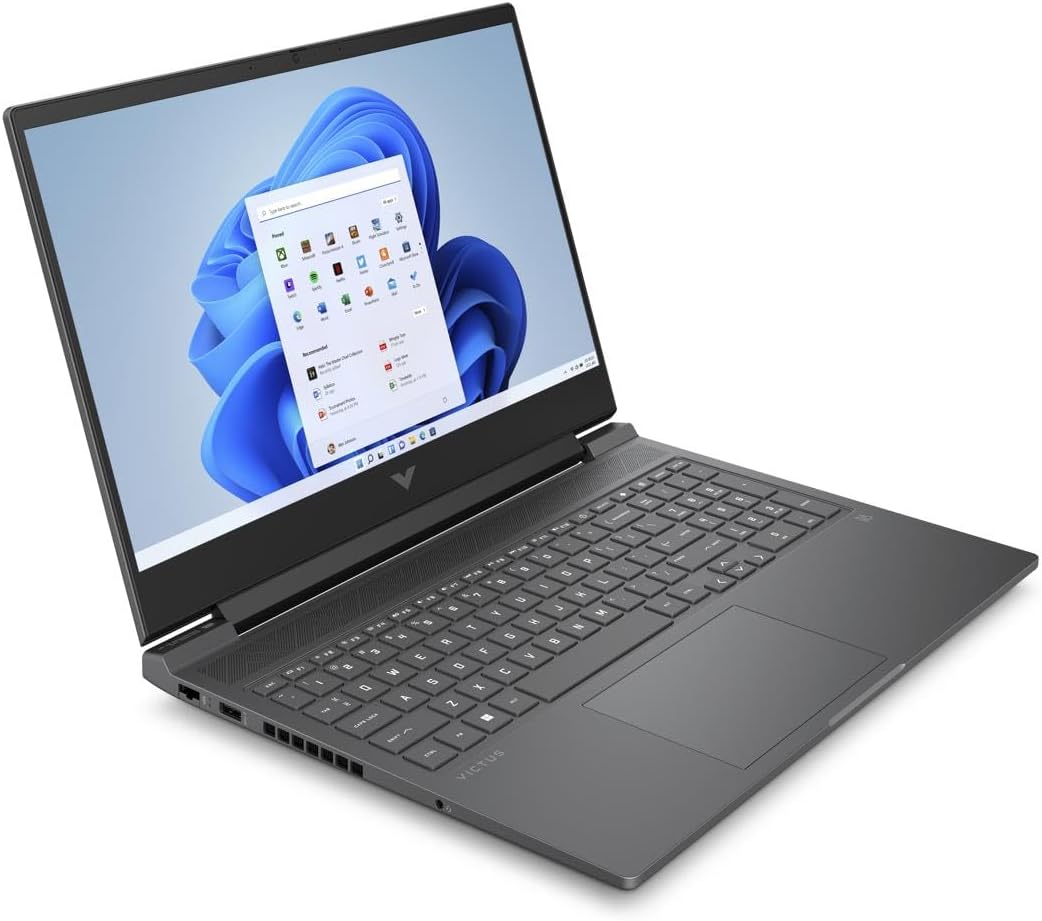
Obrázek 4.3: Another angled perspective of the HP Victus 16.1" Gaming Notebook, highlighting its sleek design and screen clarity.
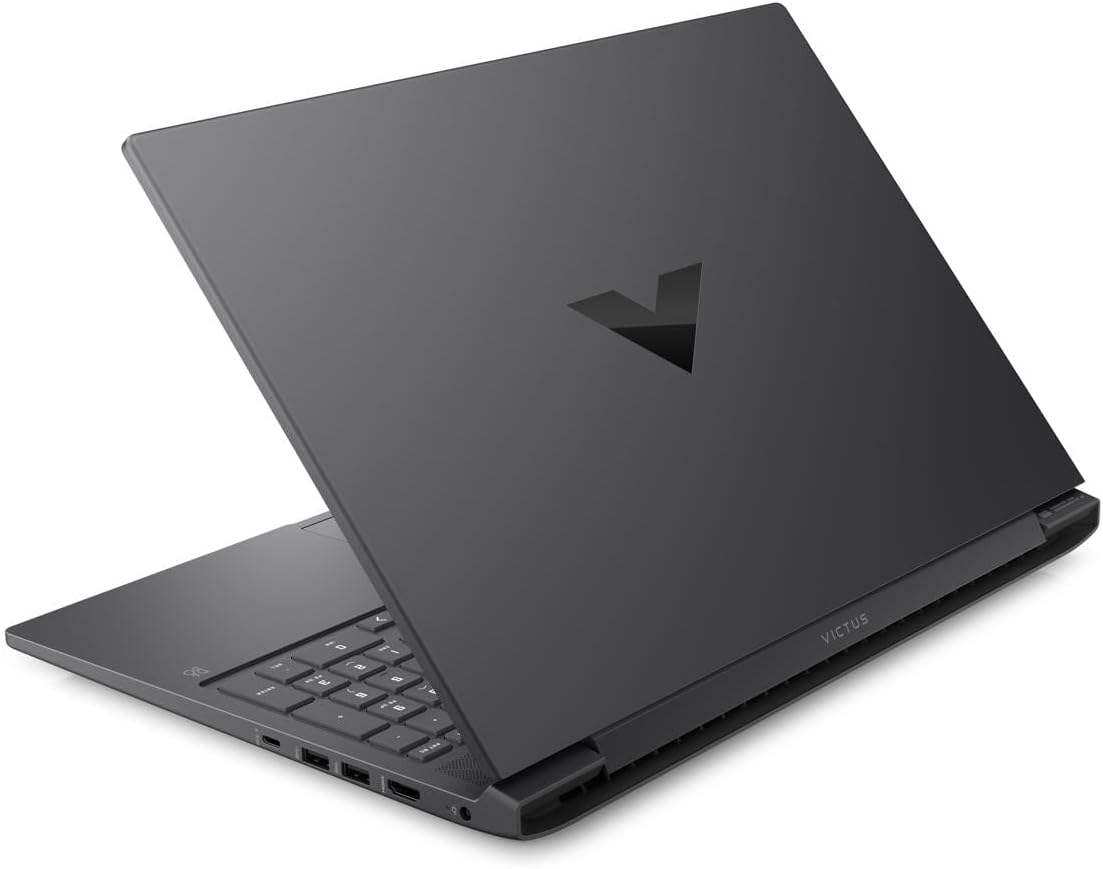
Obrázek 4.4: Zadní view of the HP Victus 16.1" Gaming Notebook with the lid closed, featuring the distinct Victus logo on the cover.

Obrázek 4.5: Boční profíkfiles of the HP Victus 16.1" Gaming Notebook, detailing the placement of various input/output ports and ventilation grilles.
Klíčové komponenty:
- Zobrazit: 16.1-inch Full HD (1920 x 1080) 144Hz Anti-glare panel.
- Klávesnice: Plnohodnotná klávesnice s numerickou částí.
- Touchpad: Multi-touch gesture enabled touchpad.
- Porty: USB Type-A, USB Type-C, HDMI, Ethernet, Audio Jack, Power connector.
- Webvačka: Integrovaný webcam for video communication.
- Řečníci: Integrované stereo reproduktory.
5. Nastavení
Follow these steps for the initial setup of your HP Victus Gaming Notebook:
- Unpack the Notebook: Carefully remove the notebook and all accessories from the packaging.
- Připojte napájení: Plug the power adapter into the notebook's power port and then into a wall outlet. Ensure the power indicator light illuminates.
- Počáteční zapnutí: Open the lid and press the power button, typically located on the keyboard deck.
- Nastavení systému Windows: Follow the on-screen instructions to complete the Windows 11 setup process. This includes selecting your region, connecting to a Wi-Fi network, creating a user account, and accepting terms and conditions.
- Aktualizace: After initial setup, it is recommended to check for and install all available Windows updates and HP driver updates to ensure optimal performance and security.
6. Návod k obsluze
Řízení spotřeby:
- Zapnutí: Stiskněte tlačítko napájení.
- Vypnout: Klikněte na tlačítko Start a poté na Napájení > Vypnout.
- Režim spánku: Zavřete víko nebo klikněte na tlačítko Start a poté na Napájení > Režim spánku.
- Restartovat: Klikněte na tlačítko Start a poté na Napájení > Restartovat.
Použití klávesnice a touchpadu:
- The keyboard functions like a standard PC keyboard. Use the Fn key in combination with function keys (F1-F12) for special features like volume control, brightness adjustment, and Wi-Fi toggle.
- The touchpad supports multi-touch gestures for scrolling, zooming, and switching applications. Refer to Windows settings for customization.
Připojení periferií:
Your notebook features various ports for connecting external devices:
- USB porty: Připojte zařízení USB, jako jsou externí pevné disky, myši nebo klávesnice.
- Port HDMI: Pro rozšířené zobrazení připojte externí monitor nebo televizor.
- Audio jack: Připojte sluchátka nebo externí reproduktory.
- Ethernetový port: Pro stabilní přístup k internetu se připojte k pevné síti.
Nastavení obrazovky:
To utilize the 144Hz refresh rate for smoother visuals, especially in gaming:
- Klikněte pravým tlačítkem myši na plochu a vyberte možnost „Nastavení zobrazení“.
- Scroll down and click 'Advanced display settings'.
- Under 'Choose a refresh rate', select '144 Hz'.
7. Údržba
Proper maintenance ensures the longevity and performance of your notebook:
- Čištění: K čištění obrazovky a šasi použijte měkký hadřík, který nepouští vlákna. V případě odolných skvrn použijteampHadřík lehce navlhčete vodou nebo čističem obrazovek. Vyhněte se agresivním chemikáliím.
- Aktualizace softwaru: Regularly check for and install operating system updates (Windows Update) and driver updates (HP Support Assistant or HP website) to ensure security and optimal performance.
- Péče o baterie: To maximize battery lifespan, avoid fully discharging the battery frequently. If storing the notebook for an extended period, charge it to about 50-70%.
- Větrání: Ensure the ventilation grilles are clear of dust and debris. Use the notebook on a hard, flat surface to allow for proper airflow.
- Záloha dat: Pravidelně zálohujte důležitá data na externí disk nebo cloudové úložiště, abyste předešli jejich ztrátě.
8. Řešení problémů
This section addresses common issues you might encounter with your HP Victus Gaming Notebook.
No Power / Not Turning On:
- Ensure the power adapter is securely connected to both the notebook and a working wall outlet.
- Zkontrolujte, zda je zásuvka funkční, zapojením jiného zařízení.
- Pokud je baterie zcela vybitá, nechte ji nabíjet alespoň 15–30 minut, než se ji pokusíte zapnout.
Problémy se zobrazením:
- Prázdná obrazovka: Try connecting an external monitor to see if there is output. If so, the internal display might have an issue.
- Blikající/zkreslený obraz: Aktualizujte ovladače grafické karty. Pokud používáte externí monitor, zkontrolujte připojení kabelů displeje.
- Nesprávné rozlišení/obnovovací frekvence: Adjust settings in Windows Display settings as described in Section 6.
Problémy s výkonem:
- Pomalý výkon: Zavřete nepotřebné aplikace. Zkontrolujte Správce úloh, zda procesy nespotřebovávají mnoho CPU nebo RAM. Zajistěte dostatek volného místa na disku SSD.
- Přehřívání: Ensure ventilation vents are clear. Use the notebook on a hard, flat surface. Consider using a cooling pad if issues persist.
- Herní výkon: Ensure graphics drivers are up to date. Adjust in-game graphics settings to match your system's capabilities.
Problémy s připojením:
- Problémy s Wi-Fi: Restart your router and modem. Check if Wi-Fi is enabled on the notebook (Fn + F12 or similar key combination). Update wireless drivers.
- Problémy s Bluetooth: Ensure Bluetooth is enabled in Windows settings. Try re-pairing the device.
If you cannot resolve an issue using these steps, please refer to the HP support webnebo kontaktujte zákaznický servis.
9. Specifikace
Detailed technical specifications for the HP Victus 16.1" Gaming Notebook (Model 16-s0001nr).
| Funkce | Specifikace |
|---|---|
| Název modelu | 16-s0001nr (823F0UA#ABA) |
| Procesor | AMD Ryzen 5 7640HS (Hexa-core) |
| Grafika | NVIDIA GeForce RTX 3050 (6 GB GDDR6 Dedicated) |
| Zobrazit | 16.1-inch FHD (1920 x 1080) 144Hz, Anti-glare |
| BERAN | 16 GB DDR5 SDRAM |
| Skladování | 512 GB SSD |
| Operační systém | Windows 11 Home |
| Bezdrátové připojení | 802.11ax (Wi-Fi 6), Bluetooth |
| Porty | USB Type-A, USB Type-C, HDMI, Ethernet, Audio Jack |
| Rozměry (DxŠxV) | 23.5 x 13.7 x 2.8 palce |
| Hmotnost | 10 libry |
| Barva | Mica Silver |
| Rok vydání | 2024 |
10. Záruka a podpora
Your HP Victus Gaming Notebook comes with a standard manufacturer's warranty. Please refer to the warranty documentation included with your product for specific terms and conditions, including coverage period and service options.
Technickou podporu, ovladače ke stažení a další zdroje naleznete na oficiálních stránkách podpory HP. webmísto:
When contacting support, please have your product model number (16-s0001nr or 823F0UA#ABA) and serial number ready.