
MELCAM Digital Picture Frame
Uživatelská příručka k digitálnímu fotorámečku MELCAM 10.5 palce s rozlišením 1080p
Model: 10.5-Inch 1080p Digital Picture Frame (ASIN: B0CHRTWHLM)
1. Úvod
Děkuji za nákupasing the MELCAM 10.5-Inch 1080p Digital Picture Frame. This device allows you to display your favorite photos and videos with clarity and ease. This manual provides detailed instructions for setting up, operating, and maintaining your digital picture frame to ensure optimal performance and longevity.
2. Důležité bezpečnostní informace
- Před použitím si pečlivě přečtěte všechny pokyny.
- Chraňte zařízení před vodou, vlhkostí a vysokou vlhkostí vzduchu.
- Nevystavujte zařízení přímému slunečnímu záření nebo extrémním teplotám.
- Používejte pouze dodaný napájecí adaptér. Použití neschváleného adaptéru může poškodit zařízení a vést ke ztrátě záruky.
- Nepokoušejte se zařízení rozebírat ani opravovat sami. Veškerý servis svěřte kvalifikovanému personálu.
- Uchovávejte mimo dosah dětí.
- Odpojte zařízení během bouřky nebo když se delší dobu nepoužívá.
3. Obsah balení
Zkontrolujte prosím balení, zda neobsahuje následující položky:
- MELCAM 10.5-Inch Digital Picture Frame
- Napájecí adaptér
- Dálkové ovládání
- Uživatelská příručka (tento dokument)
4. Konec produktuview
Seznamte se s komponenty vašeho digitálního fotorámečku.
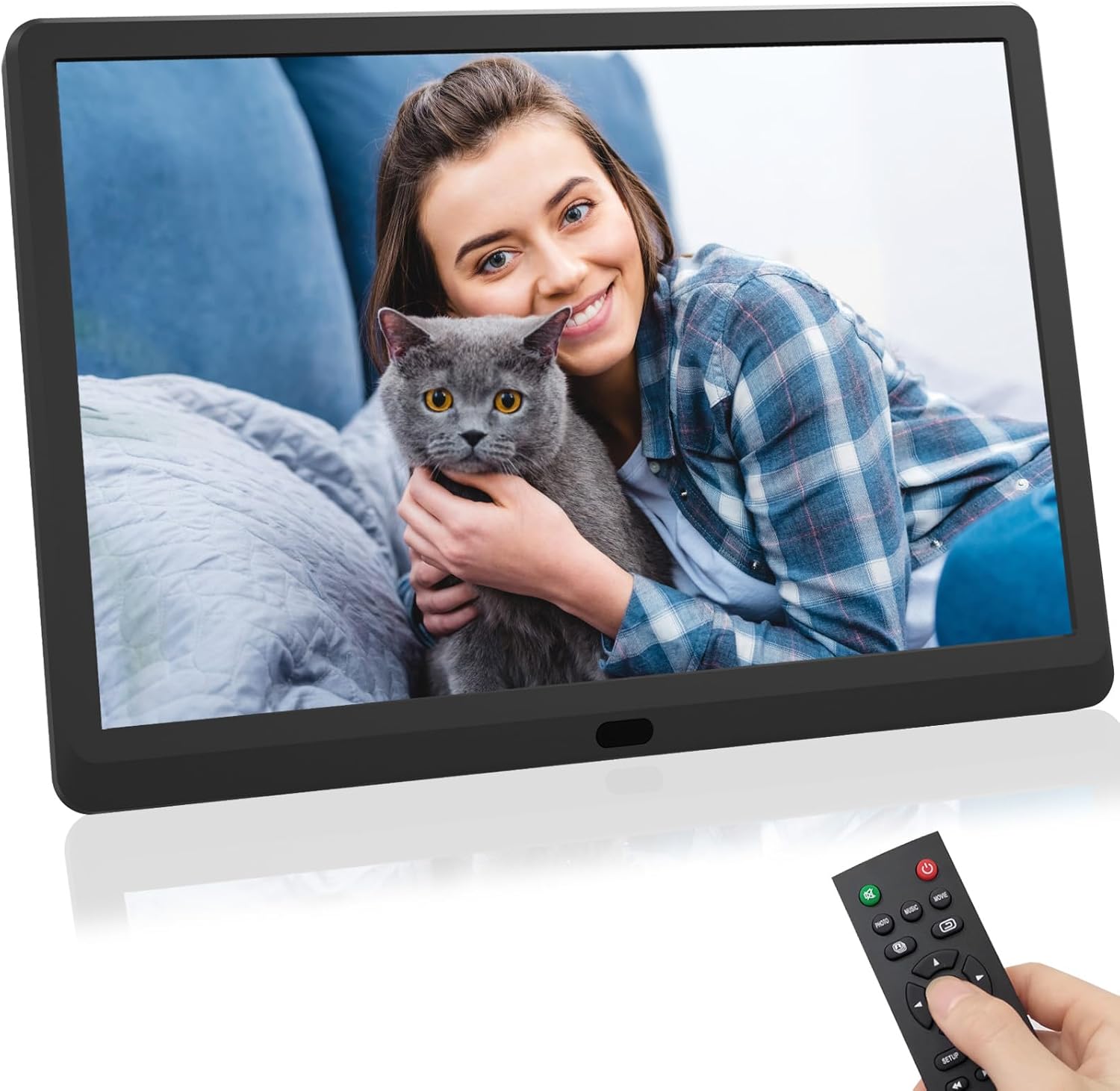
Obrázek 1: Přední view of the MELCAM 10.5-Inch Digital Picture Frame, displaying an image of a woman holding a cat. A remote control is shown in the foreground, held by a hand.
4.1. Frame Components
- Displej: 10.5-inch 1080p HD display for photos and videos.
- Napájecí port: Připojuje se k napájecímu adaptéru.
- USB port: Pro připojení USB flash disků.
- Slot pro SD kartu: For inserting SD/MMC memory cards.
- Ovládací tlačítka: Basic navigation buttons on the back or side.
4.2. Dálkové ovládání
The remote control provides convenient access to all functions. It typically includes buttons for power, menu, navigation (up, down, left, right, OK), exit, volume, and media type selection (photo, music, movie).
5. Nastavení
- Rozbalit: Opatrně vyjměte všechny součásti z obalu.
- Pozice: Place the digital picture frame on a stable, flat surface.
- Připojení napájení: Connect the power adapter to the DC IN port on the frame, then plug the adapter into a wall outlet. The frame should power on automatically or can be turned on using the power button on the frame or remote.
- Vložit médium: Insert a USB flash drive into the USB port or an SD/MMC card into the SD card slot. Ensure the media contains compatible photo (JPEG, BMP, PNG) or video (MP4, AVI, MOV) files.
- Baterie dálkového ovládání: If the remote control is not working, check if the battery is correctly inserted or needs replacement.
6. Návod k obsluze
6.1. Základní navigace
- Použijte Šipka buttons on the remote or frame to navigate through menus and options.
- Stiskněte tlačítko OK tlačítko pro potvrzení výběru.
- Stiskněte tlačítko EXIT or NÁVRAT button to go back to the previous menu or exit the current function.
6.2. Přehrávání médií
- Z hlavní nabídky vyberte Fotografie, Hudbanebo Film pomocí dálkového ovládání.
- Přejděte na požadované file or folder on your inserted USB drive or SD card.
- Stiskněte OK to start playback or slideshow.
- During photo slideshow, you can adjust transition speed and effects via the settings menu.
6.3. Nastavení systému
Přístup k NASTAVENÍ menu to customize various frame settings:
- Nastavení obrazovky: Upravte jas, kontrast a poměr stran.
- Nastavení prezentace: Configure slideshow interval, transition effects, and repeat mode.
- Čas a datum: Nastavte aktuální čas a datum.
- Jazyk: Vyberte preferovaný jazyk pro rozhraní nabídky.
- Alarm/Calendar: Utilize built-in alarm clock and calendar functions.
- Automatické přehrávání: Set the frame to automatically play photos, music, or videos upon startup.
7. Údržba
- Čištění obrazovky: Jemně otřete obrazovku měkkým hadříkem, který nepouští vlákna. V případě odolných skvrn lehceampOtřete hadřík vodou nebo čističem obrazovek určeným pro elektroniku. Nestříkejte tekutinu přímo na obrazovku.
- Čištění rámu: Use a soft, dry cloth to wipe the frame's exterior.
- Skladování: When not in use for extended periods, unplug the frame and store it in a cool, dry place, away from direct sunlight.
8. Řešení problémů
| Problém | Možné řešení |
|---|---|
| Rám se nezapne. |
|
| Nezobrazuje se žádný obrázek ani video. |
|
| Dálkové ovládání nefunguje. |
|
| Images appear rotated or distorted. |
|
9. Specifikace
| Funkce | Detail |
|---|---|
| Značka | MELCAM |
| Model | Digitální fotorámeček |
| Velikost obrazovky | 10.5 palce |
| Rezoluce | 1080p (1920x1080) |
| Kompatibilní zařízení | USB, SD/MMC Cards |
| Rozměry produktu | 11 x 6 x 0.99 palce |
| Hmotnost položky | 1.98 libry |
| Jsou vyžadovány baterie | No (for frame); Yes (for remote, typically CR2025) |
10. Záruka a podpora
For warranty information or technical support, please refer to the documentation included with your purchase or contact MELCAM customer service. Keep your purchase receipt as proof of purchase.
For further assistance, you may visit the official MELCAM store page: MELCAM Store
Ask a question about this manual
Ask about setup, troubleshooting, compatibility, parts, safety, or missing instructions. Manuals+ will review the question and use this page’s manual context to help answer it.