
Keychron M3
Uživatelská příručka k bezdrátové herní optické myši Keychron M3
Model: M3
Zavedení
Thank you for choosing the Keychron M3 Wireless Gaming Optical Mouse. This manual provides detailed instructions for setting up, operating, and maintaining your new mouse. The Keychron M3 is designed for versatility, offering tri-mode connectivity (2.4 GHz wireless, Bluetooth 5.1, and wired USB-C) and a high-precision sensor for optimal performance in both gaming and productivity tasks. Its lightweight and ergonomic design ensures comfort during extended use.

Figure 1: Keychron M3 Wireless Gaming Optical Mouse (White) with included USB-C and USB-A dongles.
Co je v krabici
Před zahájením instalace se ujistěte, že jsou k dispozici všechny položky:
- Bezdrátová herní optická myš Keychron M3
- Detachable Type-C to Type-C Cable
- Adaptér typu A na typ C
- USB-C 2.4 GHz Receiver
- USB-A 2.4 GHz Receiver

Figure 2: The Keychron M3 mouse alongside its USB-C and USB-A wireless receivers.
Nastavení
The Keychron M3 offers three connection modes: 2.4 GHz Wireless, Bluetooth 5.1, and Wired USB-C.
Bezdrátové připojení 2.4 GHz
- Locate the 2.4 GHz receiver (either Type-C or Type-A) from the packaging.
- Plug the receiver into an available USB port on your computer (Windows or Mac).
- Turn on the mouse using the switch on the bottom. Ensure it is set to the 2.4G mode.
- Myš by se měla automaticky připojit k přijímači.
Připojení Bluetooth 5.1
- Turn on the mouse and set the switch on the bottom to the Bluetooth mode.
- On your computer (Windows or Mac), open Bluetooth settings.
- Hledat new devices. The mouse should appear as "Keychron M3".
- Select "Keychron M3" to pair.
Kabelové připojení USB-C
- Connect one end of the provided Type-C to Type-C cable to the mouse.
- Connect the other end to a USB-C port on your computer. If your computer only has USB-A ports, use the included Type-A to Type-C adapter.
- Myš bude fungovat jako drátová myš a zároveň se bude nabíjet.
Návod k obsluze
The Keychron M3 is designed for intuitive use with advanced customization options.
Úprava DPI
The mouse features a PixArt PAW 3395 sensor with up to 26,000 DPI. You can adjust the DPI sensitivity on-the-fly using the dedicated DPI button, typically located near the scroll wheel. Pressing this button cycles through preset DPI levels.

Figure 3: The top of the Keychron M3 mouse, highlighting the scroll wheel and the DPI adjustment button.
Programmable Buttons and RGB Lighting
The Keychron M3 includes programmable macro buttons and customizable RGB lighting effects. To personalize these features, download and install the Keychron Engine software from the official Keychron webmísto.
- Keychron Engine Software: This software allows you to:
- Modify key assignments and set shortcuts.
- Přizpůsobte si efekty a barvy RGB osvětlení.
- Create and assign dedicated macros.
- Adjust professional settings such as Lift-Off Distance (LOD), polling rate (up to 1000 Hz), and DPI.
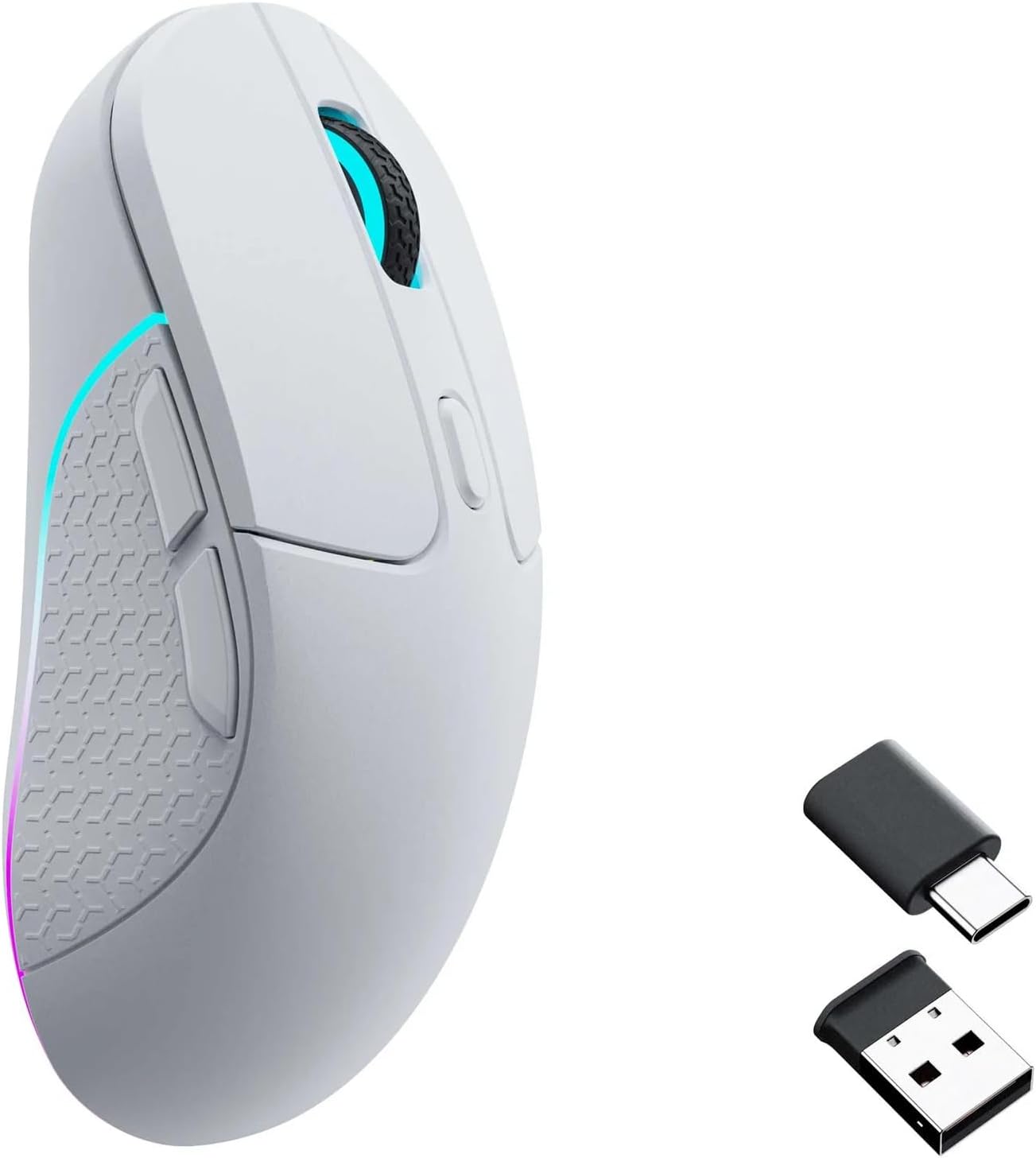
Figure 4: Screenshot of the Keychron Engine software, demonstrating the interface for customizing mouse settings and RGB lighting.

Figure 5: The Keychron M3 mouse displaying its customizable RGB lighting effects.
Údržba
To ensure the longevity and optimal performance of your Keychron M3 mouse, follow these maintenance guidelines:
- Čištění: K otření povrchu myši použijte měkký, suchý hadřík. V případě odolné nečistoty lehceampOmyjte hadřík vodou nebo jemným, neabrazivním čisticím prostředkem. Zabraňte nadměrné vlhkosti.
- Péče o senzor: Keep the optical sensor on the bottom of the mouse clean and free of dust or debris. Use a cotton swab or compressed air if necessary.
- Skladování: Pokud myš delší dobu nepoužíváte, skladujte ji na chladném a suchém místě mimo dosah přímého slunečního záření a extrémních teplot.
- Životnost baterie: The mouse is powered by a nonstandard battery. Charge the mouse using the provided USB-C cable when the battery indicator shows low power.
Odstraňování problémů
| Problém | Možná příčina | Řešení |
|---|---|---|
| Mouse not responding (2.4 GHz Wireless) | Receiver not properly connected; mouse not in 2.4G mode; low battery. | Ensure receiver is fully inserted. Check mouse switch is set to 2.4G. Charge the mouse. |
| Myš se nepřipojuje (Bluetooth) | Mouse not in Bluetooth pairing mode; Bluetooth disabled on computer; interference. | Ensure mouse switch is set to Bluetooth. Enable Bluetooth on your computer. Try re-pairing. Move closer to the computer. |
| Nepřesné sledování nebo zpoždění kurzoru | Dirty optical sensor; unsuitable surface; low battery; wireless interference. | Clean the optical sensor. Use a mouse pad or a clean, non-reflective surface. Charge the mouse. Reduce wireless interference by moving other devices. |
| Tlačítka nebo rolovací kolečko nefungují | Software glitch; physical obstruction. | Restart your computer. Check for debris around buttons/scroll wheel. Reinstall Keychron Engine software if applicable. |
Specifikace
- Model: M3
- Senzor: PixArt PAW 3395
- DPI: Až 26,000 XNUMX DPI
- IPS: Až 650 IPS
- Míra hlasování: Až 1000 Hz
- Konektivita: Tri-Mode (2.4 GHz Wireless, Bluetooth 5.1, Wired USB-C)
- Hmotnost: Přibližně 79 g (2.79 unce)
- Rozměry: 125.2 mm (délka) x 66.4 mm (šířka) x 40.6 mm (výška)
- Baterie: 1 Nonstandard Battery (Rechargeable)
- Kompatibilní zařízení: Windows PC, Mac
- Zahrnuté komponenty: Detachable Type-C to Type-C Cable, Type-A to Type-C Adapter, USB-C 2.4 GHz Receiver, USB-A 2.4 GHz Receiver

Figure 6: Detailed dimensions of the Keychron M3 mouse.
Záruka a podpora
Informace o záruce a technickou podporu získáte na oficiálních stránkách společnosti Keychron. webnebo se obraťte přímo na zákaznický servis Keychron. Uschovejte si účtenku jako doklad o koupi pro případ reklamace.
Výrobce: Keychron
Oficiální Webmísto: www.keychron.com
Ask a question about this manual
Ask about setup, troubleshooting, compatibility, parts, safety, or missing instructions. Manuals+ will review the question and use this page’s manual context to help answer it.