
1. Úvod
This manual provides comprehensive instructions for the HP ProDesk 600G4 Tower Desktop Computer. It covers initial setup, basic operation, connectivity, maintenance, troubleshooting, and detailed technical specifications. This renewed HP ProDesk 600G4 is equipped with an Intel i7-8700 processor, 32GB DDR4 RAM, and a 1TB SSD, running Windows 11 Professional 64-bit. It is designed for various tasks including professional multitasking, web browsing, and multimedia applications.
Key features of your HP ProDesk 600G4 include:
- Intel Powered Performance: Equipped with an 8th Generation Hexa-Core Intel i7 processor and 32GB DDR4 RAM for efficient multitasking and content creation.
- Vysokorychlostní úložiště: Features an ultra-fast 1TB Solid State Drive (SSD) for rapid boot times and program loading.
- Moderní konektivita: Includes USB 3.0, USB 2.0, USB Type-C, DisplayPort, Ethernet, and integrated Wi-Fi (802.11n) and Bluetooth capabilities.
- Windows 11 Professional: Pre-installed with Windows 11 Professional 64-bit for a secure and convenient user experience.
2. Co je v krabici
Please verify that all the following items are included with your HP ProDesk 600G4 Tower Desktop Computer:
- HP ProDesk 600G4 Tower Desktop Computer
- Napájecí kabel
- USB Wi-Fi adaptér
- USB Bluetooth adaptér
- Klávesnice
- Myš
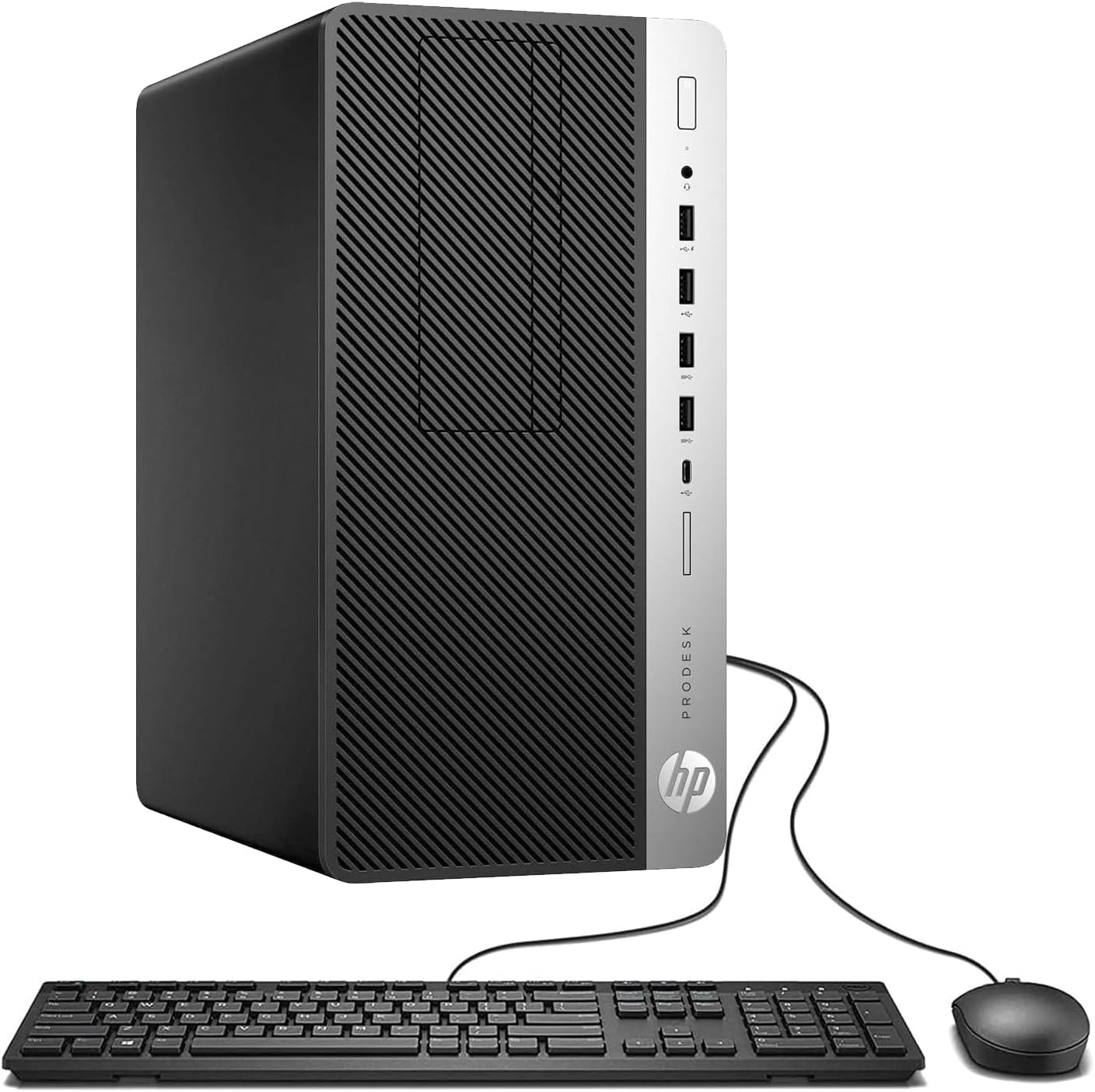
Figure 2.1: HP ProDesk 600G4 Tower Desktop Computer with standard peripherals.
3. Počáteční nastavení
Follow these steps to set up your HP ProDesk 600G4 desktop computer:
- Rozbalení počítače: Carefully remove the computer and all accessories from the packaging. Retain packaging for future transport or service.
- Připojení periferií:
- Connect your monitor to one of the DisplayPort outputs on the rear of the computer. Adapters (e.g., DisplayPort to HDMI) may be required depending on your monitor's input.
- Plug the keyboard and mouse into any available USB ports.
- Insert the USB Wi-Fi adapter and USB Bluetooth adapter into available USB ports. These are typically pre-attached or found in the accessory box.
- Připojte jakékoli další požadované periferie, jako jsou reproduktory, tiskárny nebo externí disky.
- Připojte napájení: Plug the power cable into the power input on the rear of the computer, then plug the other end into a grounded electrical outlet.
- Zapnutí: Press the power button located on the front of the computer. The system will begin to boot up.
- Windows 11 Initial Configuration: Postupujte podle pokynů na obrazovce a dokončete instalaci systému Windows 11 Professional, včetně výběru jazyka, síťového připojení a vytvoření uživatelského účtu.
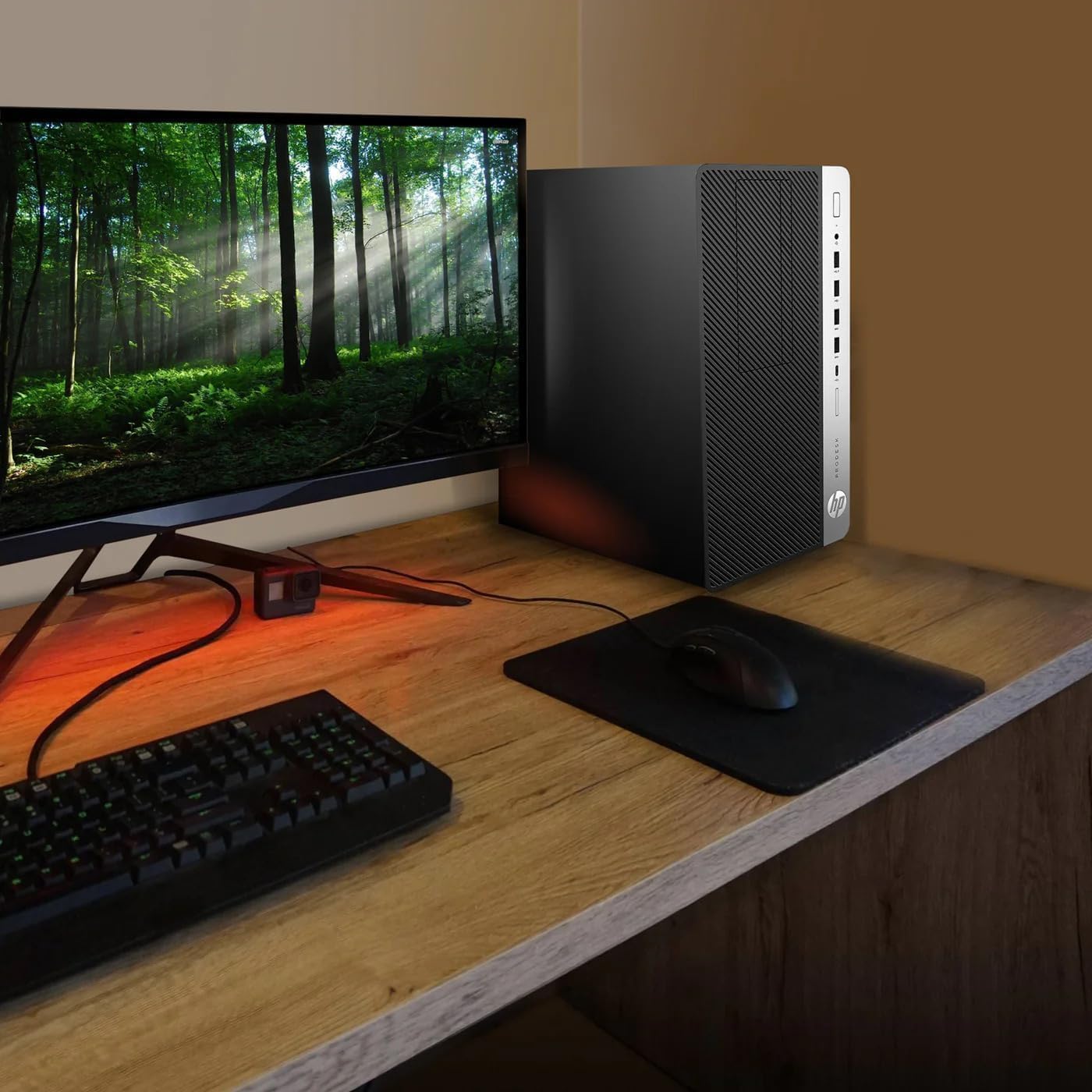
Obrázek 3.1: Přample of a typical HP ProDesk 600G4 desktop setup.
4. Základní obsluha
Once your HP ProDesk 600G4 is set up and Windows 11 is configured, you can begin using your computer.
- Zapnutí/vypnutí: Press the power button on the front panel to turn the computer on. To shut down, click the Start button in Windows, then select Power > Shut down.
- Internetové připojení: Your computer connects to the internet via the USB Wi-Fi adapter or an Ethernet cable. Ensure the Wi-Fi adapter is plugged in and connect to your wireless network through Windows settings. For wired connection, plug an Ethernet cable into the RJ-45 port on the rear.
- Instalace softwaru: Install applications as needed. Ensure software is compatible with Windows 11 Professional 64-bit.
- Aktualizace: Regularly check for Windows updates and driver updates to ensure optimal performance and security. Access Windows Update through Settings > Windows Update.
5. Připojení a porty
The HP ProDesk 600G4 offers a variety of ports for connecting peripherals and external devices. Refer to the diagram below for port locations.
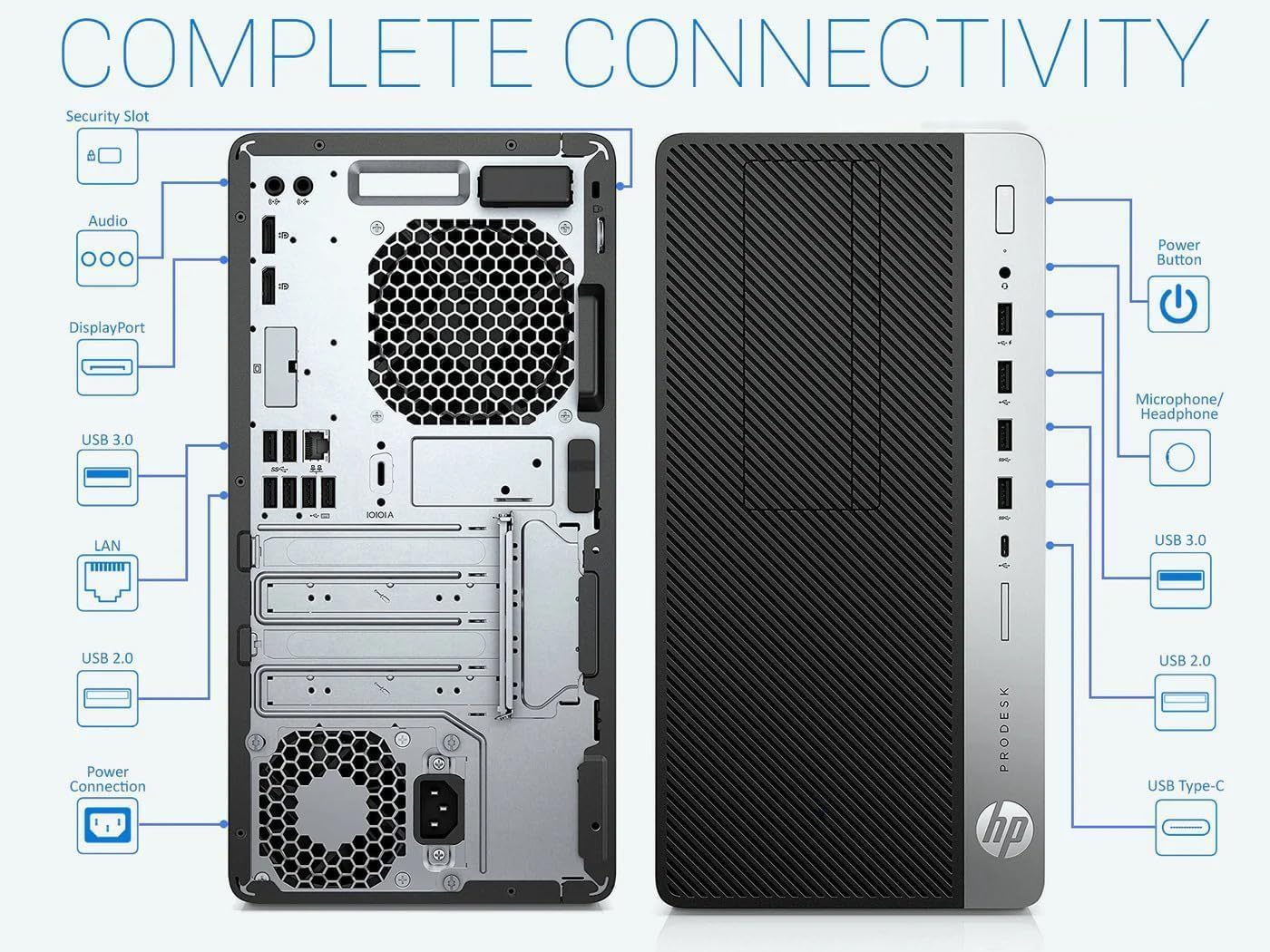
Figure 5.1: Front and Rear Port Layout of the HP ProDesk 600G4.
Přední porty:
- USB 3.0: 2 porty pro vysokorychlostní přenos dat.
- USB 2.0: 2 ports for standard USB devices.
- USB Type-C: 1 port for modern USB-C devices.
- Kombinovaný konektor pro mikrofon/sluchátka: 1 port for audio input/output.
- Vypínač: Zapnutí nebo vypnutí počítače.
Zadní porty:
- USB 3.0: 4 porty pro vysokorychlostní přenos dat.
- USB 2.0: 2 ports for standard USB devices.
- DisplayPort: 2 ports for connecting monitors.
- Audio vstup: 1 port for audio input.
- Audio výstup: 1 port for audio output.
- RJ-45 Ethernet: 1 port pro kabelové síťové připojení.
- Bezpečnostní slot: For physical security devices.
- Připojení napájení: Pro napájecí kabel.
Bezdrátové připojení:
- Wi-Fi: 802.11n standard via included USB adapter.
- Bluetooth: Via included USB adapter.
6. Údržba
Proper maintenance ensures the longevity and optimal performance of your HP ProDesk 600G4.
- Čištění: Use a soft, dry cloth to clean the exterior of the computer. For dust accumulation in vents, use compressed air. Ensure the computer is powered off and unplugged before cleaning.
- Aktualizace softwaru: Regularly install Windows updates and driver updates to maintain system stability, security, and performance.
- Záložní data: Pravidelně zálohujte důležitá data na externí disk nebo cloudové úložiště, abyste předešli jejich ztrátě.
- Větrání: Ensure the computer's vents are not obstructed to allow for proper airflow and prevent overheating.
7. Řešení problémů
This section addresses common issues you might encounter with your HP ProDesk 600G4.
- Bez napájení:
- Ujistěte se, že je napájecí kabel bezpečně připojen k počítači i k elektrické zásuvce.
- Ověřte funkčnost elektrické zásuvky zapojením jiného zařízení.
- Žádný displej na monitoru:
- Check that the monitor is powered on and its video cable is securely connected to the computer's DisplayPort.
- Pokud používáte adaptér (např. DisplayPort na HDMI), ujistěte se, že funguje správně.
- Zkuste monitor připojit k jinému DisplayPortu, pokud je k dispozici.
- Žádné internetové připojení:
- For Wi-Fi, ensure the USB Wi-Fi adapter is properly inserted and enabled in Windows settings. Verify you are connected to the correct network and have entered the password correctly.
- For wired connection, ensure the Ethernet cable is securely plugged into both the computer and the router/modem.
- Restartujte router/modem.
- Peripherals (Keyboard/Mouse) Not Responding:
- Ensure the keyboard and mouse are properly connected to USB ports.
- Zkuste je připojit k různým USB portům.
- For wireless peripherals, check battery levels and ensure their respective USB dongles are connected.
- Windows 11 Issues:
- If experiencing software glitches or performance issues, ensure all Windows updates are installed.
- Consider running Windows built-in troubleshooting tools.
- For persistent operating system problems, Microsoft Support can provide assistance, including remote repair installations if necessary.
8. Technické specifikace
| Funkce | Specifikace |
|---|---|
| Značka | HP |
| Model | ProDesk 600G4 |
| Procesor | Intel Hexa-Core i7-8700 (3.4 GHz) |
| BERAN | 32 GB DDR4 |
| Primární úložiště | 1TB SSD (jednotka SSD) |
| Grafický koprocesor | Grafická karta Intel HD Graphics 630 |
| Operační systém | Windows 11 Pro (64bitový) |
| Bezdrátový typ | 802.11n (Wi-Fi), Bluetooth |
| Porty USB 3.0 | 6 |
| Porty USB 2.0 | 4 |
| Porty USB typu C | 1 |
| Zobrazit porty | 2 |
| Ethernetový port | 1 (RJ-45) |
| Audio porty | Audio Combo Jack (x1), Audio In (x1), Audio Out (x1) |
| Typ optické mechaniky | DVD |
| Rozměry (DxŠxV) | 13.3 x 3.9 x 12.1 palce |
| Hmotnost položky | 14.79 libry |
9. Záruka a podpora
This HP ProDesk 600G4 is a renewed product, modernized by a Microsoft Authorized Refurbisher. It is guaranteed to perform like new and comes with a quality guarantee and free technical support.
- Záruka kvality: Your renewed computer has undergone professional refurbishment processes and robust stress testing to ensure optimal performance.
- Bezplatná technická podpora: Award-winning customer service and technical support are available to assist with any issues or questions you may have.
- Microsoft Authorized Refurbished: The computer includes a digitally rendered Windows 11 Professional 64-bit, ensuring a legitimate and secure operating system.
For specific warranty details or to access technical support, please refer to the documentation provided with your purchase or contact the seller directly.