
1. Úvod
Thank you for choosing the ONIKUMA CW908 Wired Gaming Mouse. This manual provides detailed instructions on how to set up, operate, maintain, and troubleshoot your new gaming mouse. Please read this manual carefully before use to ensure optimal performance and longevity of your device.
2. Konec produktuview
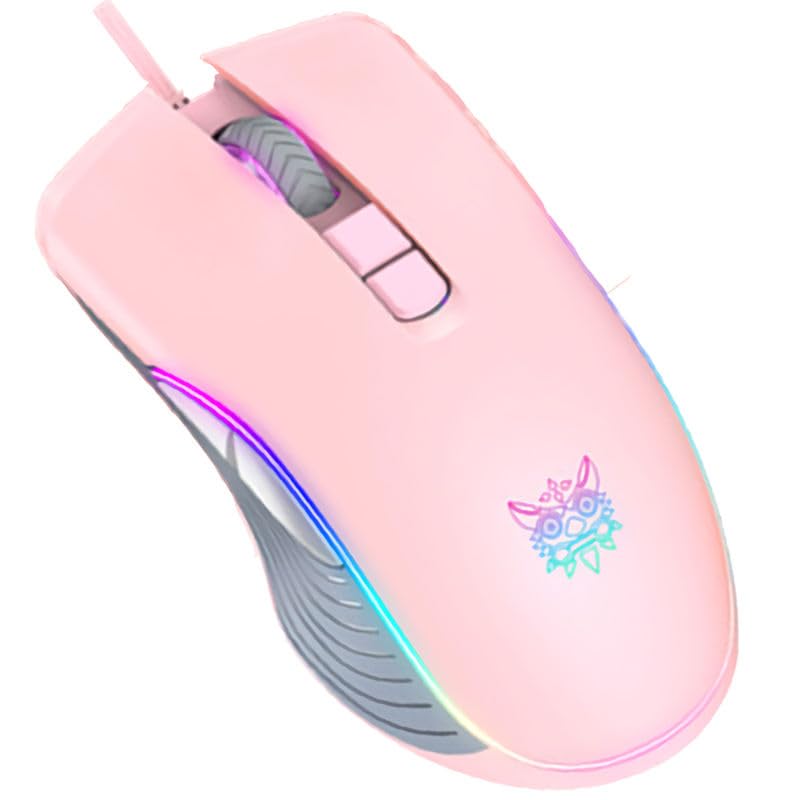
The ONIKUMA CW908 is a high-performance wired gaming mouse designed for comfort and precision. It features 7 programmable buttons, adjustable DPI up to 7200, and vibrant RGB lighting. Its ergonomic and lightweight design ensures comfortable use during extended gaming sessions.
2.1 Součásti myši
- Levé tlačítko myši: Standardní funkce primárního kliknutí.
- Kliknutí pravým tlačítkem: Standardní funkce sekundárního kliknutí.
- Rolovací kolečko: Pro funkci rolování a kliknutí prostředním tlačítkem myši.
- Tlačítko pro nastavení DPI: Cykluje mezi nastaveními DPI.
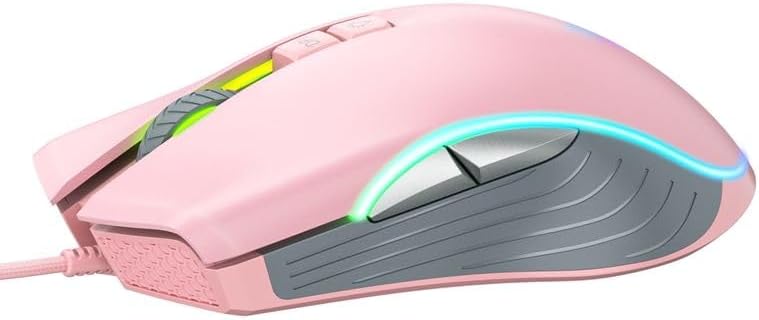
- Tlačítko vpřed: Naviguje vpřed web prohlížeče nebo aplikace.
- Tlačítko zpět: Naviguje zpět web prohlížeče nebo aplikace.
- RGB osvětlení: Integrated LED lighting for aesthetic appeal.
- USB konektor: Pro kabelové připojení k počítači.
2.2 Obrázky produktů
3. Pokyny k nastavení
Setting up your ONIKUMA CW908 mouse is a simple plug-and-play process.
- Rozbalte myš: Opatrně vyjměte myš z obalu.
- Připojení k počítači: Plug the USB connector of the mouse into an available USB port on your personal computer or laptop.
- Instalace ovladače: Your operating system (Windows 7, Windows 98, Linux, or newer versions) should automatically detect and install the necessary drivers. This process may take a few moments.
- Připraven k použití: Once the drivers are installed, the mouse will be ready for immediate use. The RGB lighting will illuminate.
4. Návod k obsluze
The ONIKUMA CW908 mouse offers intuitive controls for both general use and gaming.
4.1 Základní obsluha
- Pohybem myši na rovném povrchu ovládáte kurzor na obrazovce.
- Use the Left Click Button for primary actions (e.g., selecting items, opening files).
- Use the Right Click Button for secondary actions (e.g., opening context menus).
- Roll the Scroll Wheel up or down to navigate through documents or web pages. Press the Scroll Wheel for its middle-click function.
4.2 Nastavení DPI
The mouse features an adjustable DPI (Dots Per Inch) setting, allowing you to change cursor sensitivity on the fly. The CW908 supports up to 7200 DPI.
- Stiskněte tlačítko Tlačítko pro úpravu DPI (usually located behind the scroll wheel) to cycle through different DPI levels.
- Each press will switch to a predefined DPI setting, indicated by a change in the RGB lighting color or pattern (if applicable).
- Select the DPI level that best suits your task, whether it's precise aiming in games or fast navigation across multiple monitors.
4.3 Boční tlačítka
The Forward and Backward buttons on the side of the mouse provide quick navigation.
- The Tlačítko vpřed typically moves forward in web prohlížeče popř file průzkumníci.
- The Tlačítko Zpět typically moves backward in web prohlížeče popř file průzkumníci.
5. Úprava nastavení
While the ONIKUMA CW908 offers plug-and-play functionality, advanced customization for button remapping or more intricate RGB control may require dedicated software. Please check the official ONIKUMA website for any available software downloads specific to the CW908 model.
- Nastavení DPI: As mentioned, the DPI button cycles through preset levels. Software, if available, may allow for custom DPI steps.
- Programování tlačítek: With compatible software, the 7 buttons can often be remapped to perform specific functions, macros, or keyboard shortcuts, enhancing your gaming and productivity.
- RGB osvětlení: Software can provide more granular control over RGB effects, colors, and brightness, beyond the default cycling modes.
6. Údržba
Správná údržba zajistí dlouhou životnost a výkon vaší herní myši.
- Čištění: K otření povrchu myši použijte měkký, suchý hadřík. V případě odolné nečistoty lehceampOtřete hadřík vodou nebo jemným čisticím roztokem. Vyhněte se agresivním chemikáliím.
- Čištění senzoru: Občas se kolem optického senzoru na spodní straně myši může nahromadit prach nebo nečistoty. K jemnému čištění oblasti senzoru použijte vatový tampon nebo stlačený vzduch.
- Péče o kabely: Avoid sharply bending or pulling the USB cable. Store the mouse in a way that prevents the cable from being crimped or damaged.
- Skladování: Pokud myš nepoužíváte, skladujte ji v čistém a suchém prostředí mimo dosah extrémních teplot.
7. Řešení problémů
If you encounter issues with your ONIKUMA CW908 mouse, refer to the following common problems and solutions:
| Problém | Možná příčina | Řešení |
|---|---|---|
| Myš neodpovídá | Volné USB připojení, vadný USB port, problém s ovladačem. | Ujistěte se, že je kabel USB bezpečně zapojen. Zkuste jiný port USB. Restartujte počítač. Zkontrolujte stav ovladače ve Správci zařízení. |
| Pohyb kurzoru je nepravidelný nebo trhaný | Znečištěný optický senzor, nevhodný povrch podložky pod myš. | Clean the optical sensor on the underside of the mouse. Use a clean, uniform-colored mouse pad. |
| Tlačítko DPI nemění citlivost | Button malfunction, software conflict. | Ensure the mouse is properly connected. If using custom software, check its settings. Try on another computer to rule out system issues. |
| RGB podsvícení nefunguje | Problém s napájením, nastavení softwaru. | Ensure the mouse is receiving power via USB. If using custom software, check lighting settings. |
8. Specifikace
| Funkce | Detail |
|---|---|
| Značka | ONIKUMA |
| Model | CW908 |
| Technologie připojení | Kabel USB |
| Detekce pohybu | Optický |
| DPI (body na palec) | Až 7200 (nastavitelné) |
| Počet tlačítek | 7 |
| Speciální funkce | LED Lighting (RGB), Comfortable Design, Lightweight |
| Doporučené použití | Hraní |
| Kompatibilní zařízení | Osobní počítač, notebook |
| Kompatibilita operačního systému | Linux, Windows 7, Windows 98 (and newer Windows versions) |
| Styl | Moderní |
| Barva | Růžový |
9. Záruka a podpora
ONIKUMA products are manufactured to high-quality standards. For specific warranty information, please refer to the warranty card included with your product or visit the official ONIKUMA website. If you require technical support or have questions not covered in this manual, please contact ONIKUMA customer service through their official channels.