
Zavedení
This manual provides detailed instructions for the CUPEISI CP20 Android 15 Tablet. Please read this guide thoroughly before using your device to ensure proper operation and to maximize its features. Keep this manual for future reference.
Co je v krabici
Ověřte, zda jsou v balení přítomny všechny položky:
- CUPEISI CP20 Android 15 Tablet
- Bluetooth klávesnice
- Bezdrátová myš
- Skládací ochranný kryt
- Stylus
- Kabel typu C
- Napájecí adaptér (nabíječka)
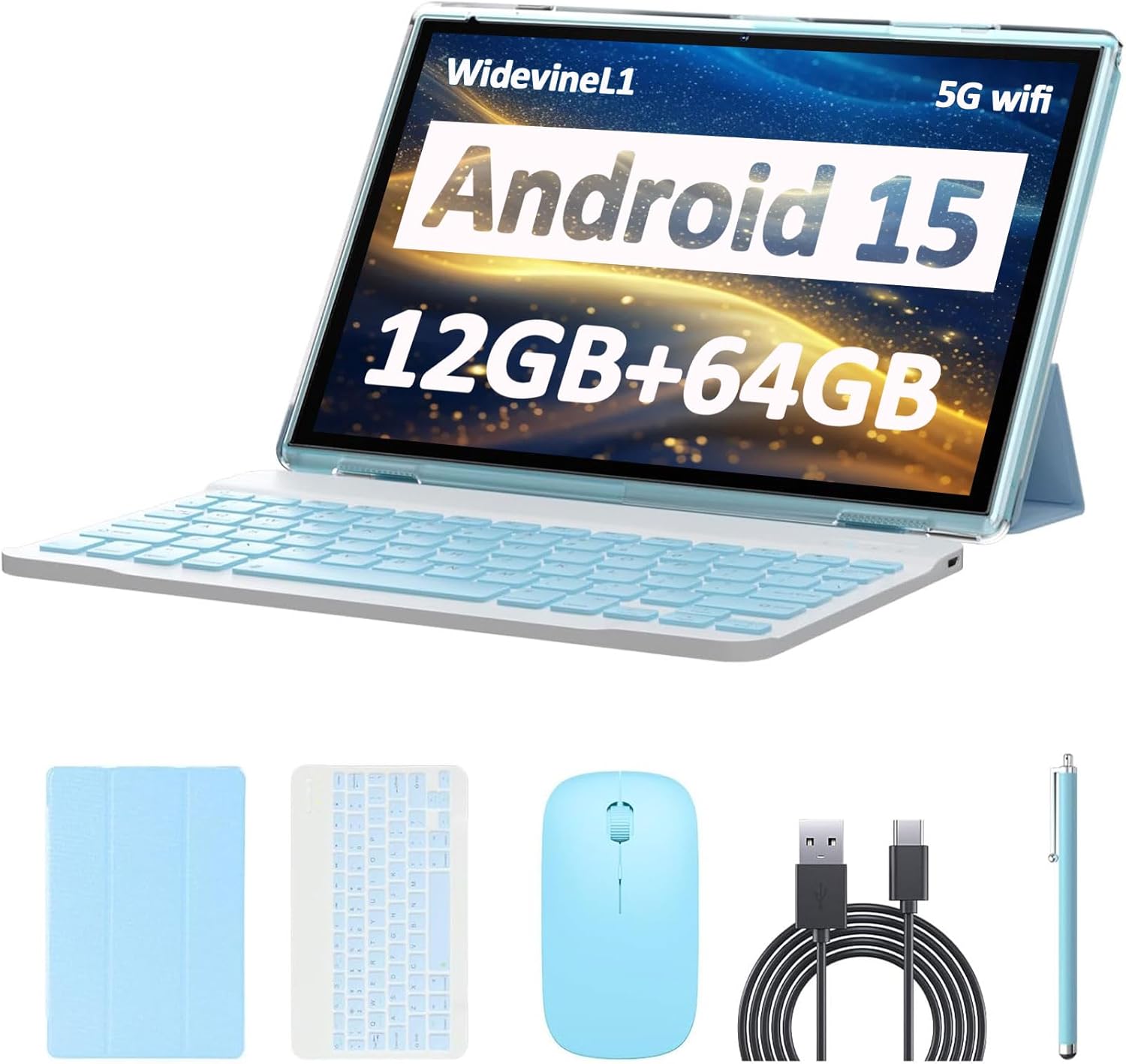
Image: CUPEISI CP20 Tablet shown with its included accessories: keyboard, mouse, stylus, and protective cover.
Konec produktuview
The CUPEISI CP20 tablet is designed for versatility and performance, offering a 2-in-1 experience with its included accessories. Key features include:
- Operační systém Android 15: Experience improved running speeds and enhanced privacy protection.
- 10.1palcový dotykový IPS HD displej: A 1280x800 resolution display provides a clear and immersive visual experience.
- Silný výkon: Equipped with a 1.8GHz Quad-core CPU, 12GB RAM (4GB physical + 8GB expansion), and 64GB ROM, expandable up to 1TB via microSD card.
- Duální fotoaparáty: Features an 8MP rear camera with autofocus and flash, and a 2MP front camera for video calls.
- Konektivita: Supports 5G Wi-Fi 6 and Bluetooth 5.0 for fast and reliable connections.
- Dlouhá výdrž baterie: A 6000mAh battery provides approximately 6 hours of regular operation and up to 10 hours of standby time.
- Funkce 2 v 1: Easily transform the tablet into a laptop or computer mode with the included Bluetooth keyboard, wireless mouse, and foldable protective case.

Image: Visual representation of the tablet highlighting Android 15, Wi-Fi 6, and Bluetooth 5.0 capabilities.

Image: The tablet in laptop mode with the Bluetooth keyboard and stylus, demonstrating its 2-in-1 functionality.
Nastavení
- Nabijte tablet: Before first use, fully charge the tablet using the provided Type-C cable and power adapter. Connect the Type-C cable to the tablet's charging port and the adapter to a power outlet. The charging indicator will show the charging status.
- Zapnutí: Press and hold the power button (usually located on the side or top edge) for a few seconds until the screen lights up.
- Počáteční nastavení: Follow the on-screen prompts to complete the initial setup, including selecting your language, connecting to a Wi-Fi network, and signing in with your Google account.
- Nasaďte ochranný kryt: Place the tablet into the foldable protective cover for protection and to enable stand modes.
- Connect Bluetooth Keyboard:
- Turn on the Bluetooth keyboard (usually a switch on the keyboard).
- Na tabletu přejděte na Nastavení > Připojená zařízení > Bluetooth.
- Ujistěte se, že je Bluetooth povolen. Tablet vyhledá dostupná zařízení.
- Select the keyboard from the list of available devices and follow any pairing instructions.
- Connect Wireless Mouse:
- Insert the USB receiver (usually found in the mouse's battery compartment) into the tablet's USB port (you may need an OTG adapter, not specified if included).
- Turn on the wireless mouse. The tablet should automatically detect and connect to the mouse.
Video: A user demonstrating the process of connecting the Bluetooth keyboard to the tablet, showing the tablet's interface for pairing devices and the physical keyboard being turned on.
Návod k obsluze
Navigace s dotykovou obrazovkou
- Klepněte na: Jedním dotykem obrazovky otevřete aplikaci, vyberete položku nebo stisknete tlačítko.
- Dotkněte se a podržte: Press and hold an item to access contextual menus or move items.
- Výpad: Tažením prstu po obrazovce můžete procházet seznamy nebo přepínat mezi domovskými obrazovkami.
- Štípání: Pro přiblížení nebo oddálení fotografií, map nebo web stránky.
Wi-Fi připojení
- Přejít na Nastavení > Síť a internet > Wi-Fi.
- Přepnout Wi-Fi On.
- Vyberte požadovanou síť ze seznamu a v případě potřeby zadejte heslo.
Připojení Bluetooth
- Přejít na Nastavení > Připojená zařízení > Bluetooth.
- Přepnout Bluetooth On.
- The tablet will scan for nearby Bluetooth devices. Select the device you wish to pair and follow the on-screen instructions.
Použití fotoaparátu
- Otevřete aplikaci Fotoaparát.
- Klepnutím na tlačítko spouště pořídíte fotografii.
- Přepínejte mezi předním a zadním fotoaparátem pomocí ikony fotoaparátu.
- Tap on the screen to focus on a specific area.

Image: A person using the tablet's camera to capture a photo, demonstrating the device's imaging capabilities.
Správa úložiště
- To expand storage, insert a microSD card into the designated slot.
- Přejít na Nastavení > Skladování na view využití interního a externího úložiště.
Údržba
- Péče o baterie:
- Vyhněte se častému úplnému vybíjení baterie.
- Nevystavujte tablet extrémním teplotám.
- Používejte pouze dodanou nabíječku nebo certifikovanou kompatibilní nabíječku.
- Čištění:
- K čištění obrazovky a těla používejte měkký hadřík, který nepouští vlákna.
- Nepoužívejte agresivní chemikálie nebo abrazivní materiály.
- Aktualizace softwaru:
- Pravidelně kontrolujte aktualizace systému v Nastavení > Systém > Aktualizace systému aby byl zajištěn optimální výkon a bezpečnost.
Odstraňování problémů
| Problém | Možné řešení |
|---|---|
| Tablet se nezapne. | Ujistěte se, že je baterie nabitá. Připojte nabíječku a před opětovným zapnutím počkejte několik minut. |
| Nelze se připojit k Wi-Fi. | Zkontrolujte, zda je v nastavení povolena Wi-Fi. Ověřte heslo Wi-Fi. Restartujte router a tablet. |
| Příslušenství Bluetooth se nespáruje. | Ensure Bluetooth is enabled on both the tablet and the accessory. Make sure the accessory is in pairing mode. Restart both devices. |
| Tablet je pomalý nebo nereaguje. | Close unnecessary apps running in the background. Clear cache for frequently used apps. Restart the tablet. Consider a factory reset if issues persist (backup data first). |
| Baterie se rychle vybíjí. | Reduce screen brightness. Disable Wi-Fi/Bluetooth when not in use. Close background apps. Check for apps consuming excessive power in battery settings. |
Specifikace
| Funkce | Detail |
|---|---|
| Značka | CUPEISI |
| Název modelu | CP20 |
| Operační systém | Android 15 |
| Procesor | 1.8 GHz Quad-core ARM Cortex |
| BERAN | 12 GB (4 GB fyzické paměti + 8 GB rozšiřující paměť) |
| Interní úložiště | 64 GB |
| Rozšiřitelné úložiště | Až 1 TB přes microSD kartu |
| Velikost obrazovky | 10.1 palce |
| Rozlišení displeje | 1280 x 800 IPS HD |
| Zadní kamera | 8 MP with Autofocus and Flash |
| Přední kamera | 2 MP |
| Wi-Fi | 5G Wi-Fi 6 (802.11ax) |
| Bluetooth | Bluetooth 5.0 |
| Kapacita baterie | Lithium Polymer s kapacitou 6000 mAh |
| Výdrž baterie (průměrná) | 6 hodiny |
| Nabíjecí port | Typ-C |
| Dimensions (L x W x Thickness) | 9.5"D x 6.5"Š x 0.3"V |
| Zahrnuté příslušenství | Keyboard, Mouse, Foldable Protective Cover, Stylus, Type-C Cable |
Záruka a podpora
The CUPEISI CP20 Tablet comes with a 1letá omezená záruka od data nákupu. Tato záruka se vztahuje na výrobní vady a vady zpracování při běžném používání.
For warranty claims, technical support, or any inquiries regarding your CUPEISI CP20 Tablet, please contact CUPEISI customer service through the retailer where the product was purchased or refer to the contact information provided in the product packaging.
Uschovejte si prosím doklad o koupi pro ověření záruky.