
1. Konec produktuview
The Tenveo VHD20U is a professional 1080P Full HD 60FPS video conference camera featuring a 20x optical zoom and AI tracking capabilities. Equipped with a 1/2.8-inch SONY CMOS sensor and 2.38 megapixels, it delivers crystal-clear images with accurate color reproduction. Its ultra-wide 60° viewing angle ensures all participants are visible. The camera supports smooth and silent pan/tilt movements, with 350° horizontal rotation (±175°) and 180° vertical rotation (±90°).
The VHD20U offers versatile connectivity options including USB3.0, HDMI, RS485, and RS232, making it suitable for various scenarios such as business meetings, educational institutions, medical applications, and live streaming events. It is compatible with popular conferencing software like Zoom, Microsoft Teams, Google Meet, Skype, and OBS, and supports Windows, Mac OS, Linux, and Android operating systems.
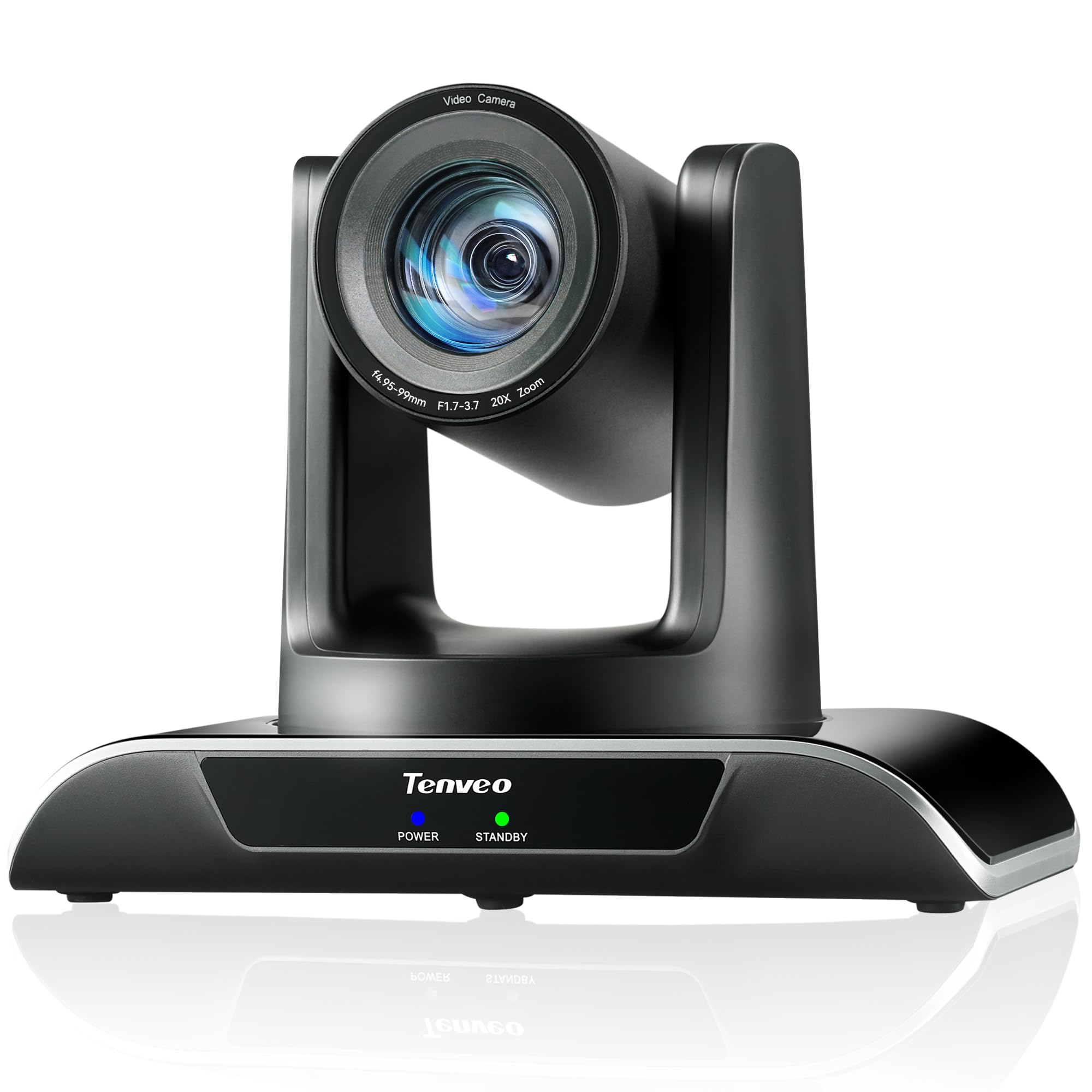
Figure 1: Tenveo VHD20U PTZ Conference Camera.

Figure 2: Tenveo VHD20U Conference Camera highlighting 20X Optical Zoom.
2. Obsah balení
Zaškrtněte prosím políčko u následujících položek:
- Tenveo VHD 20X HDMI PTZ Camera
- IR dálkové ovládání (baterie nejsou součástí balení)
- USB kabel
- Nástěnný držák se šrouby
- DC 12V/2A napájecí adaptér
- Návod k použití
3. Pokyny k nastavení
Follow these steps to set up your Tenveo VHD20U camera:
- Připojení napájení: Connect the DC 12V/2A power adapter to the camera's power input port and then plug it into a power outlet.
- Video výstup:
- USB připojení: For direct connection to a computer, use the provided USB cable to connect the camera's USB3.0 port to your computer. This is plug-and-play for most operating systems.
- Připojení HDMI: For high-definition video output to a display or video switcher (e.g., Blackmagic ATEM Mini), connect an HDMI cable from the camera's HDMI port to your display device.
- Řídicí připojení (volitelné):
- RS232/RS485: For professional control systems, connect the appropriate serial cables to the RS232 or RS485 ports.
- Montáž: The camera can be installed in various ways to suit your environment: desktop, tripod, ceiling, or wall mount. Use the included wall mount bracket and screws for wall installation. Ensure the camera is securely fastened in your chosen position.

Figure 3: Various installation methods for the Tenveo VHD20U camera.

Figure 4: HDMI 2.0 connectivity for video conferencing and live streaming.
4. Návod k obsluze
4.1 Funkce dálkového ovládání
The included IR remote control allows for easy adjustment of camera settings and movement:
- Ovládací klávesy PTZ: Use the arrow keys to pan (horizontal movement) and tilt (vertical movement) the camera.
- Klávesy pro zoom: Use the '+' and '-' buttons to zoom in and out. The camera features 20x optical zoom.
- Klávesy pro zaostření: Adjust the focus manually using the dedicated focus buttons. Auto-focus is the default setting.
- Preset Keys: The camera supports up to 10 presets via the IR remote. To set a preset, move the camera to the desired position, then press the 'PRESET' button followed by a number (0-9). To recall a preset, press the number button.
- Tlačítko nabídky: Pro pokročilá nastavení otevřete nabídku OSD (On-Screen Display).
- Klávesa pro resetování PTZ: Vrátí kameru do její původní domovské polohy.

Obrázek 5: Rozložení a funkce dálkového ovladače.
4.2 Kompatibilita softwaru
The Tenveo VHD20U camera is designed for broad compatibility with leading video conferencing and streaming platforms:
- Přiblížení
- Microsoft Teams
- Google Meet
- Skype
- Cisco WebEx
- BlueJeans
- Studio OBS
- vMix
- And most other compatible conferencing software.

Figure 6: Universal compatibility with various platforms and operating systems.
5. Údržba
To ensure optimal performance and longevity of your Tenveo VHD20U camera, follow these maintenance guidelines:
- Čištění: Use a soft, dry cloth to clean the camera body. For the lens, use a specialized lens cleaning cloth and solution. Avoid abrasive cleaners or solvents that could damage the surface.
- Skladování: When not in use for extended periods, store the camera in a cool, dry place away from direct sunlight and excessive dust.
- Zacházení: Handle the camera with care to prevent physical damage. Avoid dropping or subjecting it to strong vibrations.
- Moc: Always use the provided power adapter. Disconnect power during electrical storms or when the camera is not in use.
6. Řešení problémů
If you encounter issues with your Tenveo VHD20U camera, refer to the following common troubleshooting tips:
- No Image/Video Output:
- Ensure the camera is powered on and the power indicator light is active.
- Check all cable connections (USB, HDMI) are secure and correctly plugged into the camera and the receiving device.
- Verify that the correct input source is selected on your display or conferencing software.
- Try connecting the camera to a different USB port or computer.
- Dálkové ovládání nereaguje:
- Ensure batteries are inserted correctly and are not depleted. Replace batteries if necessary.
- Point the remote directly at the camera's IR receiver.
- Remove any obstructions between the remote and the camera.
- Špatná kvalita videa:
- Zajistěte dostatečné osvětlení v daném prostředí.
- Čočku fotoaparátu čistěte měkkým hadříkem, který nepouští vlákna.
- Check your internet connection speed if streaming or conferencing online.
- Adjust camera settings (e.g., exposure, white balance) via the OSD menu if needed.
- Camera Not Detected by Computer:
- Restart your computer and the camera.
- Ujistěte se, že máte aktuální operační systém.
- Zkuste jiný USB kabel nebo USB port.
7. Specifikace
| Funkce | Specifikace |
|---|---|
| Značka | Tenveo |
| Číslo modelu | VHD20U |
| technologie Sensor | CMOS |
| Velikost optického senzoru | 1/2.8 palce |
| Effective Capture Resolution | 2.38 megapixelů |
| Rozlišení záznamu videa | 1080p |
| Efektivní rozlišení videa | 1080 XNUMX pixelů |
| Maximální rozlišení displeje | Full HD |
| Optický zoom | 20x |
| Viewúhel | 60 stupňů |
| Pohyb pánve | ±175° |
| Pohyb naklonění | ±90° |
| Technologie připojení | HDMI, USB, RS485, RS232 |
| Typ USB | USB 3.0 |
| Podporované operační systémy | Windows 7/8.1/10, Mac OS X 10.4 or higher, Linux, Android |
| Doporučené použití produktu | Meetings, Education, Medical, Live Streaming, Conference |
| Stabilizace obrazu | Žádný |
| Typ zaměření | Manuální, automatické |
| Maximální ohnisková vzdálenost | 60.0 mm |
| Minimální ohnisková vzdálenost | 10.0 mm |
| Maximální clona | f/3.9 |
| Minimální clona | f/1.8 |
| Podporovaný formát obrázku | JPEG |
| Podporovaný formát videa | MP4 or MOV |
8. Záruka a podpora
Tenveo provides comprehensive support for your VHD20U camera:
- Záruka: Na výrobek se vztahuje 3letá záruka na díly a práci.
- Záruka vrácení peněz: A 30-day no-questions-asked money-back guarantee is offered.
- Technická podpora: Využijte doživotní technickou podporu pro váš produkt.

Figure 7: Warranty and money-back guarantee information.

Figure 8: Lifetime technical support available.