
1. Úvod
This manual provides detailed instructions for the setup, operation, and maintenance of your INPHIC M6Pro Wireless Tri-Mode Ergonomic Mouse. Please read this manual thoroughly before using the product to ensure proper functionality and longevity.
2. Konec produktuview
The INPHIC M6Pro is a versatile wireless mouse designed for comfort and efficiency. It features multiple connectivity options, customizable performance, and smart features to enhance your computing experience.
Klíčové vlastnosti:
- Duální konektivita: Supports both 2.4G wireless and Bluetooth 5.0 connections for flexible device pairing.
- Ergonomický design: Right-handed design with a 39mm height, wide thumb rest, and non-slip grips for enhanced comfort and stability during extended use.
- Customizable Performance: Offers 5-speed DPI adjustment ranging from 800 to 2400 DPI, allowing you to tailor cursor sensitivity. Features silent click buttons for quiet operation.
- Chytré funkce: Includes RGB lighting effects, a stepped battery indicator, and optimized three-dimensional side buttons designed to prevent accidental clicks.
- Energetická účinnost: Equipped with a 500mAh rechargeable battery and a convenient Type-C charging port for prolonged use.
3. Obsah balení
- INPHIC M6Pro Wireless Mouse
- USB přijímač (uložený v myši)
- Nabíjecí kabel USB-C
- Uživatelská příručka
4. Nastavení
4.1 Nabíjení myši
Before first use, fully charge the mouse. Connect the provided USB-C charging cable to the Type-C port on the front of the mouse and to a USB power source.

Image: The INPHIC M6Pro mouse being charged via its Type-C port. The battery indicator lights are visible, showing charging status.
The battery indicator lights will flash in a cycle while charging. Once fully charged, all battery indicator lights will remain steadily lit.
Video: Demonstrates the mouse charging process, showing the battery indicator lights flashing during charging and remaining solid when fully charged.
4.2 Bezdrátové připojení 2.4G
- Vyhledejte USB přijímač uložený v přihrádce ve spodní části myši.
- Zapojte USB přijímač do volného USB portu na vašem počítači.
- Turn on the mouse using the ON/OFF switch located at the bottom.
- Ensure the mode switch at the bottom is set to the '2.4G' position (red light will be on). The mouse should automatically connect to your device.
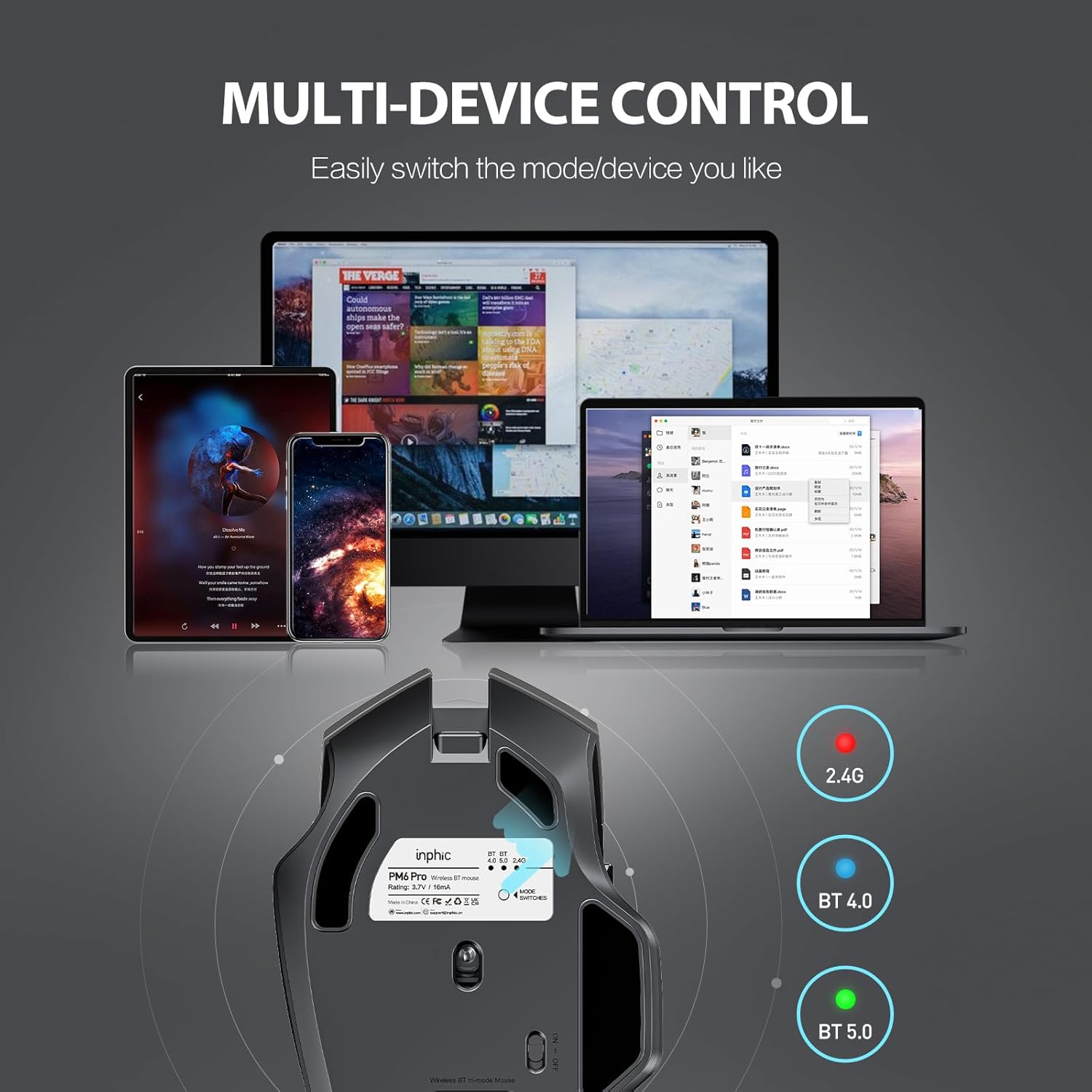
Image: The underside of the mouse, highlighting the USB receiver storage and the mode switch for 2.4G, BT 4.0, and BT 5.0 connections.
4.3 Připojení Bluetooth (BT 5.0 / BT 4.0)
- Turn on the mouse using the ON/OFF switch at the bottom.
- Short-press the 'MODE SWITCHES' button at the bottom to cycle through connection modes until the desired Bluetooth indicator (BT 5.0 or BT 4.0) lights up.
- For pairing, long-press the 'MODE SWITCHES' button until the selected Bluetooth indicator light flashes rapidly. This indicates the mouse is in pairing mode.
- On your device (computer, tablet, etc.), go to Bluetooth settings and search for new devices. Select 'INPHIC M6Pro' (or similar name) to pair.
Video: Demonstrates how to switch between 2.4G and Bluetooth modes (BT 4.0, BT 5.0) and enter pairing mode by pressing the mode switch button on the mouse's underside.
5. Návod k obsluze
5.1 Nastavení DPI
The mouse features a DPI switch button located behind the scroll wheel. Press this button to cycle through 5 DPI settings (800, 1200, 1600, 2000, 2400 DPI) to adjust cursor sensitivity to your preference.

Image: A diagram illustrating the location of the DPI switch button and other buttons on the mouse.
5.2 Funkce tlačítek
The INPHIC M6Pro mouse is equipped with 6 buttons:
- Levé tlačítko: Standardní funkce levého kliknutí.
- Pravý klíč: Standardní funkce kliknutí pravým tlačítkem myši.
- Rolovací kolečko: Posouvá se nahoru/dolů a funguje jako tlačítko pro kliknutí prostředním tlačítkem myši.
- Přepínač DPI: Upravuje citlivost kurzoru (DPI).
- Tlačítko vpřed: Naviguje vpřed web prohlížeče popř file průzkumníci.
- Tlačítko zpět: Naviguje zpět web prohlížeče popř file průzkumníci.

Obrázek: Podrobný view of the mouse's underside, showing the power switch, LED indicator, and USB receiver slot.
5.3 Ergonomický design a tichý provoz
The mouse features a curved, skin-like material design for a comfortable grip, reducing hand strain during prolonged use. The widened thumb rest further enhances comfort and control.
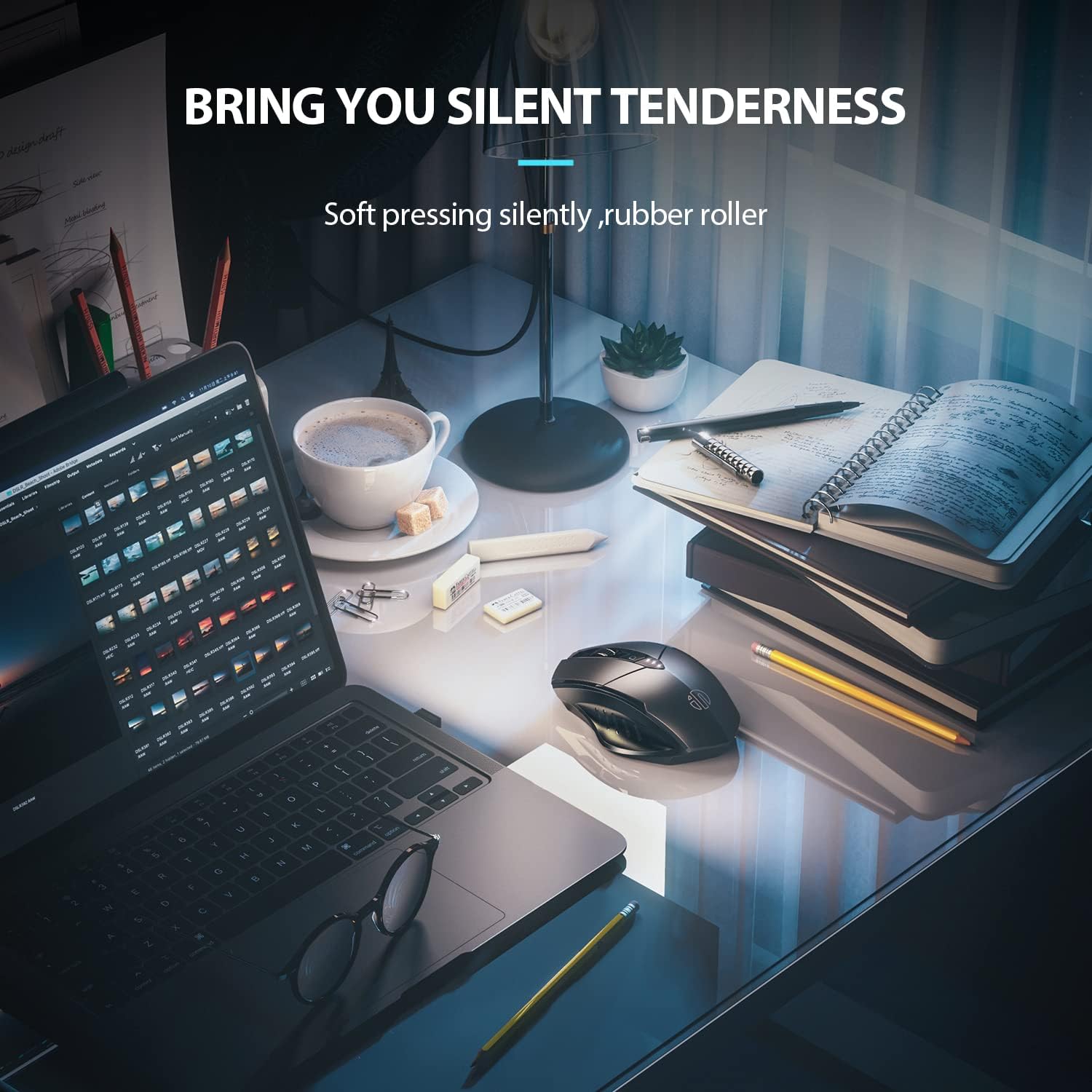
Image: The ergonomic shape of the mouse, designed for a comfortable user experience.

Image: A close-up showing the widened thumb rest for a more comfortable grip.
The left and right click buttons are designed for silent operation, allowing you to work without disturbing others.

Image: Illustrates the silent click feature of the mouse, ideal for quiet environments.
6. Údržba
To ensure the longevity and optimal performance of your INPHIC M6Pro mouse, follow these maintenance guidelines:
- Čištění: Use a soft, dry cloth to wipe the mouse. For stubborn dirt, slightly dampOtřete hadřík vodou nebo jemným čisticím roztokem. Vyhněte se agresivním chemikáliím nebo abrazivním materiálům.
- Skladování: Pokud myš delší dobu nepoužíváte, vypněte ji, abyste šetřili baterii. Skladujte ji na chladném a suchém místě mimo dosah přímého slunečního záření a extrémních teplot.
- Péče o baterie: Vyhněte se častému úplnému vybíjení baterie. Myš nabijte, když indikátor baterie ukazuje nízký stav nabití.
- USB přijímač: Keep the USB receiver in its designated storage slot at the bottom of the mouse when traveling to prevent loss.
7. Řešení problémů
If you encounter issues with your INPHIC M6Pro mouse, refer to the following common solutions:
| Problém | Možná příčina | Řešení |
|---|---|---|
| Myš nereaguje (2.4G) | USB receiver not properly connected or mouse is off. | Ensure the USB receiver is securely plugged into a USB port. Turn on the mouse and ensure the mode switch is set to 2.4G. Try a different USB port. |
| Myš nereaguje (Bluetooth) | Not paired, out of range, or incorrect Bluetooth mode selected. | Ensure the mouse is in the correct Bluetooth mode (BT 5.0 or BT 4.0) and in pairing mode (flashing light). Re-pair the mouse with your device. Ensure the mouse is within 10 meters of your device. |
| Pohyb kurzoru je nepravidelný nebo pomalý | Low battery, incorrect DPI setting, or dirty sensor. | Charge the mouse. Adjust the DPI setting using the DPI button. Clean the optical sensor at the bottom of the mouse with a soft cloth. |
| Buttons not clicking or unresponsive | Slabá baterie nebo problém s připojením. | Charge the mouse. Re-establish the connection (2.4G or Bluetooth). |
| Baterie se nenabíjí | Vadný kabel nebo zdroj napájení. | Try a different USB-C cable and a different USB power source. Ensure the cable is properly connected to the mouse's Type-C port. |
8. Specifikace
| Funkce | Detail |
|---|---|
| Číslo modelu | M6Pro |
| Technologie připojení | Bezdrátové 2.4G, Bluetooth 5.0, Bluetooth 4.0 (tři režimy) |
| Technologie detekce pohybu | Optický |
| Nastavení DPI | 800, 1200, 1600, 2000, 2400 |
| Tlačítka | 6 (doleva, doprava, rolovací kolečko, přepínač DPI, vpřed, vzad) |
| Typ baterie | Dobíjecí lithium-polymerová baterie (500 mAh) |
| Nabíjecí port | Typ-C |
| Rozměry produktu | 4.65 x 1.57 x 0.04 palce |
| Hmotnost položky | 3.35 unce |
| Kompatibilní operační systémy | Windows Vista/7 and above, Mac OS X 10.10 and above, iOS 13 and above, Android 5.0 and above, Linux kernel 2.6+, Chrome OS |
9. Záruka a podpora
INPHIC products are designed for reliability and performance. For warranty information or technical support, please refer to the contact details provided with your product packaging or visit the official INPHIC webUschovejte si účtenku jako doklad o koupi pro případ reklamace.