
Zavedení
This user manual provides detailed instructions for the operation and maintenance of your MOBI Connect Smart 4 in 1 Wi-Fi Air Purifier & Humidifier. This device is designed to improve indoor air quality by purifying and humidifying the air, offering a healthier and more comfortable living environment. Please read this manual thoroughly before use to ensure proper function and safety.

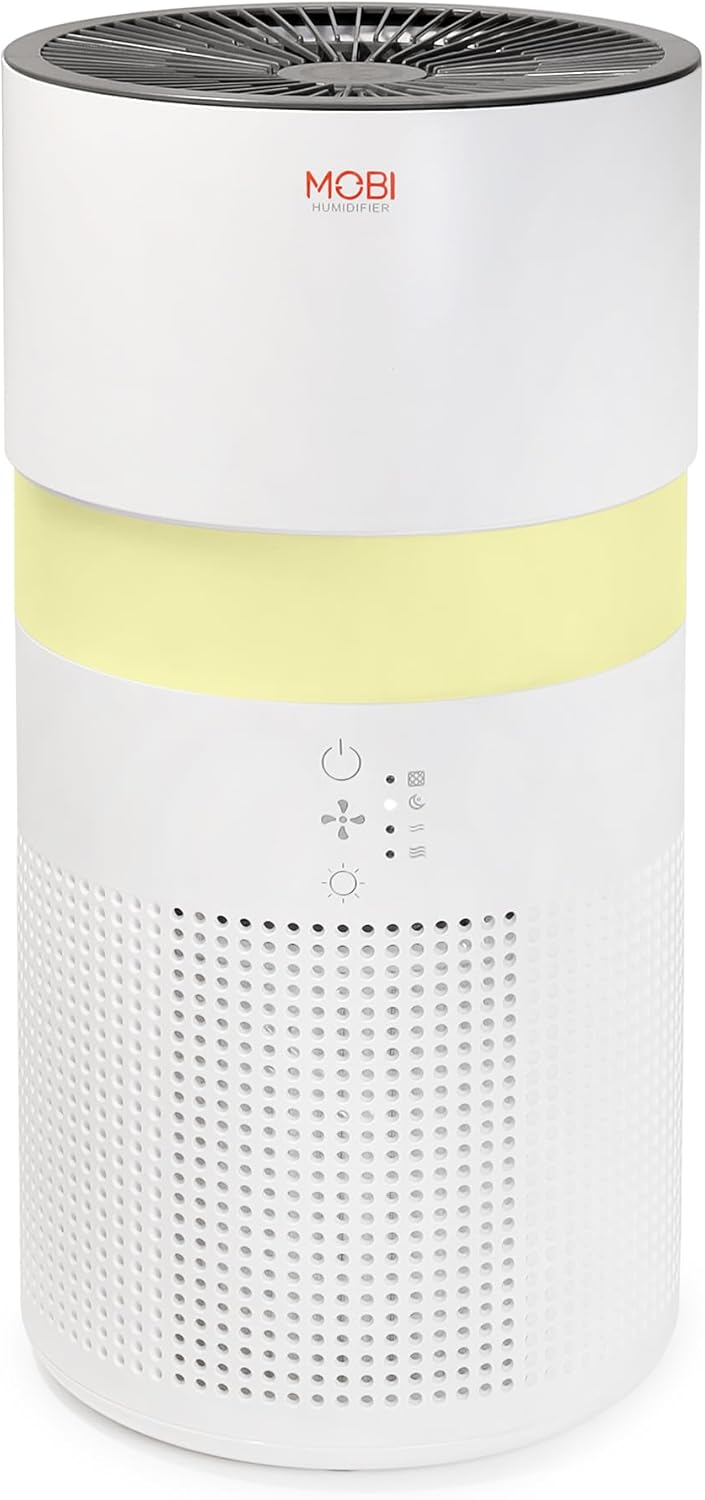
Image: The MOBI Connect Smart 4 in 1 Wi-Fi Air Purifier & Humidifier, a compact white cylindrical device with a light band and control panel.
Důležité bezpečnostní informace
Abyste snížili riziko požáru, úrazu elektrickým proudem nebo zranění, vždy dodržujte při používání tohoto spotřebiče základní bezpečnostní opatření.
- Přístroj vždy umístěte na pevný a rovný povrch.
- Neblokujte vstupy nebo výstupy vzduchu.
- Udržujte zařízení mimo dosah vody a vlhkosti.
- Před čištěním nebo údržbou zařízení odpojte.
- Pokud je napájecí kabel nebo zástrčka poškozená, zařízení nepoužívejte.
- Uchovávejte mimo dosah dětí a domácích zvířat.
- Only use original MOBI replacement filters.
Konec produktuview
Familiarize yourself with the components and controls of your air purifier and humidifier.
Obrázek: Detailní záběr view of the control panel on the MOBI Air Purifier, showing power, fan speed, light, and humidifier icons.
Vlastnosti ovládacího panelu:
- Vypínač: Turns the unit on/off and activates pairing mode.
- Ukazatel rychlosti ventilátoru: Displays current fan speed (Sleep, Medium, High).
- Humidifier Indicator: Shows humidifier status.
- Tlačítko světelného režimu: Cycles through light modes (Off, Gradient, Fixation).
- Indikátor výměny filtru: Rozsvítí se, když je nutná výměna filtru.
Průvodce nastavením
Follow these steps to set up your MOBI Connect Smart 4 in 1 Wi-Fi Air Purifier & Humidifier and connect it to the MOBI Smart App.
Počáteční nastavení:
- Vybalte zařízení a odstraňte všechny obalové materiály.
- Ensure the filter is correctly installed inside the unit. Refer to the 'Maintenance' section for filter installation.
- Umístěte zařízení na stabilní, rovný povrch.
- Plug the power adapter into the device and then into a wall outlet. The device will enter pairing mode, indicated by a red blinking LED.
Připojení aplikace:
- Stáhněte si MOBI Smart App z obchodu s aplikacemi ve vašem zařízení.
- Open the app and sign up for an account if you don't have one.
- Accept all requested permissions (Bluetooth, Location, Notifications) for full functionality.
- On the app's home screen, tap 'Add Device' or the '+' icon in the top right corner.
- The app will search for nearby devices. If your device is blinking red, it should appear in the 'Discovering devices' area. Tap 'Add'.
- If not automatically discovered, select 'Mobi Air Purifier' from the 'Add Manually' list.
- Enter your 2.4GHz Wi-Fi network username and password. (Note: 5GHz networks are not supported).
- Follow the on-screen instructions to activate the device for pairing. If the red LED is not blinking, press and hold the power button until it starts blinking.
- Once the device is blinking red, tap 'Finish network configuration' and then 'Next' in the app.
- The app will connect to the device. Once connected, tap the blue button with the white plus sign next to 'MOBI Smart Air Care 4 IN 1' and then 'Done' in the top right corner.
Video: A detailed guide on how to connect and set up the MOBI Smart 4-in-1 Air Purifier & Humidifier using the MOBI Smart App, including app permissions, device discovery, Wi-Fi setup, and pairing instructions.
Návod k obsluze
Control your MOBI Connect Smart 4 in 1 Wi-Fi Air Purifier & Humidifier using the physical buttons on the device or through the MOBI Smart App.
Using the Device Buttons:
- Zapnutí/vypnutí: Press the power button once to turn the unit on or off.
- Upravte rychlost ventilátoru: Press the fan speed button to cycle through Sleep, Medium, and High settings.
- Control Night Light: Press the light button to cycle through Off, Gradient (color flow), and Fixation (single color) modes.
- Funkce zvlhčovače: Press the humidifier button to activate or deactivate the humidification feature.
Using the MOBI Smart App:
The app provides comprehensive control and additional features.
- Přepínač: Power the device on or off remotely.
- Rychlost větru: Select Sleep, Medium, or High wind speed options.
- Odpočítávadlo: Set a timer for 2, 4, or 6 hours for automatic shut-off.
- Nastavení: Access advanced options:
- UV dezinfekce: Enable or disable the UV disinfection feature.
- Resetovat filtr: Reset the filter life indicator after replacing the filter.
- Světelný režim: Choose between Off, Gradient (cycling colors), or Fixation (select a single color).
- Naplánovat: Create custom schedules for when the device should turn on or off.
- Integrace chytré domácnosti: Monitor your home's air quality and integrate with other MOBI Smart devices.
- Aromatherapy Pad: Add essential oils to the designated pad to diffuse scents into the air.

Image: The MOBI Air Purifier showcasing its 7 color-changing LED night light feature, adding ambiance to any room.

Image: The MOBI Air Purifier next to a smartphone displaying the MOBI Smart App interface, highlighting smart home control features.
Údržba
Regular maintenance ensures optimal performance and extends the lifespan of your device.
Výměna filtru:
The MOBI Connect Smart 4 in 1 Wi-Fi Air Purifier & Humidifier uses a 3-stage filtration system (Pre-Filter, Carbon, and HEPA filter). The filter replacement alert will notify you when it's time to change the filter.

Obrázek: Vizuální znázornění devítiletýchtage HEPA filtration system, showing the layers of the filter.
- Odpojte zařízení ze zásuvky.
- Remove the bottom cover of the unit.
- Opatrně vyjměte starý filtr.
- Insert the new MOBI replacement filter, ensuring it is seated correctly.
- Nasaďte spodní kryt.
- Zapojte zařízení zpět.
- In the MOBI Smart App, go to 'Settings' and select 'Reset Filter' to reset the filter life indicator.

Image: The MOBI Air Purifier with a new filter, illustrating the filter replacement alert system.
Čištění zařízení:
- Otřete vnější část zařízení měkkým, damp tkanina. Nepoužívejte abrazivní čisticí prostředky.
- Clean the water tank regularly to prevent mineral buildup and mold growth. Use a mild detergent and rinse thoroughly.
- Před opětovnou montáží a použitím zařízení se ujistěte, že jsou všechny díly zcela suché.
Odstraňování problémů
If you encounter issues with your device, refer to the following common problems and solutions.
| Problém | Možná příčina | Řešení |
|---|---|---|
| Zařízení se nezapne. | Není zapojený; problém se zásuvkou; poškozený kabel. | Ensure power cord is securely plugged in. Test outlet with another device. Check for cord damage. |
| Zařízení se nepřipojuje k Wi-Fi. | Incorrect Wi-Fi password; 5GHz network; device not in pairing mode. | Verify Wi-Fi password. Ensure you are connecting to a 2.4GHz network. Press and hold power button to enter pairing mode (red blinking LED). |
| Kvalita ovzduší se nezlepšuje. | Dirty filter; incorrect fan speed; room size too large. | Check filter indicator and replace if necessary. Increase fan speed. Ensure device is suitable for your room size. |
| Zvlhčovač neprodukuje mlhu. | Water tank empty; humidifier function off; mineral buildup. | Refill water tank. Activate humidifier function via app or button. Clean water tank and humidifier components. |
Specifikace
| Funkce | Detail |
|---|---|
| Rozměry produktu | 6.5"H x 6.5"Š x 13"V (6.5 x 6.5 x 13 palců) |
| Číslo modelu položky | 70692 |
| Hmotnost | 3 libry |
| Barva | Bílý |
| Pokrytí podlahové plochy | Až 350 XNUMX čtverečních stop |
| Filtrační systém | 3-Stage (Pre-Filter, Activated Carbon, HEPA) |
| Typ zvlhčovače | Forced-air water tank method |
| Noční světlo | 7 Unique LED Colors, Adjustable Modes (Off, Gradient, Fixation) |
| Úroveň hluku | 24 dB (režim spánku) |
| Rychlost cirkulace vzduchu | 5x per hour |
| Konektivita | Wi-Fi (vyžadováno 2.4 GHz) |
| Certifikace | UL Certified, RoHS Certified |
| Wattage | 680 wattů |
Záruka a podpora
MOBI products are designed with quality and reliability in mind. For warranty information and customer support, please refer to the official MOBI webwebu nebo se přímo obraťte na jejich zákaznický servis.
For frequently asked questions (FAQ) and feedback, you can also access these sections within the MOBI Smart App under the device settings.