
Zavedení
This user manual provides detailed instructions for setting up, operating, maintaining, and troubleshooting your DUODUOGO A7 Android Tablet. Please read this manual carefully before using your device to ensure optimal performance and longevity.
Konec produktuview
The DUODUOGO A7 is a high-performance Android 11 tablet designed for a wide range of uses, from entertainment to productivity. It features a vibrant 10.1-inch FHD IPS display, a powerful 8-core processor, ample memory, and versatile connectivity options.

Image: The DUODUOGO A7 Android Tablet shown with its detachable keyboard case, displaying the Android 11 interface and various app icons.
Nastavení
1. Počáteční nabíjení
Before first use, fully charge the tablet using the provided Type-C cable and power adapter. The 7000mAh battery ensures extended usage time.

Image: A visual representation of the tablet's 7000mAh battery capacity and charging status.
2. Zapnutí/vypnutí
To power on, press and hold the power button located on the side of the tablet until the DUODUOGO logo appears. To power off, press and hold the power button, then select 'Power off' from the options.
3. Instalace SIM/TF karty
Locate the card slot on the side of the tablet. Carefully insert your SIM card(s) for 4G connectivity and/or a TF (microSD) card for expanded storage (up to 512GB). Ensure the cards are inserted correctly as shown in the diagram.

Obrázek: Podrobný view of the tablet's Type-C interface and the card insertion slot, highlighting its dual SIM and 4G LTE capabilities.
4. Počáteční konfigurace
Upon first boot, follow the on-screen prompts to select your language, connect to a Wi-Fi network, and sign in with your Google account. The tablet is GMS certified, ensuring access to Google Play Store and services.
Návod k obsluze
1. Základní navigace
The DUODUOGO A7 runs on Android 11, offering an intuitive user experience. Use touch gestures to navigate: tap to select, swipe to scroll, pinch to zoom. The 10.1-inch IPS display provides a clear and responsive interface.

Image: The tablet displaying the clean and modern interface of the Android 11 operating system.
2. Konektivita
- Wi-Fi: Go to Settings > Network & internet > Wi-Fi to connect to available networks. Supports 802.11a/b/g/n.
- Bluetooth: Enable Bluetooth in Settings > Connected devices to pair with Bluetooth keyboards, headphones, or other accessories.
- 4G LTE: If a SIM card is installed, mobile data can be enabled via Settings > Network & internet > Mobile network.
3. Použití fotoaparátu
The tablet is equipped with a 5MP front camera and an 8MP rear camera. Open the Camera app to capture photos and videos. Switch between front and rear cameras as needed.

Image: Demonstrates the tablet's 8MP rear camera for capturing moments and the 5MP front camera for video calls and selfies.
4. Media Playback and Storage
Enjoy movies, music, and games on the FHD IPS display. The tablet comes with 64GB of internal storage, expandable up to 512GB with a TF card, providing ample prostor pro vaše média files.
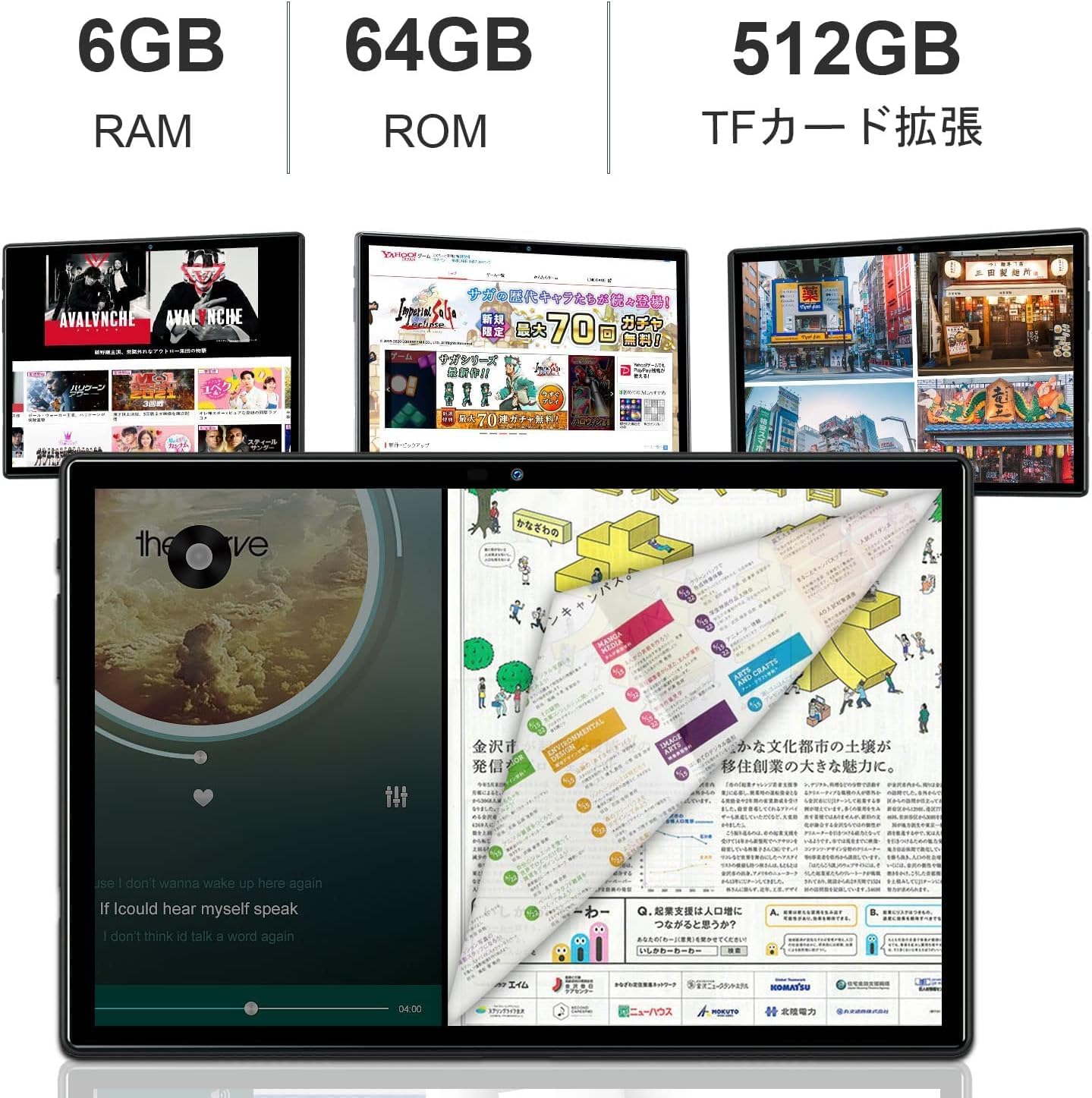
Image: Illustrates the tablet's 6GB RAM, 64GB ROM, and the option for 512GB TF card expansion.
5. Bezdrátová projekce
The tablet supports wireless projection, allowing you to mirror your screen to compatible displays for presentations or larger viewing experiences. Refer to the Android 11 settings for screen casting options.
6. Všestranné použití
The DUODUOGO A7 is suitable for various activities including online meetings, office tasks, sharing content, video calls, watching videos, using GPS navigation, and playing games.

Image: A collage demonstrating various applications of the tablet, such as for meetings, office work, content sharing, video calls, GPS, and gaming.
Údržba
1. Péče o baterie
To prolong battery life, avoid extreme temperatures. It is recommended to fully charge the tablet before it completely drains. For long-term storage, charge the battery to about 50%.
2. Čištění
K čištění obrazovky a těla tabletu používejte měkký hadřík, který nepouští vlákna. Nepoužívejte agresivní chemikálie ani abrazivní materiály, které by mohly poškodit povrch.
3. Aktualizace softwaru
Periodically check for system updates to ensure your tablet has the latest features and security patches. Go to Settings > System > System update.
4. Správa úložiště
Pravidelně odstraňujte nepotřebné files and apps to maintain optimal performance. You can manage storage in Settings > Storage.
Odstraňování problémů
Běžné problémy a řešení:
- Zařízení se nezapíná: Ujistěte se, že je baterie nabitá. Připojte nabíječku a zkuste to znovu.
- Problémy s připojením Wi-Fi: Restart the tablet and your Wi-Fi router. Check Wi-Fi settings to ensure correct password and network selection.
- Aplikace padá nebo zamrzá: Close the app and reopen it. If the issue persists, clear the app's cache (Settings > Apps & notifications > App info > Storage & cache > Clear cache).
- Pomalý výkon: Close background apps, clear cache, or consider a factory reset as a last resort (Settings > System > Reset options > Erase all data).
Specifikace
| Funkce | Specifikace |
|---|---|
| Značka | DUODUOGO |
| Název modelu | DUODUOGO A7 |
| Operační systém | Android 11 |
| Velikost obrazovky | 10.1 palce |
| Rozlišení displeje | 1920 x 1200 (FHD IPS) |
| Rychlost CPU | 2.0 GHz (8-Core) |
| BERAN | 6 GB |
| Interní úložiště | 64 GB |
| Rozšiřitelné úložiště | Up to 512 GB (TF Card) |
| Kapacita baterie | 7000 mAh (lithium-polymerová) |
| Zadní kamera | 8 MP |
| Přední kamera | 5 MP |
| Bezdrátový typ | 802.11a/b/g/n (Wi-Fi), Bluetooth |
| Komunikační formát | Wi-Fi, 4G LTE |
| Reproduktory | Duální reproduktory |
| Konektivita | Typ-C |
Záruka a podpora
This DUODUOGO A7 tablet comes with a 1-letá záruka. If you encounter any issues or have questions, please contact our customer support. We aim to respond within 24 hours to assist you.
For further assistance, please visit the official DUODUOGO webwebu nebo se podívejte na kontaktní informace uvedené při nákupu.