
1. Úvod
This manual provides essential instructions for the safe and efficient operation, setup, maintenance, and troubleshooting of your OMTech 100W CO2 Laser Engraver. Please read this manual thoroughly before operating the machine to ensure proper usage and to prevent damage or injury. Retain this manual for future reference.
The OMTech 100W CO2 Laser Engraver is designed for precision engraving and cutting across a variety of materials, including wood, glass, and acrylic. It features a 28"x20" workspace, four-way pass-through doors, autofocus capability, and integrated air assist.

Image 1.1: The OMTech 100W CO2 Laser Engraver, a large blue and grey machine with a transparent lid open, showcasing the internal laser head and work area.
2. Bezpečnostní informace
Operating a laser engraver involves potential hazards. Adhere to all safety guidelines to prevent injury or damage to the equipment.
- Laserové záření: This product is a Class 2 laser device with 0.827 mW output power. Never look directly into the laser beam or at reflections. Always wear appropriate laser safety glasses.
- Větrání: Ensure adequate ventilation to remove smoke, fumes, and particulate matter generated during operation. Connect the machine to an external exhaust system.
- Nebezpečí požáru: Certain materials are flammable when exposed to a laser. Always supervise the machine during operation. Keep a fire extinguisher nearby.
- Elektrická bezpečnost: Ujistěte se, že je stroj řádně uzemněn. Neobsluhujte ho s mokrýma rukama nebo vamp conditions. Disconnect power before performing maintenance.
- Materiálová kompatibilita: Only engrave or cut materials approved for CO2 lasers. Avoid materials that produce toxic fumes or are highly reflective.
- Nouzové zastavení: Seznamte se s umístěním a obsluhou tlačítka nouzového zastavení.
3. Obsah balení
Po vybalení ověřte, zda jsou přítomny všechny komponenty:
- OMTech 100W CO2 Laser Engraver Unit
- LightBurn Software License (if included with purchase)
- Water Pump for cooling system
- Air Assist Compressor
- Exhaust Fan and Ducting
- USB Cable, Ethernet Cable
- Napájecí kabel
- Tool Kit and Accessories
- Uživatelská příručka a dokumentace
4. Nastavení
4.1. Vybalení a umístění
Carefully remove the engraver from its packaging. Place the machine on a stable, level surface capable of supporting its weight (approximately 251 lb.). Ensure sufficient clearance around the machine for ventilation and access to the pass-through doors.
4.2. Connecting Cooling System
The CO2 laser tube requires water cooling. Connect the provided water pump to the designated inlet and outlet ports on the machine. Fill the water reservoir with distilled water. Ensure the water pump is submerged and operating correctly before powering on the laser.
4.3. Connecting Air Assist
Connect the air assist compressor to the machine's air inlet. The air assist system helps to clear debris from the laser's path and reduce scorching during cutting and engraving.
4.4. Exhaust System Installation
Attach the exhaust fan and ducting to the machine's exhaust port. Route the ducting to an outdoor vent or a suitable filtration system to safely remove smoke and fumes from the workspace.
4.5. Elektrické připojení
Connect the power cable to the machine and a grounded electrical outlet. Ensure the power supply matches the machine's requirements.
4.6. Software Installation (LightBurn)
Install the LightBurn software on your computer. Follow the instructions provided with your LightBurn license for installation and activation. Connect the engraver to your computer via USB or Ethernet cable.

Image 4.1: A computer screen displaying the LightBurn software interface, used for designing and controlling laser engraving and cutting operations.
5. Provoz
5.1. Zapnutí
Ensure all connections (power, water, air, exhaust) are secure. Turn on the main power switch on the machine. Allow the water cooling system to circulate before proceeding.
5.2. Nakládání materiálu
Open the machine lid and place your material onto the workbed. Ensure the material is flat and securely positioned. For larger materials, utilize the four-way pass-through doors.
5.3. Funkce automatického ostření
The machine features an autofocus function. Position the laser head over the material and activate the autofocus. The laser head will automatically adjust to the optimal focal distance for your material, ensuring precise engraving and cutting.

Obrázek 5.1: Detailní záběr view of the laser head with a red dot indicating the laser's position, performing an automatic focus adjustment on a piece of material.
5.4. Using LightBurn Software
Create or import your design in LightBurn. Configure the appropriate laser settings (power, speed, passes) based on your material and desired outcome. Preview úkol, aby bylo zajištěno správné umístění a měřítko.
5.5. Proces gravírování a řezání
Close the machine lid. Initiate the job from LightBurn. The machine will begin the engraving or cutting process. Monitor the operation closely. The maximum engraving speed is 600 mm/s.
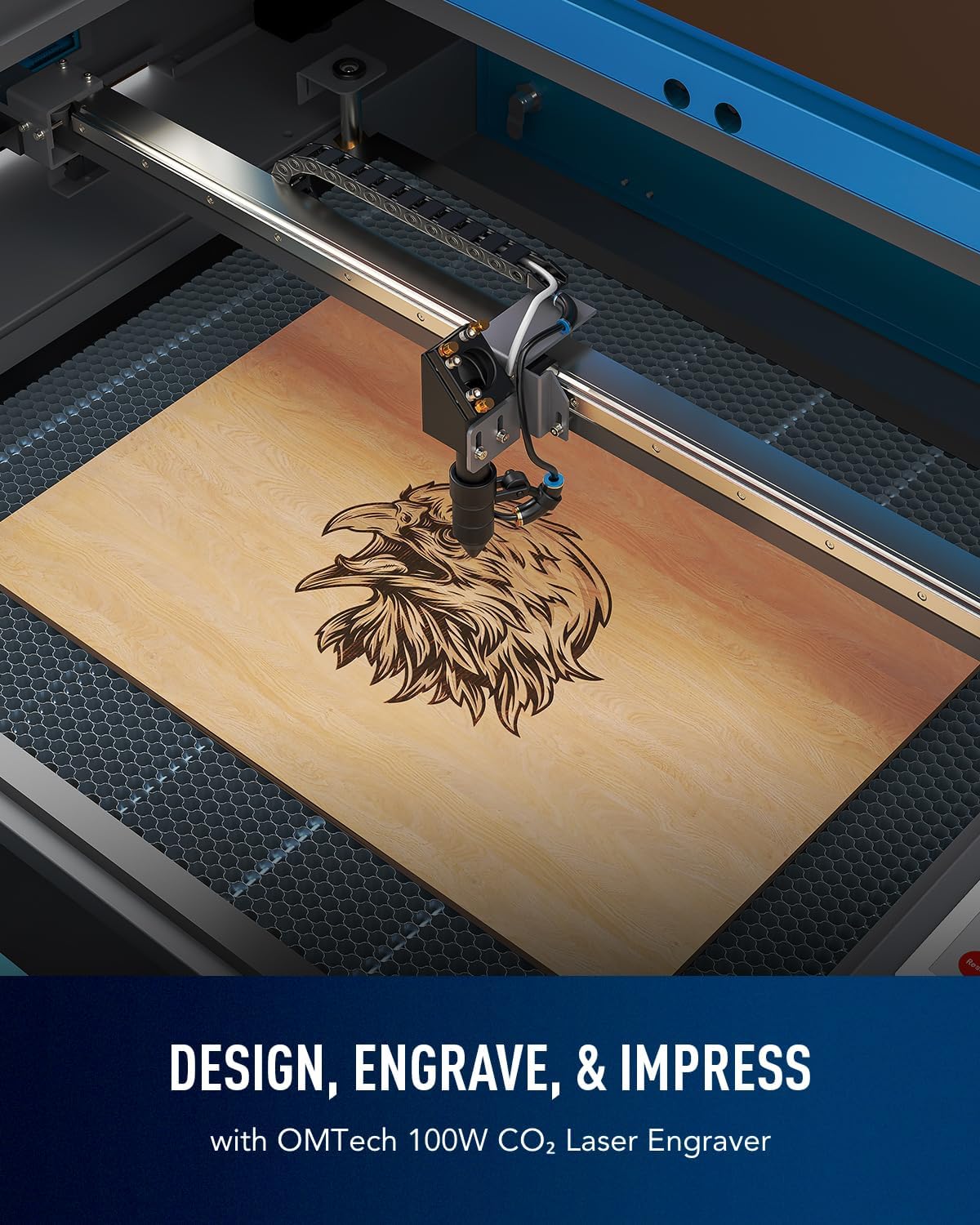
Image 5.2: The laser engraver in operation, precisely engraving a detailed eagle design onto a wooden surface.

Image 5.3: An illustration of the laser head moving at high speed (600 mm/s) across a wooden surface, demonstrating the machine's operational efficiency.
6. Údržba
Pravidelná údržba zajišťuje optimální výkon a prodlužuje životnost vašeho laserového gravírovacího stroje.
- Čištění čoček a zrcátek: Periodically clean the laser lens and mirrors with a specialized lens cleaning solution and cotton swabs. Dust and debris can degrade laser performance.
- Systém vodního chlazení: Regularly check the water level in the cooling reservoir and replenish with distilled water as needed. Replace the water every 1-2 months to prevent algae growth and maintain cooling efficiency.
- Tryska pro pomocný vzduch: Inspect and clean the air assist nozzle to ensure unobstructed airflow.
- Čištění pracovní desky: Clean the honeycomb workbed to remove accumulated debris and residue.
- Mazání: Apply a small amount of lubricant to the guide rails and moving parts as recommended by the manufacturer to ensure smooth operation.
7. Řešení problémů
Tato část se zabývá běžnými problémy, se kterými se můžete setkat.
| Problém | Možná příčina | Řešení |
|---|---|---|
| Laser nestřílí | Lid open, water flow error, power issue, emergency stop engaged | Ensure lid is closed, check water pump and flow sensor, verify power connections, disengage emergency stop. |
| Špatná kvalita gravírování/řezání | Incorrect focus, dirty lens/mirrors, incorrect power/speed settings, material issues | Perform autofocus, clean optics, adjust laser settings in LightBurn, ensure material is flat and suitable. |
| Stroj se nepřipojuje k počítači | Cable issue, driver issue, software settings | Check USB/Ethernet cable, reinstall drivers, verify LightBurn device settings. |
| Excessive smoke/fumes | Inadequate ventilation, material type | Ensure exhaust system is fully functional and properly vented. Use appropriate materials. |
8. Specifikace
| Funkce | Detail |
|---|---|
| Model | RYGEL-USB0705U5 |
| Typ laseru | CO2 laser |
| Výkon laseru | 100W |
| Pracovní oblast | 28" × 20" (700 mm × 500 mm) |
| Max. Rychlost gravírování | 600 mm/s |
| Max. hloubka řezu (dřevo) | 0.6 palců (15 mm) |
| Pass-Through Doors | Four-way (Front/Back: 32.8"x3.7", Side/Side: 20.4"x0.7") |
| Zaostřování | Autofokus |
| Air Assist | Vestavěný |
| Chladicí systém | Water Pump (external) |
| Přenos dat | USB Cable, Ethernet Cable, USB Flash Drive, Offline |
| Softwarová kompatibilita | LightBurn |
| Rozměry produktu | 65 x 34.3 x 36.6 palce |
| Hmotnost stroje | 251 lb |

Image 8.1: A visual representation of the OMTech 100W CO2 Laser Engraver with key specifications overlaid, including engraving speed, data transmission methods, pass-through sizes, and machine dimensions.
9. Záruka a podpora
OMTech provides comprehensive support for your laser engraver.
- Záruka: The product includes 2 years of comprehensive service. Refer to your purchase documentation for specific terms and conditions.
- Technická podpora: A 24/7 global support team is available for expert assistance, including technical guidance.
- Kontaktní údaje: For support, please refer to the contact details provided with your product documentation or visit the official OMTech webmísto.