1. Konec produktuview
The Cisco CBS350-8FP-2G 8-Port Gigabit PoE+ Ethernet Managed Switch is designed to provide a robust and reliable network foundation for small and medium-sized businesses. This smart switch offers advanced security features, Layer 2/3 capabilities, and Power over Ethernet Plus (PoE+) to power compatible devices such as IP phones, wireless access points, and IP cameras directly through the network cable.
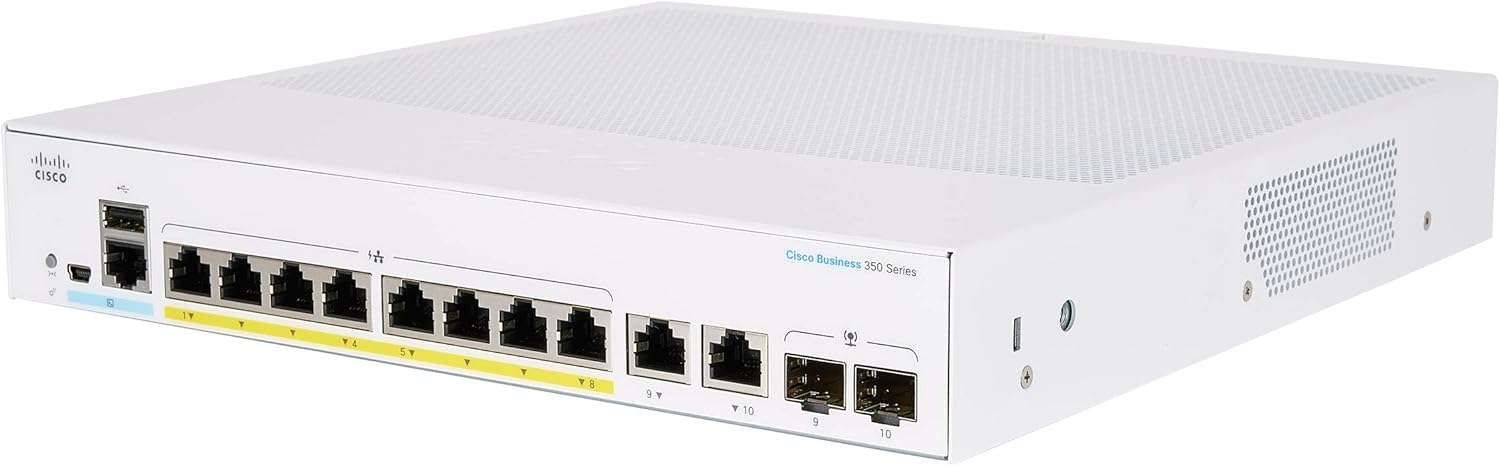
Obrázek 1: Přední strana view of the Cisco CBS350-8FP-2G Smart Switch, showing the 8 Gigabit Ethernet ports with PoE+ capability and two SFP/RJ45 combo ports.

Obrázek 2: Zadní view of the Cisco CBS350-8FP-2G Smart Switch, highlighting the power input and cooling vents.
2. Co je v krabici
Ověřte, zda jsou v balení přítomny všechny komponenty:
- Cisco CBS350-8FP-2G Smart Switch
- Napájecí kabel nebo adaptér
- Montážní hardware (pokud je k dispozici)
- Rychlý průvodce
3. Specifikace
| Funkce | Detail |
|---|---|
| Číslo modelu | CBS350-8FP-2G |
| Porty | 8 x 10/100/1000 PoE+ ports, 2 x Gigabit SFP/RJ45 combo ports |
| Podpora PoE+ | Yes, up to 740W total power budget (model dependent, check specific datasheet) |
| Řízení | Spravováno (Web UI, CLI, SNMP) |
| Layer Capabilities | Layer 2 and Layer 3 Static Routing |
| Rozměry (D x Š x V) | 10.56 x 10.73 x 1.73 palce |
| Hmotnost | 5.71 libry |
| Výrobce | CISCO |

Figure 3: Comparison of Cisco Business 110, 250, and 350 Series Switches, highlighting features like speed, number of ports, management layer, and PoE support.
4. Průvodce nastavením
4.1. Fyzická instalace
- Rozbalte přepínač: Opatrně vyjměte spínač a veškeré příslušenství z obalu.
- Vyberte umístění: Select a stable, flat surface or a rack-mount location with adequate ventilation. Ensure the ambient temperature is within the operating range specified in the product datasheet.
- Montáž (volitelné): If rack-mounting, attach the provided mounting brackets to the sides of the switch using the included screws. Secure the switch into the rack.
- Připojte napájení: Connect the power cord to the switch's power input and then to a grounded electrical outlet. Do not power on the switch yet.
4.2. Počáteční připojení k síti
- Připojení k PC: For initial configuration, connect an Ethernet cable from your computer's network adapter to any of the switch's Gigabit Ethernet ports.
- Zapnutí: Connect the power cord to a power source. The switch will begin its power-on self-test (POST). Wait for the system LED to indicate readiness (typically solid green).
- Přístup k Web uživatelské rozhraní: By default, the switch may obtain an IP address via DHCP. If no DHCP server is present, it will use a fallback IP address (e.g., 192.168.1.254). Refer to the Quick Start Guide for the default IP address and login credentials. Open a web browser and enter the switch's IP address to access the management interface.
- Změnit výchozí přihlašovací údaje: For security, immediately change the default username and password upon first login.

Figure 4: Illustration of Power over Ethernet (PoE+) functionality, showing how the switch can power devices like IP phones, access points, and cameras without separate power outlets.
5. Ovládání přepínače
5.1. Basic Network Connectivity
Once the switch is powered on and configured, connect your network devices (computers, servers, IP phones, access points) to the available Ethernet ports. The switch will automatically detect the connection speed and duplex mode.
5.2. Managing the Switch
The Cisco CBS350-8FP-2G is a managed switch, offering various configuration options through its webuživatelské rozhraní založené naWeb UI) or command-line interface (CLI). Common management tasks include:
- Konfigurace VLAN: Create and manage Virtual Local Area Networks to segment your network for improved security and performance.
- Kvalita služeb (QoS): Upřednostněte síťový provoz pro kritické aplikace, jako je hlas a video.
- Bezpečnostní funkce: Configure port security, 802.1X authentication, and access control lists (ACLs) to protect your network.
- PoE+ Management: Monitor and control power delivery to connected PoE devices.
- Aktualizace firmwaru: Regularly update the switch firmware to ensure optimal performance and security.

Obrázek 5: Přample of the Cisco Business Dashboard, which can be used to manage your entire Cisco Business network, offering all-in-one discovery, provisioning, reporting, and lifecycle management.
6. Údržba
Regular maintenance ensures the longevity and optimal performance of your Cisco Smart Switch.
- Udržujte to čisté: Periodically clean the exterior of the switch with a soft, dry cloth. Ensure ventilation openings are free from dust and debris to prevent overheating. Do not use liquid cleaners or aerosols.
- Aktualizace firmwaru: Zkontrolujte podporu Cisco website regularly for new firmware versions. Updating firmware can provide new features, performance improvements, and security patches.
- Kontrola prostředí: Ensure the switch operates within its specified temperature and humidity ranges. Avoid placing it near heat sources or in direct sunlight.
- Správa kabelů: Keep network cables organized and properly secured to prevent accidental disconnections or damage to ports.
- Konfigurace zálohy: Regularly back up the switch's configuration to an external device. This allows for quick restoration in case of a factory reset or device replacement.
7. Řešení problémů
Tato část obsahuje řešení běžných problémů, se kterými se můžete setkat.
7.1. No Power / System LED Off
- Zkontrolujte napájecí kabel: Ujistěte se, že je napájecí kabel bezpečně připojen k vypínači i k elektrické zásuvce.
- Ověřte zásuvku: Test the electrical outlet with another device to confirm it is functional.
- Cyklus napájení: Disconnect the power cord, wait 10 seconds, and then reconnect it.
7.2. Žádné síťové připojení
- Zkontrolujte připojení kabelů: Ensure Ethernet cables are securely plugged into both the switch port and the connected device. Verify that the link/activity LED on the switch port is illuminated.
- Verify Device Status: Ensure the connected device (PC, server, etc.) is powered on and its network adapter is enabled.
- Konflikt IP adres: If manually assigning IP addresses, ensure there are no conflicts on the network.
- Konfigurace VLAN: If VLANs are configured, ensure the device is connected to the correct VLAN or that inter-VLAN routing is properly set up.
7.3. PoE Device Not Receiving Power
- Check PoE Compatibility: Ujistěte se, že připojené zařízení je kompatibilní s PoE nebo PoE+.
- Ověření kabelu: Use a standard Ethernet cable (Cat5e or higher) that supports PoE.
- Rozpočet PoE: Check the switch's PoE power budget. If too many high-power devices are connected, the switch may not be able to power all of them. Disconnect some devices or use an external power source for some.
- Stav portu: Log into the switch's Web UI and verify that PoE is enabled on the specific port and that the port is not in an error state.
8. Záruka a podpora
This Cisco product is typically covered by a limited lifetime warranty with next business day advanced replacement for new products. For renewed products, warranty terms may vary. Please refer to your purchase documentation or the Cisco Renewed program details for specific warranty information.
8.1. Technická podpora
For technical assistance, product documentation, and software downloads, visit the official Cisco support website. You will need your product's serial number for support inquiries.
- Podpora Cisco Webmísto: www.cisco.com/go/support
- Cisco Business Community: community.cisco.com/t5/small-business-support
Before contacting support, have your product model number (CBS350-8FP-2G) and serial number ready. Describing the issue clearly and steps taken to troubleshoot can expedite the support process.