
Zavedení
The MX3 Air Mouse Remote Control is a versatile 2.4G wireless device designed to enhance your control over various smart devices. It combines the functionality of an air mouse, a mini wireless keyboard, and a traditional remote control, making navigation and input seamless for Android TV Boxes, projectors, smart TVs, mini PCs, and more.
Featuring a 3-Gyro&Gsensor for precise air mouse control, a full QWERTY keyboard on the reverse side, and a convenient backlight function, the MX3 is engineered for ease of use in diverse environments. Its plug-and-play design ensures quick setup, and the IR learning capability allows it to mimic functions from your existing TV remote.

Image: The MX3 Air Mouse Remote Control showing its front (remote) and back (keyboard) sides, alongside the compact USB receiver.
Nastavení
1. Obsah balení
- MX3 Air Mouse Remote Control
- USB přijímač
- Uživatelská příručka (tento dokument)
2. Instalace baterie
Locate the battery compartment on the back of the remote control. Insert two AAA batteries (not included), ensuring correct polarity (+/-) as indicated inside the compartment. Close the battery cover securely.
3. Připojení USB přijímače
The MX3 remote uses a 2.4GHz RF wireless connection. Simply plug the included USB receiver into an available USB port on your Android TV Box, Projector, Mini PC, Smart TV, or other compatible device. The system should automatically recognize the device, making it plug-and-play.

Image: Illustration of the 2.4G wireless connection, showing the USB receiver plugged into a laptop and the remote control wirelessly connected.
4. Spárování dálkového ovladače
In most cases, the remote will pair automatically upon plugging in the USB receiver. If the cursor does not move or the remote is unresponsive, follow these steps to manually pair:
- Ujistěte se, že je USB přijímač připojen k vašemu zařízení.
- Stiskněte a podržte OK tlačítko a TV button on the remote control simultaneously for 3-5 seconds.
- The LED indicator on the remote will flash rapidly, then slowly.
- Release the buttons. If the pairing is successful, the cursor should now move smoothly on your screen.

Image: A visual guide detailing the pairing process and IR learning function, showing the remote control and on-screen instructions.
Návod k obsluze
1. Základní funkce
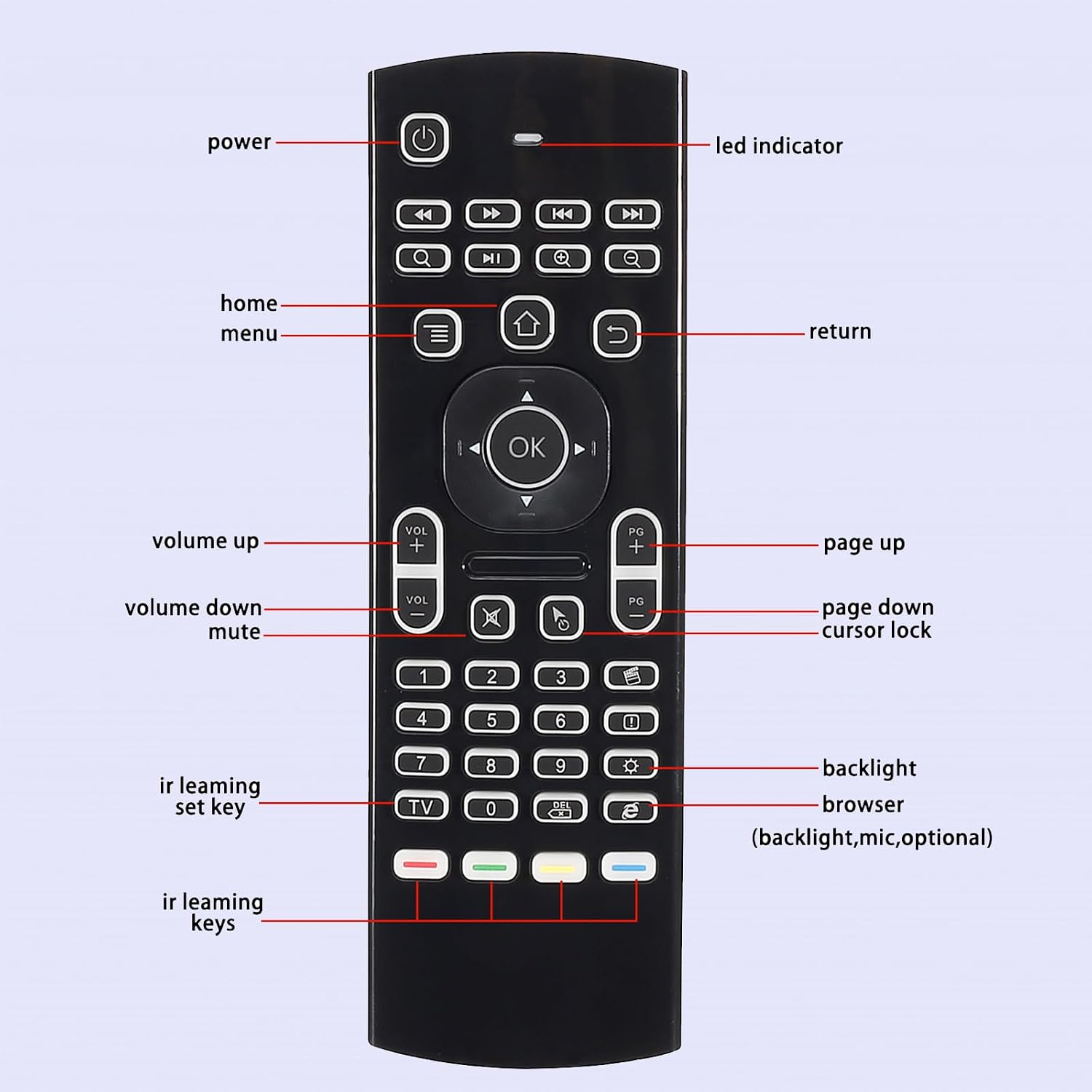
Image: A detailed diagram labeling the various buttons on the front side of the MX3 remote control, including power, volume, navigation, and special function keys.
- Vypínač: Zapne nebo vypne zařízení.
- Navigační tlačítko (OK, nahoru, dolů, vlevo, vpravo): Používá se pro navigaci v menu a výběr.
- Zvýšení/Snížení hlasitosti: Nastavuje hlasitost zvuku.
- Page Up/Down: Procházení stránek nebo seznamů.
- Tlačítko Domů: Návrat na hlavní obrazovku nebo domovské rozhraní.
- Tlačítko návratu: Návrat na předchozí obrazovku nebo do nabídky.
- Tlačítko nabídky: Otevírá kontextové nabídky.
2. Použití klávesnice
Flip the remote over to access the full QWERTY keyboard. This allows for easy text input, searching, and typing, similar to a standard computer keyboard.
3. Air Mouse Functionality
The MX3 remote features a 3-Gyro&Gsensor system, enabling precise air mouse control. Simply wave the remote in the air to move the cursor on your screen. Press the Zámek kurzoru button to toggle between air mouse mode and traditional button navigation.

Image: The MX3 remote control being used as an air mouse, with a diagram illustrating the 6-Axis Inertia Sensors (Gyroscope frame, Spin axis, Gimbal, Rotor) that enable its motion-sensing capabilities.
4. Funkce podsvícení
To activate the backlight for the keyboard, press the Jas button (often depicted as a light bulb icon). This illuminates the keys, making the remote easy to use in low-light conditions or in the dark.

Image: The MX3 remote control with its LED backlight illuminated, demonstrating its utility for use in dark environments.
5. Funkce učení IR
The MX3 remote can learn infrared (IR) signals from your existing TV remote, allowing you to consolidate control. Follow these steps:
- Place the MX3 air mouse remote and your TV remote head-to-head, ensuring their IR emitters are aligned.
- Press and hold the MX3 remote's TV button for 3-5 seconds. The red LED will flash fast, then slowly, indicating it has entered learning mode.
- Press the button on your TV remote that you wish to learn (e.g., Power button). The red LED on the MX3 remote will light up steadily.
- While the MX3's LED is steady, press the corresponding button on the MX3 remote (e.g., the Power button or one of the four color buttons) where you want to store the learned function. The red LED will flash slowly again, indicating successful learning.
- Opakujte kroky 3 a 4 pro všechna další tlačítka, která chcete naprogramovat.
- Press the MX3 remote's TV button again to exit learning mode. The LED will turn off.

Image: The MX3 remote control positioned to learn IR signals from another remote, illustrating the IR learning function.
Údržba
1. Čištění
Chcete-li vyčistit dálkový ovladač, jemně otřete jeho povrch měkkým, suchým hadříkem. V případě odolných nečistot lehceampen the cloth with water or a mild, non-abrasive cleaner. Avoid using harsh chemicals or excessive moisture, as this can damage the electronics.
2. Výměna baterie
When the remote's performance degrades or the LED indicator flashes to signal low power, replace the AAA batteries. Always replace both batteries at the same time with new ones. Dispose of old batteries responsibly according to local regulations.
3. Skladování
Store the remote in a cool, dry place away from direct sunlight, extreme temperatures, and high humidity. If storing for an extended period, it is advisable to remove the batteries to prevent leakage and potential damage to the device.
Odstraňování problémů
- Dálkové ovládání nereaguje:
- Ujistěte se, že je USB přijímač bezpečně zapojený do zařízení.
- Zkontrolujte stav baterie a v případě potřeby ji vyměňte.
- Try re-pairing the remote by holding the OK a TV tlačítka současně.
- Zkuste zapojit USB přijímač do jiného USB portu na vašem zařízení.
- Cursor erratic or not moving smoothly:
- Ensure the remote is held steadily and not subjected to excessive shaking.
- Recalibrate the air mouse by placing the remote on a flat surface for a few seconds.
- Interference from other 2.4GHz devices might be present. Try moving closer to the receiver or away from other wireless devices.
- Podsvícení nefunguje:
- Stiskněte tlačítko Jas button to ensure it's toggled on.
- Check battery levels. Low batteries may prevent the backlight from functioning.
- Učení IR selhalo:
- Ensure the remotes are aligned head-to-head and close enough during the learning process.
- Make sure the MX3 remote is in IR learning mode (LED flashing slowly after holding TV tlačítko).
- Some IR signals may not be compatible. Try with another button or remote if possible.
Specifikace
| Funkce | Detail |
|---|---|
| Číslo modelu | 96dc0485-b1bd-4b84-b7ed-147fc3a3209f |
| Konektivita | 2.4 GHz bezdrátové rádiové připojení |
| Senzory | 3-Gyro & Gsensor (6-Axis Inertia Sensors) |
| Klávesnice | Plná QWERTY klávesnice |
| Speciální funkce | Backlight Function, IR Learning |
| Kompatibilní zařízení | Android TV Box, Projector, Android Smart TV, IPTV, Networked set-top Box, Mini PC, PS3/4, Xbox 360 |
| Kompatibilní OS | Google/Android OS, Mac OS, Linux OS, Windows system |
| Přenosová vzdálenost | Až 10 metrů |
| Hmotnost položky | 3.36 unce (cca 95.26 gramů) |
| Rozměry balení | 2.1 x 1.57 x 0.59 palců (přibližně 5.33 x 3.99 x 1.50 cm) |
Záruka a podpora
Informace o záruce
For specific warranty details, please refer to the product packaging or contact the seller directly. Warranty terms may vary based on region and purchase date.
Zákaznická podpora
If you encounter any issues or have questions regarding the MX3 Air Mouse Remote Control, please contact the seller or manufacturer for assistance. You can typically find contact information on the product packaging or the retailer's webmísto, kde byl produkt zakoupen.
As stated in the product features: "Any question before purchase or during use, please feel free to contact us."