
1. Úvod
Vítejte v Černéview Tab 16 user manual. This guide provides essential information for setting up, operating, maintaining, and troubleshooting your new Blackview Tab 16 Android tablet. Please read this manual carefully to ensure optimal performance and longevity of your device.

Obrázek: Černáview Tab 16 tablet, showcasinjeho elegantní design.
2. Co je v krabici
Verify that all items are present in your Blackview Tab 16 package:
- Černýview Tab 16 Tablet (x1)
- Uživatelská příručka (x1)
- Napájecí adaptér (x1)
- USB kabel (x1)
- Stylus (x1)
- TPU Protective Case (x1)
3. Konec produktuview
3.1 Fyzický návrh
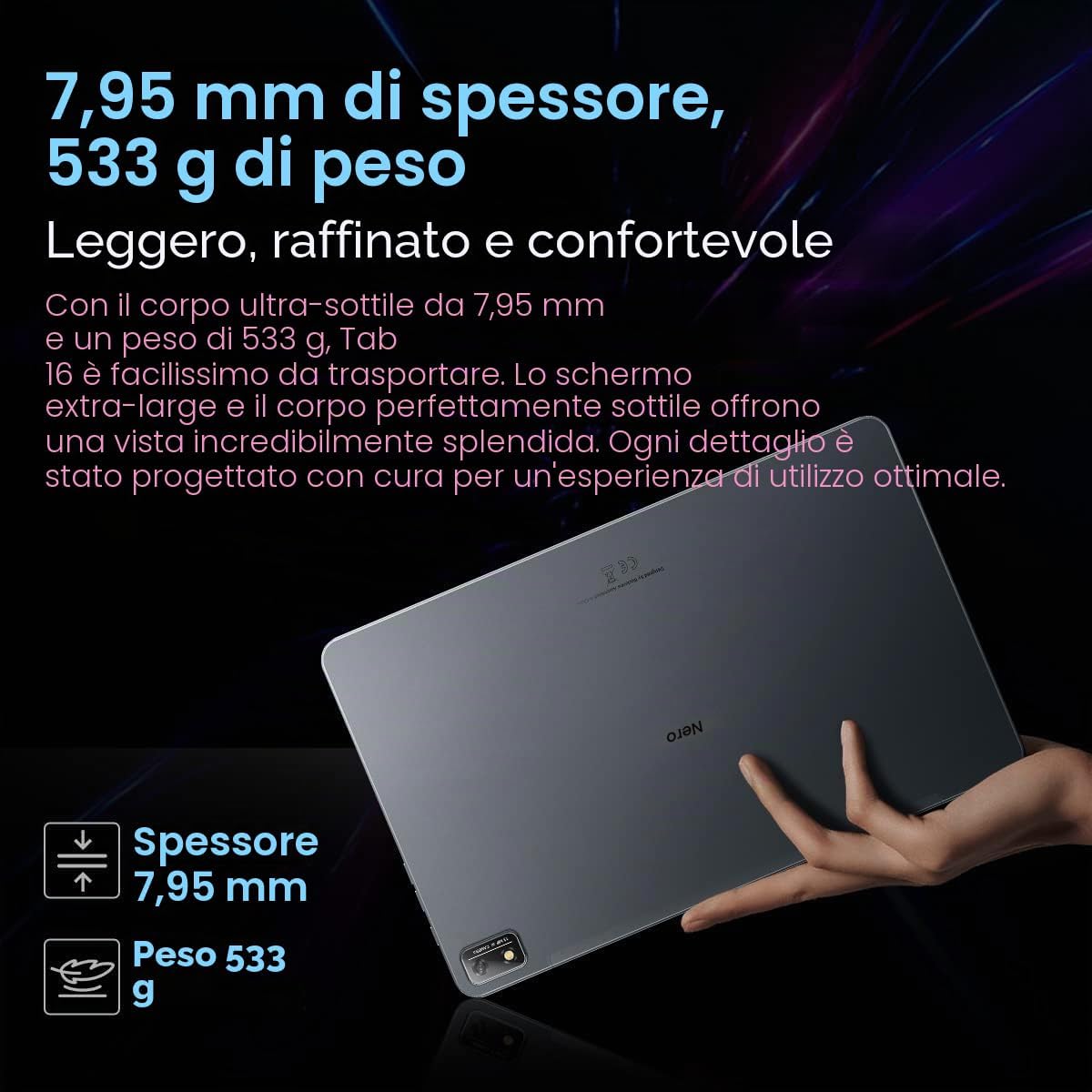
Černýview Tab 16 features a slim and lightweight design, making it highly portable for daily use.

Obrázek: Černáview Tab 16, demonstrating its ultra-thin 7.95mm profile a lehká hmotnost 533 g.
3.2 Displej
Experience immersive visuals on the 11-inch 2K Full View IPS display, offering vibrant colors and wide viewing úhly.

Image: Visual representation of the 11-inch 2K Full View display, emphasizing its large screen for an enhanced viewzkušenosti.
3.3 zvuk
The tablet is equipped with Quad-box Smart-K stereo speakers, providing rich and clear audio for all your multimedia needs.

Obrázek: Černáview Tab 16 showcasing its Quad-box Smart-K speakers, designed for an immersive audio experience.
3.4 Výkon
Powered by an Octa-core Unisoc T616 processor, the Tab 16 ensures smooth operation and efficient multitasking.

Image: A visual representation of the Unisoc T616 Octa-core processor, highlighting its speed and efficiency.
3.5 Fotoaparát
Capture moments with the 13MP AI rear camera and 8MP AI front camera. The integrated Google Smart Lens offers advanced scanning, detection, and translation features.

Obrázek: Černáview Tab 16's camera system, featuring a 13MP AI camera and Google Smart Lens capabilities.
3.6 Baterie
The 7680mAh battery provides extended usage, supported by 18W fast charging for quick power-ups.

Obrázek: Ilustrace černéhoview Tab 16's 7680mAh battery and 18W fast charging capability.
4. Nastavení
4.1 Nabíjení zařízení
Před prvním použitím plně nabijte Blackview Tab 16 using the provided power adapter and USB cable. Connect the USB cable to the tablet's Type-C port and the adapter to a power outlet. The charging indicator will show the charging status.
4.2 Zapnutí/vypnutí
- Zapnutí: Stiskněte a podržte tlačítko napájení, dokud se nerozsvítí černáview na obrazovce se zobrazí logo.
- Vypnutí: Stiskněte a podržte tlačítko napájení, dokud se nezobrazí nabídka. Vyberte „Vypnout“ a potvrďte.
- Restartovat: Stiskněte a podržte tlačítko napájení, dokud se nezobrazí nabídka. Vyberte „Restartovat“ a potvrďte.
4.3 Počáteční nastavení
Upon first power-on, follow the on-screen instructions to configure your tablet:
- Vyberte preferovaný jazyk.
- Připojte se k síti Wi-Fi.
- Přihlaste se pomocí svého účtu Google nebo si vytvořte nový.
- Nastavte zámek obrazovky (PIN, vzorec, heslo nebo rozpoznávání obličeje).
- Review a přijměte obchodní podmínky.
4.4 Instalace SIM a SD karty
Černýview Tab 16 supports Dual SIM and an SD card for expanded storage up to 1TB.
- Na boku tabletu vyhledejte slot pro SIM/SD kartu.
- K otevření zásuvky použijte dodaný nástroj pro vysunutí SIM karty.
- Carefully place your Nano-SIM cards and/or microSD card into the designated slots. Ensure correct orientation.
- Jemně zatlačte zásobník zpět do tabletu, dokud nezacvakne na místo.
5. Návod k obsluze
5.1 Základní navigace
Černýview Tab 16 uses a touchscreen interface. Common gestures include:
- Klepněte na: Vyberte položku nebo otevřete aplikaci.
- Výpad: Procházení stránek nebo obsahu.
- Štípání: Přiblížení nebo oddálení obrázků a web stránky.
- Dlouhé stisknutí: Přístup k kontextovým nabídkám nebo přesun ikon.
5.2 Konektivita
- Wi-Fi: Pro připojení k dostupným sítím přejděte do Nastavení > Síť a internet > Wi-Fi.
- Mobilní data (4G/LTE): Ensure your SIM card is installed and mobile data is enabled in Settings > Network & internet > Mobile network.
- Bluetooth: Spárování se zařízeními Bluetooth (sluchátka, reproduktory) provedete přes Nastavení > Připojená zařízení > Bluetooth.
5.3 Použití kamery
Open the Camera app to take photos or record videos. Utilize the Google Smart Lens feature for advanced functions:
- Skenovat: Digitize documents or QR codes.
- Zjistit: Identify objects, plants, or animals.
- Přeložit: Překládejte text v reálném čase.
5.4 Multimédia a zábava
Enjoy movies, music, and games on your Tab 16. The 11-inch 2K display and Quad-box speakers provide an engaging experience. The tablet supports Widevine L1 for high-definition streaming.
5.5 Productivity
Černýview Tab 16 is suitable for office work and online learning. It supports external accessories like keyboards and mice for a PC-like experience.
Obrázek: Černáview Tab 16 paired with a keyboard and mouse, demonstrating its capability for a PC-like productivity experience.
5.6 Reading Modes
To reduce eye strain, the Tab 16 offers three eye protection modes, including a TÜV Rheinland Low Blue Light certified mode and a Dark Mode with 3 levels of darkness. Access these settings in the display options.
6. Údržba
6.1 Čištění zařízení
K čištění obrazovky a těla tabletu používejte měkký hadřík, který nepouští vlákna. Nepoužívejte agresivní chemikálie ani abrazivní materiály, které by mohly poškodit povrch.
6.2 Péče o baterii
Chcete -li prodloužit životnost baterie:
- Vyhněte se extrémním teplotám.
- Nenechávejte baterii pravidelně úplně vybít.
- Použijte originální nabíječku a kabel.
6.3 Aktualizace softwaru
Pravidelně kontrolujte aktualizace systému, abyste zajistili, že váš tablet má nejnovější funkce a bezpečnostní záplaty. Přejděte do Nastavení > Systém > Aktualizace systému.
6.4 Správa úložiště
Manage your 256GB internal storage and any installed microSD card by regularly deleting unnecessary files and uninstalling unused applications. Go to Settings > Storage.
7. Řešení problémů
Pokud narazíte na problémy s vaším Blackview Tab 16, refer to the following common solutions:
| Problém | Možné řešení |
|---|---|
| Zařízení se nezapne | Ujistěte se, že je baterie nabitá. Stiskněte a podržte tlačítko napájení po dobu alespoň 10–15 sekund. |
| Tablet se nenabíjí | Check the charging cable and adapter for damage. Try a different power outlet. Ensure the charging port is clean. |
| Problémy s připojením Wi-Fi | Restartujte tablet a Wi-Fi router. Zapomeňte na síť a znovu se připojte. Ujistěte se, že jste v dosahu. |
| Aplikace padá nebo zamrzávají | Close and reopen the app. Clear the app's cache (Settings > Apps > [App Name] > Storage & cache). Restart the tablet. |
| Pomalý výkon | Zavřete aplikace na pozadí. Vymažte mezipaměť. Uvolněte úložný prostor. Restartujte tablet. |
If problems persist, consider performing a factory reset (Settings > System > Reset options > Erase all data), but back up your data first as this will delete all personal information.
8. Specifikace
Key technical specifications for the Blackview Karta 16:
- Název modelu: Karta 16
- Operační systém: Android 12
- Procesor: Osmijádrový Unisoc T616 (2 GHz)
- BERAN: 8 GB
- Interní úložiště: 256 GB
- Rozšiřitelné úložiště: microSD až do 1 TB
- Zobrazit: 11-inch IPS 2K (2000 x 1200), 60 Hz, 16:10 aspect ratio
- Zadní kamera: 13 MP
- Přední kamera: 8 MP
- Baterie: 7680 mAh (26 hours average duration)
- Nabíjení: Rychlé nabíjení 18W
- Konektivita: Wi-Fi, Bluetooth, 4G/LTE (Dual SIM), GPS
- Porty: USB Type-C
- Rozměry: 26L x 16.5W x 0.8H cm
- Hmotnost: 533 g
- Speciální vlastnosti: Google Smart Lens, Widevine L1 1080P Support, 3 Reading Modes
9. Záruka a podpora
Vaše černáview Tab 16 is covered by a manufacturer's warranty. Please refer to the warranty card included in your package for specific terms and conditions. For technical support or service inquiries, please visit the official Blackview webnebo se obraťte na jejich zákaznický servis. Uschovejte si účtenku jako doklad o koupi pro případ reklamace.
Pro více informací můžete navštívit Černýview Obchod na Amazonu.