
1. Úvod
Thank you for choosing the EBTOOLS 4G LTE USB WiFi Modem. This device provides a portable wireless hotspot, allowing you to connect multiple devices to the internet using a 3G or 4G SIM card. This manual will guide you through the setup, operation, maintenance, and troubleshooting of your device to ensure optimal performance and a seamless user experience.
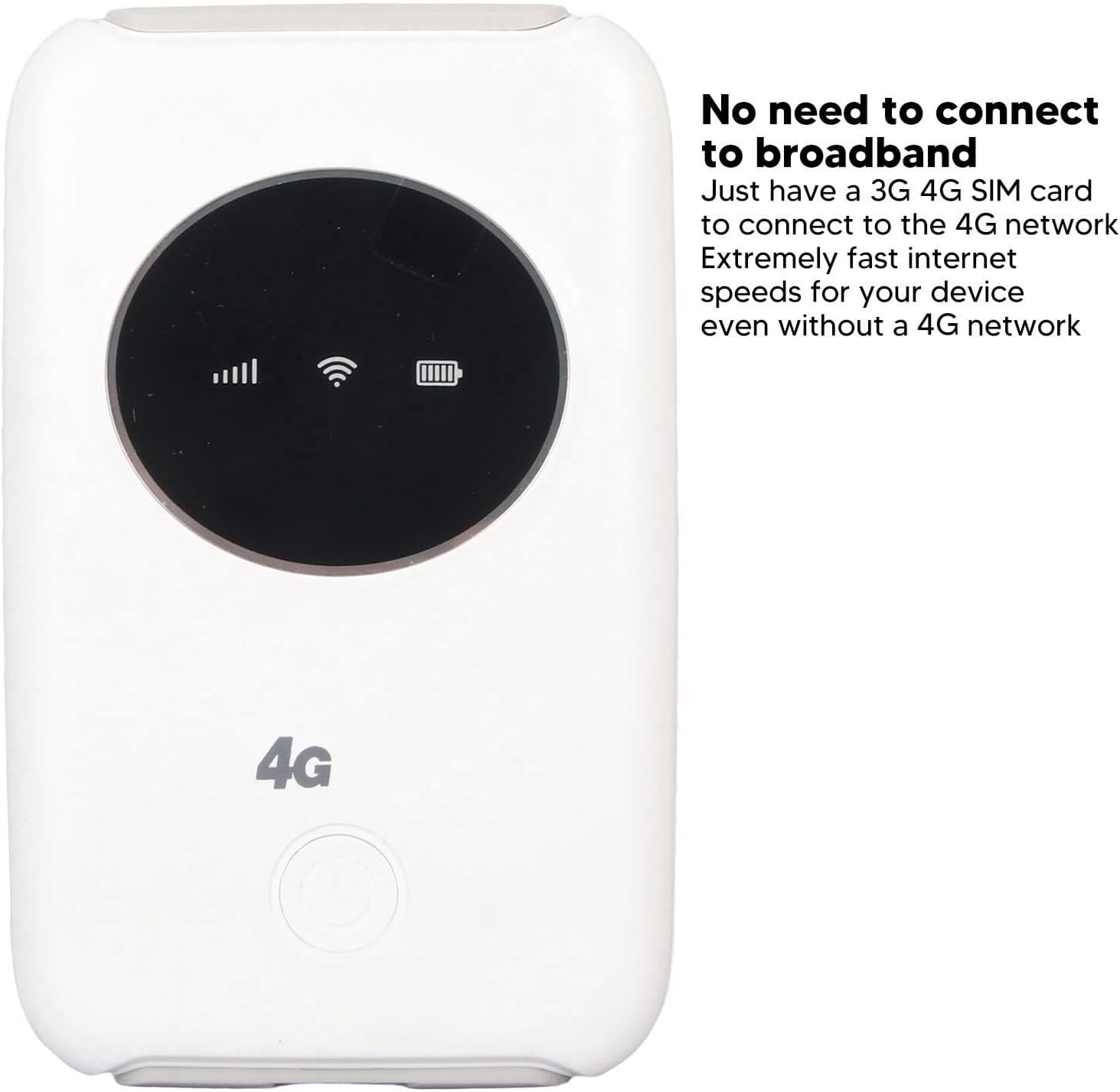
Obrázek 1.1: Přední strana view of the EBTOOLS 4G LTE USB WiFi Modem, showing its compact design and indicator lights for signal strength, WiFi status, and battery level. This device allows internet access without a traditional broadband connection, requiring only a 3G or 4G SIM card.
2. Konec produktuview
2.1 Klíčové vlastnosti
- Portable 4G LTE Hotspot: Provides wireless internet access using a 3G/4G SIM card.
- Vysokorychlostní připojení: Supports LTE CAT4 with internet access speeds up to 300Mbps, depending on signal strength.
- Podpora více uživatelů: Připojuje až 10 zařízení současně.
- Vestavěná baterie: Features a 3200mAh Lithium-ion polymer battery for extended use.
- Flexibilní nabíjení: Can be charged via computer USB port, car USB charger, or other external power sources.
- Kompaktní design: Small and lightweight, ideal for travel, business trips, outdoor activities, and car WiFi.
2.2 Obsah balení
- 1 x EBTOOLS 4G LTE USB WiFi Modem
- 1 x USB kabel
- 1 x Uživatelská příručka

Image 2.1: The EBTOOLS 4G LTE USB WiFi Modem shown alongside its Micro USB charging cable. This image illustrates the main components included in the product package.
3. Nastavení
3.1 Vložení SIM karty a baterie
- Locate the SIM card slot on the device. The device uses a standard SIM card.
- Carefully insert your active 3G or 4G SIM card into the designated slot. Ensure it is inserted correctly according to the diagram or markings on the device.
- Install the built-in Lithium-ion polymer battery into its compartment.
- Bezpečně zavřete kryt bateriového prostoru.

Obrázek 3.1: Podrobný view of the modem, illustrating the process of inserting the SIM card and battery. Proper insertion is crucial for the device to function correctly.
3.2 Počáteční konfigurace (nastavení APN)
Even if your SIM card is active and supports hotspot devices, you may need to configure the Access Point Name (APN) settings for internet connectivity. Follow these steps:
- Ensure your SIM card's PIN code is disabled. This can usually be done through a mobile phone before inserting it into the modem.
- Connect a device (e.g., laptop, smartphone) to the modem's WiFi network. The default WiFi name (SSID) and password are usually found on a sticker inside the battery compartment or on the device itself.
- Otevřete a web browser on the connected device and enter the router's IP address: 192.168.43.1.
- Log in to the modem's administration interface. Default login credentials are often 'admin' for both username and password. Refer to the device's label for specific details.
- Navigate to the network settings or APN settings section.
- Enable APN for the network and modify the APN settings according to your mobile network provider's specifications. This information can typically be found on your provider's webwebu nebo kontaktováním jejich zákaznické podpory.
- Save the changes and restart the modem if prompted.
Důležité: Ensure your SIM card is active and has an active data plan for internet access.
4. Návod k obsluze
4.1 Zapnutí/vypnutí
- Zapnutí: Press and hold the power button (usually located on the front or side) for a few seconds until the indicator lights illuminate.
- Vypnutí: Znovu stiskněte a několik sekund podržte tlačítko napájení, dokud kontrolky nezhasnou.
4.2 Připojení zařízení
The EBTOOLS 4G LTE USB WiFi Modem can support up to 10 connected devices simultaneously. The effective WiFi range is approximately 10 meters (32.8 feet).
- Ensure the modem is powered on and the WiFi indicator light is active.
- On your device (smartphone, tablet, laptop), search for available WiFi networks.
- Select the network name (SSID) corresponding to your EBTOOLS modem.
- Enter the WiFi password (WPA/WPA2 key) when prompted. This is typically found on a sticker on the device or in the battery compartment.
- Po připojení by vaše zařízení mělo mít přístup k internetu.

Image 4.1: The modem is shown with an overlay indicating its ability to connect up to 10 devices simultaneously, including smartphones, tablets, and laptops. The effective range is approximately 10 meters.
4.3 Nabíjení zařízení
The modem can be charged using the provided USB cable. Connect the Micro USB end to the modem and the standard USB end to any of the following power sources:
- USB port počítače
- Car USB charger
- Standard USB power adapter (e.g., smartphone charger)
The battery indicator light will show the charging status. The device can operate while charging when connected to an external power source, without a time limit.
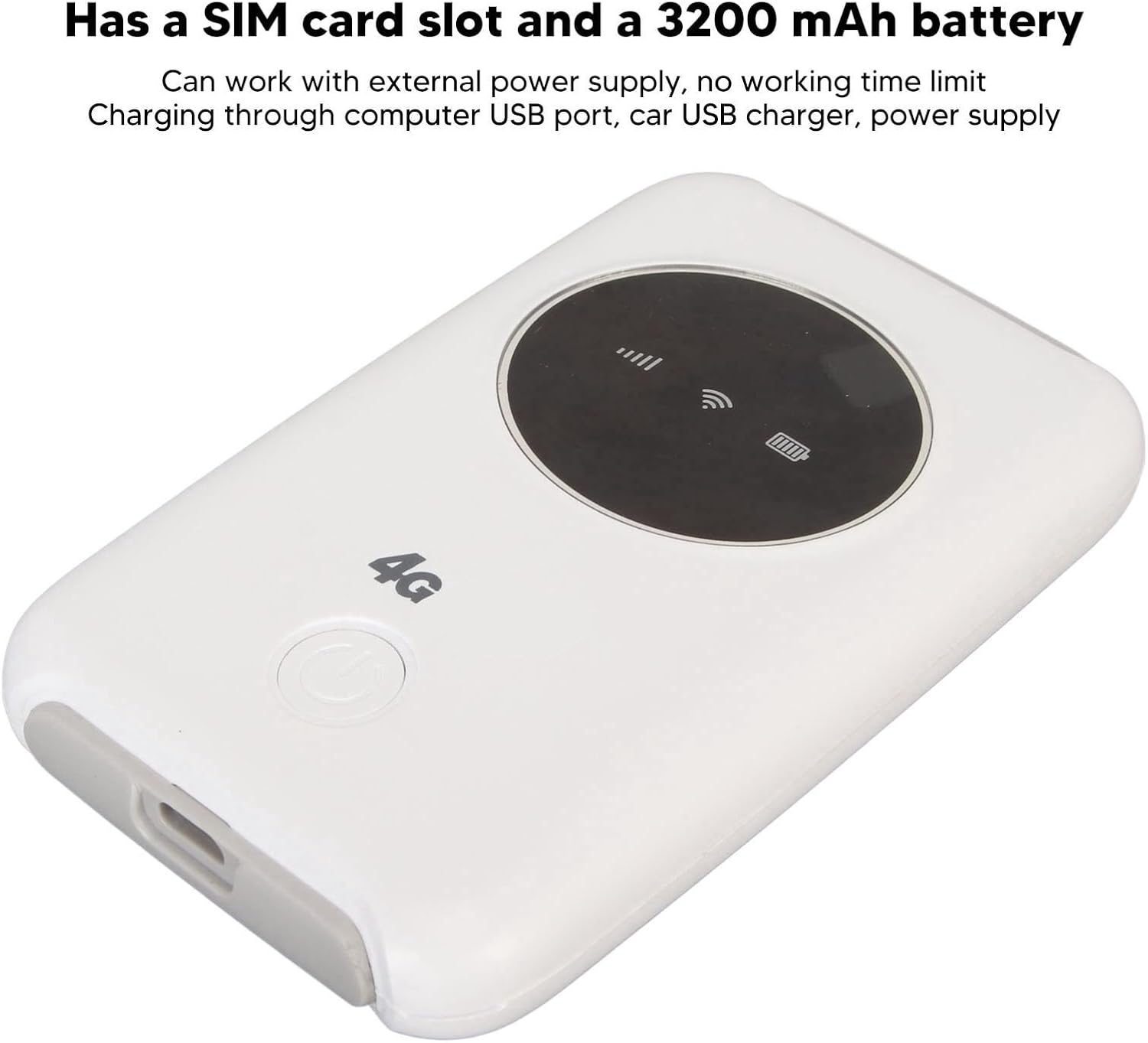
Image 4.2: This image emphasizes the modem's integrated SIM card slot and its 3200mAh battery. It also notes that the device can function continuously when connected to an external power supply.
5. Údržba
- Odvod tepla: If the WiFi modem operates for an extended period, it requires proper heat dissipation. Ensure it is placed in a well-ventilated area to prevent overheating, which could damage internal components.
- Čištění: K čištění zařízení používejte měkký, suchý hadřík. Nepoužívejte tekuté čisticí prostředky ani abrazivní materiály.
- Skladování: Přístroj skladujte na chladném a suchém místě mimo dosah přímého slunečního záření a extrémních teplot.
- Vystavení vodě: Udržujte zařízení mimo dosah vody a vlhkosti, aby nedošlo k poškození.
6. Řešení problémů
6.1 Běžné problémy a řešení
| Problém | Možná příčina | Řešení |
|---|---|---|
| Žádné připojení k internetu |
|
|
| Přehřívání zařízení |
|
|
| Cannot connect more devices |
|
|
7. Specifikace
| Funkce | Detail |
|---|---|
| Typ produktu | 4G LTE USB WiFi Modem |
| Značka | EBTOOLS |
| Číslo modelu | EBTOOLS794cgdg3qo |
| Barva | Bílý |
| Rozměry (D x Š x V) | Přibližně 10 x 6 x 1.5 cm (3.9 x 2.4 x 0.6 palce) |
| Hmotnost | 125 g |
| Typ baterie | Built-in Lithium-ion Polymer Battery |
| Kapacita baterie | 3200 XNUMX mAh |
| Slot pro SIM kartu | 1 x Standard SIM Card Slot (SIM card not included) |
| Síťová pásma | B1/2/3/5/7/8/20/40 |
| Maximální rychlost stahování | Up to 300Mbps (LTE CAT4) |
| Maximální počet připojených uživatelů | 10 |
| Bezdrátové Standardní | 802.11ac (for WiFi broadcast) |
| Vstupní objemtage | 5V DC |
| Rozhraní | Micro USB |
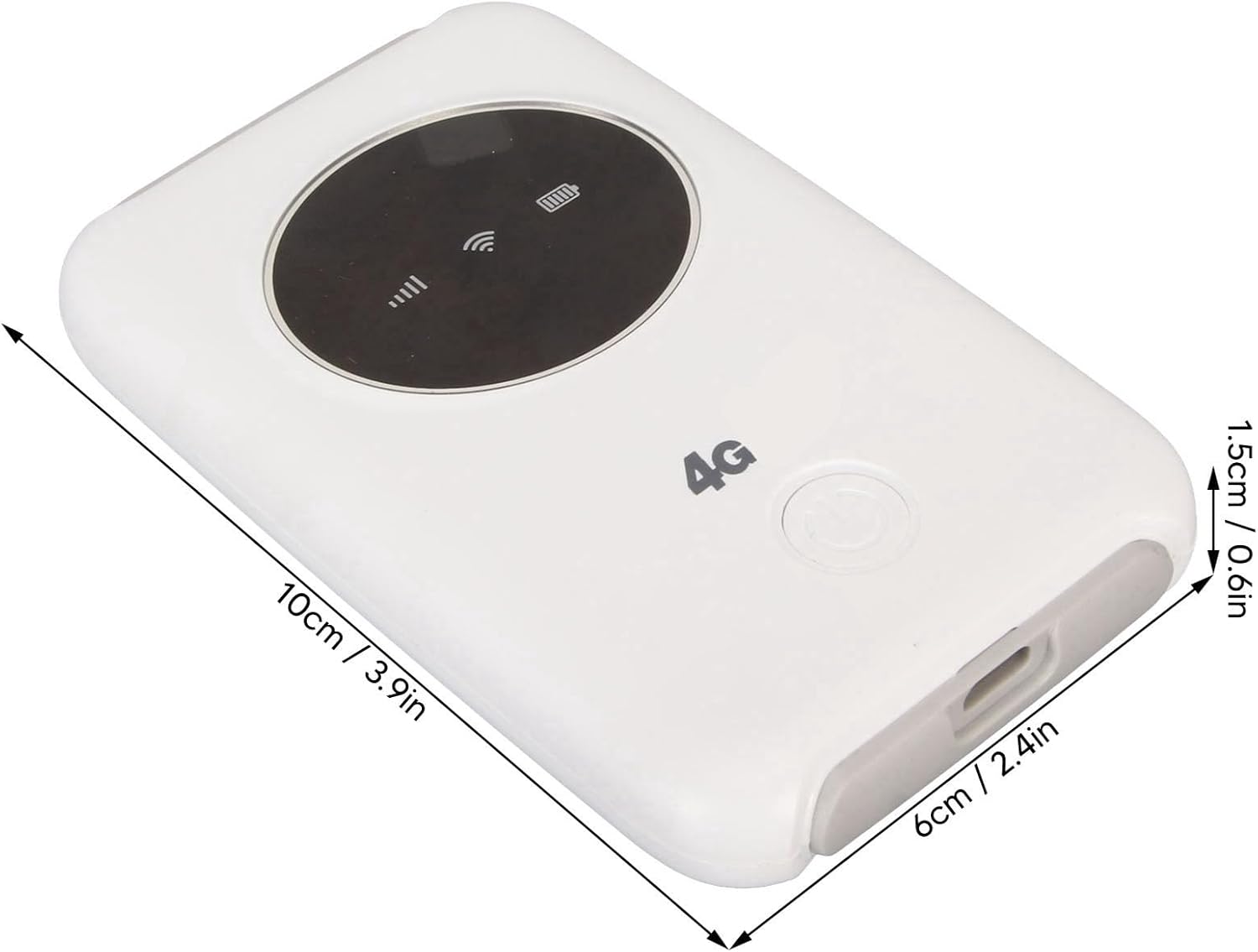
Image 7.1: The modem with its physical dimensions clearly marked, showing its compact size of approximately 10cm x 6cm x 1.5cm.
8. Bezpečnostní informace
- Nepokoušejte se zařízení rozebírat, opravovat nebo upravovat.
- Nevystavujte zařízení extrémním teplotám, přímému slunečnímu záření nebo vysoké vlhkosti.
- Udržujte zařízení mimo dosah hořlavých nebo výbušných materiálů.
- Use only the provided or recommended charging cable and power sources.
- Uchovávejte mimo dosah dětí.
9. Záruka a podpora
Specific warranty information for this product is not available in this manual. Please refer to the documentation provided with your purchase or contact your retailer for details regarding warranty coverage and customer support. For technical assistance, please reach out to the manufacturer or seller through their official channels.