
1. Úvod
This manual provides essential information for the installation, operation, and maintenance of your KiriNavi Qualcomm Car Radio. This advanced head unit features an Android 13 operating system, an 8-core CPU, 4GB RAM, and 64GB ROM, offering enhanced performance and a 12.1-inch 2K IPS touch screen. It integrates seamlessly with your vehicle's existing systems, providing modern connectivity and entertainment options.
Please read this manual thoroughly before installation and use to ensure proper functionality and to maximize your experience with the product.
2. Kompatibilita s vozidly
This KiriNavi car radio is specifically designed for the following Ford truck models:
- Ford F250 (2009-2012)
- Ford F350 (2009-2012)
- Ford F450 (2009-2016)
- Ford F650 (2009-2016)
Důležitá poznámka:
This unit is compatible ONLY with vehicles that DO NOT have the SYNC 2 System. Please verify your vehicle's current AC control panel configuration to ensure compatibility. Refer to the image below for visual guidance.

Image: Visual guide for compatible (top) and incompatible (bottom) AC control panels. Units with the specified AC control (red X) are not compatible.
3. Obsah balení
Po otevření balení se ujistěte, že jsou přítomny všechny následující komponenty:
- 1x KiriNavi Android Head Unit
- 1x GPS anténa
- 1x Power Cable and other necessary cables and plugs
- 1x externí mikrofon
- 1x couvací kamera

Obrázek: Overview of the head unit's rear connections and all included wiring harnesses and accessories.
4. Nastavení a instalace
The KiriNavi car radio is designed for a standard fit, eliminating the need for additional accessories. Installation typically involves removing the existing stereo and connecting the new unit using the provided wiring harnesses.
4.1 Kontrola před instalací
- Confirm your vehicle's compatibility as detailed in Section 2.
- Před zahájením instalace se ujistěte, že je baterie vozidla odpojena, abyste předešli poškození elektrických zařízení.
- Familiarize yourself with the included cables and their corresponding ports on the head unit and your vehicle.
4.2 Kroky instalace (obecný návod)
- Carefully remove the existing factory radio and trim panels from your dashboard.
- Connect the main power harness from the KiriNavi unit to your vehicle's wiring. The connectors are designed to be plug-and-play, with different sizes preventing incorrect connections.
- Connect the GPS antenna, external microphone, and backup camera cables to their respective ports on the head unit.
- Route all cables neatly to avoid interference and ensure a clean installation.
- Mount the KiriNavi head unit into the dashboard opening.
- Reconnect the vehicle's battery and test the unit's functionality before fully reassembling the dashboard trim.

Image: A visual comparison showing the factory radio setup (bottom) and the KiriNavi unit installed (top) in a Ford F-Series truck dashboard.
For detailed, vehicle-specific installation instructions, it is recommended to consult a professional installer or refer to your vehicle's service manual.
5. Návod k obsluze
The KiriNavi car radio offers a wide range of features powered by Android 13. Below are instructions for key functionalities.
5.1 Zapnutí/vypnutí a základní navigace
- Zapnutí: The unit will power on automatically when the vehicle's ignition is turned on.
- Vypnout: The unit will power off automatically when the vehicle's ignition is turned off.
- Dotyková obrazovka: Navigate through menus and applications using the responsive 12.1-inch touch screen.
5.2 Apple CarPlay a Android Auto
The unit supports both wireless and wired Apple CarPlay and Android Auto. This allows for seamless integration with your smartphone, providing access to navigation, phone contacts, messages, music, and more.
- Spojení: Connect your smartphone via USB for wired connection or wirelessly via Bluetooth and Wi-Fi.
- Hlasové ovládání: Utilize Siri or Google Assistant for hands-free operation, allowing you to stay focused on the road.
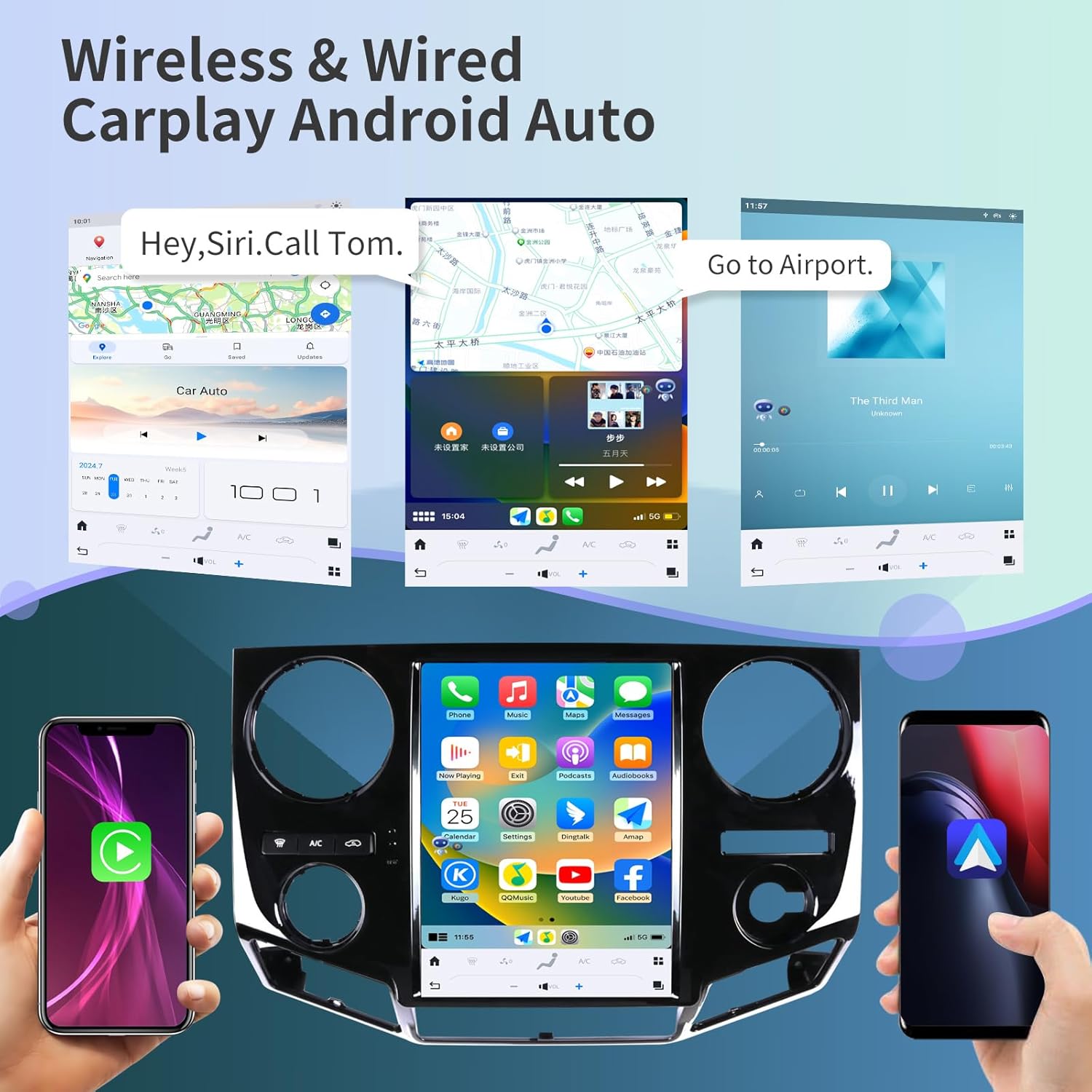
Obrázek: Přamples of Apple CarPlay and Android Auto interfaces displayed on the head unit, showing navigation and music playback.
5.3 GPS navigace
The unit features a built-in GPS module with support for both online and offline maps, utilizing GPS + GLONASS for high-precision navigation.
- Mapové aplikace: Compatible with popular navigation apps such as Apple Maps, Google Maps, and Waze.
- Online/Offline: Download offline maps for navigation without an internet connection, or use online maps for real-time traffic updates.

Image: The head unit displaying various navigation application icons and indicating Wi-Fi and 4G network capabilities.
5.4 Wi-Fi & 4G Network Connectivity
Access the internet via Wi-Fi or a 4G network (SIM card required for 4G, not included) to enhance your in-car experience.
- Online obsah: Stream online videos, browse the web, and download applications from the app store (e.g., YouTube, Netflix, Facebook).
- Hotspot: Connect to your smartphone's hotspot for internet access.
5.5 Bluetooth 5.0
The integrated Bluetooth 5.0 module enables wireless audio streaming and hands-free calling.
- Hands-free volání: Make and receive calls safely using the external microphone and the unit's display.
- Streamování zvuku: Play music from your Bluetooth-enabled devices.
- Contact Sync: Sync your phone contacts for easy access.
5.6 Ovládání na volantu
The unit supports your vehicle's original steering wheel controls, allowing you to manage audio, calls, and other functions without taking your hands off the wheel.
- Konfigurace: The unit can be configured to learn and map your vehicle's steering wheel buttons. Refer to the unit's settings menu for steering wheel control setup.

Image: The head unit displaying the interface for configuring steering wheel controls, alongside a view couvací kamery v akci.
5.7 Funkce couvací kamery
The included HD backup camera provides a 170° wide viewing angle and night vision capabilities, enhancing safety during reversing maneuvers.
- Automatické zobrazení: The camera feed automatically appears on the unit's screen when the vehicle is shifted into reverse.
- Noční vidění: Improved visibility in low-light conditions.
5.8 Digitální zvukový procesor (DSP)
Customize your audio experience with the built-in 16-band equalizer and DSP settings.
- Ekvalizér: Upravte frekvenční pásma podle svých zvukových preferencí.
- Zvukové režimy: Select from various preset sound modes or create custom profiles.
5.9 Rozdělený displej
Enhance multitasking by displaying two applications simultaneously on the screen.
- Používání: Napřampnapř. používejte navigaci na jedné straně a přehrávání hudby na druhé.
6. Údržba
Proper maintenance ensures the longevity and optimal performance of your KiriNavi car radio.
- Čištění obrazovky: Dotykovou obrazovku jemně otřete měkkým hadříkem, který nepouští vlákna. V případě odolných šmouh lehceampOtřete hadřík vodou nebo čisticím prostředkem vhodným pro obrazovky. Vyhněte se agresivním chemikáliím nebo abrazivním materiálům.
- Aktualizace softwaru: Periodically check for software updates through the unit's settings menu to ensure you have the latest features and performance improvements.
- Kontroly připojení: Occasionally inspect all visible cable connections to ensure they are secure and free from damage.
- Péče o životní prostředí: Nevystavujte jednotku extrémním teplotám, delšímu přímému slunečnímu záření nebo nadměrné vlhkosti.
7. Řešení problémů
This section addresses common issues you might encounter with your KiriNavi car radio.
| Problém | Možná příčina | Řešení |
|---|---|---|
| Jednotka se nezapne. | Loose power connection, blown fuse, vehicle ignition issue. | Check power cable connections. Inspect vehicle's fuse box for blown fuses. Ensure vehicle ignition is on. |
| Žádný zvuk nebo zkreslený zvuk. | Incorrect wiring, volume set to zero, DSP settings. | Verify speaker wiring. Adjust volume. Check DSP equalizer settings. Perform a soft reset. |
| Signál GPS ztracen nebo nepřesný. | Zablokování antény GPS nebo vadné připojení. | Ujistěte se, že je anténa GPS namontována na volném místě s nerušeným výhledem. view oblohy. Zkontrolujte připojení antény k jednotce. |
| Wi-Fi/4G connectivity issues. | Weak signal, incorrect network settings, SIM card issue (for 4G). | Move to an area with better signal. Verify Wi-Fi password or 4G SIM card installation and activation. Restart the unit. |
| CarPlay/Android Auto se nepřipojuje. | Incorrect phone settings, faulty USB cable, software glitch. | Ensure CarPlay/Android Auto is enabled on your phone. Try a different USB cable. Restart both phone and head unit. |
| Unit is slow or unresponsive. | Too many applications running, low memory, software issue. | Close unused applications. Restart the unit. If issues persist, consider a factory reset (see warning below). |
| Nezobrazuje se couvací kamera. | Loose camera connection, incorrect wiring, camera fault. | Check camera cable connections. Ensure the camera is receiving power. Verify settings in the unit. |
Warning regarding Factory Reset:
Performing a factory reset will erase all user data and settings. If you decide to perform a factory reset, ensure you have noted any critical information or settings. Some users have reported losing backup camera functionality after a factory reset without proper re-configuration. Refer to the product's included booklet or contact support for specific instructions if a factory reset is necessary.
8. Specifikace
| Funkce | Detail |
|---|---|
| Model | B0C7BP28RS |
| Operační systém | Android 13 |
| Procesor | 8 Core CPU (Qualcomm 665) |
| BERAN | 4 GB |
| ROM | 64 GB |
| Velikost displeje | 12.1 palce |
| Rezoluce | 1920 x 1080 (2K IPS Touchscreen) |
| Konektivita | Bluetooth 5.0, Ethernet, USB, Wi-Fi, 4G Network Support |
| Speciální funkce | Android Auto, Apple CarPlay, Built-In Bluetooth, DSP, GPS Navigation, Steering Wheel Control Support, Backup Camera Input |
| Typ mapy | Satellite (Online/Offline) |
| Hlasový příkaz | Tlačítka, Mikrofon, Dotyková obrazovka |
| Režim zvukového výstupu | Stereo |
| Typ montáže | Držák na palubní desku |
| Hmotnost položky | 10.43 libry |
| Rozměry balení | 22 x 16.12 x 8 palce |
9. Záruka a podpora
KiriNavi is committed to providing excellent customer service and technical support for your product.
9.1 Technická podpora
If you encounter any issues during installation or operation, or if you have questions about your KiriNavi car radio, please contact our technical support team. We offer one-on-one service to assist you.
Chcete-li kontaktovat podporu, postupujte prosím takto:
- Visit the KiriNavi store page on Amazon.
- Locate the 'Ask a question' button to send a message to the seller.

Image: A visual guide demonstrating how to navigate to the KiriNavi seller page on Amazon and use the 'Ask a question' feature for support.
9.2 Informace o záruce
Specific warranty details are typically provided with your purchase documentation. Please retain your proof of purchase for warranty claims. Protection plans may also be available for extended coverage.