
Makeid L1
Uživatelská příručka k výrobníku štítků Makeid L1
Model: L1 | Brand: Makeid
Zavedení
This manual provides detailed instructions for the setup, operation, maintenance, and troubleshooting of your Makeid L1 Portable Wireless Sticker Label Maker Machine. Please read this manual thoroughly before using the device to ensure proper function and longevity.
Co je v krabici
Ověřte, zda jsou v balení přítomny všechny komponenty:
- Makeid L1 Label Maker Machine
- 4-meter roll of label tape
- USB nabíjecí kabel
- Uživatelská příručka (tento dokument)
Konec produktuview
Familiarize yourself with the key components of your Makeid L1 Label Maker.

Obraz: Nadview of the Makeid L1 Label Maker, highlighting the power button, the lid for tape replacement, and the integrated cutter for crisp labels.
- Vypínač: Nachází se na boku, slouží k zapnutí/vypnutí zařízení.
- Víčko: Opens to access the tape compartment for loading and replacing label rolls.
- Vestavěný řezák: Ensures clean and precise cuts of printed labels.
- Výstupní slot pro štítky: Kde se objevují tištěné etikety.
- Nabíjecí port: USB port for recharging the device.
Nastavení
1. Nabíjení zařízení
Before first use, ensure the label maker is fully charged. Connect the provided USB charging cable to the device's charging port and a compatible USB power source (e.g., computer USB port, USB wall adapter). The indicator light will show charging status (refer to device specific light indicators for full/charging status).
2. Vkládání štítkové pásky
The Makeid L1 supports various label tape widths (9mm, 12mm, 16mm) and types (continuous, die-cut, transparent, white, colored, pattern). Ensure the tape is correctly oriented.
- Open the lid of the label maker.
- Insert the label roll into the compartment, ensuring the tape feeds out from the bottom and through the output slot.
- Bezpečně zavřete víko.
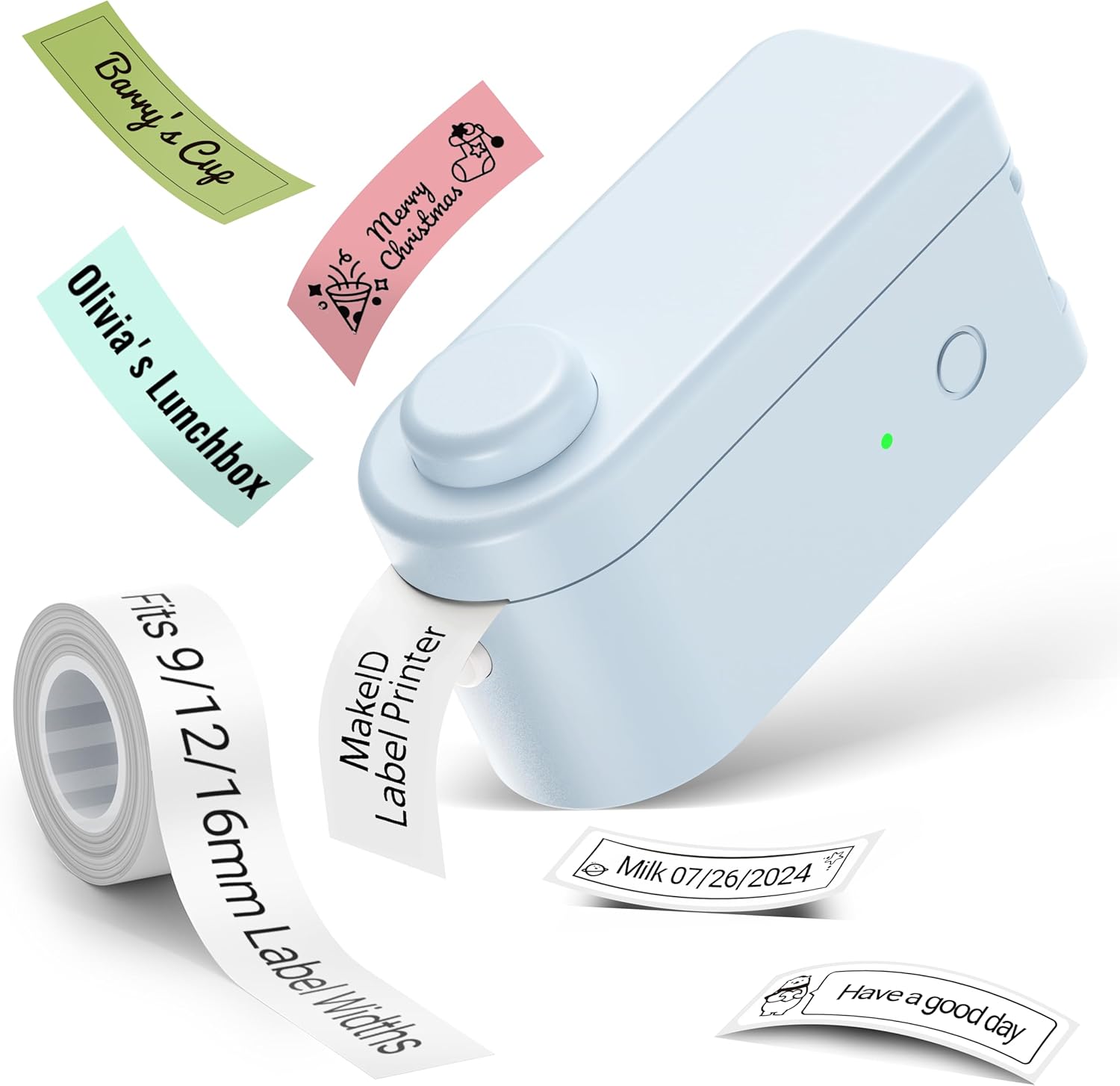
Obraz: The Makeid L1 Label Maker demonstrating the label tape roll and examples of printed labels, including continuous and die-cut types.
3. Stažení a instalace aplikace
The Makeid L1 operates via a dedicated mobile application. Hledat "MakeID-Life" on your device's app store.

Obraz: Screenshots showing the "Get it on Google Play" and "Download on the App Store" buttons, indicating where to find the MakeID-Life application.
4. Párování Bluetooth
The label maker connects to your smartphone via Bluetooth.
- Ujistěte se, že je na vašem smartphonu povoleno Bluetooth.
- Turn on the Makeid L1 Label Maker by pressing the power button. The indicator light will flash, indicating it's ready for pairing.
- Open the "MakeID-Life" app. The app will automatically search for nearby devices.
- Select "L1" from the list of available devices to connect. Once connected, the indicator light on the label maker will become solid.

Obraz: A visual guide demonstrating the three steps for Bluetooth connection: turning on Bluetooth, selecting the L1 model within the app, and confirming the device connection.
Návod k obsluze
1. Designing Your Label
The "MakeID-Life" app offers extensive customization options:
- Zadávání textu: Type your desired text.
- Písma: Choose from 88 different font styles.
- Ikony a symboly: Access over 600 icons and various symbols.
- Šablony: Utilize over 400 pre-designed templates for various purposes (e.g., kitchen, office, school).
- Okraje a rámečky: Add decorative borders.
- Další funkce: Create barcodes, QR codes, tables, dates, and patterns.
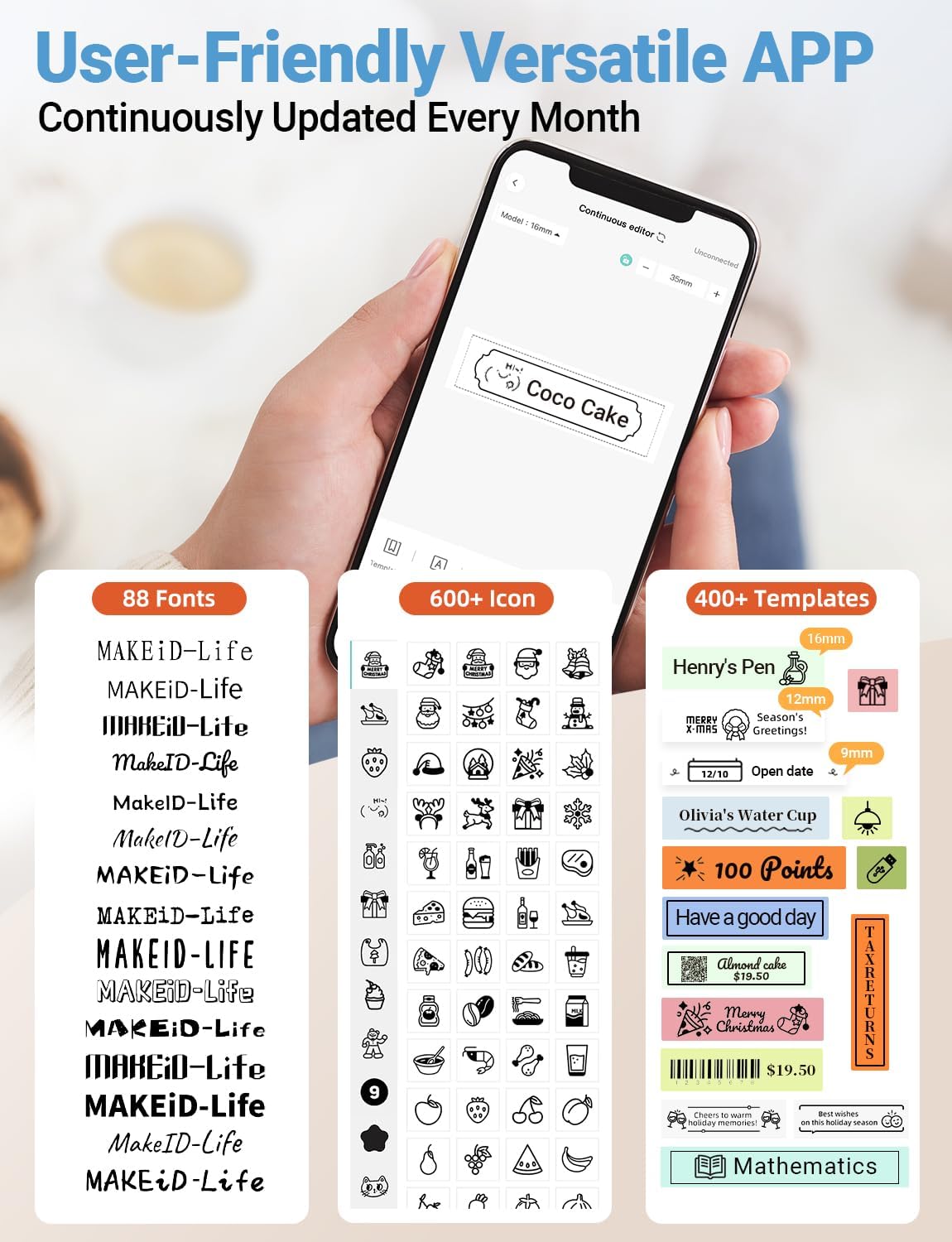
Obraz: Detailní view of the MakeID-Life app interface, showcasing the wide selection of 88 fonts, over 600 icons, and more than 400 templates available for label customization.
2. Tisk štítků
Once your design is complete in the app:
- Review your label design on the app screen.
- V aplikaci klepněte na tlačítko „Tisk“.
- The label will be thermally printed and emerge from the output slot.
3. Řezání štítků
The Makeid L1 features a built-in cutter for clean edges.
- After printing, gently pull the label forward slightly.
- Press the cutting button (refer to the Product Overview image for location) to cleanly cut the label.

Obraz: Illustration of the Makeid L1's built-in cutter, demonstrating how it provides professional and safe cutting of labels, eliminating messy torn edges.
4. Types of Label Printing
The L1 supports two primary types of label printing:
- Průběžné štítky: Ideal for custom lengths, allowing you to print text of any length and cut it precisely.
- Die-Cut Labels: Pre-sized labels with specific shapes, perfect for consistent labeling of items like jars or files.

Obraz: Visual representation of continuous labels, which can be cut to any length, and die-cut labels, which are pre-shaped for specific applications.
Údržba
Čištění tiskové hlavy
To ensure optimal print quality, periodically clean the thermal print head.
- Turn off the label maker and disconnect it from the power source.
- Open the lid and remove the label tape.
- Jemně otřete tiskovou hlavu měkkým hadříkem, který nepouští vlákna.ampočištěno isopropylalkoholem. Nepoužívejte vodu ani abrazivní čisticí prostředky.
- Allow the print head to dry completely before reinserting the tape and closing the lid.
Skladování
Store the label maker in a cool, dry place away from direct sunlight and extreme temperatures. Remove the label tape if storing for extended periods.
Odstraňování problémů
Běžné problémy a jejich řešení naleznete v tabulce níže.
| Problém | Možná příčina | Řešení |
|---|---|---|
| Zařízení se nezapne. | Slabá baterie. | Nabijte zařízení pomocí dodaného kabelu USB. |
| Nelze se připojit přes Bluetooth. | Bluetooth is off on phone; device not in pairing mode; app issue. | Ensure Bluetooth is enabled on your phone. Turn the label maker off and on again to re-enter pairing mode. Restart the "MakeID-Life" app. |
| Poor print quality / Faded prints. | Print head dirty; incorrect label tape; low battery. | Clean the print head. Ensure you are using Makeid compatible thermal label tape. Charge the device. |
| Label tape not feeding. | Tape incorrectly loaded; tape jammed. | Open the lid and re-insert the label tape correctly, ensuring it's not jammed. |
| Labels are not cutting cleanly. | Cutter blade dull or obstructed. | Ensure no debris is obstructing the cutter. If issues persist, contact customer support. |
Specifikace
Detailed technical specifications for the Makeid L1 Label Maker Machine:
| Funkce | Detail |
|---|---|
| Značka | Makeid |
| Název modelu | L1 |
| Technologie připojení | Bluetooth |
| Technologie tisku | Tepelný |
| Tiskový výstup | Monochromatický |
| Rezoluce | 203 x 203 DPI (also 300 x 300 DPI for other variants) |
| Maximální velikost média | 0.63 palců (16 mm) |
| Kompatibilní zařízení | Chytré telefony (Android a iOS) |
| Kontrolní metoda | App |
| Hardwarové rozhraní | USB |
| Zdroj napájení | 1 lithium-iontová baterie (součástí balení) |
| Rozměry produktu | 3.93 x 1.6 x 1.96 cm (hloubka x šířka x výška) |
| Hmotnost položky | 4.4 unce (126 gramů) |
| Speciální funkce | Continuous & Pre-cut Label Tapes, Waterproof, Oil-proof, Friction Resistant, Light Resistant, No Fading, Rich Font Icon Pattern, Portable, Inkless, Wireless, Rechargeable, Creative Print Functions (Barcode, Text, Picture, QR 2D Code, Table, Date, Border, Icon, Shape, Pattern, Template) |
Záruka a podpora
The Makeid L1 Label Maker comes with a Doživotní záruka. For technical support, warranty claims, or further assistance, please contact Makeid customer service through the official Makeid webwebu nebo kontaktních informací uvedených na obalu produktu.
Další zdroje a časté dotazy naleznete na Makeid Store on Amazon.
Bezpečnostní informace
- Nerozebírejte ani se nepokoušejte zařízení sami opravovat.
- Udržujte zařízení mimo dosah vody a vysoké vlhkosti.
- Use only original or certified compatible label tapes and charging cables.
- Uchovávejte mimo dosah dětí.
- Nevystavujte zařízení extrémním teplotám nebo přímému slunečnímu záření.
Ask a question about this manual
Ask about setup, troubleshooting, compatibility, parts, safety, or missing instructions. Manuals+ will review the question and use this page’s manual context to help answer it.