
Asustor AS5402T
ASUSTOR AS5402T NAS uživatelská příručka
Model: AS5402T | Brand: Asustor
Zavedení
This manual provides comprehensive instructions for the setup, operation, and maintenance of your ASUSTOR AS5402T Network Attached Storage (NAS) device. The AS5402T is a high-performance 2-bay NAS designed for home and small office environments, featuring an Intel Quad-Core 2.0GHz CPU, four M.2 NVMe SSD slots, and dual 2.5 Gigabit Ethernet ports for efficient data management and multimedia streaming.

Figure 1: ASUSTOR AS5402T NAS Unit
The AS5402T NAS unit, shown from the front, highlighting its sleek black design and front-facing USB port.
Bezpečnostní informace
Před použitím zařízení si pečlivě přečtěte všechny bezpečnostní pokyny. Nedodržení těchto pokynů může vést k úrazu elektrickým proudem, požáru nebo poškození zařízení.
- Ujistěte se, že je napájecí adaptér připojen k uzemněné zásuvce.
- Nevystavujte zařízení vodě ani nadměrné vlhkosti.
- Neblokujte větrací otvory. Zajistěte dostatečné proudění vzduchu kolem zařízení.
- Používejte pouze napájecí adaptér dodaný se zařízením.
- Neumisťujte zařízení na přímé sluneční světlo nebo do blízkosti zdrojů tepla.
- Nepokoušejte se zařízení otevírat ani opravovat sami. Veškerý servis svěřte kvalifikovanému personálu.
Obsah balení
Ověřte, zda jsou v balení obsaženy všechny níže uvedené položky. Pokud některé položky chybí nebo jsou poškozené, obraťte se na prodejce.

Figure 2: AS5402T Package Contents and Dimensions
This diagram illustrates the AS5402T unit's dimensions and lists the included accessories: the NAS unit, Quick Installation Guide, AC Power Cord, AC Power Adapter, two RJ-45 LAN Cables (Cat 5e), and eight Flat Head Screws for 2.5" HDDs.
- ASUSTOR AS5402T Unit x1
- Průvodce rychlou instalací x1
- Napájecí kabel x1
- AC napájecí adaptér x1
- RJ-45 LAN Cable (Cat 5e) x2
- Flat Head Screw (for 2.5" HDD) x8
Konec hardwaruview
Familiarize yourself with the components and ports of your AS5402T NAS.
Figure 3: AS5402T Front and Rear Panel Layout
This image displays the front and rear panels of the AS5402T, labeling key components such as the Power Button, various LED indicators (Power, System Status, Network, USB, Hard Drive), One Touch Backup Button, USB 3.2 Gen 2 ports, HDMI port, 2.5-Gigabit Ethernet ports, Reset Button, DC input, System Fan, and K-Lock security slot.
Přední panel
- Vypínač: Turns the NAS on or off.
- LED indikátory:
- LED napájení: Indikuje stav napájení.
- System Status LED: Shows system health.
- Network LED: Indicates network activity.
- USB LED: Indicates USB device connection.
- Hard Drive LEDs: Show status of installed hard drives.
- One Touch Backup Button: Initiates a quick backup from a connected USB device.
- Port USB 3.2 Gen 2: Pro připojení USB zařízení.
Zadní panel
- Porty USB 3.2 2. generace (x2): Další vysokorychlostní USB porty.
- Port HDMI: For connecting to a display.
- 2.5-Gigabit Ethernet Ports (x2): Pro síťové připojení.
- Resetovací tlačítko: Resets the NAS to factory defaults (use with caution).
- DC vstup: Připojení napájecího adaptéru.
- Systémový ventilátor: For cooling the system.
- K-Lock: Bezpečnostní slot Kensington.
Vnitřní součásti
- Drive Bays (x2): For 3.5" or 2.5" SATA HDDs/SSDs.
- M.2 NVMe SSD Slots (x4): For high-speed NVMe SSDs, ideal for caching or storage pools.
- DDR4 RAM: 4GB DDR4-2933 RAM, expandable.
- Intel Celeron N5105 CPU: Quad-Core 2.0GHz processor.


Figure 4: Internal M.2 Slots and Dual 2.5GbE Ports
The left image shows the four internal M.2 NVMe SSD slots, providing high-speed storage expansion. The right image highlights the dual 2.5-Gigabit Ethernet ports on the rear panel, enabling fast network connectivity.
Nastavení
Follow these steps to set up your AS5402T NAS for the first time.
1. Instalace hardwaru
- Instalace pevných disků/SSD:
Slide out the drive trays from the front of the NAS. Secure your 3.5" or 2.5" SATA HDDs/SSDs into the trays using the provided screws. Slide the trays back into the NAS until they click into place.
- Instalace disků M.2 NVMe SSD (volitelné):
Locate the M.2 slots inside the NAS. Carefully insert the M.2 NVMe SSDs into the slots and secure them with the retaining screws.
- Připojte síťové kabely:
Connect one or both 2.5-Gigabit Ethernet ports on the rear of the NAS to your router or network switch using the provided RJ-45 LAN cables.
- Připojte napájení:
Connect the AC power adapter to the DC input port on the rear of the NAS, then plug the power cord into a grounded electrical outlet.
- Zapnutí:
Press the Power Button on the front panel to turn on the NAS. The Power LED will illuminate.
2. Initial Configuration (ADM Setup)
Once the NAS is powered on, you will need to access the ASUSTOR Data Master (ADM) operating system for initial setup.


Figure 5: ADM Setup Process and Control Center
The left image illustrates the four-step process for setting up the ASUSTOR NAS. The right image shows the ASUSTOR Control Center application, used to discover and manage your NAS on the network.
- Download ASUSTOR Control Center:
On a computer connected to the same network as your NAS, download and install the ASUSTOR Control Center utility from the official ASUSTOR webweb (www.asustor.com/service/downloads).
- Discover NAS:
Launch ASUSTOR Control Center. It will automatically scan your network and display your AS5402T NAS. Select your NAS from the list.
- Initialize System:
Follow the on-screen prompts to initialize the system. This includes creating an administrator password, setting up network configurations, and installing the latest ADM firmware.
- Create Storage Pool and Volume:
After ADM installation, you will be guided to create a storage pool and volume. Choose your preferred RAID level (e.g., RAID 1 for data redundancy with two drives) and file system (e.g., Btrfs for advanced features like snapshots).
Operating the NAS
This section covers common operations and features of the ASUSTOR AS5402T NAS.
Přístup Files a Data

Figure 6: Cross-Platform Multi-User Access
The AS5402T supports access from various devices including desktops, laptops, tablets, and smartphones, enabling seamless file sharing across different operating systems.
- Sdílené síťové položky: Access shared folders on your NAS directly from your computer's file explorer (Windows File Explorer, macOS Finder) using SMB/CIFS or NFS protocols.
- File Explorer (ADM): Použijte vestavěný File Explorer application within the ADM web interface to manage files directly from your browser.
- Mobilní aplikace: Download ASUSTOR mobile apps (e.g., AiData) for convenient file access and management on your smartphone or tablet.
Správa uživatelů a skupin
Manage user accounts and groups to control access permissions to shared folders and applications.
- Přejděte na Access Control > Local Users or Local Groups in ADM.
- Create new users, assign passwords, and configure their access rights to specific folders.
- Organize users into groups for easier management of permissions.
Application Installation (App Central)
Extend the functionality of your NAS by installing various applications from App Central.

Figure 7: Personal Plex Media Center
The AS5402T can serve as a powerful media server, allowing you to stream and play videos, music, and photos across various devices using applications like Plex.
- OTEVŘENO App Central from the ADM desktop.
- Browse categories or search for specific applications (e.g., Plex Media Server, Download Center, Surveillance Center).
- Click "Install" to add the application to your NAS.

Figure 8: ASUSTOR Integration with Adobe Creative Cloud
ASUSTOR NAS devices are designed to integrate with professional creative workflows, including Adobe Creative Cloud, providing efficient storage solutions for content creators.
Data Backup and Synchronization
Protect your data by configuring backup and synchronization tasks.
- Zálohování a obnovení: Schedule backups to external USB drives, remote NAS devices, or cloud storage services.
- DataSync Center: Synchronizovat files with public cloud services like Google Drive, Dropbox, and OneDrive.
- Snapshots (Btrfs): If using Btrfs, utilize Snapshot Center to create point-in-time copies of your data for quick recovery from accidental deletion or ransomware attacks.
Remote Access and Multimedia
Access your NAS content from anywhere and enjoy multimedia features.

Figure 9: Live Streaming Capabilities
The AS5402T supports live streaming setups, allowing users to broadcast content to various platforms like YouTube, Twitch, and Facebook.
- EZ-Connect: Simplify remote access setup without complex router configurations.
- LooksGood: Manage and stream your video collection.
- SoundsGood: Organize and play your music library.
- Fotogalerie: Browse and share your photo albums.
- HDMI výstup: Connect the NAS directly to a TV or monitor for direct multimedia playback. The AS5402T supports 10-bit 4K hardware decoding.
Údržba
Regular maintenance ensures optimal performance and data integrity of your NAS.
- Aktualizace firmwaru: Regularly check for and install ADM firmware updates via Settings > EZ-Update to ensure your system has the latest features, security patches, and bug fixes.
- System Health Monitoring: Monitor system status, CPU usage, memory usage, and disk health using the Systémové informace a Správce úložiště applications in ADM.
- Kontrola stavu disku: Periodically run S.M.A.R.T. tests on your hard drives through Správce úložiště to detect potential issues early.
- Clean Ventilation: Ensure the NAS ventilation openings are clear of dust and obstructions to prevent overheating.
Odstraňování problémů
Tato část obsahuje řešení běžných problémů, se kterými se můžete setkat.
| Problém | Možná příčina | Řešení |
|---|---|---|
| NAS se nezapíná. | Uvolněný napájecí kabel, vadný napájecí adaptér, problém se zásuvkou. | Zkontrolujte všechna připojení k napájení. Zkuste jinou zásuvku. Ujistěte se, že napájecí adaptér funguje. |
| Cannot find NAS on network. | Network cable disconnected, incorrect IP settings, firewall blocking. | Verify LAN cable connection. Use ASUSTOR Control Center to locate the NAS. Temporarily disable firewall on your computer. Ensure NAS and computer are on the same network segment. |
| Pomalý file přenosové rychlosti. | Network congestion, faulty cable, drive performance issues, network adapter settings. | Check network cable integrity. Ensure your network infrastructure (router, switch) supports 2.5GbE. Verify drive health in Storage Manager. Disable Jumbo Frames if not supported by all devices. |
| Hard drive LED blinking red. | Drive failure, bad sectors, RAID degradation. | Kontrola Správce úložiště for detailed drive status. If a drive has failed, replace it and repair the RAID volume. Back up critical data immediately. |
| Forgot ADM password. | Zapomenuté heslo. | Use the reset button on the rear panel (refer to manual for specific reset procedure, usually a 3-second press for network settings reset, 10-second for factory reset without data loss). |
Specifikace
Detailed technical specifications for the ASUSTOR AS5402T NAS.
| Funkce | Popis |
|---|---|
| CPU | Intel Celeron N5105 Quad-Core 2.0GHz (Burst up to 2.9GHz) |
| BERAN | 4GB DDR4-2933 (expandable) |
| Drive Bays | 2 x 3.5"/2.5" SATA III/II HDD/SSD |
| M.2 Sloty | 4 x M.2 NVMe SSD slots |
| Ethernetové porty | 2 x 2.5 Gigabit Ethernet (2.5GbE) |
| USB porty | 3 x USB 3.2 Gen 2 (10 Gbps) |
| HDMI výstup | 1x HDMI 2.0b |
| Rozměry (VxŠxH) | 170 x 114 x 230 mm (6.69 x 4.49 x 9.06 palce) |
| Hmotnost | 2 kg (4.4 lb) |
| Spotřeba energie | (Varies by usage, refer to product page for specifics) |
| Podporované úrovně RAID | Single, JBOD, RAID 0, RAID 1 |
| File Systém | Internal: EXT4, Btrfs; External: FAT32, NTFS, HFS+, EXT3, EXT4 |
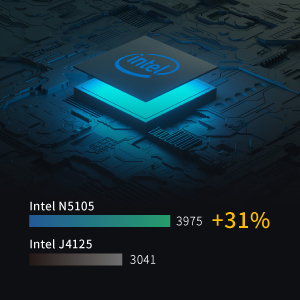
Figure 10: Intel N5105 CPU Performance
A visual representation of the Intel N5105 CPU's performance, indicating a significant improvement over previous generations like the Intel J4125.
Podpora a záruka
For further assistance and warranty information, please refer to the following resources:
- Official ASUSTOR Webmísto: Návštěva www.asustor.com pro informace o produktech, nejčastější dotazy a zdroje podpory.
- Online uživatelská příručka: Podrobný návod k použití ve formátu PDF je ke stažení na adrese ASUSTOR AS5402T User Manual (PDF).
- Technická podpora: Contact ASUSTOR technical support through their website for specific issues not covered in this manual.
- Informace o záruce: The ASUSTOR AS5402T comes with a standard manufacturer's warranty. Please refer to the warranty card included with your product or the official ASUSTOR webkonkrétní podmínky.
Ask a question about this manual
Ask about setup, troubleshooting, compatibility, parts, safety, or missing instructions. Manuals+ will review the question and use this page’s manual context to help answer it.