
1. Úvod
Thank you for choosing the MAGIC-REFINER K75 81 Keys Mechanical Gaming Keyboard. This compact, high-performance keyboard is designed for both gaming and office use, featuring a transparent body, customizable RGB backlighting, and hot-swappable switches. This manual provides detailed instructions to help you set up, operate, and maintain your new keyboard.
2. Klíčové vlastnosti
- Customized Mechanical Design: Equipped with a high-performance RY 1060 single-chip microcomputer, full-speed USB communication protocol, and dual ISSP noise reduction for crisp key presses and reduced cavity sound.
- Kompaktní rozložení 81 kláves: The K75 features an 81-key wired design with a highly transparent PC shell, independent direction keys, and all necessary F keys. Double bracket feet allow for adjustable typing angles, and it includes a detachable USB data cable.
- Full-Key Hot-Swappable Switches: Features PC transparent keycaps with pad printing + UV technology for clear, fade-resistant characters. Equipped with self-developed linear glass switches for fast feedback. Supports both 3-pin and 5-pin switches.
- Chladný efekt podsvícení RGB: Independent monochrome lighting with 256-level PWM and 18 types of lighting effects. Customize and switch lighting effects based on scene, music, game, or microphone audio changes.
- Široká kompatibilita: Supports Windows 8/10, Android, iOS, and Mac operating systems.
- Ergonomický design: Engineered for comfortable use during extended periods.
3. Obsah balení
- MAGIC-REFINER K75 Mechanical Gaming Keyboard
- Kabel USB typu C
4. Pokyny k nastavení
4.1 Připojení klávesnice
- Locate the USB Type-C port on the back of your K75 keyboard.
- Připojte jeden konec dodaného kabelu USB Type-C ke klávesnici.
- Connect the other end of the USB cable to an available USB port on your computer (Windows, Mac) or compatible device (Android, iOS).
- Klávesnice bude automaticky rozpoznána vaším operačním systémem.
4.2 Adjusting Typing Angle
The K75 keyboard features double bracket feet on the underside. Flip these feet out to adjust the keyboard to a more ergonomic typing angle for improved comfort.

Image: The MAGIC-REFINER K75 keyboard showcasing its ergonomic design and adjustable feet for comfortable typing.
4.3 Driver Software Installation (Optional)
For advanced customization and features, you may need to install the dedicated driver software. Follow these steps:
- Navštivte úředníka webmísto: www.manba-snake.com
- Vyberte preferovaný jazyk na webmísto.
- Navigate to the 'SOFTWARE' section on the navigation bar.
- Locate and click on 'K75' to download the driver software.
- Rozbalte stažený file using a third-party software (e.g., WinRAR).
- Spusťte soubor 'setup.exe' file a dokončete instalaci podle pokynů na obrazovce.

Image: A screenshot illustrating the process of downloading the driver software for the keyboard from the official webmísto.
5. Návod k obsluze
5.1 Ovládání RGB podsvícení
The K75 keyboard offers 18 distinct RGB lighting effects. You can cycle through these effects and customize them to match your preference or environment.
- To cycle through the 18 lighting effects, press the FN + INS klíče současně.
- Further customization options may be available through the dedicated driver software.

Image: The K75 keyboard illuminated with vibrant RGB backlighting, demonstrating its customizable lighting effects.
5.2 Ovladač médií
The metal knob located on the top right of the keyboard provides convenient media control:
- Otočením knoflíku upravte hlasitost.
- Press the knob to turn the keyboard's lighting on or off.
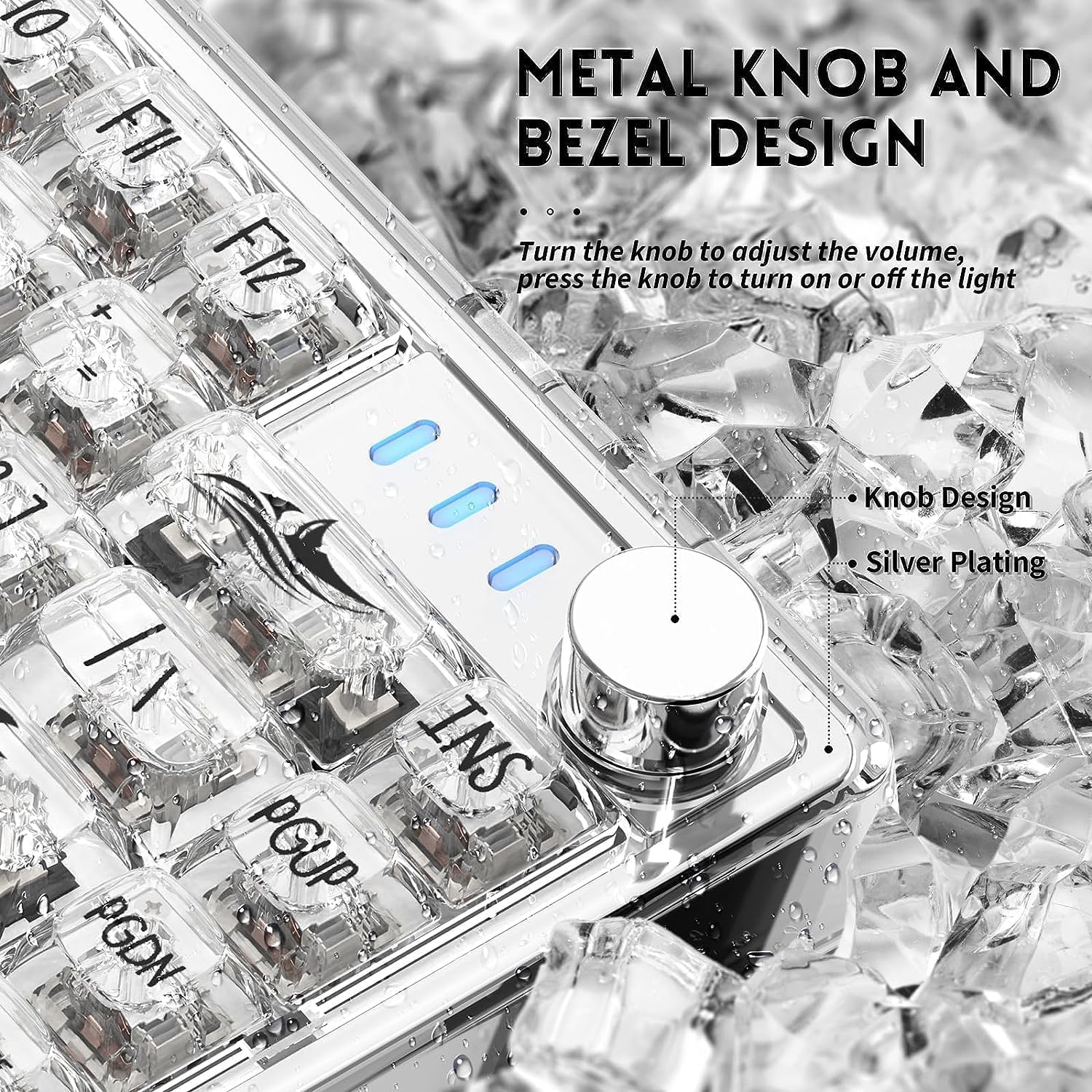
Obrázek: Podrobný view of the metal knob on the K75 keyboard, highlighting its function for volume and lighting control.
5.3 Přepínače vyměnitelné za provozu
The K75 keyboard features hot-swappable switch sockets, allowing you to easily change switches without soldering. This supports both 3-pin and 5-pin mechanical switches.
- Using a switch puller tool (not included), carefully grip the switch and pull it straight up to remove it.
- Zarovnejte piny nového spínače s otvory na desce plošných spojů. Ujistěte se, že piny jsou rovné, aby se neohnuly.
- Jemně zatlačte nový spínač na místo, dokud bezpečně nezacvakne.
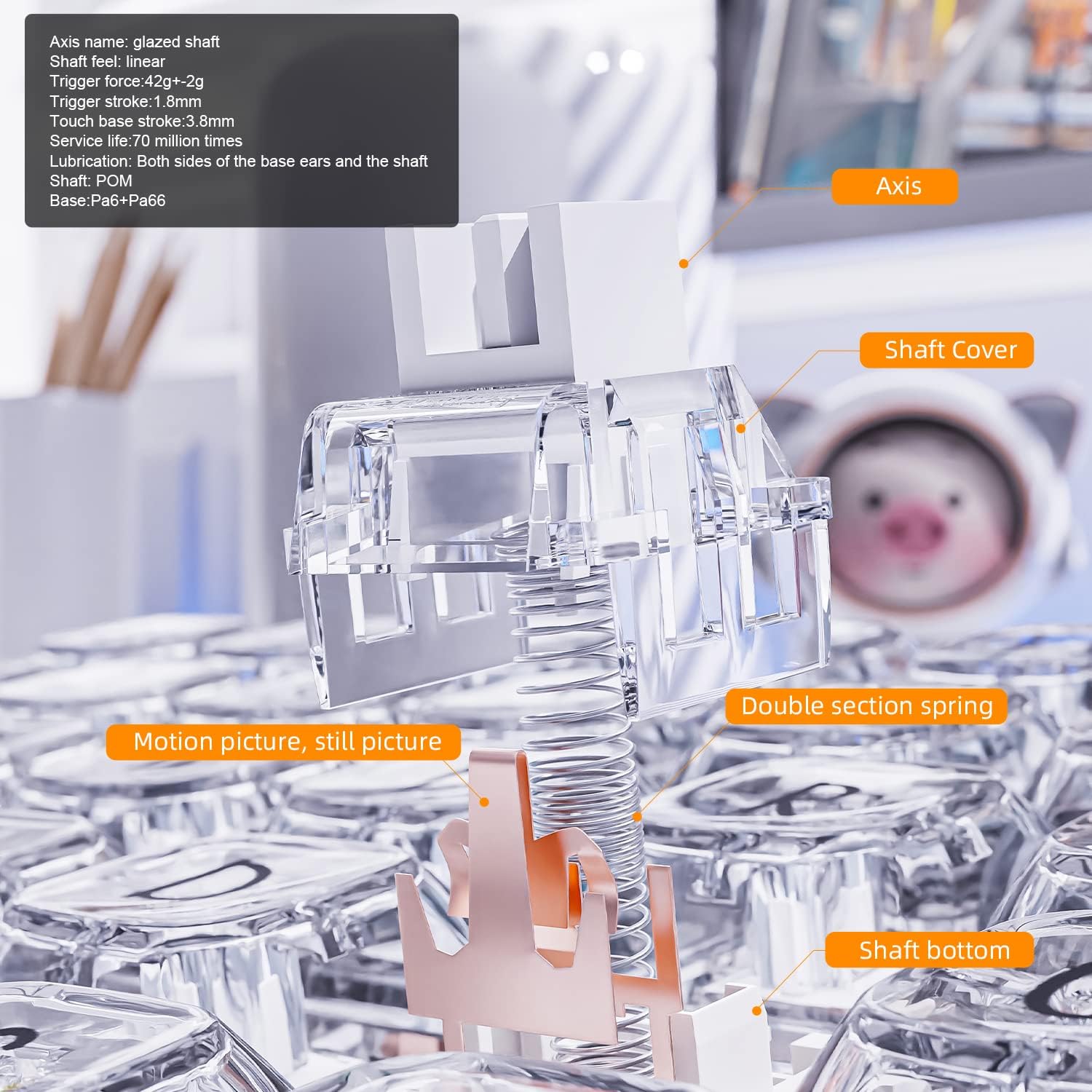
Obrázek: Explodoval view diagram illustrating the components of a mechanical switch, including the axis, shaft cover, double section spring, and shaft bottom.
Image: A keycap puller tool, used for safely removing keycaps from the keyboard.
Image: A switch puller tool, essential for removing hot-swappable switches from the keyboard's PCB.
5.4 Transparent Keycaps
The K75 features highly transparent PC keycaps with characters applied using pad printing and UV technology, ensuring clarity and resistance to fading.

Obrázek: Detailní záběr view of the K75's highly transparent keycaps, highlighting their clear characters and durable finish.
6. Údržba
- Čištění: Use a soft, dry cloth to wipe the keyboard surface. For deeper cleaning, remove keycaps and use compressed air to clear debris. Avoid harsh chemicals.
- Péče o klávesy: The transparent PC keycaps are durable but can scratch. Handle with care when removing or installing.
- Péče o spínač: When hot-swapping switches, ensure proper alignment to prevent bending pins.
- Správa kabelů: Keep the USB cable untangled to prevent damage.
7. Řešení problémů
- Klávesnice nereaguje:
- Ujistěte se, že je kabel USB bezpečně připojen k klávesnici i k počítači.
- Zkuste připojit klávesnici k jinému USB portu na počítači.
- Otestujte klávesnici na jiném počítači, abyste vyloučili problém specifický pro systém.
- RGB Backlight Not Working/Changing:
- Press the media control knob to ensure the lighting is not turned off.
- Use the FN + INS key combination to cycle through lighting effects.
- If using driver software, ensure it is installed correctly and settings are applied.
- Klíče se neregistrují:
- For hot-swappable switches, ensure the switch is fully seated and its pins are not bent. Remove and re-insert the switch if necessary.
- Avoid using excessive force when operating the keyboard, as this can damage mechanical parts.
- Problémy se softwarem:
- Reinstall the driver software from the official webmísto.
- Ujistěte se, že máte aktuální operační systém.
8. Specifikace
| Funkce | Detail |
|---|---|
| Značka | MAGIC-REFINER |
| Číslo modelu | K75 |
| Počet klíčů | 81 |
| Typ přepínače | Magic-Refiner Linear Glass (Hot-Swappable) |
| Technologie připojení | USB typu C (kabelový) |
| Podsvícení | RGB (18 effects, customizable) |
| Materiál | PC Transparent Body and Keycaps |
| Kompatibilní zařízení | PC (Windows 8/10), Android, iOS, Mac |
| Speciální funkce | Backlit, Ergonomic, Hot-Swappable, Media Control Knob |
9. Produktová videa
9.1 MAGIC-REFINER K75 81 Keys Compact Gaming Keyboard Overview
Video: Úředník u konceview of the MAGIC-REFINER K75 81 Keys Compact Gaming Keyboard, highlighting its design and features.
9.2 MAGIC-REFINER 81 Keys Compact Gaming Keyboard Features
Video: A demonstration of various features of the MAGIC-REFINER 81 Keys Compact Gaming Keyboard, including its lighting and build.
10. Záruka a podpora
No explicit warranty information is provided with this product. For any questions, technical support, or assistance, please contact the seller directly through the platform where you purchased the keyboard. They will be able to provide the most accurate and up-to-date support information.