
Klíčenka Q6P-M4
Uživatelská příručka k mechanické klávesnici Keychron Q6 Pro
Model: Q6P-M4
Zavedení
The Keychron Q6 Pro is a full-size, full-metal custom mechanical keyboard designed for an unparalleled typing experience. It features QMK/VIA programmability, wireless Bluetooth and wired USB-C connectivity, hot-swappable switches, a double-gasket design, KSA double-shot PBT keycaps, screw-in stabilizers, and south-facing RGB backlighting. This manual provides essential information for setting up, operating, maintaining, and troubleshooting your Keychron Q6 Pro keyboard.

Image: The Keychron Q6 Pro keyboard, showcasing its full layout and a close-up of a K Pro Banana switch.
Obsah balení
Než začnete, ujistěte se, že balení obsahuje všechny položky:
- 1x Fully Assembled Keyboard (including Aluminum Case, PCB, PC Plate, Sound Absorbing Foam, Case Foam, 16x Gaskets, 8 sets x Stabilizers, 1 set x Keycaps (Double-Shot KSA PBT), 1 set x Switches)
- 1x kabel Type-C to Type-C
- 1x adaptér typu A na typ C
- 1x stahovák spínačů
- 1x stahovák klíčenky
- 1x Šroubovák
- 1x hexadecimální klíč
- Uživatelská příručka
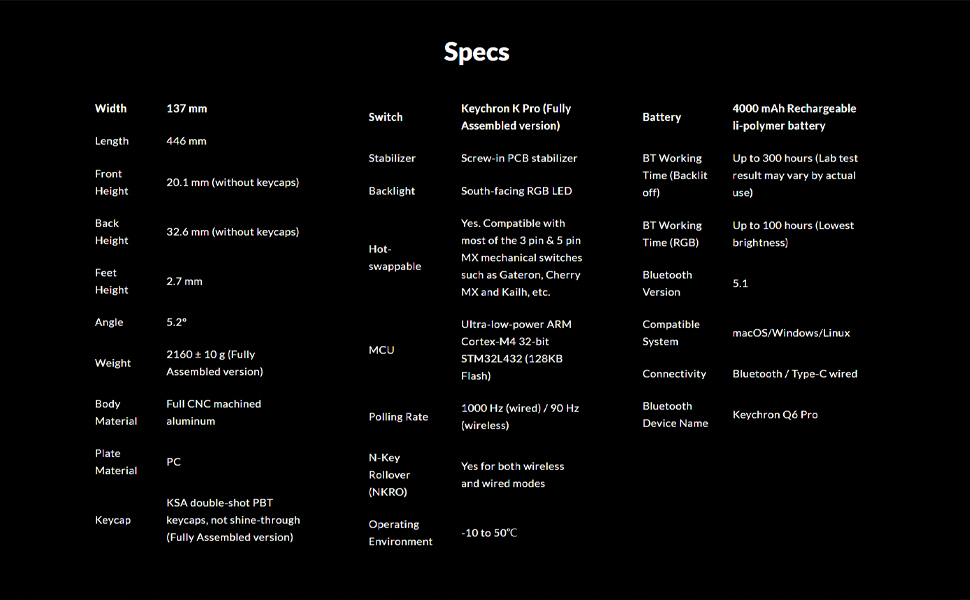
Image: An illustration showing all components included in the Keychron Q6 Pro package.
Nastavení
1. Počáteční připojení
The Keychron Q6 Pro supports both wired and wireless (Bluetooth) connectivity.
Kabelový režim:
Connect the keyboard to your computer using the provided Type-C to Type-C cable or the Type-C to Type-A adapter. The keyboard will automatically be recognized. The polling rate in wired mode is 1000 Hz.
Bezdrátový režim (Bluetooth):
- Ujistěte se, že je klávesnice nabitá.
- Flip the switch on the back of the keyboard to the Bluetooth mode.
- On your device (laptop, phone, tablet), enable Bluetooth and search for "Keychron Q6 Pro".
- Select the keyboard to pair. The keyboard can connect to up to 3 devices wirelessly.
The polling rate in wireless mode is 90 Hz.
2. Přepínač operačního systému
The Q6 Pro is fully compatible with both Mac and Windows operating systems. Use the OS switch located on the back of the keyboard to select the appropriate layout for your system.

Image: The Keychron Q6 Pro keyboard demonstrating its multi-device wireless connectivity with a phone, tablet, and laptop.
Návod k obsluze
1. Přizpůsobení QMK/VIA
The Keychron Q6 Pro supports QMK/VIA for advanced customization. This allows you to remap any key, create macro commands, shortcuts, or key combinations.
- Stáhněte si software VIA z oficiálního webu Keychron. webmísto.
- Connect the keyboard in wired mode to ensure proper detection by VIA.
- Use the VIA interface to customize key assignments, create macros, and adjust lighting effects.

Image: A visual representation of the VIA software interface, used for programming and customizing the keyboard's functions.
2. RGB podsvícení
The keyboard features south-facing RGB backlighting with 22 types of preset effects. You can fine-tune the RGB hue, saturation, brightness, effect speed, and different modes directly on the keyboard or through QMK/VIA.

Image: The Keychron Q6 Pro keyboard illuminated with its south-facing RGB backlighting, displaying a spectrum of colors.
3. Přepínače vyměnitelné za provozu
The Q6 Pro allows you to hot-swap every switch with almost all 3-pin and 5-pin MX style mechanical switches on the market (e.g., Cherry, Gateron, Kailh, Panda) without soldering.

Obrázek: Detailní záběr view of the Keychron Q6 Pro keyboard with several keycaps and switches removed, illustrating the hot-swappable sockets.
4. Funkce otočného knoflíku
The programmable rotary knob provides convenient control over various functions, typically volume control by default. Its function can be customized via QMK/VIA.
Údržba
1. Čištění klávesnice
- Odpojte klávesnici od počítače.
- Pro důkladné vyčištění použijte stahovák na klávesy.
- K odstranění prachu a nečistot z prostoru mezi spínači použijte stlačený vzduch.
- Wipe keycaps and the keyboard frame with a soft, slightly damp hadříkem. Zabraňte nadměrné vlhkosti.
2. Výměna spínačů a kláves
Thanks to the hot-swappable design, switches and keycaps can be easily replaced.
- Pomocí dodaného stahováku na klávesy jemně vyjměte požadovanou klávesu.
- Use the provided switch puller to carefully remove the switch from its socket.
- Zarovnejte piny nového spínače s otvory na desce plošných spojů a pevně zatlačte, dokud nezacvakne. Ujistěte se, že piny nejsou ohnuté.
- Place the new keycap onto the switch stem and press down.

Obrázek: Podrobný view of the Keychron Q6 Pro keyboard with several keycaps detached, revealing the underlying switch stems and stabilizers.
Odstraňování problémů
If you encounter issues with your Keychron Q6 Pro, please refer to the following common solutions:
| Problém | Možná příčina / řešení |
|---|---|
| Klávesnice nereaguje (kabelová) |
|
| Klávesnice se nepřipojuje (Bluetooth) |
|
| RGB backlight not working or incorrect |
|
| Nefungují konkrétní klávesy |
|
Pro další pomoc navštivte oficiální podporu Keychronu. website or consult the full user guide PDF available online.
Specifikace
| Funkce | Detail |
|---|---|
| Model | Keychron Q6 Pro (Q6P-M4) |
| Rozložení | Full-size (108-Key) |
| Materiál těla | Plně CNC obráběný hliník |
| Materiál krytky klíče | Double-shot KSA PBT |
| Typ přepínače | Keychron K Pro Banana (Hot-swappable) |
| Podsvícení | RGB LED směřující na jih |
| Konektivita | Bluetooth 5.1 / Type-C wired |
| Míra dotazování (kabelová) | 1000 Hz |
| Rychlost dotazování (bezdrátové) | 90 Hz |
| MCU | Ultranízkoenergetický 32bitový ARM Cortex-M4 STM32L432 (128KB Flash) |
| Baterie | Dobíjecí lithium-polymerová baterie s kapacitou 4000 mAh |
| Battery Working Time (Backlight off) | Až 300 hodin |
| Battery Working Time (RGB) | Až 100 hodin (nejnižší jas) |
| Kompatibilní systém | macOS/Windows/Linux |
| Hmotnost | Approximately 6.6 pounds (2160 ± 10 g) |
| Rozměry (DxŠxV) | 17.56 x 5.39 x 1.28 palce (446 x 137 x 32.6 mm) |
| Provozní prostředí | -10 až 50 °C |
Záruka a podpora
Keychron products are designed for durability and performance. For information regarding product warranty, please refer to the official Keychron webwebu nebo v záručním listu dodaném s vaším produktem.
For technical support, frequently asked questions, or to download the latest VIA software and firmware, please visit the Keychron support page:
You can also find additional resources, including the User Manual and User Guide PDFs, on the product's Amazon page under the "Product guides and documents" section.
Ask a question about this manual
Ask about setup, troubleshooting, compatibility, parts, safety, or missing instructions. Manuals+ will review the question and use this page’s manual context to help answer it.