
1. Úvod
The HP Smart Tank 5106 is a versatile multifunction inkjet printer designed for efficient printing, scanning, and copying. This printer features an integrated ink tank system for high-volume, low-cost printing. It supports wireless connectivity, allowing for convenient printing from various devices. This manual provides essential information for setting up, operating, maintaining, and troubleshooting your HP Smart Tank 5106 printer.
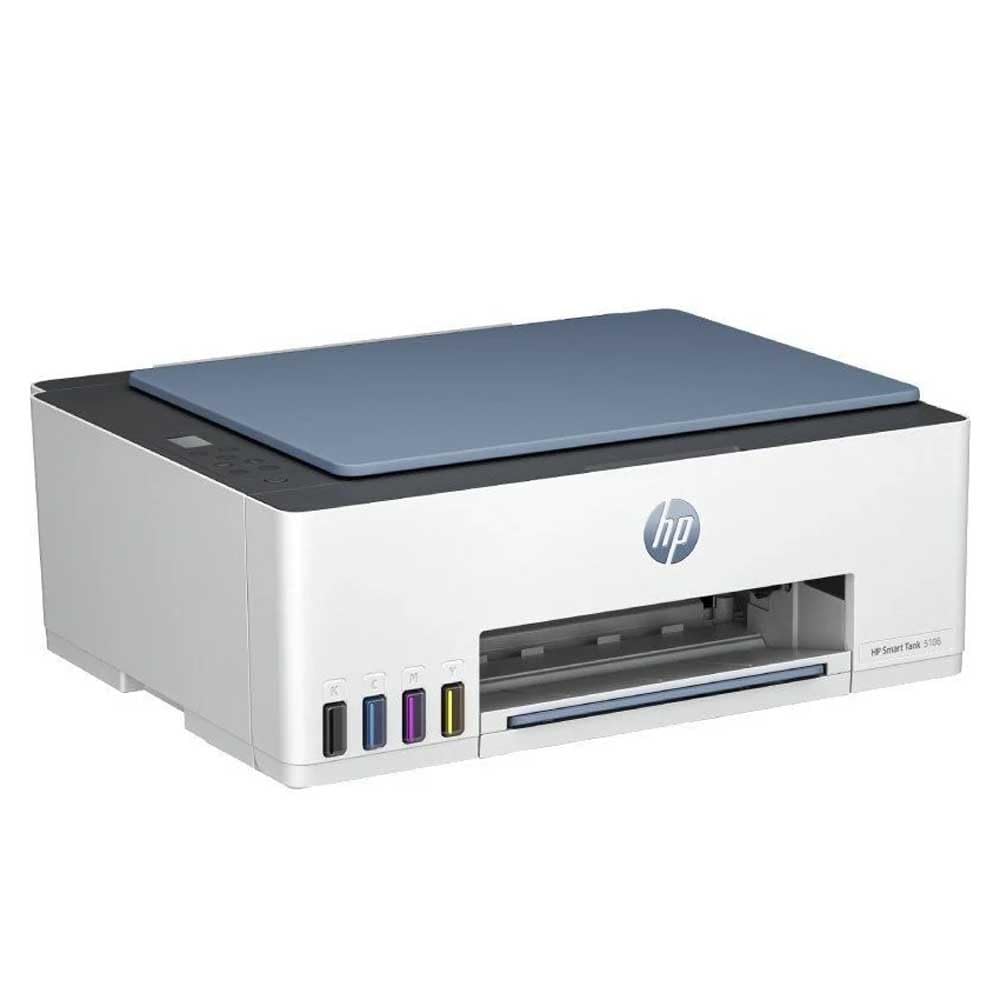
Obrázek 1: Přední strana view of the HP Smart Tank 5106 Multifunction Printer. This image shows the printer's overall design, including the output tray and the HP logo.
2. Nastavení
2.1 Vybalení tiskárny
- Vyjměte tiskárnu z obalu.
- Odstraňte všechny ochranné pásky a balicí materiály z vnější i vnitřní strany tiskárny. Konkrétní umístění naleznete v úvodní příručce.
- Umístěte tiskárnu na stabilní, rovný povrch.
2.2 Plnění inkoustových nádržek
The HP Smart Tank 5106 uses an integrated ink tank system. Follow these steps to fill the ink tanks:
- Open the ink tank cover located on the left side of the printer.
- Open the cap of the ink tank you wish to fill (Black, Cyan, Magenta, Yellow).
- Uncap the corresponding HP ink bottle and invert it over the tank's nozzle. The ink will flow automatically into the tank. Do not squeeze the bottle.
- Once the tank is full, remove the bottle and close the tank cap securely.
- Repeat for all other ink tanks.
- Zavřete kryt nádržky s inkoustem.
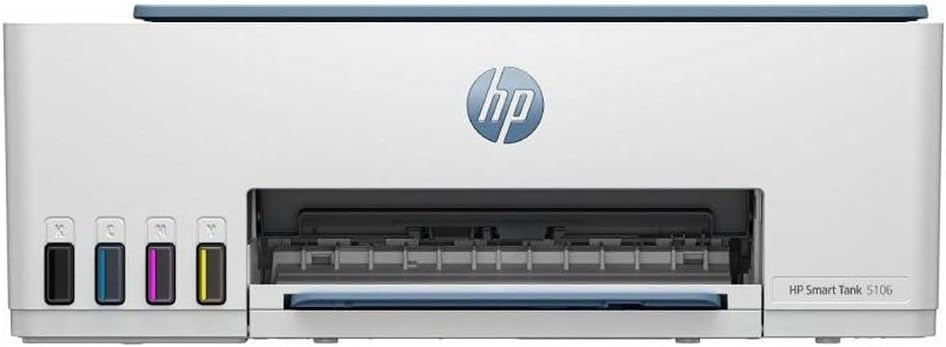
Obrázek 2: Přední strana view of the HP Smart Tank 5106, highlighting the visible ink tanks on the left side for easy monitoring and refilling.
2.3 Připojení napájení a počáteční zapnutí
- Connect the power cord to the printer's power port and then to an electrical outlet.
- Stisknutím tlačítka Napájení zapněte tiskárnu.
- Follow the on-screen instructions on the printer's control panel for initial setup, including language selection and print head alignment.

Obrázek 3: Zadní view of the HP Smart Tank 5106, showing the power input and USB port for connectivity.
2.4 Instalace softwaru a síťové připojení
- Stáhněte si aplikace HP Smart from your device's app store (iOS, Android) or from hpsmart.com for Windows/macOS.
- Open the HP Smart app and follow the prompts to add your printer.
- Select your Wi-Fi network and enter the password when prompted to connect the printer to your wireless network.
- Alternatively, connect the printer to your computer using a USB cable for a wired connection.
3. Návod k obsluze
3.1 Vkládání papíru
- Vytáhněte vstupní zásobník a vysuňte vodítka papíru.
- Vložte do vstupního zásobníku stoh obyčejného bílého papíru tiskovou stranou dolů.
- Adjust the paper guides until they rest gently against the edges of the paper stack.
- Zatlačte vstupní zásobník zpět do tiskárny.
3.2 Tisk dokumentů
- V počítači nebo mobilním zařízení otevřete dokument nebo obrázek, který chcete vytisknout.
- Vyberte Vytisknout option (usually found under File menu or by pressing Ctrl+P/Cmd+P).
- Choose your HP Smart Tank 5106 printer from the list of available printers.
- Adjust print settings such as paper size, print quality, and number of copies. For duplex printing, select the two-sided printing option if available in your print dialog.
- Klikněte Vytisknout.
3.3 Kopírování dokumentů
- Umístěte dokument lícem dolů na sklo skeneru a zarovnejte jej s vodítkem.
- Zavřete víko skeneru.
- Na ovládacím panelu tiskárny vyberte Kopie volba.
- Choose the number of copies and whether you want a color or black-and-white copy.
- Stiskněte tlačítko Spustit kopírování tlačítko.
3.4 Skenování dokumentů
- Umístěte dokument lícem dolů na sklo skeneru.
- Zavřete víko skeneru.
- Otevřete aplikaci HP Smart v počítači nebo mobilním zařízení.
- Vyberte Skenovat volba.
- Upravte nastavení skenování, jako je rozlišení, barevný režim a cílová složka.
- Klikněte Skenovat to begin the process. The scanned document will be saved to your specified location.
4. Údržba
4.1 Monitoring and Refilling Ink Levels
Regularly check the ink levels through the transparent ink tanks on the front of the printer or via the HP Smart app. Refill ink tanks as described in Section 2.2 when levels are low to prevent print quality issues.
4.2 Čištění tiskových hlav
If you notice streaky or faded prints, the print heads may need cleaning. This can be done through the printer's control panel or the HP Smart app. Refer to the app's maintenance section for detailed instructions.
4.3 Cleaning the Printer Exterior and Scanner Glass
- Otřete vnější povrch tiskárny měkkým hadříkem, který nepouští vlákna.
- Na sklo skeneru použijte měkký hadřík lehceampčističem skla. Nestříkejte čisticí prostředek přímo na sklo.
4.4 aktualizací firmwaru
Ensure your printer's firmware is up to date for optimal performance and security. Firmware updates can be managed through the HP Smart app.
5. Řešení problémů
5.1 Běžné problémy a řešení
- Tiskárna nereaguje: Check power connections, ensure the printer is turned on, and verify network connectivity (Wi-Fi or USB). Restart both the printer and your computer/router.
- Zaseknutý papír: Carefully open all access doors and remove any jammed paper. Ensure paper is loaded correctly and not overfilled.
- Špatná kvalita tisku: Perform print head cleaning and alignment through the HP Smart app or printer control panel. Check ink levels and refill if necessary. Use appropriate paper type and quality settings.
- Problémy s připojením: Ensure your printer and device are on the same Wi-Fi network. Restart your router. If using USB, try a different port or cable.
5.2 Chybové zprávy
If an error message appears on the printer's display or in the HP Smart app, consult the HP support website or the app's help section for specific troubleshooting steps related to that error code.
5.3 Resetování tiskárny
In some cases, a factory reset may resolve persistent issues. Refer to the HP support documentation for your specific model for instructions on how to perform a factory reset, as this can vary and may clear network settings.
6. Specifikace
| Funkce | Specifikace |
|---|---|
| Název modelu | Smart Tank 5106 |
| Rozměry produktu | 50.3 D x 125.7 Š x 121.4 V centimetrů |
| Hmotnost | 7.01 kg |
| Technologie připojení | USB, Wi-Fi |
| Technologie tisku | Inkoustové |
| Speciální funkce | Dotyková obrazovka |
| Maximální rychlost tisku (barevně) | 15 stran za minutu |
| Maximální rychlost tisku (černobíle) | 16 stran za minutu |
| Maximální rychlost kopírování (černobíle) | 16 stran za minutu |
| Maximální kapacita listů | 100 |
| Oboustranný tisk | Ano |
| Maximální velikost média | Legal (216 x 356 mm) |
| Typ skeneru | Valník |
| Maximální rozlišení barevného tisku | 600 dpi |
| Maximální rozlišení černobílého tisku | 1200 x 1200 dpi |
| Kompatibilní zařízení | Computers, Laptops, Tablets, Smartphones |
7. Záruka a podpora
7.1 Záruka na produkt
Your HP Smart Tank 5106 printer comes with a standard manufacturer's warranty. Please refer to the warranty card included in your product packaging or visit the official HP website for detailed information regarding warranty terms, conditions, and duration in your region.
7.2 Technická podpora
For technical assistance, troubleshooting beyond this manual, or to order replacement parts and supplies, please contact HP Customer Support. You can find contact information and online resources on the official HP support webmísto:
- Podpora HP Webmísto: support.hp.com
- Aplikace HP Smart: The app provides access to troubleshooting tools, support articles, and direct contact options.
When contacting support, please have your printer's model number (Smart Tank 5106) and serial number ready. The serial number is typically located on a label on the back or bottom of the printer.