
Keychron M3 Mini 4K
Uživatelská příručka k bezdrátové optické myši Keychron M3 Mini 4K
Model: M3 Mini 4K | Brand: Keychron
Zavedení
This manual provides comprehensive instructions for the Keychron M3 Mini 4K Wireless Optical Mouse. It covers setup, operation, maintenance, and troubleshooting to ensure optimal performance and user experience. The M3 Mini 4K is an ultra-lightweight (55g) programmable mouse featuring a PixArt 3395 sensor, up to 26,000 DPI, 650 IPS, and a 4000 Hz polling rate for high-speed, precise input across Windows, Mac, and Linux systems.
Průvodce nastavením
Obsah balení
Než začnete, ujistěte se, že balení obsahuje všechny položky:
- 1x Bezdrátová optická myš Keychron M3 Mini 4K
- 1x bezdrátový 4K přijímač
- 1x kabel Type-C to Type-C
- 1x adaptér typu A na typ C

Image: Standard Version package contents, showing the mouse, 4K wireless receiver, Type-C to Type-C cable, and Type-A to Type-C adapter.
Možnosti připojení
The Keychron M3 Mini 4K mouse supports three modes of connection: 2.4 GHz Wireless, Bluetooth 5.1, and Wired (via USB-C cable).
Bezdrátový režim 2.4 GHz
- Locate the 4K Wireless Receiver.
- Connect the receiver to your computer's USB port. If your computer only has USB-C ports, use the provided Type-A to Type-C adapter.
- Na spodní straně myši přepněte přepínač režimů do polohy „2.4 G“.
- Myš by se měla automaticky připojit k přijímači.

Obrázek: Detailní záběr view of the 4K Wireless Receiver, which supports up to a 4K polling rate in 2.4 GHz mode.

Image: The Keychron M3 Mini 4K mouse shown alongside its dedicated 4K wireless receiver, illustrating the compact design.
Režim Bluetooth 5.1
- Na spodní straně myši posuňte přepínač režimů do polohy „BT“.
- V počítači otevřete nastavení Bluetooth a vyhledejte nová zařízení.
- Select "Keychron M3 Mini 4K" from the list of available devices to pair.
Kabelový režim
- Connect the provided Type-C to Type-C cable (or Type-A to Type-C adapter with the cable) from the mouse to your computer's USB port.
- Myš bude fungovat jako drátová myš a zároveň se bude nabíjet.
Návod k obsluze
Úprava DPI
The M3 Mini 4K features a PixArt 3395 sensor, offering up to 26,000 DPI for precise control. You can adjust the DPI directly on the mouse without software.
- Locate the DPI button on the bottom of the mouse.
- Press the DPI button to cycle through preset DPI levels.
- The LED indicators on the bottom will show the current DPI setting.
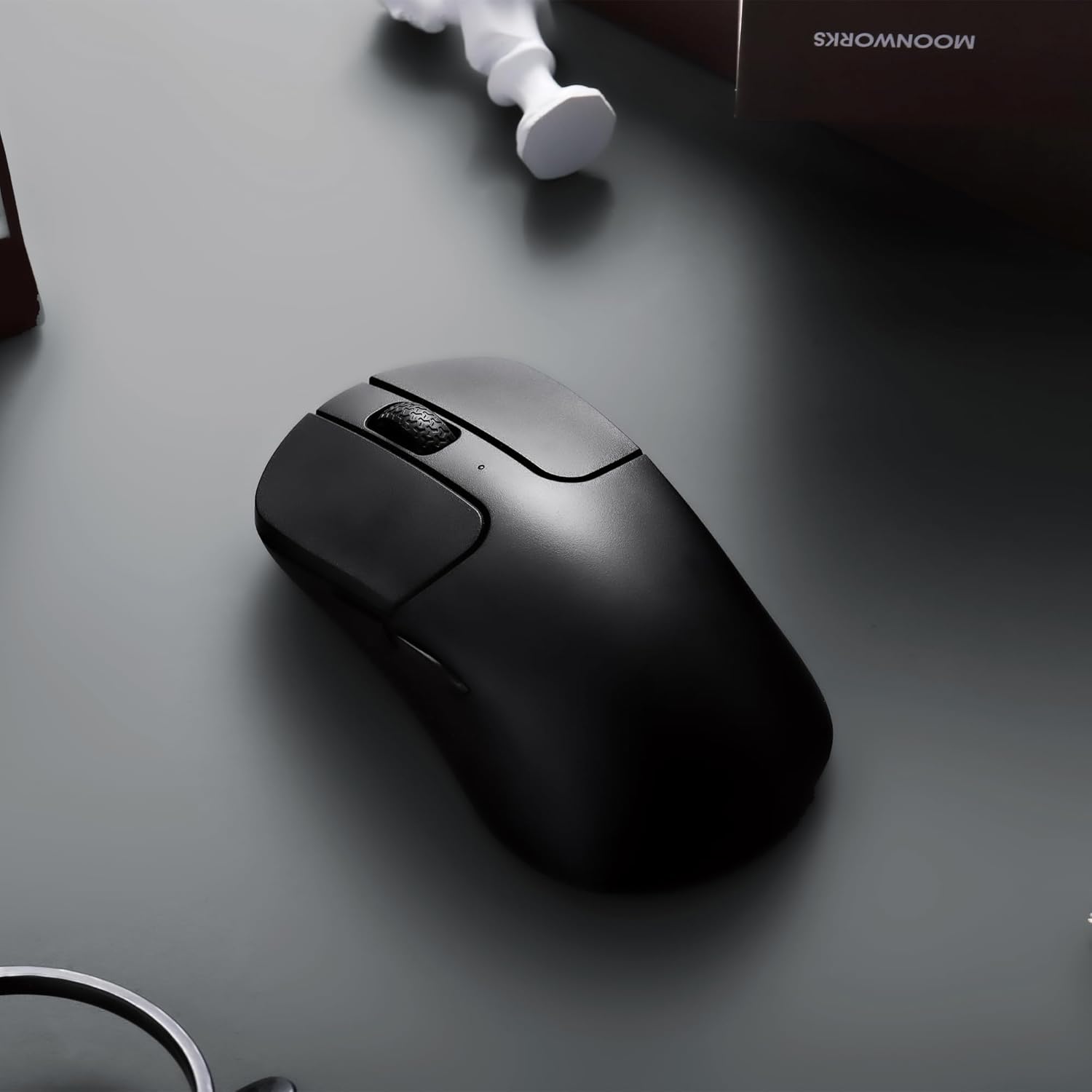
Image: The underside of the mouse, highlighting the PixArt 3395 sensor and the physical buttons for DPI and Report Rate adjustments.
Úprava rychlosti dotazování
The mouse supports an ultra-fast 4K (4000 Hz) polling rate in 2.4 GHz mode, ensuring minimal latency.
- Locate the "Report Rate" button on the bottom of the mouse.
- Press the button to switch among 5 levels of polling rate: 125 Hz, 500 Hz, 1000 Hz, 2000 Hz, and 4000 Hz.
- The corresponding LED indicator will light up to show the selected polling rate.

Image: A diagram illustrating how to switch polling rates using the dedicated button on the mouse, with a table showing LED color indications for different frequencies (125 Hz to 4000 Hz).
Keychron Engine Software
For advanced customization, including key remapping, macros, RGB lighting effects (if applicable), and professional settings for LOD (Lift-Off Distance), polling rate, and DPI, download and install the Keychron Engine software.
- The software is compatible with Windows 11/10 and macOS.
- Navštivte oficiální Keychron webstránky ke stažení nejnovější verze.
- The software supports onboard memory, allowing your custom settings to be saved directly to the mouse.

Image: A visual representation of the Keychron Engine software interface, demonstrating options for personalization, key modification, shortcuts, macros, and professional settings.
Životnost baterie a nabíjení
The M3 Mini 4K is equipped with a 600 mAh battery, providing up to 135 hours of continuous working time in 1K Polling Rate mode. To charge the mouse, connect it to your computer using the provided USB-C cable.

Image: Icons illustrating key features: up to 135 hours of battery life (600 mAh), ultra-lightweight at 55g, and the ability to adjust settings without software.
Údržba
Čištění myši
To maintain optimal performance and hygiene, regularly clean your Keychron M3 Mini 4K mouse.
- Použijte měkký hadřík, který nepouští vlákna dampPovrch myši otřete vodou nebo jemným čisticím roztokem.
- Vyhněte se používání agresivních chemikálií, abrazivních čisticích prostředků nebo rozpouštědel.
- Pro optický senzor použijte vatový tampon lehceampened with isopropyl alcohol to gently clean the lens. Ensure no liquid enters the sensor opening.
- Clean the scroll wheel and button crevices with a dry brush or compressed air to remove dust and debris.
- Ensure the mouse is powered off and disconnected from any power source before cleaning.
Péče o baterie
To prolong the battery life of your mouse:
- Vyhněte se častému úplnému vybíjení baterie.
- Pokud myš delší dobu nepoužíváte, skladujte ji na chladném a suchém místě.
- Pro nabíjení použijte dodaný kabel USB-C.
Odstraňování problémů
Problémy s připojením
- Bezdrátové připojení 2.4 GHz:
- Ensure the 4K Wireless Receiver is securely plugged into a working USB port.
- Verify the mouse mode switch is set to "2.4G".
- Zkuste zapojit přijímač do jiného USB portu.
- Ujistěte se, že v blízkosti nejsou žádné silné rušení (např. jiná bezdrátová zařízení).
- Bluetooth:
- Ensure the mouse mode switch is set to "BT".
- Make sure Bluetooth is enabled on your computer.
- Remove the mouse from your computer's paired devices list and attempt to re-pair it.
- Ujistěte se, že je baterie myši dostatečně nabitá.
- Kabelové:
- Ujistěte se, že je kabel USB-C bezpečně připojen k myši i k počítači.
- Zkuste na počítači použít jiný port USB.
- Pokud je k dispozici, vyzkoušejte s jiným kabelem USB-C.
DPI/Polling Rate Not Changing
- Ensure you are pressing the correct button (DPI or Report Rate) on the bottom of the mouse.
- Check the LED indicators on the bottom of the mouse to confirm changes.
- If using Keychron Engine software, ensure settings are applied and saved to onboard memory.
Myš nereaguje
- Check the battery level. Charge the mouse if the battery is low.
- Ensure the mouse is powered on (mode switch is not in "OFF" position).
- Restartujte počítač.
- Try connecting the mouse to a different computer to rule out system-specific issues.
Specifikace
| Funkce | Detail |
|---|---|
| Značka | Keychron |
| Model | M3 Mini 4K |
| Technologie připojení | Bluetooth 5.1, 2.4 GHz Wireless, Wired (USB-C) |
| Technologie detekce pohybu | Optický (snímač PixArt 3395) |
| DPI (body na palec) | Až 26,000 XNUMX DPI |
| IPS (palce za sekundu) | Až 650 IPS |
| Míra hlasování | Up to 4000 Hz (2.4 GHz mode) |
| Mikrospínač | Huano 80M (životnost 80 milionů kliknutí) |
| Hmotnost | 55 g (1.94 uncí) |
| Kapacita baterie | 600 XNUMX mAh |
| Životnost baterie | Up to 135 hours (1K Polling Rate) |
| Kompatibilita | Windows, macOS, Linux |
| Rozměry | 7.48 x 5.31 x 2.05 palce (balení) |
| Datum první dostupnosti | 6. června 2023 |
Záruka a podpora
Podrobné informace o záruce a technickou podporu naleznete na oficiálních stránkách Keychronu. webnebo se obraťte přímo na zákaznický servis Keychron. Uschovejte si doklad o koupi pro případ reklamace.
Oficiální Keychron Webmísto: www.keychron.com
Ask a question about this manual
Ask about setup, troubleshooting, compatibility, parts, safety, or missing instructions. Manuals+ will review the question and use this page’s manual context to help answer it.