
1. Úvod
This manual provides essential information for the safe and efficient operation of your HP Laser MFP 1188a printer. Please read it thoroughly before using the device and retain it for future reference.
The HP Laser MFP 1188a is a versatile multifunction printer designed for printing, copying, and scanning documents. It offers reliable performance for home and small office environments.
2. Bezpečnostní informace
Observe the following safety precautions to prevent damage to the printer or injury to yourself:
- Umístěte tiskárnu na stabilní a rovný povrch.
- Zajistěte řádné větrání kolem tiskárny.
- Používejte pouze napájecí kabel dodaný s tiskárnou.
- Nevystavujte tiskárnu vodě ani nadměrné vlhkosti.
- Během provozu držte ruce mimo pohyblivé části.
- Před čištěním nebo údržbou tiskárnu odpojte ze zásuvky.
3. Obsah balení
Ověřte, zda jsou v krabici přítomny všechny položky:
- HP Laser MFP 1188a Printer
- Předinstalovaná úvodní černá tisková kazeta HP Laser (cca 1.5 tis. stran)
- Průvodce nastavením
- Referenční příručka
- Leták s regulačními prohlášeními
- Napájecí kabel
- USB kabel
4. Konec produktuview
The HP Laser MFP 1188a is an all-in-one monochrome laser printer offering print, copy, and scan functionalities. It features a compact design suitable for various workspaces.
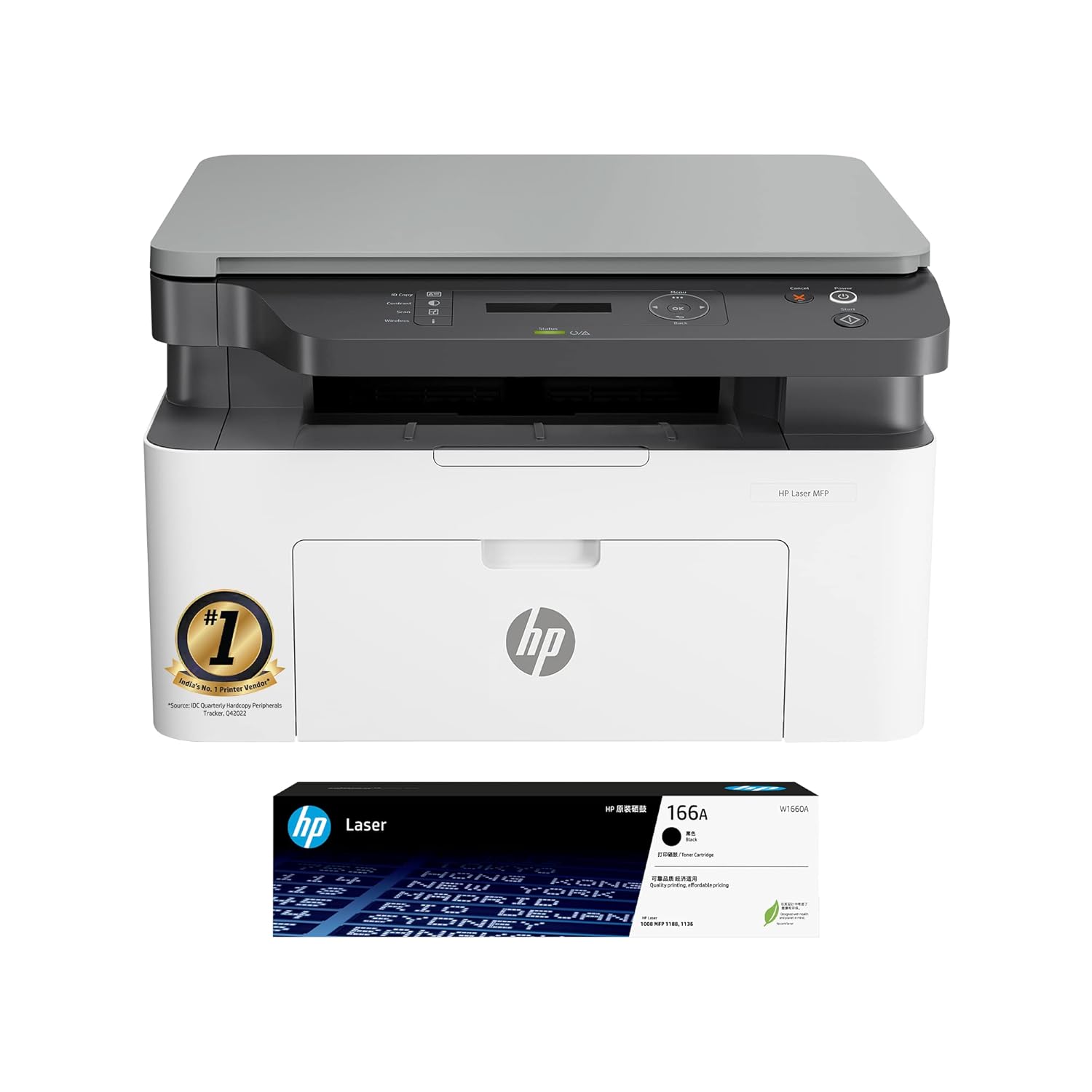
Image: The HP Laser MFP 1188a printer shown with its accompanying toner cartridge.
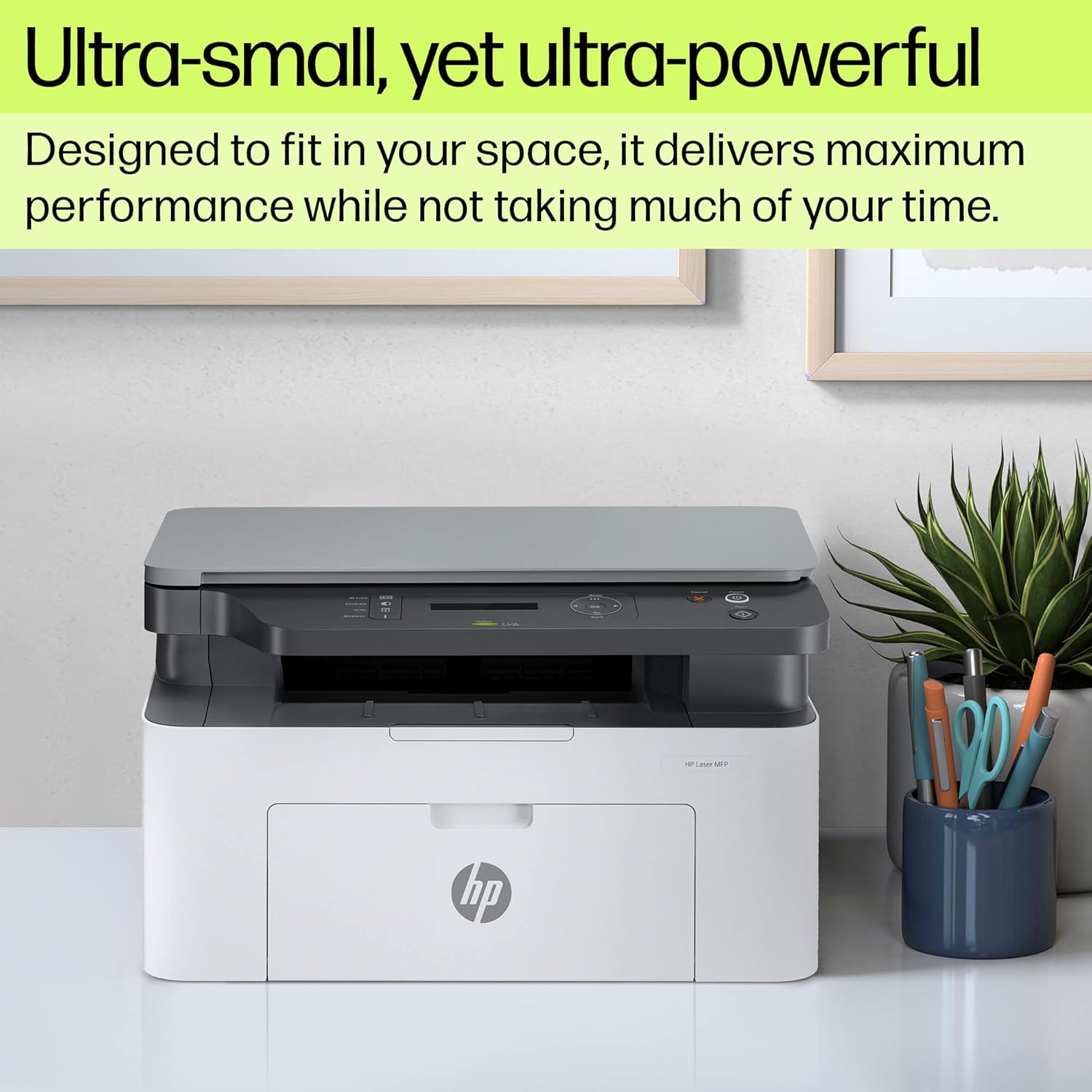
Image: The HP Laser MFP 1188a printer positioned on a desk, highlighting its compact size.
Klíčové vlastnosti:
- Funkce vše v jednom: Print, Copy, Scan.
- Konektivita: 2 Hi-Speed USB 2.0 ports.
- Rychlost tisku: Up to 21 pages per minute (ppm).
- Kapacita vstupního zásobníku: 150 listů.
- Kapacita výstupního zásobníku: 100 listů.
- Pracovní cyklus: Up to 10,000 pages per month.
- Rozhraní: 2-line LCD display with intuitive controls.
- Typ skeneru: Plochá postel.
- Kompatibilita operačního systému: Windows 11/10/7/Vista and macOS 10.15/11/12.

Image: A diagram illustrating the key components of the HP Laser MFP 1188a, including the 2-line LCD display, USB connectivity, flatbed scanner, 150-sheet input tray, and print/scan/copy functions.
5. Pokyny k nastavení
5.1 Vybalení tiskárny
- Vyjměte tiskárnu z obalu.
- Odstraňte z tiskárny veškerý balicí materiál, pásky a ochranné fólie.
- Otevřete dvířka tonerové kazety a odstraňte veškerý vnitřní balicí materiál nebo oranžové záložky.
- Insert the toner cartridge if not already preinstalled, ensuring it clicks into place.
- Zavřete dvířka pro přístup k tonerové kazetě.
5.2 Připojení tiskárny
- Připojte napájecí kabel k tiskárně a poté do uzemněné elektrické zásuvky.
- Připojte kabel USB z tiskárny k volnému portu USB v počítači.
- Zapněte tiskárnu pomocí tlačítka napájení.
5.3 Instalace softwaru
For optimal performance, install the printer software and drivers on your computer.
- Insert the setup CD (if provided) into your computer's CD/DVD drive, or visit the official HP support website for the HP Laser MFP 1188a to download the latest drivers and software.
- Dokončete instalaci podle pokynů na obrazovce.
- During installation, you may be prompted to connect the USB cable if you haven't already.
6. Návod k obsluze
6.1 Vkládání papíru
- Otevřete vstupní zásobník.
- Adjust the paper guides to the correct paper size (supports A4, A5, B5, etc.).
- Load paper into the input tray, ensuring it is flat and aligned. The input tray has a capacity of 150 sheets.
- Close the input tray.
6.2 Tisk dokumentů
Tisk z počítače:
- Otevřete dokument, který chcete vytisknout.
- V nabídce aplikace vyberte možnost „Tisk“ (např. File > Tisk).
- Choose "HP Laser MFP 1188a" as your printer.
- Upravte nastavení tisku podle potřeby (např. počet kopií, velikost papíru).
- Click "Print". The printer can achieve speeds of up to 21 ppm.
Manual duplex printing is supported. Follow the on-screen prompts from the printer driver to re-insert pages for printing on the second side.

Image: The HP Laser MFP 1188a actively printing a document, illustrating its operational speed.
6.3 Kopírování dokumentů
Vytvoření kopie pomocí ovládacího panelu tiskárny:
- Umístěte dokument lícem dolů na sklo skeneru a zarovnejte jej s vodítkem.
- Zavřete víko skeneru.
- On the printer's control panel, use the buttons to select the number of copies.
- Press the "Start Copy" button (usually indicated by a copy icon or a green button).
6.4 Skenování dokumentů
Skenování dokumentu:
- Umístěte dokument lícem dolů na sklo skeneru.
- Zavřete víko skeneru.
- From your computer, open the HP Scan software or a compatible scanning application.
- Select "HP Laser MFP 1188a" as your scanner.
- Choose scan settings (e.g., document type, resolution, destination).
- Klikněte na tlačítko „Skenovat“. Naskenovaný obrázek bude uložen do vámi zadaného umístění.

Obrázek: Detailní záběr view of the HP Laser MFP 1188a's intuitive control panel, featuring a 2-line LCD display and various function buttons.
7. Údržba
7.1 Výměna tonerové kazety
When the toner is low, the printer's display will indicate a warning. Replace the cartridge to ensure continued print quality.
- Ujistěte se, že je tiskárna zapnutá.
- Otevřete dvířka pro přístup k tonerové kazetě.
- Opatrně vyjměte starou tonerovou kazetu jejím vytažením.
- Unpack the new HP Laser Black print cartridge (HP 166A or equivalent) and gently shake it to distribute the toner.
- Vložte novou kazetu do tiskárny, dokud nezacvakne na místo.
- Zavřete dvířka pro přístup k tonerové kazetě.
7.2 Čištění tiskárny
Pravidelné čištění pomáhá udržovat kvalitu tisku a prodlužuje životnost tiskárny.
- Vnější: Otřete vnější povrch tiskárny měkkým hadříkem, který nepouští vlákna.ampOmyjte vodou. Nepoužívejte abrazivní čisticí prostředky.
- Sklo skeneru: Clean the scanner glass with a soft cloth and a non-abrasive glass cleaner. Avoid spraying cleaner directly onto the glass.
- Interiér: Obraťte se na podporu HP website for detailed instructions on cleaning internal components if necessary.
8. Řešení problémů
This section addresses common issues you might encounter with your HP Laser MFP 1188a.
8.1 Tiskárna nereaguje
- Check that the printer is powered on and the power cord is securely connected.
- Verify the USB cable is properly connected to both the printer and the computer.
- Restartujte tiskárnu i počítač.
- Ensure the printer drivers are correctly installed and updated.
8.2 Zaseknutí papíru
- Vypněte tiskárnu a odpojte ji.
- Opatrně otevřete všechna přístupová dvířka a odstraňte veškerý zaseknutý papír tahem ve směru dráhy papíru.
- Ujistěte se, že uvnitř nezůstaly žádné potrhané kousky papíru.
- Close all doors, plug in, and power on the printer.
8.3 Špatná kvalita tisku
- Check the toner cartridge level and replace it if low.
- Ujistěte se, že používáte originální tonerové kazety HP.
- Verify that the paper type setting in your print driver matches the paper loaded in the tray.
- Vyčistěte vnitřní součásti tiskárny podle pokynů pro údržbu.
9. Specifikace
| Funkce | Detail |
|---|---|
| Název modelu | HP Laser MFP 1188a |
| Funkce | Tisk, kopírování, skenování |
| Technologie tisku | Laser |
| Tiskový výstup | Monochromatický |
| Maximální rychlost tisku (černobíle) | Až 21 str./min |
| First Page Out Speed | Již za 8.3 sekund |
| Maximální rozlišení tisku (černobíle) | 600 x 600 dpi |
| Typ skeneru | Valník |
| Maximální rychlost kopírování (černobíle) | 20 ppm |
| Max Copy Resolution (Black) | 600 dpi |
| Kapacita vstupního zásobníku | 150 listů |
| Kapacita výstupního zásobníku | 100 listů |
| Podporovány velikosti médií | A4, A5, A5 (LEF), B5 (JIS), 4 x 6 inch |
| Konektivita | 2 vysokorychlostní USB 2.0 |
| Ovládací panel | 2-line LCD display, 12 buttons, 2 LED indicator lights |
| Pracovní cyklus (měsíčně) | Až 10,000 XNUMX stran |
| Kompatibilita operačního systému | Windows 11/10/7/Vista, macOS 10.15/11/12 |
| Rozměry produktu (DxŠxV) | 40.6 x 25.3 x 36 cm (15.98 x 9.96 x 14.17 palce) |
| Hmotnost položky | 7.5 kg (16.53 lb) |
| Spotřeba energie | HP Auto-Off Technology for energy saving |

Image: Diagram showing the height, depth, and width measurements of the HP Laser MFP 1188a printer.
10. Záruka a podpora
Your HP Laser MFP 1188a printer comes with a 1-year limited warranty. For warranty claims or technical assistance, please contact HP support.
- Hlasová podpora: Available 12x7.
- Podpora chatu: Available 24x7.
- Refer to the "Regulatory Statements Flyer" included in your package for detailed warranty terms and contact information.
- You can also visit the official HP support website for drivers, manuals, and troubleshooting resources: support.hp.com