
1. Úvod
This user manual provides detailed instructions for the installation, operation, and maintenance of the ISEEVY 8ch HDMI 1080P H.265 H.264 Video Encoder. This device is designed to convert HDMI video signals into IP streams, supporting various protocols for live streaming, IPTV, and broadcast applications. Please read this manual thoroughly before using the product to ensure proper functionality and to prevent damage.
2. Konec produktuview
2.1 Klíčové vlastnosti
- Supports 8 channels of 1080P HDMI video input.
- Advanced H.265 and H.264 video encoding (high/main/baseline profile).
- AAC/MP3 audio encoding.
- Supports multiple streaming protocols: RTMP, RTMPS, RTSP, UDP, RTP, HTTP, FLV, HLS, TS, Multicast, Unicast, SRT.
- Each channel supports up to 2 streams, with resolutions up to 1920x1080P at 60fps.
- Customizable logo, text, or fly text watermark for each channel.
2.2 Vzhled produktu
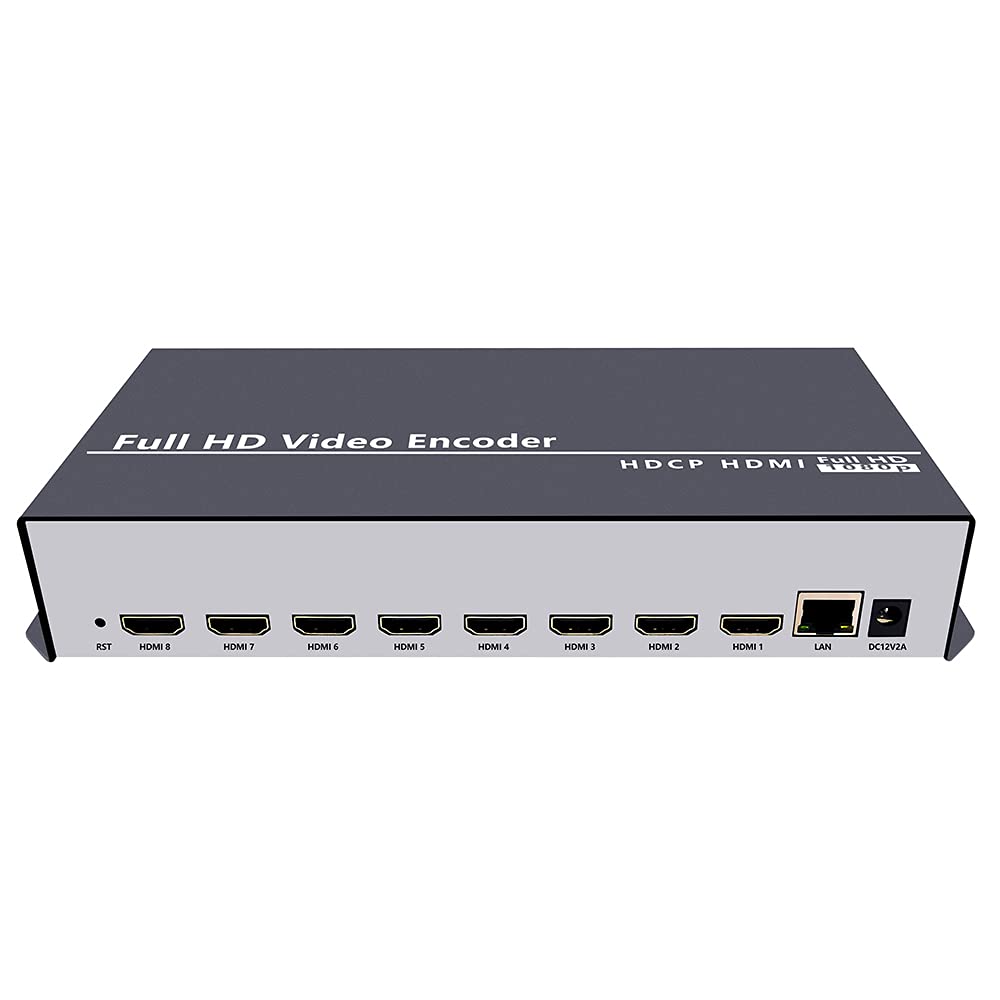
Obrázek 2.2.1: Přední strana view of the ISEEVY 8ch HDMI Video Encoder, showing the 'Full HD Video Encoder' label and the HDMI input ports.

Obrázek 2.2.2: Zadní view of the ISEEVY 8ch HDMI Video Encoder, displaying eight HDMI input ports, a LAN port, and a DC 12V power input.
2.3 Obsah balení
- ISEEVY 8ch HDMI Video Encoder Unit
- Napájecí adaptér (DC 12V)
- Uživatelská příručka (tento dokument)
- Ethernetový kabel
3. Nastavení
3.1 Fyzická připojení
- Připojení zdrojů HDMI: Connect up to eight HDMI video sources (e.g., cameras, DVD players, computers) to the HDMI input ports on the rear of the encoder using standard HDMI cables.
- Připojit k síti: Connect the encoder's LAN port to your network router or switch using the provided Ethernet cable. Ensure your network provides DHCP or assign a static IP address later.
- Připojte napájení: Plug the DC 12V power adapter into the encoder's DC 12V input port and then into a power outlet. The device will power on automatically.
3.2 Network Configuration Overview
The encoder requires a network connection to stream video. It can obtain an IP address automatically via DHCP or be configured with a static IP. For initial setup, it is recommended to connect it to a network with DHCP enabled.

Figure 3.2.1: Typical network setup for the ISEEVY HDMI Encoder, illustrating its connection to a router and various playback devices and platforms.
4. Návod k obsluze
4.1 Web Přístup k rozhraní
- Najít IP adresu: If your network has DHCP, the encoder will automatically obtain an IP address. You can find this IP address using an IP scanner tool on your network or by checking your router's connected devices list. The default IP address is often 192.168.1.169 if DHCP is not available.
- Přístup Web Rozhraní: Otevřete a web browser (e.g., Chrome, Firefox) on a computer connected to the same network as the encoder. Enter the encoder's IP address into the browser's address bar and press Enter.
- Přihlášení: Výchozí uživatelské jméno je admin a výchozí heslo je admin. It is highly recommended to change the password after the first login for security.
4.2 Configuring Input and Stream Settings
Jakmile se přihlásíte do web interface, you can configure each HDMI input and its corresponding output streams.
Obrázek 4.2.1: Web interface 'Status' page for Input Port 1, displaying current input resolution, frame rate, and stream URLs.
- Vyberte vstup: On the left navigation panel, select the desired input port (e.g., "Input Port 1").
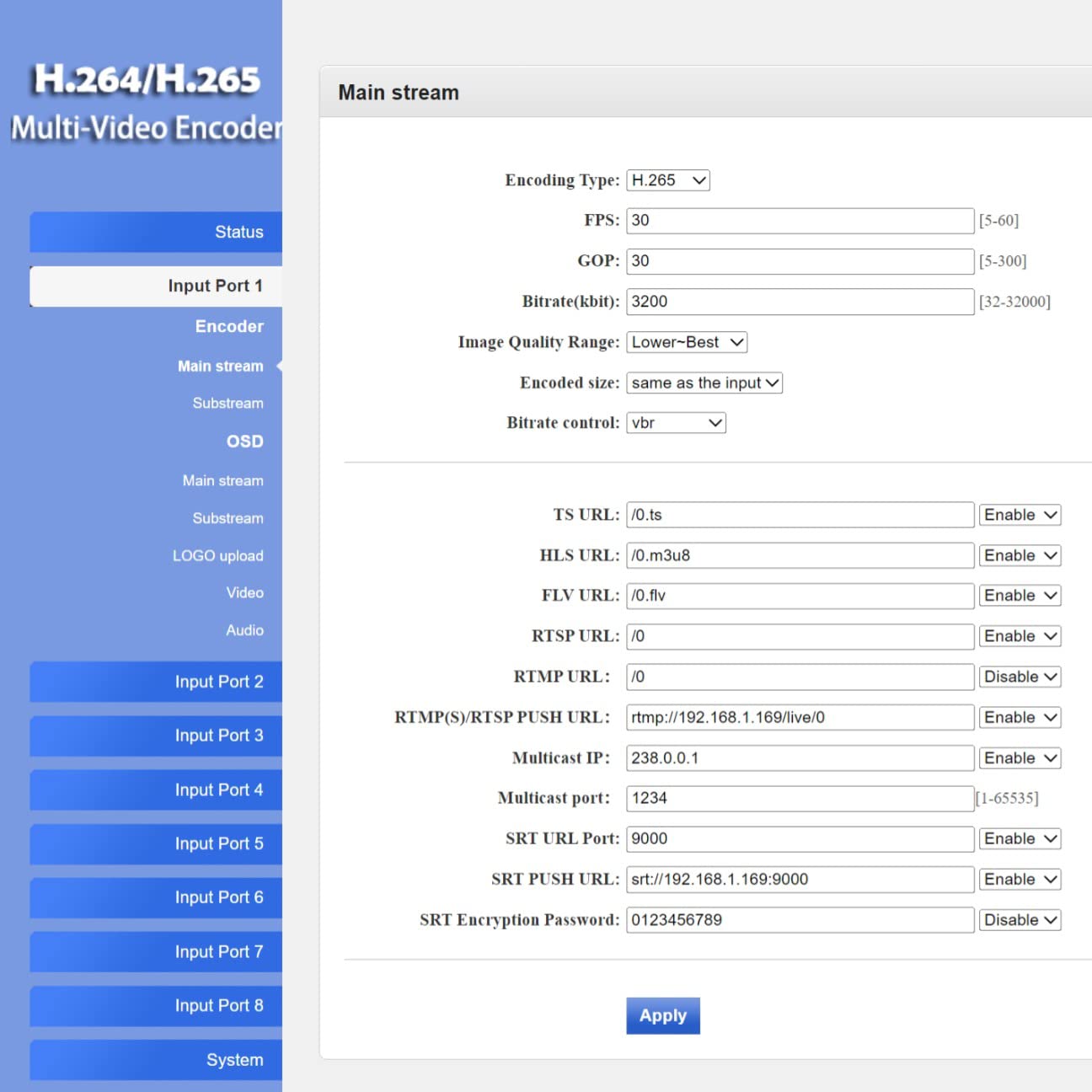
- Nastavení kodéru: Navigate to the "Encoder" or "Main stream" section for the selected input. Here you can adjust:
- Typ kódování: H.265 or H.264.
- FPS (snímky za sekundu): Typically 30 or 60.
- Bitrate (kbit/s): Adjust based on desired quality and network bandwidth.
- Rezoluce: Output resolution for the stream.
- Protokol URLs: Configure RTMP, RTSP, HLS, FLV, TS, and SRT URLs pro streamování.

Obrázek 4.2.2: Web interface 'Main stream' configuration page, allowing adjustment of encoding parameters like FPS, Bitrate, and various protocol URLs.
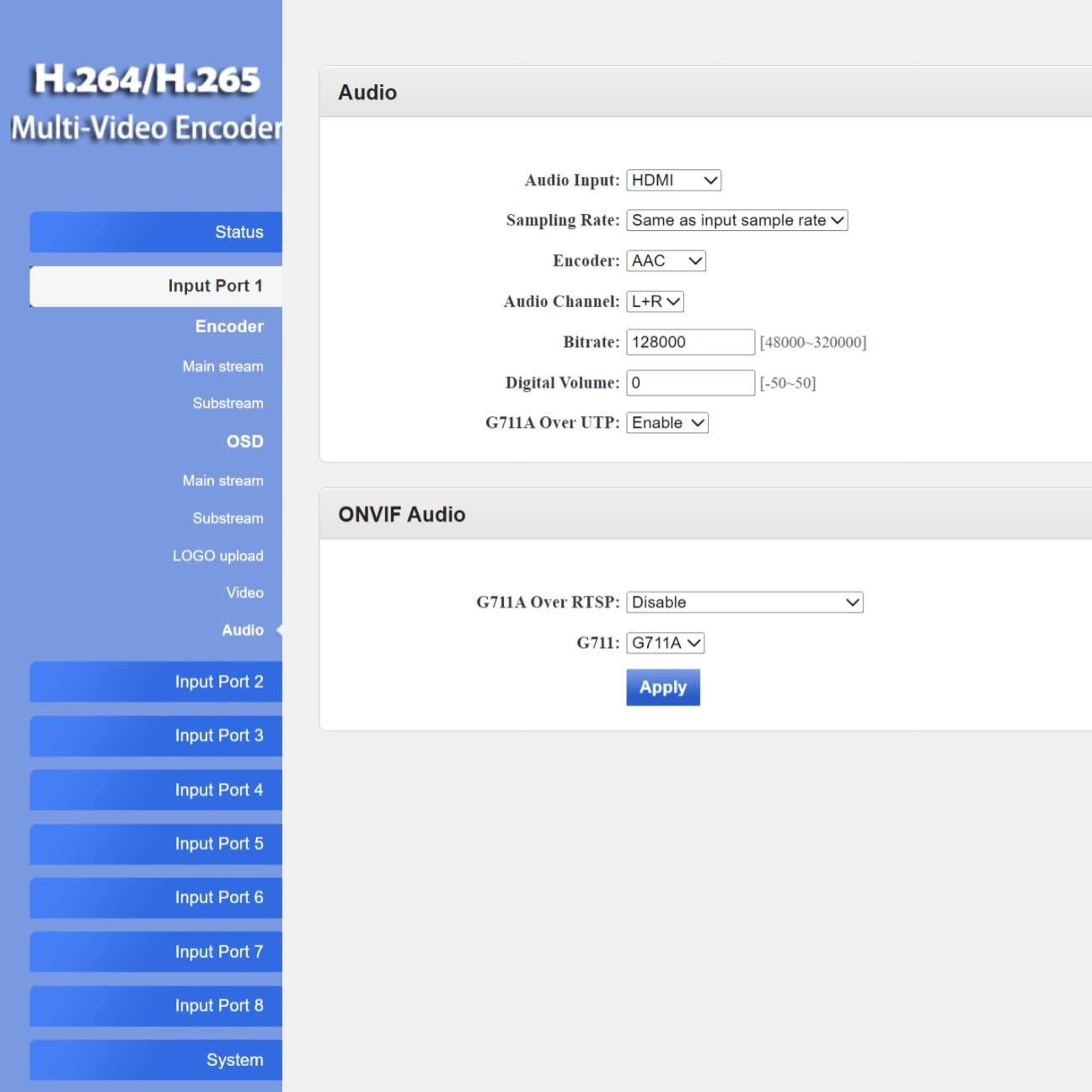
- Nastavení zvuku: Navigate to the "Audio" section to configure audio input, sampling rate, encoder type (AAC/MP3), and bitrate.
- OSD (On-Screen Display): In the "OSD" section, you can enable and configure text or image overlays (watermarks) for your streams.
- Pokročilá nastavení: The "System" > "Advanced" section provides fine-tuning options for video processing, network settings, and more.
Obrázek 4.2.3: Web interface 'Advanced' settings page, offering detailed configuration options for video, network, and system parameters.
4.3 Live Streaming Platforms and Software Compatibility
The encoder supports various protocols, making it compatible with a wide range of streaming platforms and playback software.

Obrázek 4.3.1: Přamples of compatible live streaming platforms, including Twitch, Facebook Live, YouTube, and Vimeo.

Obrázek 4.3.2: Přamples of compatible playback and streaming software, such as OBS, VLC Player, and FFmpeg.
5. Údržba
5.1 Čištění
- Před čištěním se ujistěte, že je zařízení vypnuté a odpojené ze zásuvky.
- Use a soft, dry cloth to wipe the exterior of the encoder.
- Nepoužívejte tekuté čisticí prostředky, aerosoly ani rozpouštědla, protože by mohly zařízení poškodit.
5.2 aktualizací firmwaru
Pravidelně kontrolujte informace od výrobce webweb s aktualizacemi firmwaru. Aktualizace firmwaru mohou poskytnout nové funkce, vylepšení výkonu a opravy chyb. Pečlivě dodržujte pokyny dodané s balíčkem aktualizace firmwaru, abyste předešli poškození zařízení.
5.3 Skladování
When not in use for extended periods, store the encoder in a cool, dry place away from direct sunlight and extreme temperatures. Keep it in its original packaging or a protective case to prevent dust accumulation and physical damage.
6. Řešení problémů
This section addresses common issues you might encounter with the ISEEVY 8ch HDMI Video Encoder.
| Problém | Možná příčina | Řešení |
|---|---|---|
| No video output/stream | Žádný vstupní signál HDMI | Check HDMI cable connections and ensure the source device is powered on and outputting video. |
| No video output/stream | Incorrect stream settings | Verify encoding type, resolution, and bitrate settings in the web interface. Ensure protocol URLs jsou správné. |
| Nelze získat přístup web rozhraní | Incorrect IP address or network issue | Ensure the encoder is connected to the network. Verify the IP address using an IP scanner. Check network cable. Try resetting the encoder. |
| Stream buffering or poor quality | Insufficient network bandwidth or high bitrate | Reduce the stream bitrate in the web interface. Check your network's upload speed. Ensure no other devices are saturating the network. |
| Audio issues (no audio, distorted audio) | Incorrect audio settings or source issue | Verify audio input and encoding settings in the web interface. Ensure the HDMI source is providing audio. |
7. Specifikace
Detailed technical specifications for the ISEEVY 8ch HDMI Video Encoder.
| Funkce | Detail |
|---|---|
| Značka | iseevy |
| Model | 8ch HDMI 1080P H.265 H.264 Video Encoder |
| Vstup | 8 x HDMI (1080P) |
| Kódování videa | H.265, H.264 (High/Main/Baseline Profile) |
| Kódování zvuku | AAC, MP3 |
| Výstupní rozlišení | Up to 1920x1080P @ 60fps |
| Streamovací protokoly | RTMP, RTMPS, RTSP, UDP, RTP, HTTP, FLV, HLS, TS, Multicast, Unicast, SRT |
| Síťové rozhraní | 1 x RJ45 Ethernet Port |
| Napájení | DC 12V |
| Rozměry produktu | 9.06 x 5.91 x 1.73 palce (23 x 15 x 4.4 cm) |
| Hmotnost | 1.72 liber (0.78 kg) |
| Výrobce | ISEEVY Limited |
8. Záruka a podpora
ISEEVY products are designed for reliability and performance. For warranty information and technical support, please refer to the official ISEEVY website or contact your authorized reseller. Keep your purchase receipt as proof of purchase for warranty claims.
For the latest drivers, firmware, and support resources, please visit the official ISEEVY support page.