
Zavedení
This manual provides essential information for setting up, operating, and maintaining your GEEKOM Mini PC AS5. Please read these instructions carefully before using the device to ensure optimal performance and longevity. The GEEKOM Mini PC AS5 is a compact and powerful computing solution designed for various applications, from home entertainment to professional tasks.
Obsah balení
Než budete pokračovat v instalaci, ověřte si prosím, zda balení obsahuje všechny níže uvedené položky:
- GEEKOM Mini PC AS5
- Napájecí adaptér
- VESA Mount (with screws)
- SSD Mounting Screws
- Montážní šrouby pevného disku
- Rychlý průvodce
- Uživatelská příručka (tento dokument)
- Kabel USB-C na USB-C

Obrázek 1: Contents of the GEEKOM Mini PC AS5 package.
Průvodce nastavením
1. Připojení periferií
Connect your monitor, keyboard, and mouse to the GEEKOM Mini PC AS5. Refer to the port diagram below for correct connections.
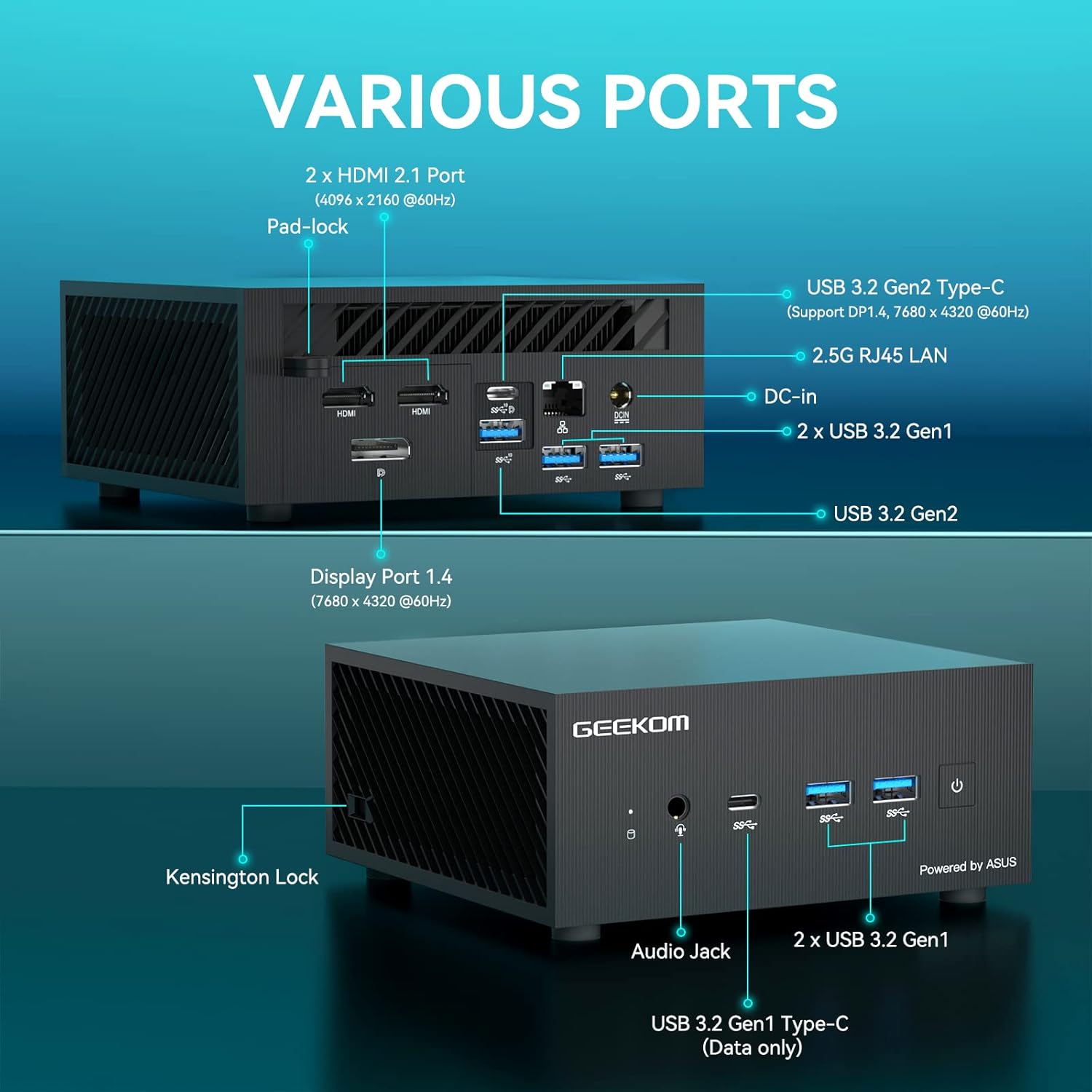
Obrázek 2: Nadview of available ports on the GEEKOM Mini PC AS5.
- Připojení displeje: Use an HDMI cable to connect your monitor to one of the two HDMI 2.1 ports, or a DisplayPort cable to the Display Port 1.4. The USB 3.2 Gen2 Type-C port also supports DisplayPort 1.4 for video output.
- Zařízení USB: Connect your keyboard, mouse, and other USB devices to the available USB 3.2 Gen1 and Gen2 ports.
- Internetové připojení: For a wired network connection, connect an Ethernet cable to the 2.5G RJ45 LAN port. For wireless, ensure your Wi-Fi network is available.
- Zvuk: Připojte sluchátka nebo reproduktory k audio konektoru.
2. Připojení napájení
Connect the power adapter to the DC-In port on the Mini PC, then plug the power adapter into a wall outlet.
3. Počáteční zapnutí
Press the power button located on the front of the Mini PC. The system will boot up, and you will see the operating system loading on your connected display.
4. Nastavení operačního systému
Follow the on-screen instructions to complete the initial setup of Windows 10 Pro, including language selection, network configuration, and user account creation.
Návod k obsluze
Základní operace
- Zapnutí/vypnutí: Press the power button to turn the device on. To turn off, use the Windows shutdown option or press and hold the power button for 5 seconds.
- Restartovat: Use the restart option within the Windows operating system.
- Režim spánku: The system will enter sleep mode after a period of inactivity. Press any key or move the mouse to wake it up.
Konfigurace displeje
The GEEKOM Mini PC AS5 supports multiple displays, including up to four 4K displays or ultra-realistic 8K visuals.

Obrázek 3: The GEEKOM Mini PC AS5 supports ultra-realistic 8K visuals.

Obrázek 4: Multitasking across four 4K displays with the GEEKOM Mini PC AS5.
To configure multiple displays, right-click on the desktop, select "Display settings," and arrange your monitors as desired.
Network Connectivity (Wi-Fi 6E)
The Mini PC supports Wi-Fi 6E, offering enhanced wireless performance. To connect to a Wi-Fi network:

Obrázek 5: GEEKOM Mini PC AS5 featuring Wi-Fi 6E support for faster, lower-latency wireless connectivity.
- Klikněte na ikonu Wi-Fi v systémové liště.
- Vyberte požadovanou síť ze seznamu.
- Pokud budete vyzváni, zadejte síťové heslo.
- Klikněte na „Připojit“.
Údržba
Čištění
- Před čištěním se ujistěte, že je zařízení vypnuté a odpojené ze zásuvky.
- Use a soft, dry cloth to wipe the exterior of the Mini PC.
- Na odolné skvrny lehceamphadřík vodou. Nepoužívejte agresivní chemikálie ani abrazivní čisticí prostředky.
- Keep ventilation openings clear of dust and debris using compressed air.
Aktualizace softwaru
Regularly update your Windows operating system and drivers to ensure optimal performance and security. You can check for updates via Windows Update settings.
Správa úložiště
Pravidelně kontrolujte využití úložiště a odstraňujte nepotřebné files to maintain system speed. The Mini PC supports additional storage expansion (SSD/HDD) if needed.
Odstraňování problémů
- Bez napájení:
- Ujistěte se, že je napájecí adaptér bezpečně připojen k Mini PC i k funkční zásuvce.
- Ověřte funkčnost elektrické zásuvky zapojením jiného zařízení.
- Bez displeje:
- Zkontrolujte, zda je monitor zapnutý a zda je vybrán správný vstupní zdroj.
- Ensure the HDMI or DisplayPort cable is securely connected to both the Mini PC and the monitor.
- Pokud je to možné, zkuste jiný kabel nebo monitor.
- Žádné internetové připojení:
- V případě kabelového připojení zkontrolujte stav ethernetového kabelu a routeru.
- For Wi-Fi, ensure Wi-Fi is enabled in Windows settings and you are connected to the correct network with the correct password.
- Restartujte router a Mini PC.
- Zpomalení systému:
- Zavřete nepotřebné aplikace běžící na pozadí.
- Zkontrolujte a nainstalujte všechny čekající aktualizace systému Windows.
- Spusťte čištění a defragmentaci disku (pro pevné disky) nebo TRIM (pro SSD disky).
- Prohledejte systém, zda neobsahuje malware nebo viry.
Specifikace
| Název modelu | AS5 |
| Procesor | AMD Ryzen™ 9 5900HX (8 Cores, 16 Threads, Max Turbo Frequency 4.60 GHz, 16MB Cache, cTDP 35W) |
| Operační systém | Windows 10 Pro |
| BERAN | 32 GB DDR4 SDRAM |
| Skladování | 1 TB (PCIE x 2 interface) |
| Grafika | AMD Radeon™ Vega 8 Graphics (supports 8K visuals) |
| Bezdrátové připojení | Wi-Fi 6E |
| Porty |
|
| Rozměry | 13 x 12 x 5.8 cm |

Obrázek 6: AMD Ryzen™ 9 5900HX Processor details.
Záruka a podpora
Informace o záruce
GEEKOM products typically come with a standard manufacturer's warranty. Please refer to the warranty card included in your package or visit the official GEEKOM webPodrobné záruční podmínky platné pro váš region a datum nákupu naleznete na webových stránkách. Uschovejte si doklad o koupi pro případ reklamace.
Zákaznická podpora
For technical assistance, troubleshooting beyond this manual, or warranty inquiries, please contact GEEKOM customer support. You can usually find contact information on the official GEEKOM website or in the quick guide provided with your product.
GEEKOM Official Webmísto: www.geekompc.com