
Zavedení
This manual provides essential instructions for setting up, operating, and maintaining your HP Z1 Entry Tower G5 Workstation. This workstation is designed for professional use, offering robust performance for demanding applications. Please read this manual thoroughly to ensure proper use and longevity of your device.
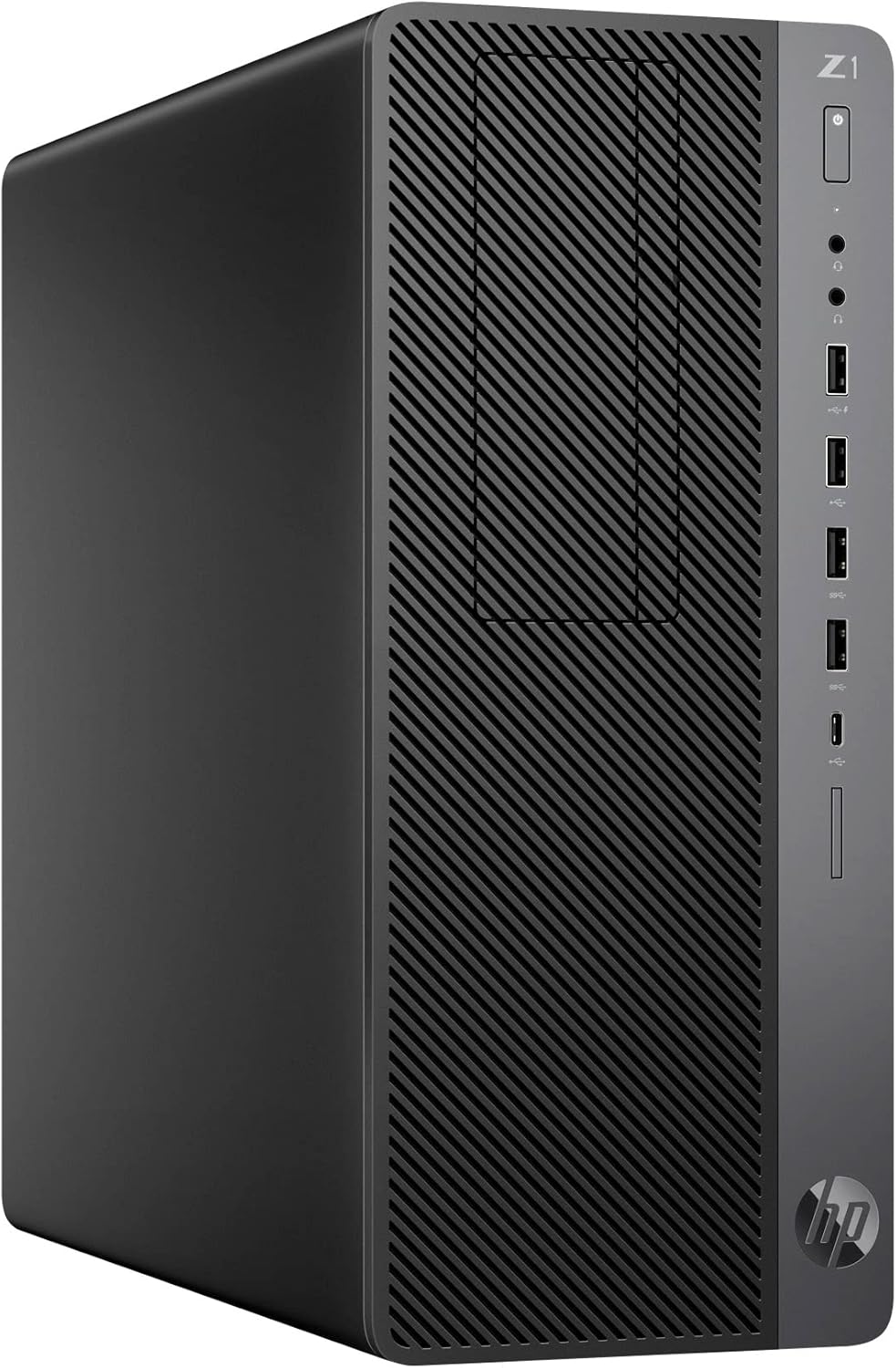
Obrázek 1: HP Z1 Entry Tower G5 Workstation. This image shows the workstation from an angled front view, highlighting its compact tower design and front panel features.
Nastavení
1. Vybalení a první kontrola
Carefully remove the workstation from its packaging. Inspect the unit for any signs of damage that may have occurred during transit. The package should contain:
- HP Z1 Entry Tower G5 Workstation
- Napájecí kabel
Poznámka: Keyboard, mouse, Wi-Fi adapter, and monitor are not included and must be acquired separately.
2. Připojení periferií
Před zapnutím připojte základní periferní zařízení:
- Monitor: Connect your monitor to one of the DisplayPort outputs on the rear of the workstation.
- Klávesnice a myš: Connect your USB keyboard and mouse to any available USB ports on the front or rear panel.
- Síť: For wired internet access, connect an Ethernet cable to the RJ-45 (network) port on the rear panel.
- Zvuk: Připojte reproduktory nebo sluchátka k výstupnímu audio konektoru.

Obrázek 2: Front and Rear Port Diagram. This diagram illustrates the location and function of all ports on the HP Z1 Entry Tower G5 Workstation, including USB, DisplayPort, audio jacks, and network connections.
3. Připojení napájení
Connect the provided power cord to the power connector on the rear of the workstation, then plug the other end into a grounded electrical outlet.
4. Počáteční spuštění a nastavení systému Windows
Press the power button located on the front panel. The workstation comes with a fresh installation of Windows 10 Pro, activated via your unit's unique digital license. Follow the on-screen prompts to complete the initial Windows setup, including user account creation and network configuration.
Návod k obsluze
1. Zapnutí/vypnutí
- Zapnutí: Stiskněte tlačítko napájení na předním panelu.
- Vypnout: In Windows, go to Start > Power > Shut down. Alternatively, press and hold the power button for several seconds to force a shutdown (use only if the system is unresponsive).
2. Používání USB portů
The workstation features various USB ports for connecting devices such as external drives, printers, and other peripherals:
- Přední panel: Includes USB 3.1 Gen 2 Type-C (1), USB 3.1 Gen 2 Type-A (2), USB 2.0 (2, one with fast charging).
- Zadní panel: Includes USB 3.1 Gen 1 Type-A (2), USB 2.0 Type-A (2).
Viz Obrázek 2 for exact port locations.
3. Display Connections
The workstation is equipped with two Dual-Mode DisplayPort™ 1.2 (DP++) outputs for connecting monitors. Some units may also include optional VGA or serial ports.
4. Volitelné součásti
This workstation does not include integrated Wi-Fi. If wireless connectivity is required, a separate USB Wi-Fi adapter must be installed.
Údržba
1. Obecná péče
- Keep the workstation in a clean, dust-free environment.
- Zajistěte správné větrání tím, že nebudete blokovat větrací otvory.
- Vnější povrch očistěte měkkýmamp tkanina. Vyhněte se agresivním chemikáliím.
2. Aktualizace softwaru
Regularly update your Windows 10 operating system and drivers to ensure optimal performance and security. Windows Update can be accessed via Settings > Update & Security > Windows Update.
3. Obnova systému
In case of system issues or hard drive failure, recovery media can be created using the Windows Media Creation Tool. This free tool from Microsoft allows you to create a bootable DVD or USB device to fully recover the operating system. It is recommended to create this media on the workstation before any potential hard disk failures to prevent data loss. For instructions, visit the official Microsoft support webmísto.
Vyloučení odpovědnosti: The seller is not responsible for any loss of data.
Odstraňování problémů
This section addresses common issues you might encounter with your HP Z1 Entry Tower G5 Workstation.
1. Bez napájení
- Ensure the power cord is securely connected to both the workstation and a working electrical outlet.
- Ověřte funkčnost elektrické zásuvky zapojením jiného zařízení.
2. Žádné zobrazení na monitoru
- Check that the monitor is powered on and correctly connected to a DisplayPort on the workstation.
- Ujistěte se, že je na monitoru vybrán správný vstupní zdroj.
- If using multiple monitors, try connecting only one to isolate the issue.
3. Zpomalení nebo zamrznutí systému
- Zavřete nepotřebné aplikace, abyste uvolnili systémové prostředky.
- Zkontrolujte a nainstalujte všechny čekající aktualizace systému Windows.
- Spusťte kontrolu systému na přítomnost malwaru nebo virů.
- Consider creating recovery media and performing a system restore if issues persist.
4. Periferní zařízení nebylo detekováno
- Ujistěte se, že je periferní zařízení správně připojeno k funkčnímu portu USB.
- Zkuste připojit periferní zařízení k jinému USB portu.
- Install or update the drivers for the peripheral if necessary.
Specifikace
The following table details the key specifications of the HP Z1 Entry Tower G5 Workstation:
| Komponent | Specifikace |
|---|---|
| Operační systém | Windows 10 Pro x64 |
| CPU | Intel Core i7-9700 (8 Cores, 8 Threads, 3.0GHz, 12MB Cache, 65W) |
| Paměť (RAM) | 32 GB DDR4 |
| Skladování | 1TB NVMe PCIe M.2 SSD |
| Grafika | Grafická karta Intel UHD Graphics 630 |
| USB 3.1 Gen 2 Type-C | 1 Port |
| USB 3.1 Gen 2 Type-A | 4 Porty |
| USB 3.1 Gen 1 Type-A | 2 Porty |
| USB 2.0 typu A | 4 Porty |
| Zobrazit porty | 2 (Dual-Mode DisplayPort™ 1.2) |
| Ethernet | 10/100/1000 Mb/s, gigabit |
| Rozměry (DxŠxV) | 14.6 x 14.4 x 6.1 palce |
| Optická mechanika | Žádný |
| Wi-Fi | Not Included (Sold Separately) |
Záruka a podpora
This HP Z1 Entry Tower G5 Workstation is a renewed product. It has been thoroughly tested under the guidelines of the Microsoft Refurbisher program and is guaranteed to be in perfect working order by the seller.
For specific warranty details regarding renewed products, please refer to the terms provided by your seller at the time of purchase. For general product information and support resources from HP, please visit the official Podpora HP webmísto.
For assistance with Windows 10, including creating recovery media, please visit the official Podpora společnosti Microsoft webmísto.