
Zavedení
Thank you for choosing the UHURU Wireless Gaming Mouse WM-02. This manual provides detailed instructions for setting up, operating, maintaining, and troubleshooting your new gaming mouse. Please read this manual thoroughly before use to ensure optimal performance and longevity of your device.
Co je v krabici
The package for your UHURU Wireless Gaming Mouse WM-02 includes the following items:
- Wireless Gaming Mouse x 1
- 2.4GHz USB Dongle x 1
- Nabíjecí kabel x 1
- Uživatelská příručka x 1
Konec produktuview
The UHURU WM-02 Wireless Gaming Mouse is designed for comfort and performance, featuring multiple customizable options.

Tento obrázek zobrazuje horní část view of the UHURU Wireless Gaming Mouse, highlighting its six programmable buttons: Left Button, Right Button, Scroll Wheel, Backward button, Forward button, and DPI button.
Klíčové vlastnosti:
- 5 Adjustable DPI Levels: Easily switch between 800, 1600, 3000, 5000, and 10000 DPI settings for precise control in various applications.
- 7-Color Changeable Backlight: Experience dynamic LED lighting that cycles through 7 colors automatically. Note: The LED colors are not programmable and do not stay on a single color.
- 6 programovatelných tlačítek: Customize button functions using the driver software (Windows only) to enhance your gaming and productivity.
- Dobíjecí baterie: Built-in rechargeable battery eliminates the need for frequent battery replacements.
- Ergonomický design: Designed for comfortable use, accommodating various grip styles.
Nastavení
- Nabijte myš: Before first use, connect the included charge cable to the mouse's charging port and a USB power source. Allow the mouse to fully charge.
- Locate the USB Dongle: The 2.4GHz USB dongle is typically stored in a compartment on the underside of the mouse for safekeeping. Gently remove it.
- Connect the USB Dongle: Insert the USB dongle into an available USB port on your PC or laptop.
- Zapnutí myši: Flip the power switch located on the underside of the mouse to the 'ON' position. The mouse should automatically connect to the dongle.

This video demonstrates how to locate and remove the USB dongle from the mouse's storage slot and connect it to a computer. The video also shows the mouse being turned on.
Návod k obsluze
Úprava DPI
The mouse features 5 adjustable DPI levels (800/1600/3000/5000/10000). To change the DPI, press the DPI button located below the scroll wheel. Each press cycles through the available DPI settings, allowing you to adjust cursor speed for different tasks or games.
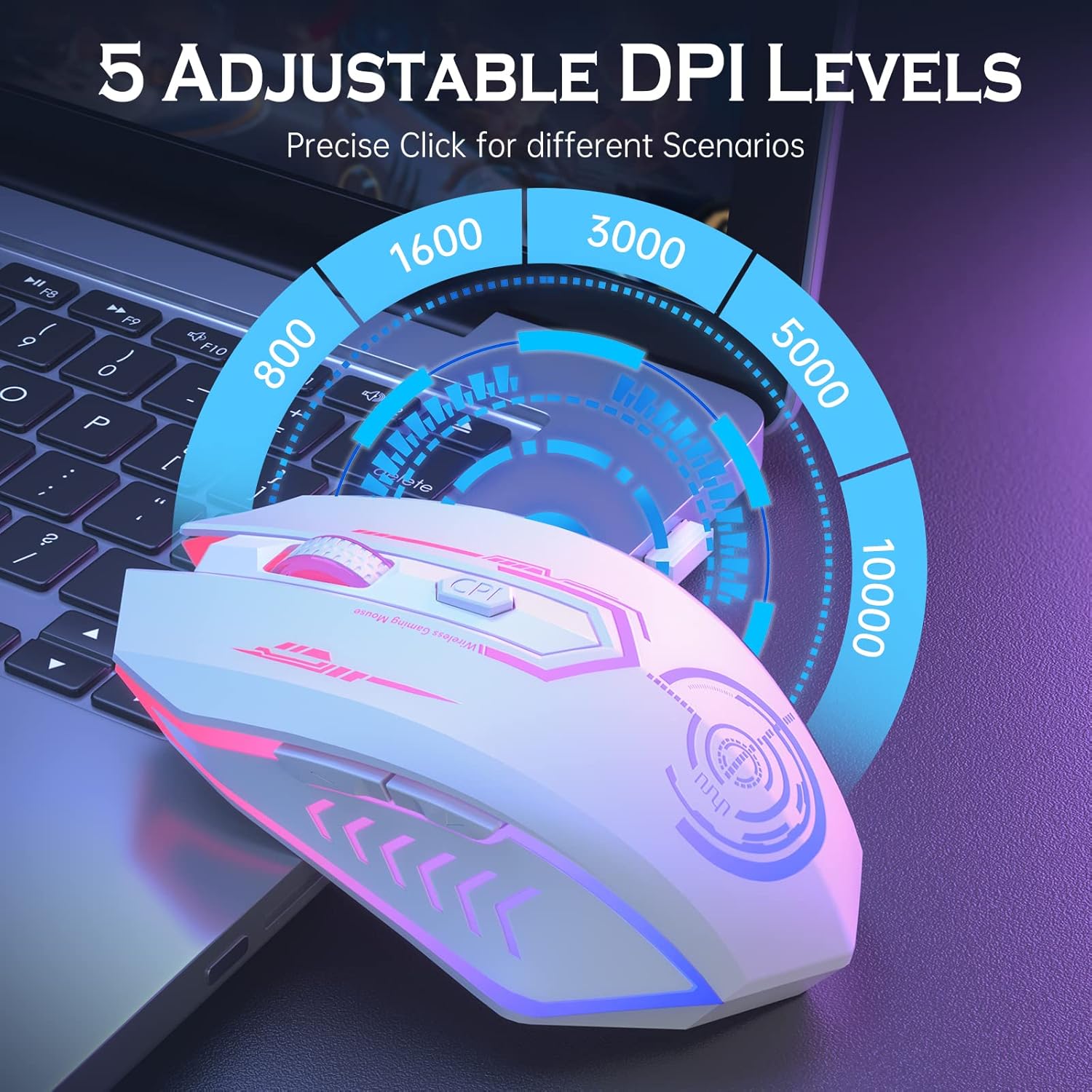
This image illustrates the different DPI levels available on the UHURU Wireless Gaming Mouse, ranging from 800 to 10000, and indicates the location of the DPI button.
LED osvětlení
The mouse features a 7-color changeable backlight that cycles automatically. The LED lighting cannot be programmed to stay on a single color or be turned off independently. It provides ambient lighting during use.
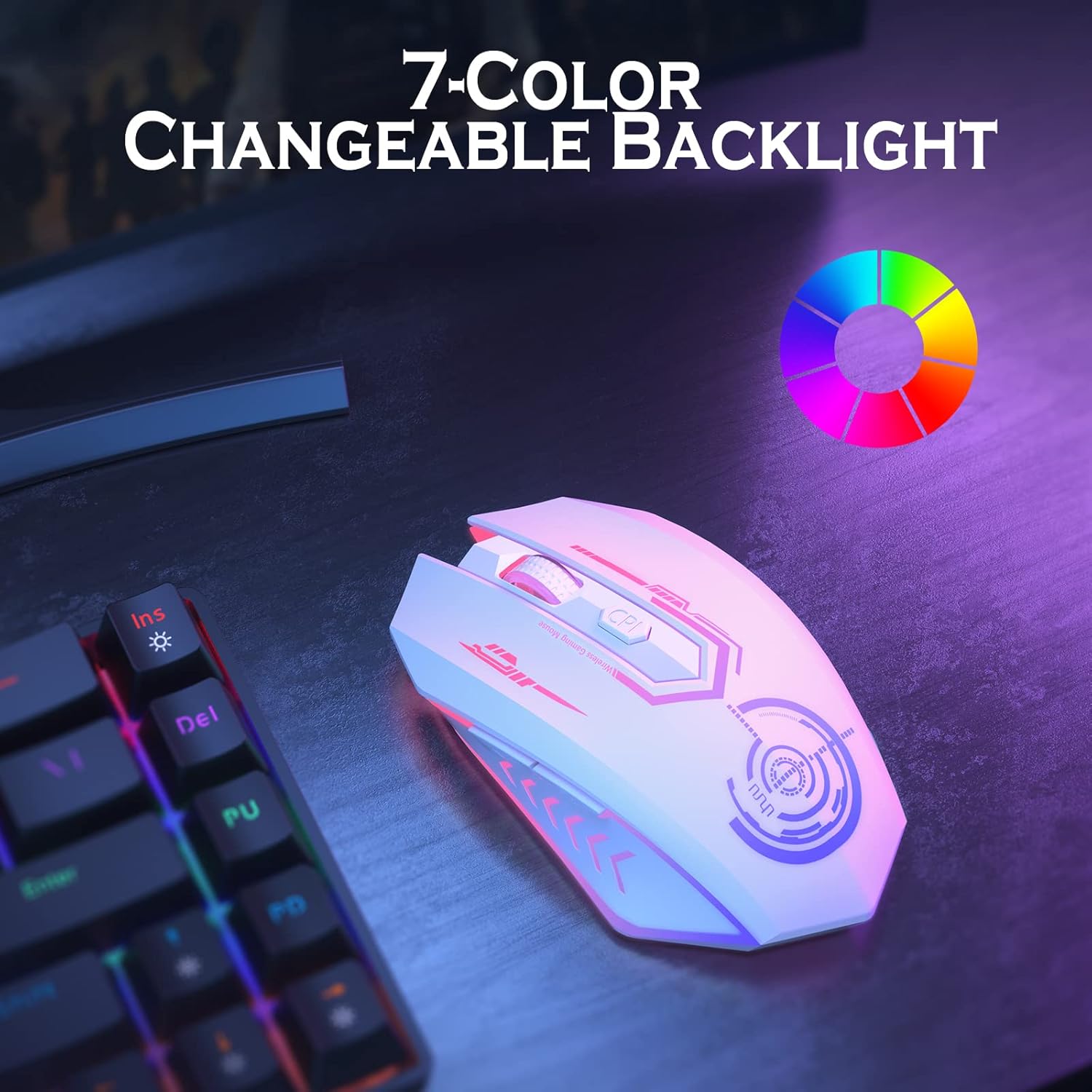
The image shows the UHURU Wireless Gaming Mouse illuminated with its dynamic 7-color changing LED backlight, demonstrating the visual effect.
Programovatelná tlačítka
The 6 buttons on the mouse can be programmed using the dedicated driver software. This software allows for macro editing and custom button assignments, enhancing functionality for various games and applications. The driver is compatible with Windows operating systems only.
To download the driver software, please refer to the website mentioned in the included user manual or on the product packaging.
Nabíjení myši
The mouse is equipped with a built-in rechargeable battery. When the battery is low, connect the provided USB charge cable to the mouse and a USB power source (e.g., computer USB port, USB wall adapter). The mouse can be used while charging, functioning as a wired mouse during this time.

This image shows the UHURU Wireless Gaming Mouse connected to its charging cable, with an icon indicating the battery charging status.
Úsporný režim
To conserve battery life, the mouse will automatically enter a sleep mode after 1 minute of inactivity. To wake the mouse, simply move it or click any button.
Údržba
- Čištění: K čištění myši používejte měkký, suchý hadřík. Nepoužívejte agresivní chemikálie ani abrazivní materiály.
- Skladování: When not in use for extended periods, store the mouse in a cool, dry place. Ensure the USB dongle is securely stored in its compartment on the mouse.
- Péče o baterie: Chcete-li prodloužit životnost baterie, vyhněte se častému úplnému vybíjení myši. Nabijte ji, jakmile se zobrazí indikátor slabé baterie.
Odstraňování problémů
- Myš nereaguje:
- Ujistěte se, že je myš zapnutá.
- Check if the USB dongle is securely plugged into a USB port on your computer.
- Verify the mouse battery is charged. Connect the charging cable to see if it resumes function.
- Zkuste zapojit USB dongle do jiného USB portu.
- Re-pair the mouse by turning it off, removing the dongle, reinserting the dongle, and then turning the mouse back on.
- Lagging or erratic movement:
- Ensure the mouse is within the effective wireless range (up to 10 meters).
- Zkontrolujte, zda nedochází k rušení jinými bezdrátovými zařízeními.
- Vyčistěte optický senzor na spodní straně myši.
- Ujistěte se, že myš je používána na vhodném povrchu.
- LED lights not working or stuck:
- The LED lights cycle automatically and cannot be set to a single color. This is normal operation.
- Ujistěte se, že myš má dostatečně nabitou baterii.
- Tlačítka nefungují:
- If specific buttons are not working, ensure the driver software is correctly installed and configured (for programmable buttons).
- For general button issues, try restarting your computer and the mouse.
- Slabá výdrž baterie:
- Před použitím se ujistěte, že je myš plně nabitá.
- The mouse has an auto-sleep feature; ensure it's not being woken up frequently by accidental movement if not in active use.
- Battery performance can degrade over time with heavy use.
Specifikace
| Značka | UHURU |
| Název modelu | WM-02 |
| Barva | Bílý |
| Technologie připojení | USB (2.4 GHz bezdrátové) |
| Technologie detekce pohybu | Optický |
| Úrovně DPI | 800/1600/3000/5000/10000 |
| Množství tlačítek | 6 |
| Orientace rukou | Právo |
| Kompatibilní zařízení | Osobní počítač |
| Operating System (Driver) | Pouze Windows |
| Typ baterie | 1 lithium-polymerová baterie (součástí balení) |
| Průměrná životnost baterie | Approximately 10.5 Hours of active use |
| Bezdrátové Dosah | Až 10 metrů (33 stop) |
| Hmotnost položky | 150 gramů |
| Materiál pouzdra | Plast |
Záruka a podpora
Your UHURU Wireless Gaming Mouse WM-02 comes with a Záruka 12 měsíců od data nákupu. Tato záruka se vztahuje na výrobní vady a zajišťuje, že váš výrobek při běžném používání neobsahuje vady materiálu a zpracování.
For warranty claims, technical support, or any questions regarding your product, please contact the manufacturer, Rlg, through their official support channels. Refer to the contact information provided on the product packaging or the official UHURU webmísto.
Uschovejte si prosím doklad o koupi pro ověření záruky.