
1. Úvod
Welcome to the user manual for your Havit Gaming Mouse MS1032. This document provides essential information for setting up, operating, maintaining, and troubleshooting your device. Please read it carefully to ensure optimal performance and longevity of your mouse.
The Havit MS1032 is a gaming mouse featuring six adjustable DPI settings, a comfortable ergonomic design, and a non-slip surface. It is engineered for smooth and quiet operation, aiming to reduce fatigue during extended use.
2. Nastavení
2.1 Obsah balení
- Havit Gaming Mouse MS1032
- Uživatelská příručka
2.2 Systémové požadavky
- Operating System: Windows XP, Windows 7, Linux
- Dostupný USB port
2.3 Připojení myši
- Unpack the Havit Gaming Mouse MS1032 from its packaging.
- Vyhledejte v počítači volný port USB.
- Zasuňte USB konektor myši do USB portu.
- Váš operační systém by měl automaticky detekovat a nainstalovat potřebné ovladače. Tento proces může chvíli trvat.
- Once installation is complete, the mouse is ready for use.
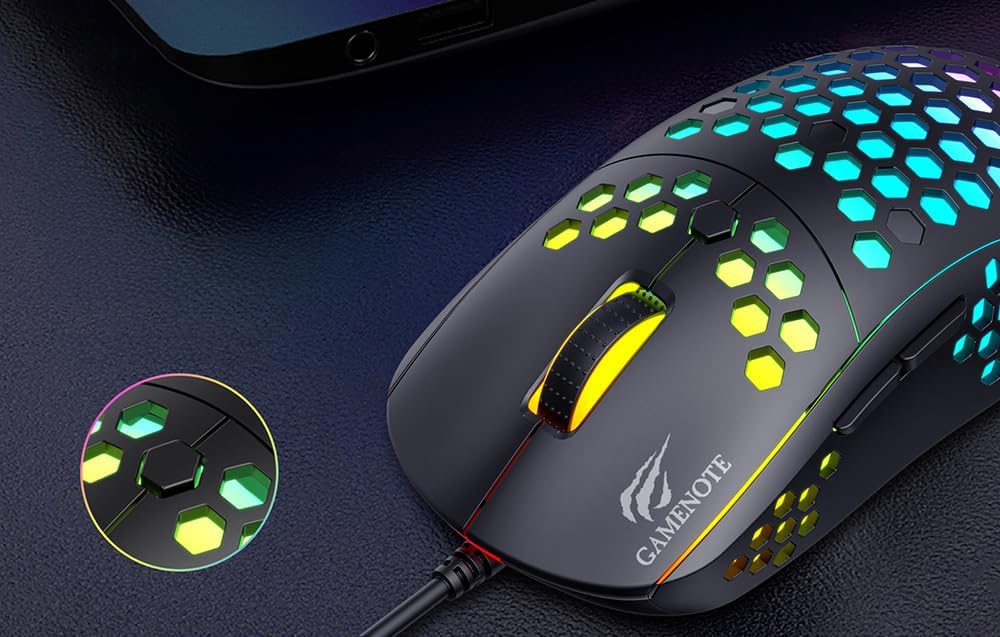
Figure 1: Havit MS1032 Gaming Mouse connected via USB.
3. Návod k obsluze
3.1 Základní funkce
- Levé kliknutí: Primární akce, výběr, aktivace.
- Klikněte pravým tlačítkem myši: Opens context menus, performs secondary actions.
- Rolovací kolečko: Scrolls up/down documents or web stránky. Lze také stisknout pro funkci kliknutí prostředním tlačítkem myši.
- Boční tlačítka: Obvykle se používá pro navigaci vpřed/vzad v web browsers or custom functions in games.
3.2 Nastavení DPI
The Havit MS1032 features six adjustable DPI (Dots Per Inch) settings, allowing you to change the mouse sensitivity on the fly. This is useful for adapting to different tasks, such as precise aiming in games or fast navigation across multiple monitors.
To adjust the DPI, locate the DPI button, typically positioned behind the scroll wheel. Press this button to cycle through the available DPI settings. The LED lighting on the mouse may change to indicate the current DPI level, providing visual feedback for your selection.
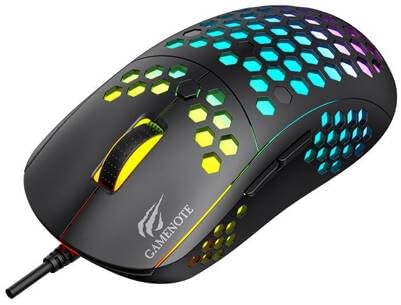
Figure 2: Location of the DPI button (behind the scroll wheel).
4. Údržba
4.1 Čištění
Pro udržení optimálního výkonu a vzhledu myš pravidelně čistěte:
- Před čištěním odpojte myš od počítače.
- Použijte měkký hadřík, který nepouští vlákna dampvodou nebo jemným, neabrazivním čisticím roztokem.
- Gently wipe the surface of the mouse.
- For crevices and the optical sensor, use a cotton swab or compressed air to remove dust and debris.
- Avoid using harsh chemicals, abrasive cleaners, or excessive moisture, as these can damage the mouse's finish or internal components.
4.2 Skladování
When not in use, store the mouse in a clean, dry environment away from direct sunlight and extreme temperatures to prevent damage.
4.3 Obecná péče
- Avoid dropping the mouse or subjecting it to strong impacts.
- Do not attempt to disassemble the mouse, as this will void the warranty and may cause irreparable damage.
- Keep the mouse away from liquids to prevent electrical damage.
5. Řešení problémů
If you encounter issues with your Havit Gaming Mouse MS1032, please refer to the following common solutions:
5.1 Myš nereaguje
- Zkontrolujte připojení USB: Ujistěte se, že je kabel USB bezpečně zapojený do funkčního portu USB v počítači. Zkuste jiný port USB.
- Restartujte počítač: Někdy může problémy s připojením vyřešit jednoduchý restart počítače.
- Test na jiném počítači: If possible, test the mouse on another computer to determine if the issue is with the mouse or your computer's setup.
5.2 Pohyb kurzoru je nepravidelný nebo skokatý
- Čistit senzor: Ensure the optical sensor on the bottom of the mouse is clean and free of dust or debris.
- Zkontrolujte povrch: Use the mouse on a clean, non-reflective, and uniform surface (e.g., a mouse pad). Avoid glass or highly reflective surfaces.
- Úprava DPI: If the cursor is too fast or too slow, adjust the DPI setting using the DPI button.
5.3 Tlačítka nefungují
- Zkontrolujte překážky: Ujistěte se, že se pod tlačítky nezdržují žádné nečistoty.
- Konflikt softwaru: If you have custom mouse software installed, try uninstalling it temporarily to see if it resolves the issue.
5.4 LED světla nefungují
- Zkontrolujte připojení: Ujistěte se, že je myš správně připojena k počítači.
- Cyklus napájení: Disconnect and reconnect the mouse to reset its power.
6. Specifikace

Figure 3: Havit MS1032 Gaming Mouse design overview.
| Funkce | Detail |
|---|---|
| Model | MS1032 |
| Značka | Havit |
| Rozměry | 15 x 8 x 5.2 cm |
| Hmotnost | 200 g |
| Nastavení DPI | 6 nastavitelné úrovně |
| Operační systémy | Linux, Windows 7, Windows XP |
| Konektivita | Kabelové USB |
| Jsou vyžadovány baterie | Žádný |
7. Záruka a podpora
For detailed warranty information and technical support, please refer to the official Havit website or contact your local retailer where the product was purchased. It is recommended to keep your purchase receipt as proof of purchase for any warranty claims.
Výrobce: Havit
Číslo modelu: MS1032