
lindy 38365
Lindy 38365 Extender, SDVoE HDMI 4K60 and USB Transmitter User Manual
Model: 38365
1. Úvod
The Lindy 38365 Extender is an advanced SDVoE (Software Defined Video over Ethernet) device designed for transmitting high-quality 4K@60Hz 4:4:4 HDMI video and USB signals over a 10G network. This device supports uncompressed resolution with HDR10 and no latency, making it ideal for professional AV installations. It can operate in either Encoder (Transmitter) or Decoder (Receiver) mode, offering flexibility for various system configurations.
2. Bezpečnostní informace
- Před použitím zařízení si pečlivě přečtěte všechny pokyny.
- Nevystavujte zařízení vlhkosti, extrémním teplotám ani přímému slunečnímu záření.
- Use only the provided power supply and mounting hardware.
- Nepokoušejte se zařízení otevírat ani opravovat sami. Veškerý servis svěřte kvalifikovanému personálu.
- Zajistěte správné větrání, aby nedošlo k přehřátí.
3. Obsah balení
- Lindy 38365 Extender Unit
- Napájení
- Montážní hardware
- Uživatelská příručka (tento dokument)
4. Konec produktuview
The Lindy 38365 Extender is a versatile unit capable of functioning as both an SDVoE HDMI 4K60 and USB Transmitter (Encoder) or Receiver (Decoder). It features multiple ports for video, audio, USB, and network connectivity.
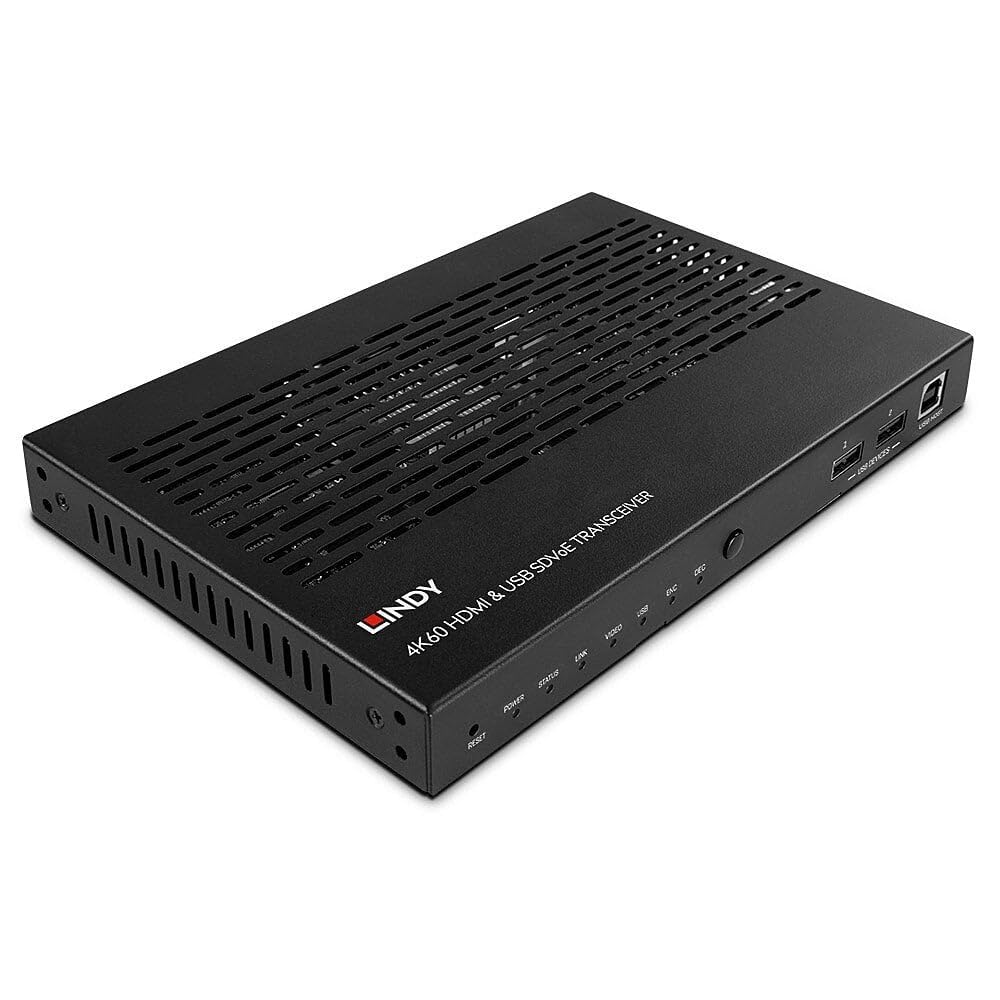
Figure 4.1: Lindy 38365 Extender - Overall View. This image displays the top and side panels of the black extender unit, highlighting its ventilation grilles and various input/output ports.
4.1 Přední panel

Figure 4.2: Front Panel. The front panel includes LED indicators for Power, Status, Link, Video, USB, Encoder (ENC), and Decoder (DEC) modes. It also features a Reset button, a Mode button, two USB device ports, and one USB Host port.
- Tlačítko reset: Resetuje zařízení.
- LED indikátory: Power, Status, Link, Video, USB, ENC (Encoder), DEC (Decoder).
- Tlačítko MODE: Toggles between Encoder and Decoder modes.
- USB DEVICES (1, 2): USB ports for connecting peripheral devices.
- USB HOST: USB port for connecting to a host computer.
4.2 Zadní panel

Figure 4.3: Rear Panel. This view shows the DC 12V power input, RS-232 terminal block, IR In/Out jacks, HDMI In/Out ports, 10G (PoE) SFP+ port, 1G LAN port, and Audio In/Out jacks.
- DC 12V: Vstupní konektor napájení.
- RS-232 (TX, RX): Sériový ovládací port.
- IR IN / IR OUT: Infrared signal input and output for remote control.
- HDMI vstup: Vstupní port HDMI.
- HDMI VÝSTUP: HDMI výstupní port.
- 10G (PoE) SFP+: 10 Gigabit Ethernet port with SFP+ cage, supporting Power over Ethernet.
- 1G LAN: 1 Gigabit Ethernet port.
- AUDIO IN / AUDIO OUT: Analog audio input and output jacks.

Figure 4.4: Rear Panel Close-up. A detailed view of the power, control, and HDMI ports on the rear panel, showing the DC 12V input, RS-232 terminal, IR In/Out, and HDMI In/Out connectors.
5. Nastavení
Follow these steps to set up your Lindy 38365 Extender:
- Determine Mode: Decide whether the unit will function as an Encoder (Transmitter) or a Decoder (Receiver). Use the MODE button on the front panel to switch between modes. The corresponding LED (ENC or DEC) will illuminate.
- Připojení napájení: Connect the provided 12V DC power supply to the DC 12V port on the rear panel. Alternatively, if using a PoE-enabled 10G network switch, the unit can be powered via the 10G (PoE) SFP+ port.
- Internetové připojení: Connect the 10G (PoE) SFP+ port to your 10 Gigabit Ethernet network switch using an appropriate SFP+ module and fiber or copper cable. The 1G LAN port can be used for additional network connectivity or control.
- HDMI Connection (Encoder Mode):
- Connect your HDMI source (e.g., Blu-ray player, PC) to the HDMI-IN přístav.
- If local monitoring is required, connect an HDMI display to the HDMI OUT přístav.
- HDMI Connection (Decoder Mode):
- Connect your HDMI display (e.g., TV, projector) to the HDMI OUT přístav.
- USB připojení:
- In Encoder mode, connect a host computer to the USB HOST přístav.
- Connect USB peripheral devices (e.g., keyboard, mouse) to the ZAŘÍZENÍ USB ports (1, 2).
- Audio připojení: If using external analog audio, connect your audio source to AUDIO VSTUP and your audio receiver/speakers to AUDIO VÝSTUP.
- RS-232 & IR Control: Connect RS-232 control devices to the terminal block and IR emitters/receivers to the IR IN/OUT jacks as needed for system integration.
6. Návod k obsluze
Once all connections are made and the unit is powered on, the Lindy 38365 Extender will automatically detect the connection type and begin operation based on its configured mode (Encoder or Decoder).
- Přepínání režimů: Stiskněte tlačítko MODE button on the front panel to toggle between Encoder (ENC) and Decoder (DEC) functionality. The active mode is indicated by the illuminated LED.
- LED indikátory: Monitor the front panel LEDs to confirm power, network link, video signal presence, and USB activity.
- SDVoE Features: The device supports advanced SDVoE features such as Multicast, Video Wall, and Multiview configurations. These advanced functionalities typically require a compatible SDVoE controller and software for configuration and management. Refer to your SDVoE system documentation for detailed setup of these features.
- USB rozšíření: USB devices connected to the "USB DEVICES" ports on the Decoder unit will be extended to the host connected to the "USB HOST" port on the Encoder unit.
7. Údržba
- Čištění: Zařízení čistěte měkkým, suchým hadříkem. Nepoužívejte tekuté ani aerosolové čisticí prostředky.
- Větrání: Ujistěte se, že ventilační otvory nejsou zablokovány, aby nedošlo k přehřátí.
- Aktualizace firmwaru: Periodically check the Lindy webPro zajištění optimálního výkonu a kompatibility vyhledejte dostupné aktualizace firmwaru na webu.
8. Řešení problémů
- Žádný video výstup:
- Verify all HDMI cables are securely connected.
- Ensure the unit is in the correct mode (Encoder/Decoder).
- Check the network connection and ensure the 10G link is active.
- Confirm the source and display are powered on and functioning correctly.
- No USB Functionality:
- Ensure USB cables are properly connected to the USB HOST and USB DEVICES ports.
- Verify the unit is in the correct mode for USB extension.
- Problémy s připojením k síti:
- Check the 10G (PoE) SFP+ port and 1G LAN port connections.
- Confirm your network switch supports 10G and PoE (if used).
- Ověřte integritu síťového kabelu.
- Zařízení se nezapíná:
- Ensure the 12V DC power supply is correctly connected and plugged into a working outlet.
- If using PoE, confirm the 10G network switch is providing power.
9. Specifikace
| Funkce | Detail |
|---|---|
| Značka | Lindy |
| Číslo modelu | 38365 |
| Technologie připojení | Ethernet |
| Podporované rozlišení | Up to 4K@60Hz 4:4:4 with HDR10 (uncompressed) |
| Latence | Žádná latence |
| Provozní režimy | Kodér nebo dekodér |
| Síťové porty | 1x 10G (PoE) SFP+, 1x 1G LAN |
| HDMI porty | 1x HDMI In, 1x HDMI Out |
| USB porty | 1x USB Host, 2x USB Devices |
| Režim zvukového výstupu | Stereo, prostorový zvuk (5.1) |
| Kontrolní metody | Push Button (Mode), RS-232, IR, Remote |
| Vstup napájení | DC 12V, PoE (Power over Ethernet) |
| Wattage | 5 wattů |
| Hmotnost položky | 1.29 kg |
| Barva | Černý |
10. Záruka
The Lindy 38365 Extender comes with a 3-letá záruka from the date of purchase. Please retain your proof of purchase for warranty claims. This warranty covers manufacturing defects and faults under normal use conditions.
11. Podpora
For technical support, troubleshooting assistance, or further information regarding your Lindy 38365 Extender, please visit the official Lindy website or contact your local Lindy customer service representative. Ensure you have your product model number and purchase details available when seeking support.
Ask a question about this manual
Ask about setup, troubleshooting, compatibility, parts, safety, or missing instructions. Manuals+ will review the question and use this page’s manual context to help answer it.