
Draytek V2135AX-K
Uživatelská příručka k routeru DrayTek Vigor 2135AX WiFi 6 Dual Band Gigabit Ethernet FTTP
Model: V2135AX-K
1. Úvod
This manual provides comprehensive instructions for the setup, operation, and maintenance of your DrayTek Vigor 2135AX WiFi 6 Dual Band Gigabit Ethernet FTTP Router. Please read this manual carefully before using the device to ensure proper functionality and safety.

Obrázek 1: Přední strana view of the DrayTek Vigor 2135AX Router. This image shows the compact white router with two upright antennas and LED indicators on the front panel.
2. Obsah balení
Ujistěte se, že v balení jsou přítomny všechny položky:
- DrayTek Vigor 2135AX Router
- AC adaptér
- Síťový kabel
- Rychlý průvodce
3. Hardware skončilview
Familiarize yourself with the ports and indicators on your Vigor 2135AX router.
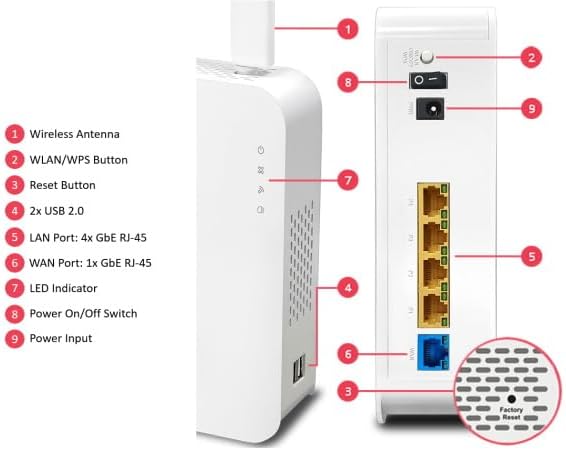
Obrázek 2: Zadní a boční strana view of the DrayTek Vigor 2135AX Router with labeled components. This image highlights the various ports and buttons, including LAN ports, WAN port, USB ports, power input, and reset button.
- 1. Wireless Antenna: For Wi-Fi signal transmission and reception.
- 2. WLAN/WPS Button: Toggles Wi-Fi on/off or initiates WPS pairing.
- 3. Tlačítko Reset: Resets the router to factory default settings (requires a pin press).
- 4. 2x USB 2.0 Ports: For connecting 4G modems, USB storage, USB thermometers, or USB printers.
- 5. LAN Port: 4x GbE RJ-45: Connects to local network devices (computers, switches).
- 6. WAN Port: 1x GbE RJ-45: Connects to your Internet service provider's modem or FTTP connection.
- 7. LED indikátor: Displays status of power, internet, Wi-Fi, and LAN activity.
- 8. Power On/Off Switch: Řídí napájení routeru.
- 9. Příkon: Connects to the provided AC adaptor.
4. Průvodce nastavením
4.1 Počáteční připojení
- Připojení WAN portu: Connect one end of the provided network cable to the blue WAN port (6) on the router and the other end to your FTTP (Fiber to the Premises) modem or ONT (Optical Network Terminal).
- Připojení zařízení LAN: Connect your computer or other network devices to any of the yellow LAN ports (5) using Ethernet cables.
- Zapnutí: Connect the AC adaptor to the Power Input (9) on the router and plug it into a power outlet. Turn on the router using the Power On/Off Switch (8).
- Ověřte LED diody: Wait for the LED indicators (7) to stabilize. The Power LED should be solid green, and the WAN LED should indicate an active connection.
4.2 Přístup k Web Rozhraní
- Ujistěte se, že je váš počítač připojen k routeru přes Ethernet nebo Wi-Fi.
- Otevřete a web prohlížeč (např. Chrome, Firefox, Edge).
- Do adresního řádku zadejte
http://192.168.1.1(default IP address) and press Enter. - Enter the default username and password (usually "admin" for both, refer to the Quick Start Guide for specifics).
- Follow the on-screen wizard for initial configuration, including setting up your Internet connection type (e.g., PPPoE, DHCP) and Wi-Fi network name (SSID) and password.
5. Návod k obsluze
5.1 Konfigurace Wi-Fi
The Vigor 2135AX supports Wi-Fi 6 (802.11ax) for high-speed wireless connectivity.
- Změna SSID a hesla: Přejděte na Wireless LAN > General Setup v web interface to modify your Wi-Fi network name (SSID) and security key (password).
- Funkce WPS: Press the WLAN/WPS button (2) on the router for a few seconds to enable Wi-Fi Protected Setup (WPS) for easy connection of WPS-compatible devices.
- Dvoupásmový provoz: The router operates on both 2.4GHz and 5GHz bands. You can configure separate SSIDs for each band or use a single SSID with band steering.
5.2 Pokročilé funkce
The Vigor 2135AX offers a range of advanced networking features:
- Load Balancing & Failover: Configure multiple WAN connections for increased bandwidth or redundancy.
- VLAN: Create up to 4 LAN subnets with VLAN tagging (Port-based / 802.1q) for network segmentation and security.
- Firewall & Content Filtering: Manage Internet access, block specific applications, and filter web obsah založený na kategoriích.
- VPN: Establish secure remote access with up to 2 Remote Dial-In User tunnels, Site-to-Site VPNs, or connect to VPN services.
- USB aplikace: Utilize the USB ports (4) for connecting 4G/5G modems for broadband failover, USB storage for network-attached storage (NAS) functionality, or USB printers for network printing.
6. Údržba
- Aktualizace firmwaru: Pravidelně kontrolujte DrayTek website for the latest firmware updates to ensure optimal performance, security, and access to new features. Firmware can be updated via the web rozhraní.
- Konfigurace zálohy: It is recommended to back up your router's configuration settings before performing firmware updates or major changes. This can be done through the web rozhraní.
- Čištění: Keep the router in a clean, dust-free environment. Use a soft, dry cloth to clean the exterior. Do not use liquid cleaners.
- Větrání: Ensure the router's ventilation holes are not obstructed to prevent overheating.
7. Řešení problémů
| Problém | Možná příčina | Řešení |
|---|---|---|
| Žádné připojení k internetu | Odpojený kabel WAN, problém s poskytovatelem internetových služeb, nesprávné nastavení WAN. | Check WAN cable connection. Verify ISP status. Review WAN settings in the web interface. Restart router and modem. |
| Pomalá rychlost Wi-Fi | Interference, distance from router, outdated firmware, channel congestion. | Move closer to the router. Change Wi-Fi channel in settings. Update firmware. Consider reducing interference from other devices. |
| Nelze přistupovat Web Rozhraní | Incorrect IP address, network configuration issue, router not powered on. | Ensure router is powered on. Verify computer's IP settings (should be DHCP). Try http://192.168.1.1. Reset router if necessary (this will erase settings). |
| Forgotten Admin Password | Heslo ztraceno. | Perform a factory reset using the Reset Button (3). Warning: This will erase all custom configurations. |
8. Specifikace
| Funkce | Detail |
|---|---|
| Název modelu | DrayTek Vigor 2135AX Router (V2135AX-K) |
| Technologie připojení | Ethernet, Wi-Fi |
| Bezdrátové Standardní | 802.11ax (Wi-Fi 6) |
| Třída frekvenčního pásma | Dvoupásmový (2.4 GHz, 5 GHz) |
| LAN porty | 4 x Gigabit Ethernet (GbE RJ-45) |
| WAN porty | 1 x Gigabit Ethernet (GbE RJ-45) |
| USB porty | 2x USB 2.0 |
| Propustnost brány firewall | Up to 940Mbps (with hardware acceleration) |
| VPN tunely | Up to 2 Remote Dial-In User tunnels |
| Rozměry | 10.51 x 9.29 x 3.98 palce |
| Hmotnost položky | 2.9 libry |
| Zahrnuté komponenty | AC Adaptor, Network Cable, Quick Start Guide, Router |
9. Záruka a podpora
9.1 Informace o záruce
DrayTek products typically come with a limited warranty. Please refer to the warranty card included in your product packaging or visit the official DrayTek webPodrobné záruční podmínky platné pro váš region naleznete na webových stránkách.
9.2 Technická podpora
For technical assistance, firmware downloads, or further documentation, please visit the official DrayTek support website. You may also contact DrayTek customer support directly via their provided contact channels.
Oficiální DrayTek Webmísto: www.draytek.com
DrayTek USA Store: DrayTek USA Amazon Store
Ask a question about this manual
Ask about setup, troubleshooting, compatibility, parts, safety, or missing instructions. Manuals+ will review the question and use this page’s manual context to help answer it.