
1. Úvod a konecview
The Calix GigaCenter 844E-1 is a high-performance wireless router and modem designed to provide robust and reliable internet connectivity for home and small office environments. It supports dual-band Wi-Fi (2.4GHz and 5GHz) for optimal wireless performance and includes multiple Ethernet ports for wired connections. This manual provides detailed instructions for setting up, operating, maintaining, and troubleshooting your GigaCenter 844E-1 device.
2. Vlastnosti produktu
- Dvoupásmová Wi-Fi: Supports 2.4GHz and 5GHz frequencies for flexible and high-speed wireless connections (802.11ac, 802.11n, 802.11a/g/b compatible).
- High LAN Data Rate: Capable of up to 1000 Mbps for fast wired connections.
- Více portů: Includes Ethernet (RJ-45) ports (4 LAN ports), USB 2.0, and RJ-11 ports for versatile connectivity.
- Integrated Modem: Functions as both a router and a modem, simplifying network setup.
- Kompaktní design: Designed for efficient space utilization.
3. Obsah balení
Prosím, ověřte, zda jsou v balení přítomny všechny položky:
- Calix GigaCenter 844E-1 Wireless Router Modem
- Napájecí adaptér
- (Optional: Ethernet Cable, Phone Cable - may vary by package)
4. Průvodce nastavením
Follow these steps to set up your Calix GigaCenter 844E-1:
- Umístění zařízení: Place the GigaCenter 844E-1 in a central location in your home, away from obstructions and sources of interference (e.g., microwaves, cordless phones). Ensure adequate ventilation.
- Připojte napájení: Connect the provided AC Adapter Power Supply to the "POWER" port on the back of the GigaCenter 844E-1 and then plug the adapter into a standard electrical outlet. The Power indicator light on the front panel should illuminate.

Obrázek 4.1: Přední strana view of the Calix GigaCenter 844E-1 showing indicator lights and the included power adapter.
- Připojení k internetu Zdroj: Connect your internet service provider's (ISP) cable or fiber optic line to the appropriate WAN/Broadband port on the GigaCenter 844E-1. This port is typically labeled "ETH-WAN" or "Broadband". The Broadband indicator light should turn solid green once a connection is established.

Obrázek 4.2: Strana view of the GigaCenter 844E-1 highlighting the ETH-WAN, Power, and Phone ports.
- Připojení kabelových zařízení (volitelné): Use standard Ethernet cables to connect computers, gaming consoles, or other network devices to the "ETHERNET 1-4" ports on the back of the GigaCenter 844E-1. The corresponding Ethernet indicator light will illuminate when a device is connected and active.

Figure 4.3: Top/back view of the GigaCenter 844E-1 displaying the USB, Reset, Ethernet (LAN), and Phone ports.
- Connect Phone Devices (Optional): If your service includes voice, connect analog phones to the "PHONE 1" or "PHONE 2" ports using RJ-11 cables.
- Počáteční připojení k Wi-Fi:
- Locate the Wi-Fi Network Name (SSID) and Password (WPA Key) on the label usually found on the bottom or back of your GigaCenter 844E-1.
- Na bezdrátovém zařízení (notebooku, chytrém telefonu, tabletu) vyhledejte dostupné sítě Wi-Fi.
- Select your GigaCenter's SSID and enter the WPA Key when prompted.
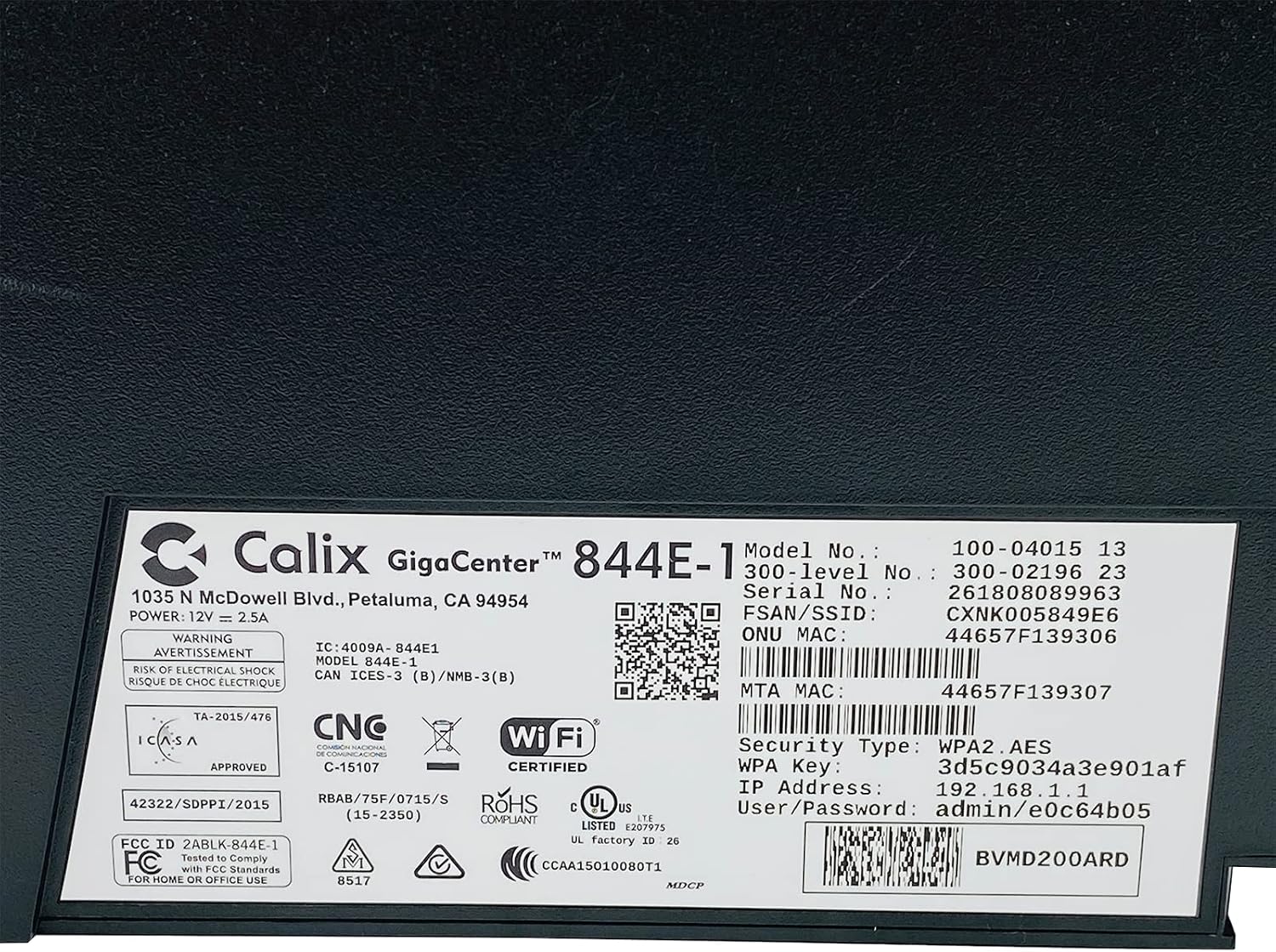
Obrázek 4.4: Detailní view of the bottom label, providing essential information such as model number, serial number, Wi-Fi SSID, and WPA Key for network access.
- Ověřit připojení: Po připojení otevřete a web browser and try to access a webmísto (např. www.google.com). If successful, your GigaCenter 844E-1 is set up and ready for use.
5. Návod k obsluze
5.1 Kontrolky
The front panel of the GigaCenter 844E-1 features several indicator lights that provide status information:
| Světlo | Postavení | Popis |
|---|---|---|
| MOC | Plně zelená | Zařízení je zapnuto. |
| ŠIROKOPÁSMO | Plně zelená | Připojení k internetu je aktivní. |
| SERVIS | Plně zelená | Service is active and provisioned. |
| WIFI 2.4 GHz | Svítí zeleně/Bliká | 2.4 GHz Wi-Fi is active/data transfer. |
| WIFI 5 GHz | Svítí zeleně/Bliká | 5 GHz Wi-Fi is active/data transfer. |
| ETHERNET 1-4 | Svítí zeleně/Bliká | Wired connection active/data transfer. |
| PHONE 1-2 | Svítí zeleně/Bliká | Phone service active/in use. |
| USB | Svítí zeleně/Bliká | USB device connected/data transfer. |
| WPS | Bliká | Probíhá párování WPS. |
5.2 Přístup k Web Rozhraní
To configure advanced settings, you can access the GigaCenter's web rozhraní:
- Ensure your device is connected to the GigaCenter via Wi-Fi or Ethernet.
- Otevřete a web browser and enter the IP Address (e.g., 192.168.1.1) found on the product label into the address bar.
- Enter the User/Password (e.g., admin/e0c64b05) from the product label when prompted.
- You can now configure settings such as Wi-Fi name, password, port forwarding, and parental controls.
6. Údržba
- Čištění: K čištění vnější strany zařízení používejte měkký, suchý hadřík. Nepoužívejte tekuté čisticí prostředky ani aerosoly.
- Větrání: Ensure the device's ventilation slots are not blocked to prevent overheating.
- Aktualizace firmwaru: Periodically check with your Internet Service Provider (ISP) for available firmware updates to ensure optimal performance and security.
- Restartování: If you experience connectivity issues, try restarting the device by unplugging the power adapter for 10 seconds and then plugging it back in.
7. Řešení problémů
Tato část se zabývá běžnými problémy, se kterými se můžete setkat:
7.1 Žádné připojení k internetu
- Zkontrolujte kabely: Ensure all cables (power, internet source, Ethernet) are securely connected.
- Kontrolky: Verify that the POWER, BROADBAND, and SERVICE lights are solid green. If not, refer to Section 5.1 or contact your ISP.
- Restartovat zařízení: Power cycle the GigaCenter 844E-1 by unplugging it for 10 seconds and plugging it back in.
- ISP Outage: Check with your ISP for any service outagve vaší oblasti.
7.2 Wi-Fi nefunguje nebo je pomalé
- Wi-Fi Lights: Ensure the WIFI 2.4 GHz and/or WIFI 5 GHz lights are solid green.
- Heslo: Double-check that you are entering the correct Wi-Fi password (WPA Key).
- Síla signálu: Move closer to the GigaCenter 844E-1 to improve signal strength.
- Rušení: Snižte rušení od jiných elektronických zařízení.
- Optimalizace kanálů: Přístup k web interface to change Wi-Fi channels if experiencing congestion.
7.3 Nelze přistupovat Web Rozhraní
- IP adresa: Confirm you are using the correct IP Address (e.g., 192.168.1.1).
- Spojení: Ensure your device is connected to the GigaCenter's network.
- přihlašovací údaje: Verify the User/Password from the product label.
- Firewall/Antivirus: Dočasně deaktivujte veškerý firewall nebo antivirový software v počítači, který by mohl blokovat přístup.
7.4 Funkce WPS
The WPS (Wi-Fi Protected Setup) button allows for easy connection of WPS-compatible devices without manually entering the password. Press the WPS button on the GigaCenter 844E-1 and then activate WPS on your client device within two minutes. The WPS light will flash during the pairing process.
8. Specifikace
| Funkce | Detail |
|---|---|
| Model | GigaCenter 844E-1 (100-04015 13) |
| Značka | Calix |
| Technologie připojení | Wireless-Wi-Fi 802.11ac, Ethernet (RJ-45) Hub/Switch, 5G |
| Bezdrátové standardy | 802.11ac, 802.11n, 802.11a/g/b |
| Třída frekvenčního pásma | Dvoupásmový (2.4 GHz, 5 GHz) |
| Maximum LAN Data Rate | 1000 Mbps |
| Porty | 4 x Ethernet (RJ-45), 1 x USB 2.0, 2 x RJ-11 (Phone) |
| Kompatibilní zařízení | Personal Computer, Network Devices |
| Doporučené použití | Domov |
| Zahrnuté komponenty | Napájení |
| Hmotnost položky | 3 libry |
9. Bezpečnostní informace
- Nevystavujte zařízení vodě nebo vlhkosti.
- Neotevírejte zařízení casing. Veškerý servis svěřte kvalifikovanému personálu.
- Používejte pouze dodaný napájecí adaptér.
- Udržujte zařízení mimo dosah zdrojů tepla a přímého slunečního záření.
- Zajistěte správné větrání, aby nedošlo k přehřátí.
10. Záruka a podpora
For warranty information and technical support, please contact your Internet Service Provider (ISP) or the vendor from whom you purchased this device. The Calix GigaCenter 844E-1 is typically provided and supported by your ISP as part of your internet service package.
For general inquiries or to find more information about Calix products, you may visit the official Calix website (if available, search online for "Calix official webwebu“).