
HP M607n
Uživatelská příručka k černobílé laserové tiskárně HP LaserJet Enterprise M607n
Model: M607n
1. Úvod
The HP LaserJet Enterprise M607n is a high-performance monochrome laser printer designed for demanding office environments. It offers fast printing speeds, high-resolution output, and versatile connectivity options to meet your business needs.
Mezi klíčové vlastnosti patří:
- Single-function: Print only.
- Print speeds of up to 55 pages per minute (ppm).
- Maximum print resolution of 1200 x 1200 dpi for sharp text and graphics.
- 2.7-inch QVGA LCD display and keypad for intuitive control.
- Multiple media handling options, including a 100-sheet multipurpose tray and a 550-sheet input feeder.
- USB 2.0 and Ethernet connectivity.

Obrázek 1.1: Přední strana view of the HP LaserJet Enterprise M607n printer.

Obrázek 1.2: Konecview of the printer's main and additional features.
2. Nastavení
2.1 Vybalení tiskárny
Carefully remove the printer from its packaging. Ensure all packing materials and tapes are removed from the exterior and interior of the printer.
Ověřte, zda jsou přítomny všechny komponenty:
- HP LaserJet Enterprise M607n Printer
- HP Black Original LaserJet Toner Cartridge (~11K yield)
- CD with software drivers and documentation
- Průvodce instalací hardwaru
- Napájecí kabel

Image 2.1: Contents included in the printer box.
2.2 Instalace tonerové kazety
- Otevřete přední přístupová dvířka tiskárny.
- Vyjměte novou tonerovou kazetu z obalu a jemně s ní zatřepejte, aby se toner rovnoměrně rozprostřel.
- Vložte tonerovou kazetu do určeného slotu, dokud nezacvakne na místo.
- Zavřete přední přístupová dvířka.
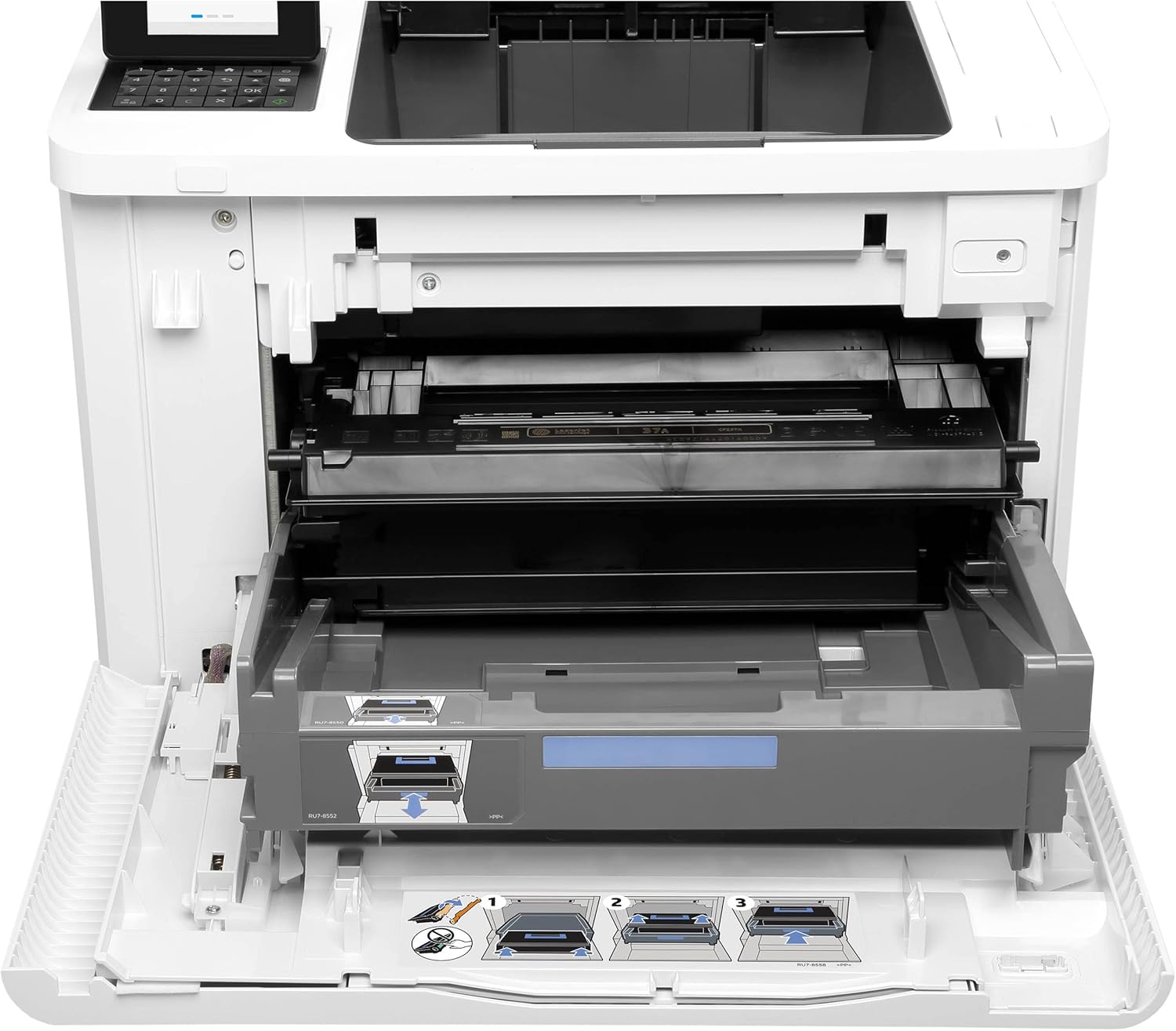
Image 2.2: Printer with the front panel open, illustrating toner and paper tray access.
2.3 Vkládání papíru
The printer features a 100-sheet multipurpose tray and a standard 550-sheet input feeder.
- Pull out the paper tray (Tray 2 or multipurpose tray).
- Upravte vodítka papíru tak, aby odpovídala formátu vkládaného papíru.
- Vložte stoh papíru do zásobníku a ujistěte se, že je rovný a pod ryskou maximálního naplnění.
- Jemně zatlačte zásobník papíru zpět do tiskárny.
2.4 Připojení tiskárny
The M607n offers both USB and Ethernet connectivity.
- USB připojení: Connect one end of a USB 2.0 cable (not included) to the USB port on the printer and the other end to your computer.
- Ethernetové připojení: Connect an Ethernet cable to the Ethernet port on the printer and to an available port on your network router or switch.

Obrázek 2.3: Detail view of the USB and Ethernet connectivity ports.
2.5 Zapnutí
- Připojte napájecí kabel k tiskárně a poté do uzemněné elektrické zásuvky.
- Stiskněte tlačítko napájení na tiskárně.
- Follow the on-screen prompts on the 2.7-inch LCD display to complete the initial setup, including language and network settings if applicable.
3. Obsluha tiskárny
3.1 Ovládací panel Overview
The printer features a 2.7-inch QVGA LCD display and a numerical keypad for navigation and input.
- Use the keypad to enter numerical values or navigate menus.
- The LCD displays printer status, job information, and menu options.

Obrázek 3.1: Detailní view of the printer's control panel with LCD and keypad.
3.2 Basic Printing from a Computer
- Ensure the printer drivers are installed on your computer (from the included CD or HP's webstránky).
- Otevřete dokument nebo obrázek, který chcete vytisknout.
- V nabídce aplikace vyberte možnost „Tisk“.
- Choose the HP LaserJet Enterprise M607n from the list of available printers.
- Adjust print settings (e.g., paper size, number of copies) as needed.
- Klikněte na tlačítko „Tisk“.
3.3 Printing from a USB Drive
The printer supports direct printing from a USB storage device.
- Insert your USB drive into the easy-access USB port on the printer.
- The printer's display will show options for printing from the USB drive.
- Procházejte files on your USB drive using the control panel.
- Vyberte požadované file and follow the on-screen prompts to print.

Image 3.2: Printer with callouts indicating the easy-access USB port and other features.
4. Údržba
4.1 Výměna tonerové kazety
When the toner level is low, the printer's display will indicate that the toner cartridge needs replacement. Use only genuine HP toner cartridges for optimal performance.
- Otevřete přední přístupová dvířka.
- Vyjměte starou tonerovou kazetu jejím vytažením rovně ven.
- Unpack the new HP Black Original LaserJet Toner Cartridge and gently shake it.
- Vložte novou kazetu do tiskárny, dokud nezapadne na místo.
- Zavřete přední přístupová dvířka.
4.2 Čištění tiskárny
Pravidelné čištění pomáhá udržovat kvalitu tisku a prodlužuje životnost tiskárny.
- Vnější: Otřete vnější povrchy měkkým hadříkem, který nepouští vlákna dampzalité vodou.
- Interiér: Refer to the printer's on-screen menu or the full user guide for instructions on cleaning internal components like the paper path or rollers, if necessary. Always power off and unplug the printer before cleaning internal parts.
5. Řešení problémů
This section provides solutions to common printer issues. For more detailed troubleshooting, refer to the full documentation or HP's support webmísto.
5.1 Běžné problémy a řešení
- Tiskárna nereaguje:
- Zkontrolujte připojení napájení a ujistěte se, že je tiskárna zapnutá.
- Ověřte připojení kabelu USB nebo Ethernet.
- Restartujte tiskárnu a počítač.
- Ujistěte se, že je v dialogovém okně tisku v počítači vybrána správná tiskárna.
- Zaseknutý papír:
- Pro odstranění uvíznutého papíru postupujte podle pokynů na obrazovce tiskárny.
- Open all access doors and trays to locate and carefully remove any jammed paper.
- Ujistěte se, že je papír správně vložen a není přeplněný.
- Špatná kvalita tisku:
- Zkontrolujte hladinu toneru v kazetách a v případě nízké hladiny ji vyměňte.
- Ujistěte se, že používáte originální tonerové kazety HP.
- Ověřte, zda nastavení typu papíru v ovladači tiskárny odpovídá vloženému papíru.
- Proveďte diagnostiku kvality tisku z ovládacího panelu tiskárny.
- Problémy s připojením:
- For Ethernet, check network cable and router status.
- Ensure the printer has a valid IP address if connected to a network.
- Temporarily disable any firewalls on your computer to test connectivity.
6. Specifikace
Below are the technical specifications for the HP LaserJet Enterprise M607n printer:
| Funkce | Specifikace |
|---|---|
| Značka | HP |
| Název modelu | M607n |
| Technologie tisku | Laser |
| Tiskový výstup | Monochromatický |
| Maximální rychlost černobílého tisku | 55 ppm |
| Maximální rozlišení tisku | 1200 x 1200 dpi |
| Technologie připojení | Ethernet, USB |
| Hardwarové rozhraní | Ethernet, USB |
| Kontrolní metoda | Tlačítko, dotyk |
| Zobrazit | 2.7-inch QVGA LCD |
| Maximální vstupní kapacita listu | 650 (100-sheet multipurpose tray + 550-sheet input feeder) |
| Maximální velikost média | 8.5 x 14 palce |
| Oboustranný tisk | Simplex (bez automatického oboustranného tisku) |
| Hmotnost položky | 100 libry |
| Rozměry produktu | 16.46 x 14.8 x 11.77 palce |
| Paměť | 1.5GB (as per product description, 512MB in image) |
| Rychlost procesoru | 1.2 GHz |

Image 6.1: Printer dimensions (Height: 15", Depth: 18.3", Width: 17").
7. Informace o záruce
This HP LaserJet Enterprise M607n printer comes with a 90denní omezená zárukaKonkrétní podmínky naleznete v záruční dokumentaci dodané s vaším produktem nebo navštivte oficiální stránky podpory HP. webmísto.
8. Podpora
For further assistance, technical support, or to download the latest drivers and firmware, please visit the official HP support website. You can also find additional troubleshooting guides and FAQs there.
Podpora HP Webmísto: www.hp.com/support
Ask a question about this manual
Ask about setup, troubleshooting, compatibility, parts, safety, or missing instructions. Manuals+ will review the question and use this page’s manual context to help answer it.