
Zavedení
Thank you for choosing the ONIKUMA CW916 RGB USB Gaming Mouse. This high-performance mouse is designed for gaming enthusiasts, featuring adjustable DPI, programmable buttons, and customizable RGB lighting. This manual will guide you through the setup, operation, and maintenance of your new gaming mouse to ensure optimal performance and an enhanced gaming experience.

Image: The ONIKUMA CW916 gaming mouse designed for comfortable and durable use, fitting well in the palm to reduce fatigue during long gaming sessions.

Image: The ONIKUMA CW916 gaming mouse in a pink and white color scheme, connected via USB to a laptop, demonstrating its use in a typical setup.
Obsah balení
- ONIKUMA CW916 RGB USB Gaming Mouse
- Uživatelská příručka (tento dokument)
Nastavení
Follow these steps to connect your ONIKUMA CW916 gaming mouse to your computer:
- Rozbalte myš: Opatrně vyjměte myš z obalu.
- Připojení k USB portu: Zapojte USB konektor myši do volného USB portu na vašem počítači.
- Instalace ovladače: Váš operační systém by měl automaticky detekovat a nainstalovat potřebné ovladače. Tento proces může chvíli trvat.
- Potvrzení: Once the drivers are installed, the mouse's RGB lighting will illuminate, indicating it is ready for use.

Obrázek: Podrobný view of the ONIKUMA CW916 mouse, highlighting its ergonomic shape and button layout, ready for connection.
Návod k obsluze
Úprava DPI
The ONIKUMA CW916 mouse features 6 adjustable DPI settings, allowing you to switch sensitivity on the fly to match your gaming or work needs. The default DPI is 1200 DPI. Each DPI setting is indicated by a corresponding RGB lighting color.
- Stiskněte tlačítko Tlačítko DPI (umístěno za rolovacím kolečkem) pro procházení nastavení DPI.
- The mouse lighting will change color to indicate the current DPI level.

Image: Visual representation of the mouse's 6 DPI settings (1200, 1600, 2400, 3200, 4800, 7000 DPI) and their corresponding indicator light colors.
Programovatelná tlačítka
The mouse is equipped with 8 programmable buttons. To customize these buttons, you will need to download the official ONIKUMA software from the manufacturer's website. Refer to the software's instructions for detailed programming steps.
Přizpůsobení
Režimy RGB osvětlení
The ONIKUMA CW916 features 13 different RGB lighting modes. You can switch between these modes with a dedicated button.
- Vyhledejte lighting mode button (often located on the underside or near the scroll wheel, refer to product diagram if available).
- Press the button to cycle through the 13 available lighting effects.
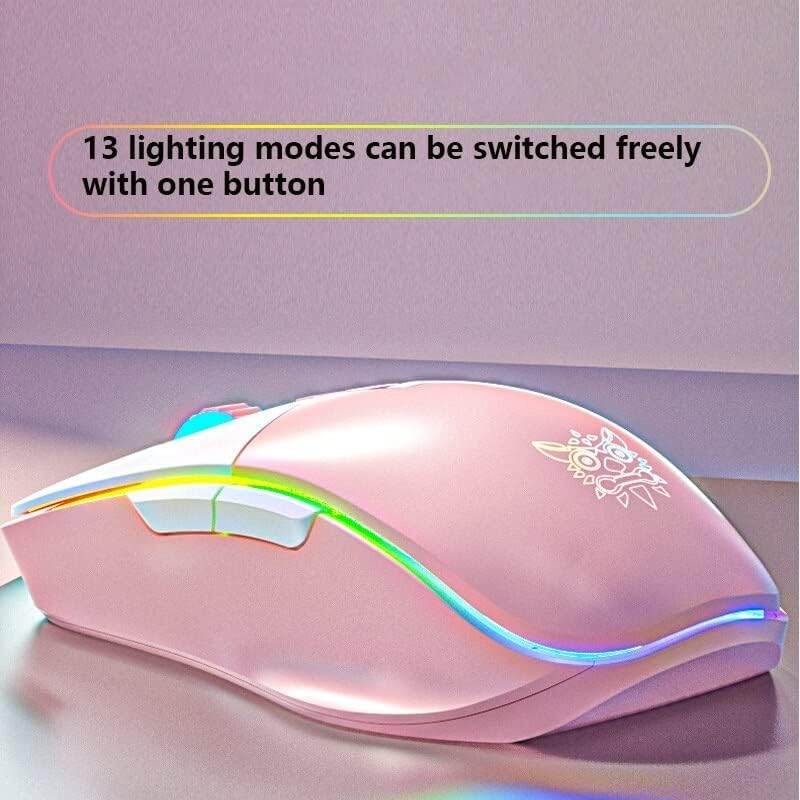
Image: The ONIKUMA CW916 mouse showcasing its dynamic RGB lighting, illustrating the variety of available lighting modes.
Údržba
Správná údržba zajistí dlouhou životnost a optimální výkon vaší herní myši.
- Čištění: K otření povrchu myši použijte měkký, suchý hadřík. V případě odolné nečistoty lehceampOtřete hadřík vodou nebo jemným čisticím roztokem. Vyhněte se agresivním chemikáliím nebo abrazivním materiálům.
- Péče o senzor: Udržujte optický senzor na spodní straně myši čistý a bez prachu a nečistot. V případě potřeby použijte vatový tampon nebo stlačený vzduch.
- Správa kabelů: Abyste předešli poškození, vyhněte se ostrým ohybům nebo nadměrnému tahání za kabel USB.
- Skladování: Pokud myš nepoužíváte, skladujte ji v čistém a suchém prostředí mimo dosah extrémních teplot.
Odstraňování problémů
| Problém | Možná příčina | Řešení |
|---|---|---|
| Myš neodpovídá | USB cable not properly connected; Faulty USB port; Driver issue. |
|
| Nepřesné sledování nebo zpoždění kurzoru | Dirty optical sensor; Unsuitable mouse pad surface; High DPI setting. |
|
| RGB podsvícení nefunguje | Software setting; Hardware issue. |
|
Specifikace
| Značka | ONIKUMA |
| Model | CW916 |
| Konektivita | Kabelové USB |
| Nastavení DPI | 1200/1600/2400/3200/4800/7000 DPI |
| Tlačítka | 8 programovatelná tlačítka |
| Osvětlení | RGB LED (13 modes) |
| Detekce pohybu | Optický |
| Orientace rukou | Pravoruký |
| Doporučené použití | Hraní |
| Kompatibilní platformy | PC, Laptop (Windows 7/XP and newer) |
| Rozměry (D x Š x V) | 15.9 x 9.2 x 4.7 cm |
| Hmotnost | 200 gramů |
Záruka a podpora
ONIKUMA products come with a standard manufacturer's warranty. For specific warranty details, please refer to the warranty card included with your product or visit the official ONIKUMA website. For technical support, driver downloads, or further assistance, please visit the ONIKUMA support page or contact their customer service.
Oficiální Webmísto: www.onikuma.net


