
1. Úvod
This manual provides detailed instructions for the installation, operation, and maintenance of your MOOKAKA Carplay Android Car Stereo. This head unit is specifically designed for Porsche 911/997 models manufactured between 2005 and 2008, offering an upgraded multimedia experience with advanced features such as Wireless Carplay, Android Auto, GPS navigation, and a high-resolution IPS display.
Please read this manual thoroughly before installation and use to ensure proper functionality and to maximize your enjoyment of the product. Keep this manual for future reference.

Image 1.1: MOOKAKA Carplay Android Car Stereo main unit.
2. Vlastnosti produktu
The MOOKAKA Carplay Android Car Stereo offers a range of features to enhance your driving experience:
- Kompatibilita: Designed for Porsche 911/997 (2005-2008).
- Zobrazit: 8.4-inch Ultra HD IPS touch screen with 1280 x 800 pixel resolution for clear visuals and smooth touch response.
- Konektivita: Wireless Carplay and Android Auto support for seamless smartphone integration.
- Přístup na internet: Easy connection via Wi-Fi or phone hotspot to download apps like Netflix, YouTube, and more.
- Bluetooth 5.0: Supports hands-free calls, phone book download, and APTX Lossless Music Streaming.
- Rádio: AM/FM Radio with RDS, including 12 FM presets and 6 AM presets.
- Navigace: Integrated GPS for reliable navigation.
- Zpracování zvuku: Built-in Digital Sound Processor (DSP) for enhanced audio quality.
- Podpora multimédií: Plays various audio and video formats.
- Zadní View Podpora fotoaparátu: Compatible with aftermarket rear view cameras for parking assistance.
- Ovládání na volantu: Supports original steering wheel controls for convenience.

Obrázek 2.1: Konecview of main features including Carplay, Android Auto, Bluetooth, GPS, Radio, 4G/WiFi, DSP, HiFi music, HD video, IPS screen, original steering wheel control, AHD reversing, headrest screen, DAB+, TV-Box, DVR, OBD2, TPMS, 360 Panoramic, and Universal camera support.
3. Obsah balení
Ověřte prosím, zda jsou ve vašem balení obsaženy všechny níže uvedené položky:
- MOOKAKA Carplay Android Car Stereo Head Unit
- Napájecí kabel
- 4G/AV Cable Ports
- Vstupní kabel kamery
- USB Cable Ports
- GPS anténa
- WiFi anténa
- Rádiová anténa

Image 3.1: Included accessories: Power cable, 4G/AV cable ports, Camera input, USB cable ports, GPS Antenna, Wifi antenna, Radio antenna, and the Head Unit.
4. Nastavení a instalace
Installation of this car stereo requires technical knowledge and experience with car electronics. It is highly recommended to have the unit installed by a qualified professional to avoid damage to the product or your vehicle.
4.1 Kontrola před instalací
- Verify vehicle compatibility: This unit is for Porsche 911/997 (2005-2008).
- Před zahájením jakýchkoli elektrických prací odpojte záporný pól autobaterie.
- Ujistěte se, že je k dispozici veškeré přiložené příslušenství.
4.2 Kroky instalace (obecné pokyny)
- Carefully remove the original car stereo and trim panels. Refer to your vehicle's service manual for specific instructions.
- Connect the power cable harness from the new head unit to the vehicle's wiring. Ensure all connections are secure.
- Connect the GPS antenna, WiFi antenna, and radio antenna to their respective ports on the head unit. Position the antennas in locations that provide optimal signal reception.
- Pokud instalujete zadní view camera or other external devices, connect their cables to the designated input ports.
- Carefully slide the new head unit into the dashboard opening. Secure it using the appropriate mounting brackets and screws.
- Znovu připojte záporný pól autobaterie.
- Turn on the vehicle's ignition and test the stereo's basic functions (power, audio, touch screen).
- Znovu nainstalujte všechny obkladové panely.

Image 4.1: Visual comparison of the car's center console before and after the installation of the new head unit.
5. Návod k obsluze
5.1 Zapnutí/vypnutí a základní navigace
Press the power button (usually located on the front panel) to turn the unit on or off. The touch screen interface allows you to navigate through various applications and settings. Use the home button to return to the main menu.
5.2 Bezdrátové Carplay a Android Auto
Použití bezdrátového Carplay nebo Android Auto:
- Ujistěte se, že je na vašem smartphonu povoleno Bluetooth a Wi-Fi.
- Na autorádiu otevřete aplikaci Carplay/Android Auto.
- Follow the on-screen prompts to pair your phone via Bluetooth. Once paired, the system will automatically connect via Wi-Fi for the Carplay/Android Auto interface.
- Your phone's compatible apps will now be accessible on the stereo display.
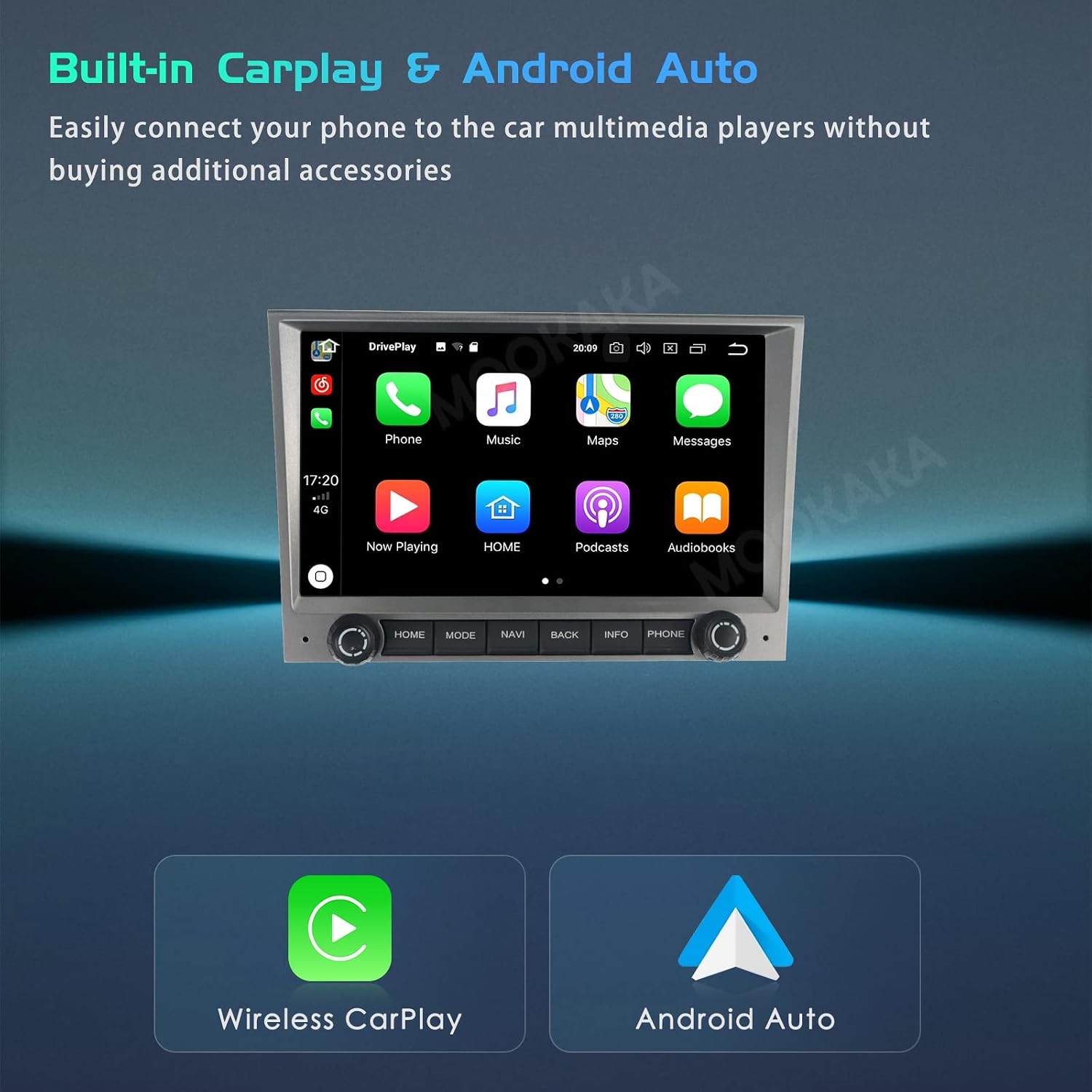
Image 5.1: Car stereo screen showing the Wireless Carplay interface with various app icons.
5.3 Připojení Bluetooth
To connect your phone via Bluetooth for calls and music streaming:
- Přejděte do nastavení Bluetooth na autorádiu.
- Povolte na svém smartphonu Bluetooth a vyhledejte dostupná zařízení.
- Select the car stereo's Bluetooth name (e.g., "MOOKAKA") from your phone's list.
- Pokud budete vyzváni, potvrďte párovací kód na obou zařízeních.
- Po připojení můžete přes stereo systém uskutečňovat/přijímat hovory a přehrávat hudbu.

Image 5.2: Bluetooth 5.0 connectivity for hands-free calls and music.
5.4 GPS navigace
The unit comes with pre-installed GPS navigation capabilities. To use:
- Ujistěte se, že je GPS anténa správně nainstalována a má volný view z nebe.
- Open the navigation application from the main menu.
- Enter your destination, and the system will provide turn-by-turn directions.
- You can also download other navigation apps from the Play Store if connected to Wi-Fi.

Image 5.3: GPS navigation with support for Google Maps, iGO, and NAVITEL.
5.5 AM/FM rádio s RDS
Chcete-li ovládat rádio:
- V hlavní nabídce vyberte aplikaci „Rádio“.
- Use the on-screen controls to scan for stations, manually tune, or select from your presets.
- Systém RDS (Radio Data System) zobrazí informace o stanici, pokud jsou k dispozici.

Image 5.4: Radio RDS functionality for displaying station information.
5.6 Funkce rozdělené obrazovky
The split-screen feature allows you to run two applications simultaneously on the display. For example, you can have navigation on one side and music on the other.
- Otevřete první aplikaci, kterou chcete použít.
- Long-press the recent apps button or follow the specific gesture/button combination for split-screen mode (may vary slightly based on software version).
- Select the second application from the list of open apps.

Image 5.5: Split screen feature displaying navigation and media player simultaneously.
5.7 Ovládání na volantu (SWC)
If your vehicle supports it, the unit can be configured to work with your original steering wheel controls. This allows you to control volume, track changes, and other functions without taking your hands off the wheel.
- Access the "Steering Wheel Control" settings in the unit's system menu.
- Follow the on-screen instructions to program each button on your steering wheel to the desired function.

Image 5.6: Steering wheel control buttons for convenient operation.
5.8 Zadní View Fotoaparát
Pokud je kompatibilní zadní view camera is connected and properly installed, the display will automatically switch to the camera feed when the vehicle is put into reverse gear. This aids in safe parking and maneuvering.

Obrázek 5.7: Zadní strana view displej kamery s parkovacími asistenčními čarami.
5.9 Digitální zvukový procesor (DSP)
The built-in DSP allows for advanced audio customization. Access the DSP settings from the main menu to adjust equalizer settings, balance, fader, and other audio parameters to optimize sound quality to your preference.

Image 5.8: Built-in DSP for professional audio tuning.
6. Údržba
Správná údržba zajistí dlouhou životnost a optimální výkon vašeho autorádia.
6.1 Čištění displeje
- K jemnému otření obrazovky použijte měkký hadřík, který nepouští vlákna.
- Na odolné šmouhy lehce otřeteampOtřete hadřík vodou nebo čisticím roztokem vhodným pro obrazovky. Nestříkejte tekutinu přímo na obrazovku.
- Avoid using abrasive cleaners, alcohol, or solvents, as these can damage the screen coating.
6.2 Aktualizace softwaru
Periodically check for software updates. Updates can improve performance, add new features, and fix bugs. Connect the unit to Wi-Fi and navigate to the system settings to check for and install available updates.
6.3 Obecná péče
- Nevystavujte jednotku extrémním teplotám nebo přímému slunečnímu záření po delší dobu.
- Nevylévejte tekutiny na jednotku.
- Zajistěte řádné větrání kolem jednotky, abyste zabránili přehřátí.
7. Řešení problémů
If you encounter issues with your MOOKAKA Carplay Android Car Stereo, refer to the following common problems and solutions:
| Problém | Možná příčina | Řešení |
|---|---|---|
| Jednotka se nezapne | Loose power connection, blown fuse, car battery issue. | Check power cable connections. Inspect vehicle's fuse box for blown fuses. Ensure car battery is charged. |
| Žádný zvuk | Volume too low, mute activated, speaker wiring issue, incorrect audio output setting. | Increase volume. Check if mute is active. Verify speaker wiring connections. Check audio output settings in the system menu. |
| GPS nefunguje nebo je nepřesné | GPS antenna not properly connected or positioned, outdated map data. | Ujistěte se, že je anténa GPS bezpečně připojena a má volný signál. view oblohy. V případě potřeby aktualizujte mapová data. |
| Problémy s připojením Bluetooth | Telefon není zjistitelný, nesprávné párování, rušení. | Ensure Bluetooth is enabled on both devices. Delete previous pairings and re-pair. Move phone closer to the unit. |
| Dotyková obrazovka nereaguje | Softwarová chyba, problém s kalibrací obrazovky. | Restart the unit. If issue persists, perform a factory reset (note: this will erase all user data). |
| Carplay/Android Auto se nepřipojuje | Wi-Fi/Bluetooth issues, phone compatibility, app issues. | Ensure Wi-Fi and Bluetooth are active on phone. Check phone's Carplay/Android Auto settings. Update phone OS and apps. |
Pokud tato řešení problém nevyřeší, obraťte se na zákaznickou podporu s žádostí o další pomoc.
8. Specifikace
| Funkce | Specifikace |
|---|---|
| Značka | MOOKAKA |
| Číslo modelu | MOOKAKA Carplay Android Car Stereo |
| Kompatibilní vozidla | Porsche 911/997 (2005-2008) |
| Velikost displeje | 8.4 palců |
| Rozlišení displeje | 1280 x 800 pixelů |
| Typ zobrazení | IPS kapacitní dotyková obrazovka |
| BERAN | 8 GB |
| ROM (interní úložiště) | 256 GB |
| Operační systém | Android (version not specified, but implied by features) |
| Technologie připojení | Bluetooth 5.0, Wi-Fi, 4G (via external module/SIM), USB |
| Speciální funkce | Built-In Bluetooth, Touchscreen, Wireless Carplay, Android Auto, DSP, GPS Navigation, AM/FM Radio with RDS, Steering Wheel Control Support, Rear View Camera Support, Split Screen |
| Režim zvukového výstupu | Stereo (konfigurace kanálů prostorového zvuku 2.0) |
| Podporované internetové služby | Netflix, YouTube (via app download) |
| Kódování videa | MP4, AVI, MOV, RMVB, FLV, MKV, 3GP, MPG |
| Zvukové formáty | AVI, WAV, WMA (and others via Android OS) |
9. Záruka a podpora
9.1 Informace o záruce
The MOOKAKA Carplay Android Car Stereo comes with a 1-letá záruka od data nákupu. Tato záruka se vztahuje na výrobní vady a poruchy při běžném používání. Nevztahuje se na škody způsobené nesprávnou instalací, zneužitím, nehodami, neoprávněnými opravami nebo běžným opotřebením.
Uschovejte si prosím doklad o koupi pro uplatnění záruky.
9.2 Technická podpora
MOOKAKA provides professional technical support for this product. If you encounter any problems during installation or operation that are not covered in the troubleshooting section, or if you require further assistance, please contact our customer support team.
You can typically find contact information on the MOOKAKA brand website or through your purchase platform. When contacting support, please provide your product model, purchase date, and a detailed description of the issue.