
1. Úvod
This manual provides instructions for the symcode HX-5500-Wireless 2D QR Desktop Barcode Scanner. This device is designed for efficient and versatile barcode scanning in various environments. It features a TFT color LCD screen, multiple connectivity options (Bluetooth, 2.4GHz Wireless, Wired USB), and omnidirectional scanning capabilities.
Klíčové vlastnosti:
- Displej: TFT Color LCD screen with white backlight for real-time viewing of barcode content, type, number, length, battery status, signal strength, and transmission status.
- Konektivita: Podporuje bezdrátové připojení 2.4G, Bluetooth a kabelové USB.
- Všesměrové skenování: Desktop design with a scan window that can rotate 90 degrees for flexible scanning.
- Robustní design: Durable ABS material shell, designed to withstand repeated 5ft/1.5m drops to concrete.
- Auto-sensing Scanning: Automatically detects and scans barcodes.
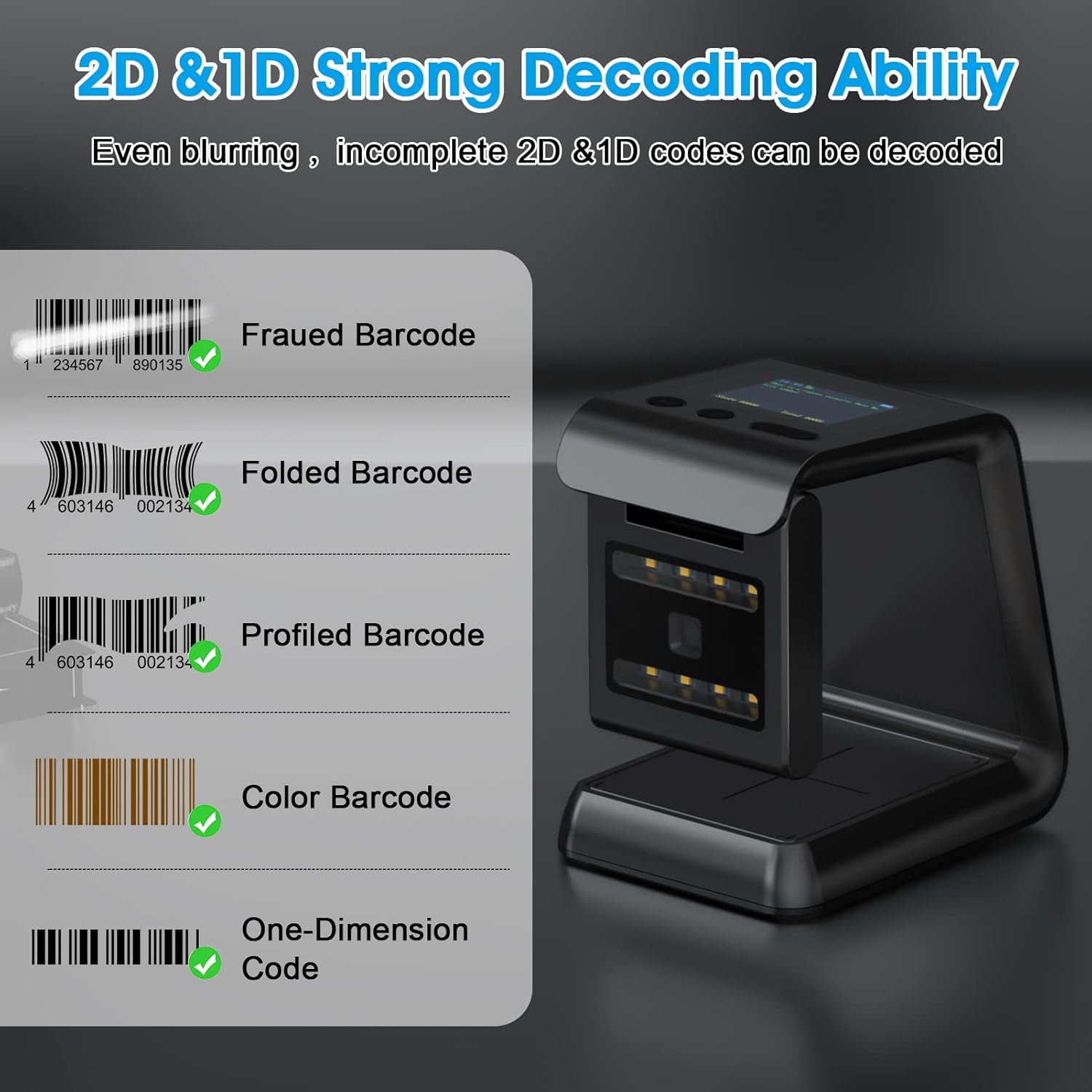
- Schopnost dekódování: Capable of scanning 1D and 2D/QR codes from labels, paper, mobile phone, or computer displays, including damaged, distorted, colorful, and reflective barcodes.
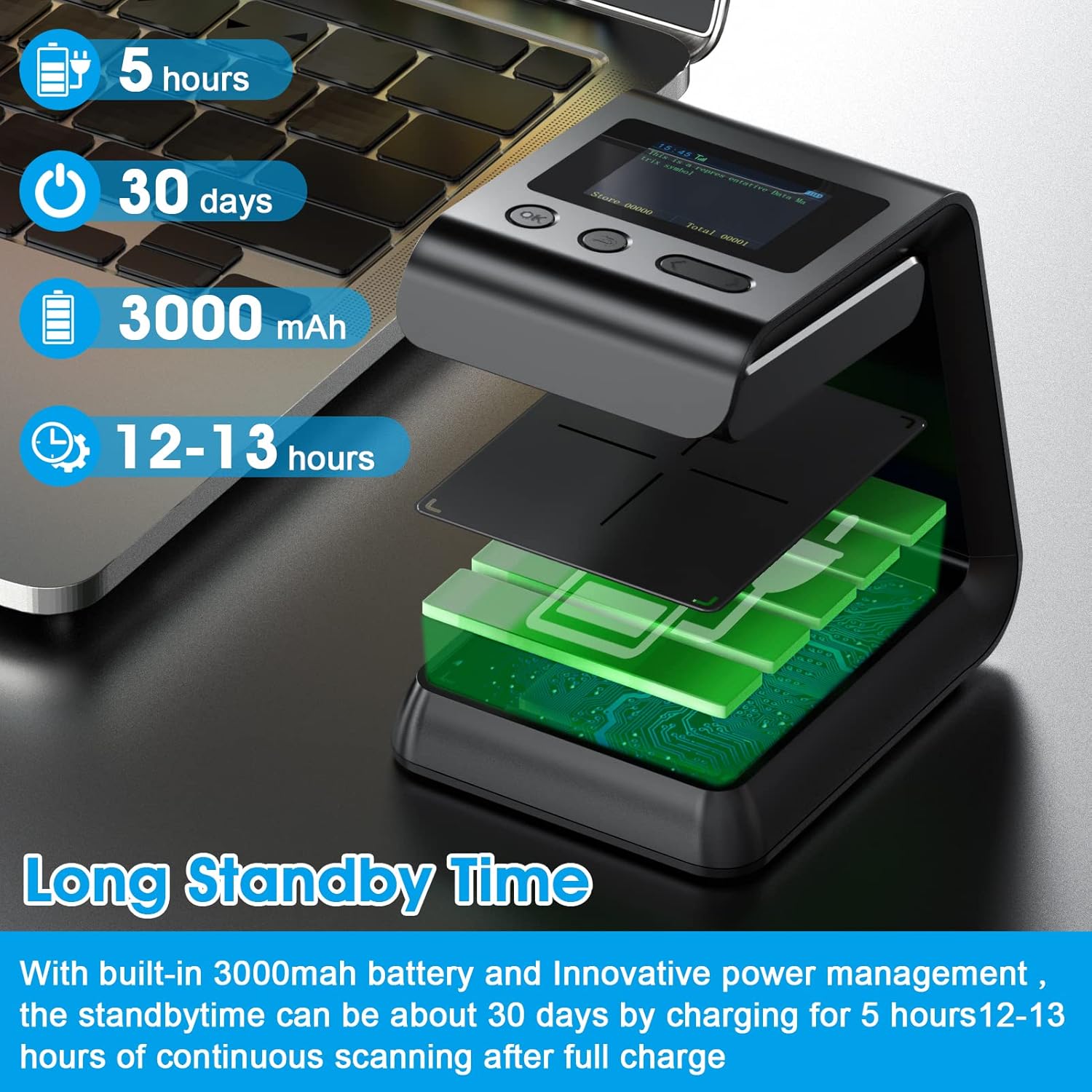
- Dlouhá výdrž baterie: Built-in 3000mAh battery provides extended operation time.

2. Obsah balení
Po vybalení zkontrolujte obsah balení, abyste se ujistili, že jsou přítomny všechny položky:
- symcode HX-5500-Wireless Barcode Scanner Unit
- USB kabel
- 2.4GHz bezdrátový dongle
- Uživatelská příručka (tento dokument)

3. Nastavení
3.1 Nabíjení skeneru
- Connect the provided USB cable to the scanner's charging port.
- Zapojte druhý konec kabelu USB do napájeného portu USB (např. počítače, adaptéru do zásuvky).
- The screen display will indicate charging status. A full charge typically takes approximately 5 hours.
3.2 Připojení skeneru
The scanner supports multiple connection methods:
3.2.1 Bezdrátové připojení 2.4 GHz
- Vložte bezdrátový 2.4GHz adaptér do volného USB portu v počítači.
- Zapněte skener. Měl by se automaticky spárovat s hardwarovým klíčem.
- The screen display will show the connection status.
3.2.2 Připojení Bluetooth
- Ujistěte se, že vaše hostitelské zařízení (počítač, tablet, chytrý telefon) má povolenou technologii Bluetooth.
- Turn on the scanner and activate Bluetooth pairing mode (refer to the scanner's on-screen menu or specific barcode commands if needed).
- On your host device, search for available Bluetooth devices and select "symcode HX-5500-Wireless" (or similar name).
- Confirm the pairing. The scanner's screen will indicate a successful connection.
3.2.3 Kabelové USB připojení
- Připojte skener k počítači pomocí dodaného kabelu USB.
- Skener bude fungovat jako standardní USB HID klávesnice a pro základní skenování nevyžaduje žádné další ovladače.


4. Návod k obsluze
4.1 Základní skenování
- Place the item with the barcode in front of the scanner's window.
- The scanner will automatically detect and read the barcode. A successful scan is usually indicated by an audible beep and/or a visual confirmation on the screen.
- The decoded barcode data will be transmitted to your connected device.


4.2 Informace na obrazovce
The TFT color LCD screen provides real-time feedback:
- Barcode Content: Displays the decoded data.
- Typ čárového kódu: Identifies the symbology (e.g., QR, Code 128).
- Number and Length: Shows the count and length of scanned barcodes.
- Napájení baterie: Indikuje zbývající úroveň nabití baterie.
- Síla signálu: For wireless connections, shows the strength of the signal.
- Transmission Status: Confirms data transmission.
4.3 Scanning Special Barcodes
The scanner is designed to read various barcode conditions:
- Damaged barcodes
- Distorted barcodes
- Colorful barcodes
- Reflective barcodes
- Barcodes on mobile phone or computer displays
4.4 Funkce NFC
The scanner may include NFC (Near Field Communication) technology for swiping compatible cards such as Metro cards, VIP cards, loyalty cards, gift cards, and cash cards.

5. Údržba
5.1 Čištění
- Use a soft, dry cloth to clean the exterior of the scanner.
- For the scanning window, use a lint-free cloth lightly dampened with a mild, non-abrasive cleaner. Avoid excessive moisture.
- Do not use harsh chemicals or abrasive materials, as these can damage the device.
5.2 Péče o baterii
- Charge the scanner regularly to maintain battery health.
- Vyhněte se častému úplnému vybíjení baterie.
- Pokud skener delší dobu nepoužíváte, skladujte jej na chladném a suchém místě.
6. Řešení problémů
Běžné problémy a řešení:
- Skener se nezapíná:
- Ujistěte se, že je baterie nabitá. Připojte skener ke zdroji napájení pomocí kabelu USB.
- Scanner not connecting wirelessly:
- For 2.4GHz: Verify the dongle is properly inserted and the scanner is within range.
- For Bluetooth: Ensure Bluetooth is enabled on your host device and the scanner is in pairing mode. Re-pair if necessary.
- Zkontrolujte, zda se nenacházejí překážky, které by mohly rušit bezdrátový signál.
- Skener nečte čárové kódy:
- Ensure the barcode is clean and undamaged.
- Upravte vzdálenost a úhel mezi skenerem a čárovým kódem.
- Verify the barcode symbology is supported by the scanner (refer to specifications).
- Check if the scanner's scanning mode is correctly configured.
- Scanned data not appearing on computer:
- Ensure the scanner is properly connected (wired or wireless).
- Confirm that the cursor is in an active text field on your computer.
- Test with a simple text editor (e.g., Notepad) to rule out application-specific issues.
7. Specifikace
| Model | HX-5500-Wireless |
| Rozměry produktu | 3.3 x 3.5 x 5.5 palce |
| Hmotnost položky | 9.9 unce |
| Technologie připojení | Bluetooth, 2.4GHz Wireless, USB Cable |
| Zdroj napájení | Napájení z baterie (lithium-polymer) |
| Kapacita baterie | 3000 XNUMX mAh |
| Kompatibilní zařízení | Laptop (and other devices supporting HID keyboard input via Bluetooth/2.4GHz/USB) |
| Supported 1D Barcodes | EAN-8, EAN-13, EAN-13 2 add-on, EAN-13 5add-on, ISSN, ISBN, UPC-A, UPC-E, Code11, Code 32, Code 39, Code 93, Code 128, Codabar, Industrial 2 of 5, Interleaved 2 of 5, Matrix 2 of 5, GS1-128, GS1 DataBar (RSS14), GS1 DataBar Limited, GS1 DataBar Expanded |
| Supported 2D Barcodes | PDF417, MicroPDF417, MicroQR, Data Matrix, QR, Aztec |
8. Záruka a podpora
For warranty information and technical support, please refer to the documentation included with your product packaging or visit the official symcode website. Contact details for customer service are typically provided on the manufacturer's support page.