
1. Úvod
This manual provides detailed instructions for the HPRT N80 Barcode Scanner. It covers the scanner's features, setup, operation, maintenance, and troubleshooting. Please read this manual carefully before using the product to ensure proper and safe operation.

Image: HPRT N80 Barcode Scanner, USB cable, and included instruction manual.
2. Vlastnosti produktu
- 1D & 2D Scanning: Supports a wide range of 1D and 2D codes including UPC, UCC/EAN-128, ISBN/ISSN, Code 39, Code 128, Interleaved 2 of 5, QR Code, Data Matrix, and Postal Codes.
- Screen and Paper Scanning: Capable of scanning barcodes from both printed labels and digital screens.
- Široká kompatibilita: Works with Windows, iOS, Android, Linux, and Mac OS. Connects to PCs, laptops, and iPads. (Note: Mac OS requires a USB wired connection).
- Fast and Precise Scan: Utilizes a superior CMOS sensor and image scanning technology for quick decoding. Achieves recognition precision up to 4 mil.
- Více režimů skenování: Offers manual trigger mode, continuous scan mode, and auto-sensing mode.
- Ergonomický design: Features a comfortable grip and durable ABS plastic construction, designed to withstand drops from up to 3.93ft.

Image: The HPRT N80 barcode scanner demonstrating its ability to decode a wide range of 1D and 2D barcode formats, including QR codes, Data Matrix, and Aztec Code.

Image: Illustration showing the HPRT N80 barcode scanner's capability to read damaged, blurred, and stained barcodes effectively.

Image: The HPRT N80 barcode scanner being applied in various environments, including a supermarket, hospital, warehouse, and library.
3. Nastavení a připojení
The HPRT N80 Barcode Scanner is designed for plug-and-play functionality, requiring no driver installation for most operating systems.
3.1 Kabelové USB připojení
- Připojte kabel USB k portu skeneru.
- Plug the USB connector into an available USB port on your computer or device.
- The scanner will be automatically recognized by your system. No additional drivers are typically needed.
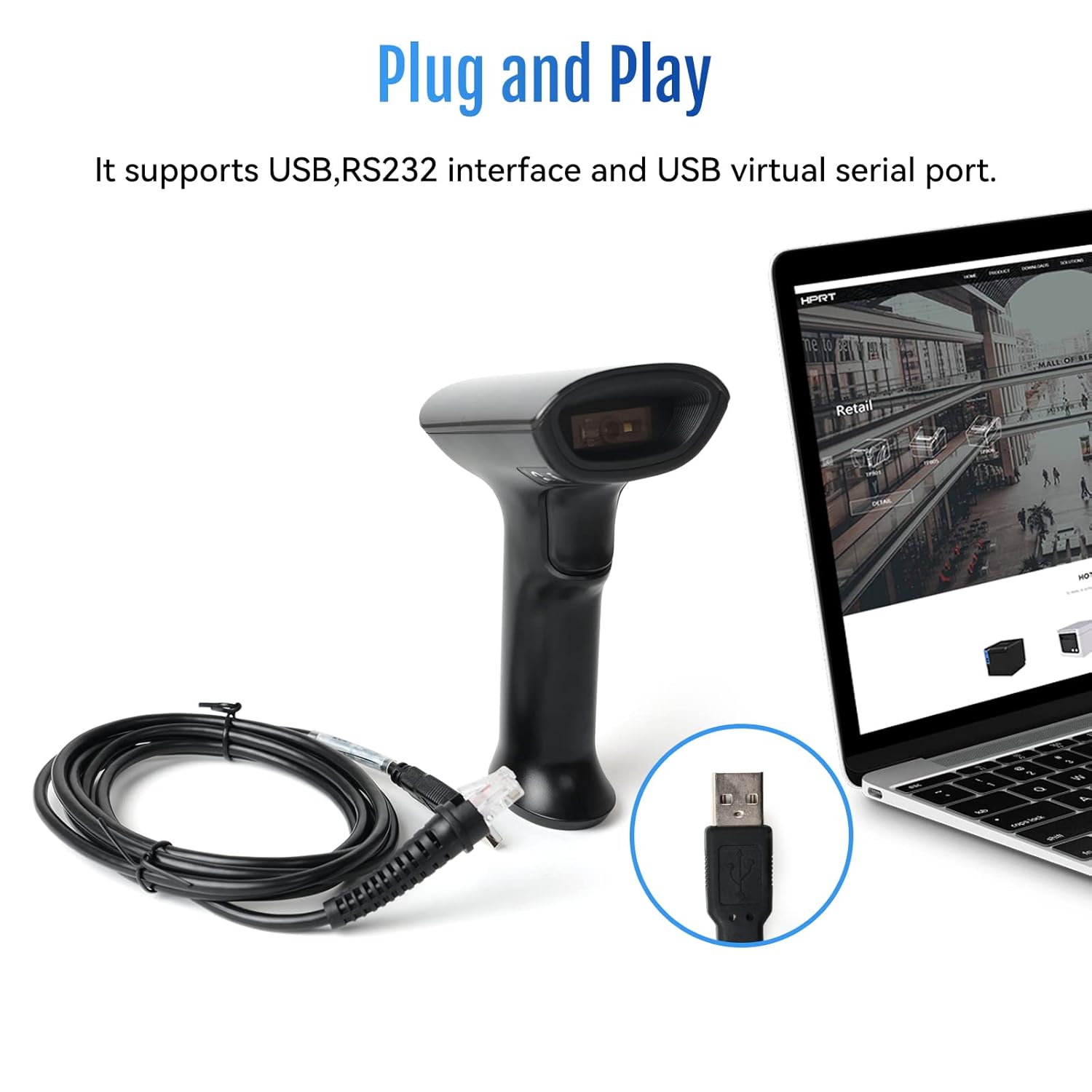
Image: The HPRT N80 barcode scanner with its USB cable, illustrating the plug-and-play connection to a laptop.

Image: A close-up of the HPRT N80 barcode scanner being connected to a laptop, demonstrating the plug-and-play functionality.
4. Provoz
The HPRT N80 Barcode Scanner offers various modes for efficient scanning.
4.1 Skenování čárových kódů
- Držte skener skenovacím okénkem směrem k čárovému kódu.
- Press the trigger button to activate the scan beam.
- Ensure the scan beam covers the entire barcode. A successful scan is usually indicated by an audible beep and/or a visual indicator.
- The decoded data will appear on your connected device.
4.2 Režimy skenování
- Manuální spouštěcí režim: Press the trigger for each scan.
- Režim nepřetržitého skenování: The scanner continuously emits a scan beam, scanning any barcode it detects.
- Režim automatického snímání: The scanner activates the scan beam automatically when a barcode is presented within its field of view.

Image: The HPRT N80 barcode scanner performing a fast scan of both 1D and QR codes displayed on a smartphone screen.

Image: The HPRT N80 barcode scanner accurately scanning a barcode even in a dark environment, highlighting its low-light performance.
4.3 Provozní video
Video: Demonstrates the HPRT N80 barcode scanner's fast scanning capabilities for both 1D and 2D barcodes on paper and screens, highlighting its plug-and-play setup and ergonomic design.
5. Údržba
To ensure the longevity and optimal performance of your HPRT N80 Barcode Scanner, follow these maintenance guidelines:
- Čištění: K čištění vnější strany skeneru použijte měkký, suchý hadřík. Na skenovací okénko použijte hadřík, který nepouští vlákna, lehce osušte.ampened with a mild, non-abrasive cleaner. Avoid harsh chemicals or abrasive materials.
- Skladování: Skener skladujte na chladném a suchém místě mimo dosah přímého slunečního záření a extrémních teplot.
- Zacházení: While the scanner is designed to be durable, avoid unnecessary drops or impacts.
- Péče o kabely: Do not bend or twist the USB cable excessively. Always grasp the plug, not the cable, when disconnecting.
6. Řešení problémů
If you encounter issues with your HPRT N80 Barcode Scanner, please refer to the following common troubleshooting steps:
- Skener nereaguje:
- Ujistěte se, že je kabel USB bezpečně připojen ke skeneru i hostitelskému zařízení.
- Zkuste zapojit skener do jiného USB portu.
- Restartujte počítač nebo hostitelské zařízení.
- Nelze skenovat čárové kódy:
- Verify that the barcode is not excessively damaged, blurred, or stained.
- Ujistěte se, že je skenovací okénko čisté a bez překážek.
- Check if the scanner is in the correct scanning mode (e.g., manual trigger, continuous, auto-sensing).
- Ensure sufficient lighting for the barcode.
- Nesprávný výstup dat:
- Confirm that the correct keyboard layout or input method is selected on your host device.
- Refer to the full product manual (if available) for advanced configuration barcodes to reset settings or adjust data formatting.
If the problem persists, please contact HPRT customer support.
7. Specifikace
| Funkce | Detail |
|---|---|
| Značka | HPRT |
| Model | N80 |
| Technologie připojení | USB kabel |
| Zdroj napájení | Napájení z baterie |
| Kompatibilní zařízení | Laptop (Windows, iOS, Android, Linux, Mac OS) |
| Schopnost skenování | 1D & 2D (UPC, EAN, QR, Data Matrix, etc.) |
| Trvanlivost | Withstands drops from up to 3.93ft |
8. Záruka a podpora
For warranty information or technical support, please contact HPRT customer service.
- E-mail zákaznického servisu: pravin.m@hprt.com
- Oficiální Webmísto: https://www.hprt.com

Image: HPRT customer service contact details, including email and official webmísto.