
Zavedení
This manual provides detailed instructions for the setup, operation, and maintenance of your TeckNet Silent Wireless Mouse EWM01005BA01. Please read this guide thoroughly to ensure optimal performance and longevity of your device.
Obsah balení
- 1 x TeckNet Silent Wireless Mouse
- 1x Nano USB přijímač
Note: The Nano USB Receiver is typically stored within the battery compartment of the mouse for safe keeping.
Vlastnosti produktu
- Technologie tichého kliknutí: Reduces click noise by over 90% for a quiet working environment.
- Nastavitelné DPI: 6 adjustable DPI levels (800/1200/1600/2400/3200/4000) for precise cursor control on various surfaces.
- Bezdrátová technologie 2.4 GHz: Provides a stable and reliable connection with fast data transfer, up to 15 meters range, even in high Wi-Fi traffic environments.
- Plug & Play: No software installation required; simply plug in the nano receiver and start using.
- Ergonomický design: Streamlined shape with soft rubber sides for comfortable use during extended periods.
- Dlouhá výdrž baterie: Up to 24 months of battery life with low-power chips and smart sleep technology (1 AA battery not included).
- Co-Link Technology: Automatic pairing with the nano receiver, ensuring a stable connection even if temporarily lost.
Průvodce nastavením
- Nainstalujte baterii: Open the battery compartment cover located on the underside of the mouse. Insert one AA battery (not included), ensuring correct polarity (+/-). Close the battery compartment cover.
- Connect Nano Receiver: Locate the Nano USB Receiver, usually stored inside the battery compartment. Plug the Nano USB Receiver into an available USB port on your computer (PC, Mac, or Laptop).
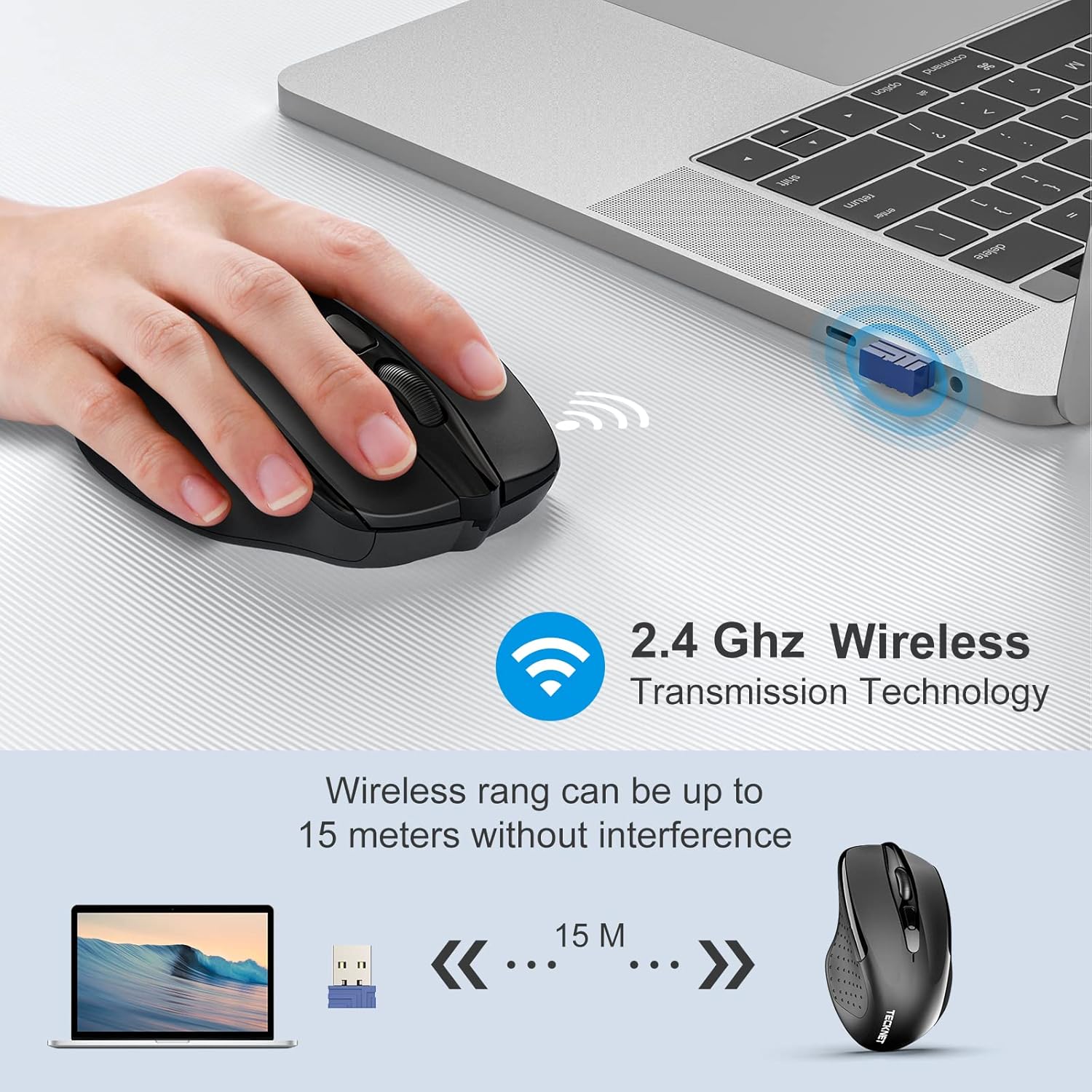
Image: The TeckNet wireless mouse connected to a laptop via its Nano USB receiver, illustrating the 2.4GHz wireless transmission technology and an effective range of up to 15 meters without interference.
- Zapnutí: Turn on the mouse using the On/Off switch, typically located on the underside.
- Automatické připojení: The mouse will automatically connect to your computer. No additional drivers or software are required.
Návod k obsluze
Once connected, the TeckNet Silent Wireless Mouse functions like a standard mouse. Move the mouse to control the cursor on your screen. The left and right buttons perform standard click functions, and the scroll wheel allows for vertical scrolling.
Úprava DPI
The mouse features a DPI adjustment button, usually located behind the scroll wheel. Press this button to cycle through the available DPI settings (800/1200/1600/2400/3200/4000). Each press changes the cursor speed, allowing you to select the sensitivity that best suits your task or preference.

Image: A hand demonstrating the DPI adjustment feature on the TeckNet wireless mouse, with an overlay indicating the 6 selectable DPI levels ranging from 800 to 4000.
Tichý provoz
The silent click technology ensures a quiet user experience, ideal for environments where noise reduction is important.

Image: The TeckNet wireless mouse highlighted with text indicating 'Noise Reduction 90%', accompanied by an image of a sleeping baby, emphasizing its quiet operation for undisturbed environments.
Informace o baterii
The TeckNet Silent Wireless Mouse requires one AA battery. With its energy-efficient design and smart sleep mode, the battery can last up to 24 months. Battery life may vary based on usage patterns and computing conditions.
- To replace the battery, open the battery compartment on the underside of the mouse.
- Insert a new AA battery, observing the correct polarity.
- Použité baterie zlikvidujte zodpovědně v souladu s místními předpisy.
Údržba
- Udržujte myš v čistotě otíráním měkkým suchým hadříkem.
- Avoid exposing the mouse to extreme temperatures, direct sunlight, or liquids.
- Myš nerozebírejte, mohlo by dojít ke ztrátě záruky.
Odstraňování problémů
| Problém | Řešení |
|---|---|
| Myš neodpovídá |
|
| Pohyb kurzoru je nepravidelný nebo pomalý |
|
| Problémy s dosahem bezdrátové sítě |
|
Specifikace
| Funkce | Detail |
|---|---|
| Značka | TeckNet |
| Číslo modelu | EWM01005BA01 |
| Barva | Černý |
| Technologie připojení | Bezdrátové připojení 2.4 GHz (USB Nano přijímač) |
| Detekce pohybu | Optický |
| Úrovně DPI | 800, 1200, 1600, 2400, 3200, 4000 (Adjustable) |
| Množství tlačítek | 8 |
| Typ baterie | 1 x AA (nejsou součástí balení) |
| Životnost baterie | Až 24 měsíců |
| Kompatibilní operační systémy | Windows 10, 8, 7, Vista, XP, 2008, Mac OS |
| Hardwarová platforma | PC, notebook |
| Lifetime Clicks | 6 milionu |
Záruka a podpora
TeckNet offers a 36-month warranty for this product upon registration. If you encounter any issues during the use of this product, please do not hesitate to contact our professional customer service team for assistance.
For support, please refer to the contact information provided on the official TeckNet webwebu nebo v dokumentaci k nákupu.