
1. Úvod
This manual provides essential information for setting up, operating, maintaining, and troubleshooting your HP ProDesk 600 G4 Mini PC. The HP ProDesk 600 G4 is a compact and powerful micro-form-factor computer designed for various applications, from business to home entertainment. It features an Intel i7 Hexa-Core processor, 32GB DDR4 RAM, and a 512GB NVMe M.2 SSD, running on Windows 11 Pro.

Obrázek 1.1: Přední strana view of the HP ProDesk 600 G4 Mini PC, showcasinjeho kompaktní design.
2. Obsah balení
Před zahájením instalace ověřte, zda jsou v balení přítomny všechny položky.
- HP ProDesk 600 G4 Mini Computer Desktop PC
- Altec Wireless Keyboard Mouse Combo
- TJJ Large Mouse Pad (color may vary)
- Napájecí kabel
- Adaptér DP na HDMI
3. Vlastnosti produktu
The HP ProDesk 600 G4 Mini PC offers robust performance and connectivity in a small footprint.
- Procesor: Intel i7-8700T (2.40-4.00 GHz, 6 Cores, 12 Threads, 12 MB Cache)
- Operační systém: Windows 11 Pro
- Paměť: 32GB DDR4 RAM
- Skladování: 512GB NVMe M.2 SSD disk
- Grafika: Intel UHD Graphics 630 (supports 4K resolution)
- Bezdrátové připojení: Built-in WiFi + Bluetooth 6E AX210 Combo
- Porty:
- 1x USB-C 3.1 Port
- 3x USB-A 3.1 porty
- 3x USB-A 3.0 porty
- 2x DisplayPort
- 1x Ethernet Port (RJ-45)
- 1x HDMI (via included DP to HDMI Adapter)
- Rozměry: 7.1 x 1.3 x 7 palce
- Hmotnost: 4.1 libry

Image 3.1: The HP ProDesk 600 G4 Mini PC is suitable for office, education, and home entertainment.
4. Pokyny k nastavení
4.1 Připojení periferních zařízení
Before powering on your Mini PC, connect the necessary peripherals.
- Připojení displeje: Use a DisplayPort cable or the included DP to HDMI adapter to connect your monitor(s) to the DisplayPort(s) on the back of the Mini PC. The system supports up to two 4K displays.
- Připojení klávesnice a myši: Plug the USB receiver for the Altec wireless keyboard and mouse combo into any available USB-A port.
- Připojení k síti (volitelné): For a wired internet connection, connect an Ethernet cable to the RJ-45 port. For wireless, the device has built-in Wi-Fi.
4.2 Zapnutí
- Připojte napájení: Plug the power cord into the power connector on the back of the Mini PC, then plug the other end into a power outlet.
- Zapnutí: Press the power button located on the front of the Mini PC. The system will boot up, and the Windows 11 Pro operating system will load.
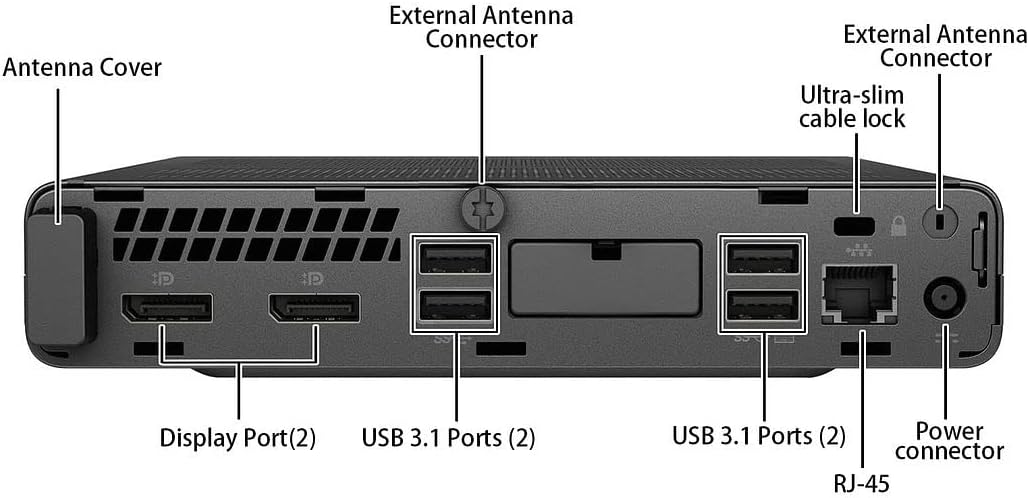
Obrázek 4.1: Detailní view of the rear ports, including DisplayPort, USB 3.1, Ethernet, and power connector.
5. Návod k obsluze
5.1 Počáteční nastavení systému Windows 11
Upon first boot, you may be guided through the Windows 11 initial setup process, which includes setting up your region, keyboard layout, network connection, and user account.
5.2 Připojení k Wi-Fi
If you did not connect an Ethernet cable during setup, you can connect to a wireless network:
- Klikněte na Síť icon (Wi-Fi or Ethernet) in the taskbar.
- Vyberte ze seznamu požadovanou síť Wi-Fi.
- Pokud se zobrazí výzva, zadejte bezpečnostní klíč sítě (heslo) a poté klikněte na tlačítko Připojit.
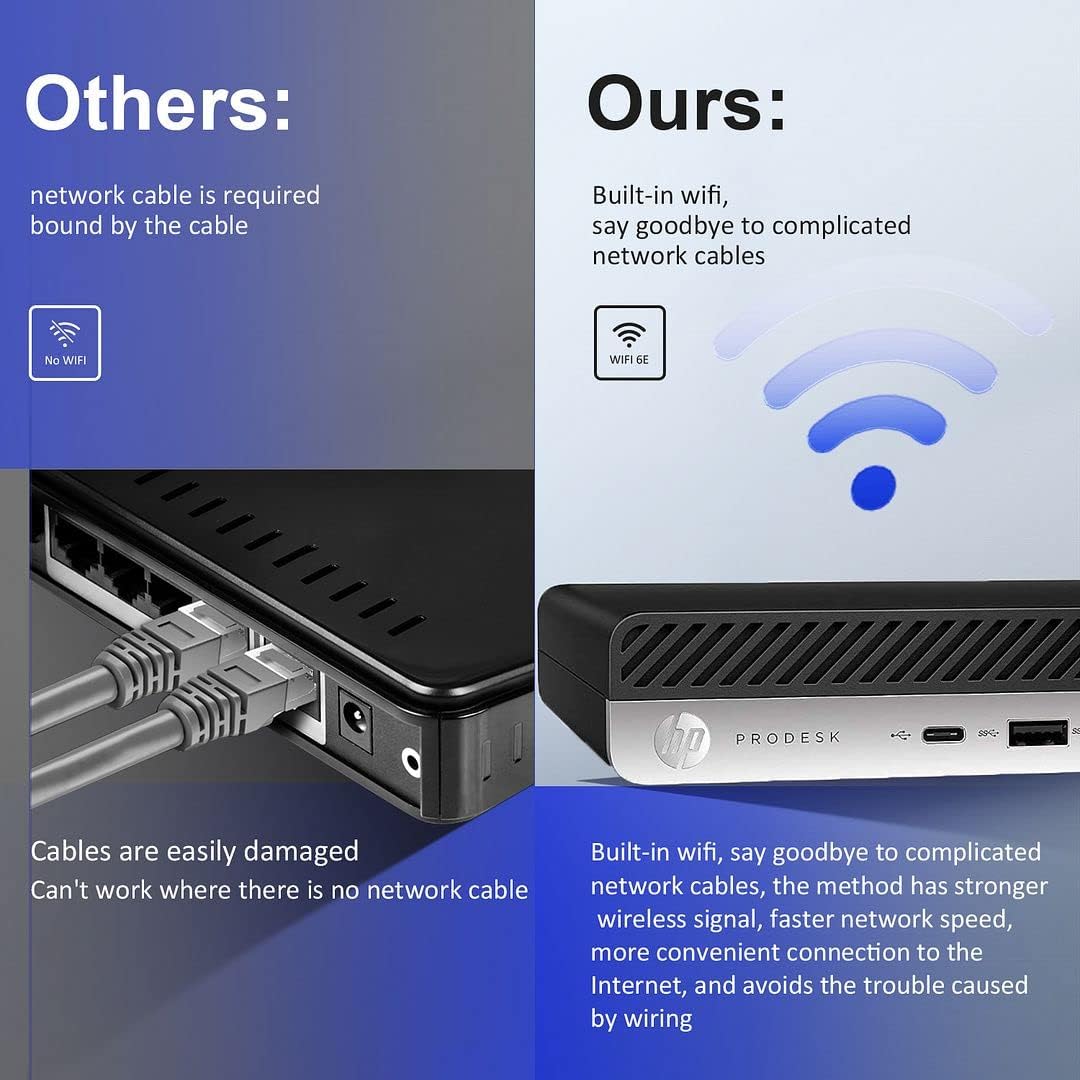
Image 5.1: The HP ProDesk 600 G4 features built-in Wi-Fi 6E for convenient wireless connectivity.
5.3 Používání více displejů
The HP ProDesk 600 G4 supports up to two 4K displays simultaneously via its DisplayPort outputs. To configure multiple displays in Windows 11:
- Klikněte pravým tlačítkem myši na prázdné místo na ploše a vyberte Nastavení displeje.
- Pod Více displejů section, you can detect, identify, and arrange your displays.
- Choose how you want your desktop to appear: Duplikujte tyto displeje, Rozšiřte tyto displejenebo Show only on 1/2.

Image 5.2: The Mini PC supports high-definition dual-screen display setups for enhanced productivity.
5.4 Funkce systému Windows 11
Familiarize yourself with the new features of Windows 11 Pro, including the redesigned Start menu, Snap Layouts for multitasking, and improved widgets.
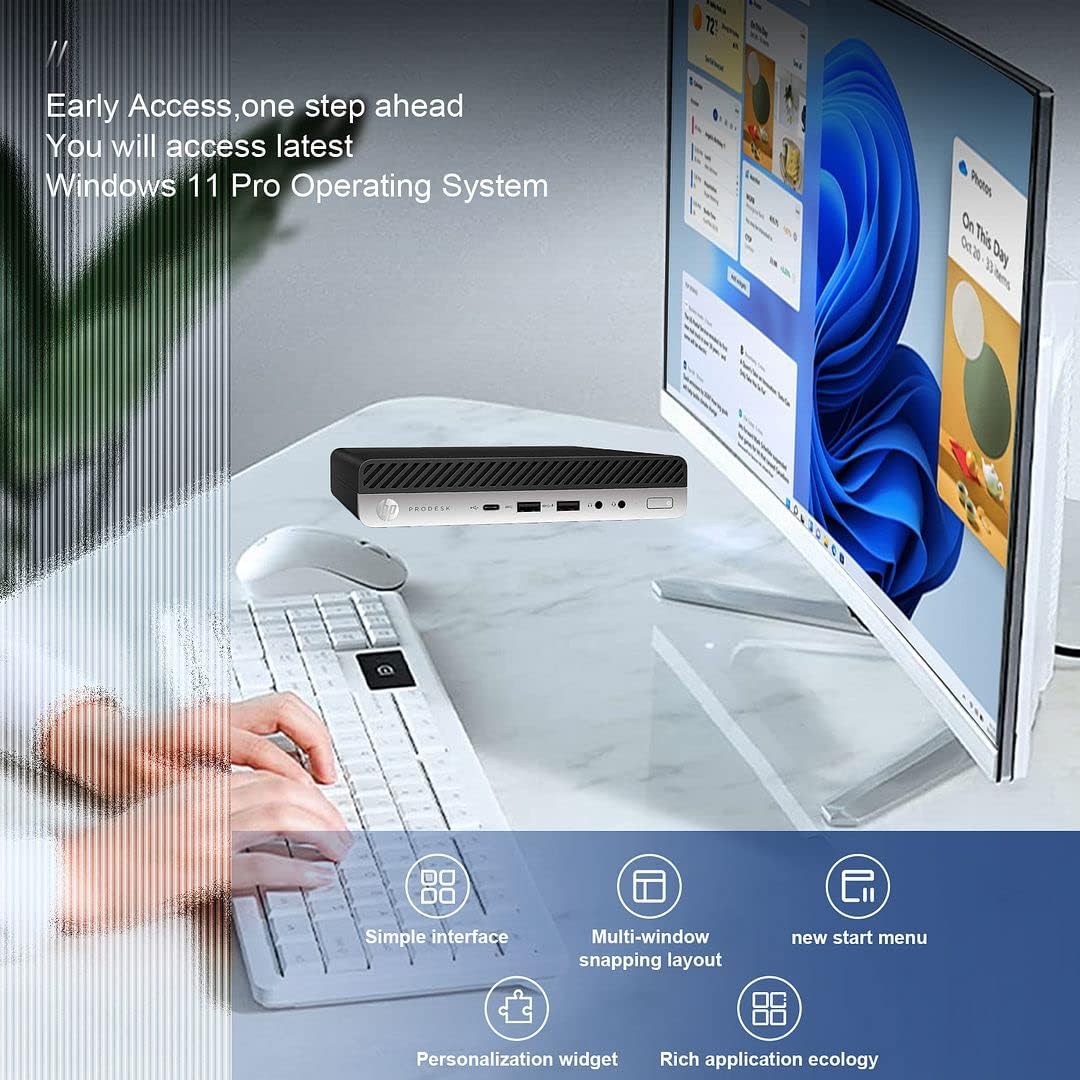
Image 5.3: The HP ProDesk 600 G4 comes pre-installed with Windows 11 Pro, offering a modern and efficient user experience.
6. Údržba
Proper maintenance ensures the longevity and optimal performance of your HP ProDesk 600 G4 Mini PC.
- Čištění: Regularly clean the exterior of the PC with a soft, dry cloth. Use compressed air to clear dust from vents to ensure proper airflow and prevent overheating. Do not use liquid cleaners directly on the device.
- Aktualizace softwaru: Keep your Windows 11 operating system and drivers updated. Go to Nastavení > Aktualizace systému Windows pro kontrolu a instalaci aktualizací.
- Správa úložiště: Pravidelně znovuview a smažte nepotřebné files to free up storage space. Windows 11 includes a Storage Sense feature (Nastavení > Systém > Úložiště) that can automate this process.
- Záložní data: Pravidelně zálohujte důležitá data na externí disk nebo cloudové úložiště, abyste předešli jejich ztrátě.
7. Řešení problémů
Tato část se zabývá běžnými problémy, se kterými se můžete setkat.
7.1 Bez napájení
- Ensure the power cord is securely connected to both the Mini PC and the power outlet.
- Ověřte funkčnost elektrické zásuvky zapojením jiného zařízení.
- Zkontrolujte napájecí adaptér, zda není poškozený.
7.2 Žádný displej
- Confirm that the monitor is powered on and the display cable (DisplayPort or HDMI) is securely connected to both the Mini PC and the monitor.
- Ujistěte se, že je na monitoru vybrán správný vstupní zdroj.
- Try connecting to a different display or using a different cable/adapter if available.
7.3 Problémy s připojením k Wi-Fi
- Zkontrolujte, zda je v nastavení systému Windows povolena Wi-Fi (Nastavení > Síť a internet > Wi-Fi).
- Restartujte router a modem.
- Ujistěte se, že zadáváte správné heslo Wi-Fi.
- Update your Wi-Fi drivers through Windows Update or HP's support webmísto.
7.4 Klávesnice nebo myš nereaguje
- Ensure the USB receiver is properly plugged into a USB port.
- Check the batteries in the wireless keyboard and mouse and replace them if necessary.
- Zkuste zapojit USB přijímač do jiného USB portu.
8. Specifikace
| Funkce | Specifikace |
|---|---|
| Procesor | Intel Core i7-8700T (2.4 GHz, 6 Cores) |
| Operační systém | Windows 11 Pro |
| BERAN | 32 GB DDR4 SDRAM |
| Pevný disk | 512GB NVMe M.2 SSD |
| Grafický koprocesor | Grafická karta Intel UHD Graphics 630 |
| Maximální rozlišení obrazovky | 3840 x 2160 pixelů (4K) |
| Bezdrátový typ | 802.11ac (Wi-Fi 6E AX210 Combo) |
| Bluetooth | Yes (BT 6E AX210 Combo) |
| Porty USB-C | 1 (USB-C 3.1) |
| Porty USB-A | 3 (USB-A 3.1) + 3 (USB-A 3.0) |
| Zobrazit porty | 2 |
| Ethernetový port | 1 (RJ-45) |
| HDMI | 1 (via DP to HDMI Adapter) |
| Rozměry položky DxŠxV | 7.1 x 1.3 x 7 palce |
| Hmotnost položky | 4.1 libry |
| Barva | Černý |
9. Záruka a technická podpora
Your HP ProDesk 600 G4 Mini PC comes with a 90denní záruka. Tato záruka se vztahuje na vady materiálu a zpracování při běžném používání.
For technical assistance or warranty claims, please contact the seller directly. They are committed to providing support and will respond to inquiries within 24 hours to ensure customer satisfaction.