
1. Úvod
This user manual provides comprehensive instructions for the installation, operation, and maintenance of your HUNSN RJ05f Mini Firewall Appliance. Please read this manual thoroughly before using the device to ensure proper functionality and to prevent damage. Keep this manual for future reference.
2. Bezpečnostní informace
- Zajistěte napájení objtage matches the device's requirements (12V/5A).
- Nevystavujte zařízení vlhkosti, extrémním teplotám ani přímému slunečnímu záření.
- Avoid blocking ventilation openings to prevent overheating. This device is fanless, but proper airflow is still recommended.
- Nepokoušejte se zařízení otevírat ani opravovat sami. Veškerý servis svěřte kvalifikovanému personálu.
- Používejte pouze dodaný napájecí adaptér a kabely.
3. Obsah balení
Ověřte, zda jsou v balení přítomny všechny položky:
- HUNSN RJ05f Mini Firewall Appliance
- Napájecí adaptér (12V/5A)
- Napájecí kabel
- Záruční list
4. Konec produktuview
4.1 Přední panel

The front panel features essential connectivity and control options:
- DP (DisplayPort): For connecting to a display.
- Vypínač: Zapnutí nebo vypnutí zařízení.
- HDMI: For connecting to a display.
- Porty USB 3.0 (x2): For high-speed peripheral connections.
4.2 Zadní panel
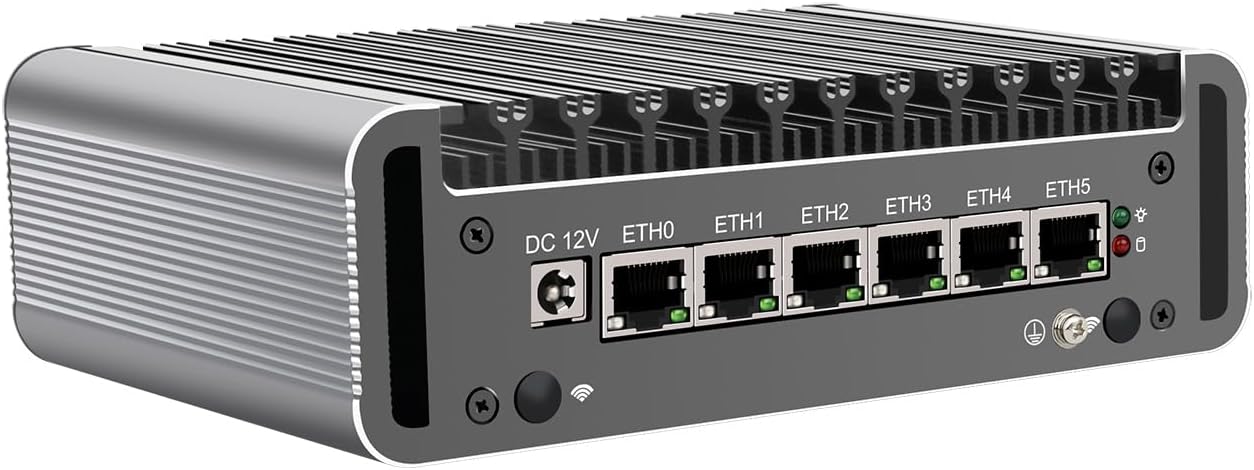
The rear panel provides network and additional peripheral connections:
- DC 12V: Vstupní konektor napájení.
- ETH0 - ETH5 (x6): Intel 2.5GbE I226-V LAN ports for network connections.
- Porty USB 2.0 (x2): Pro standardní periferní připojení.
4.3 Obecné View
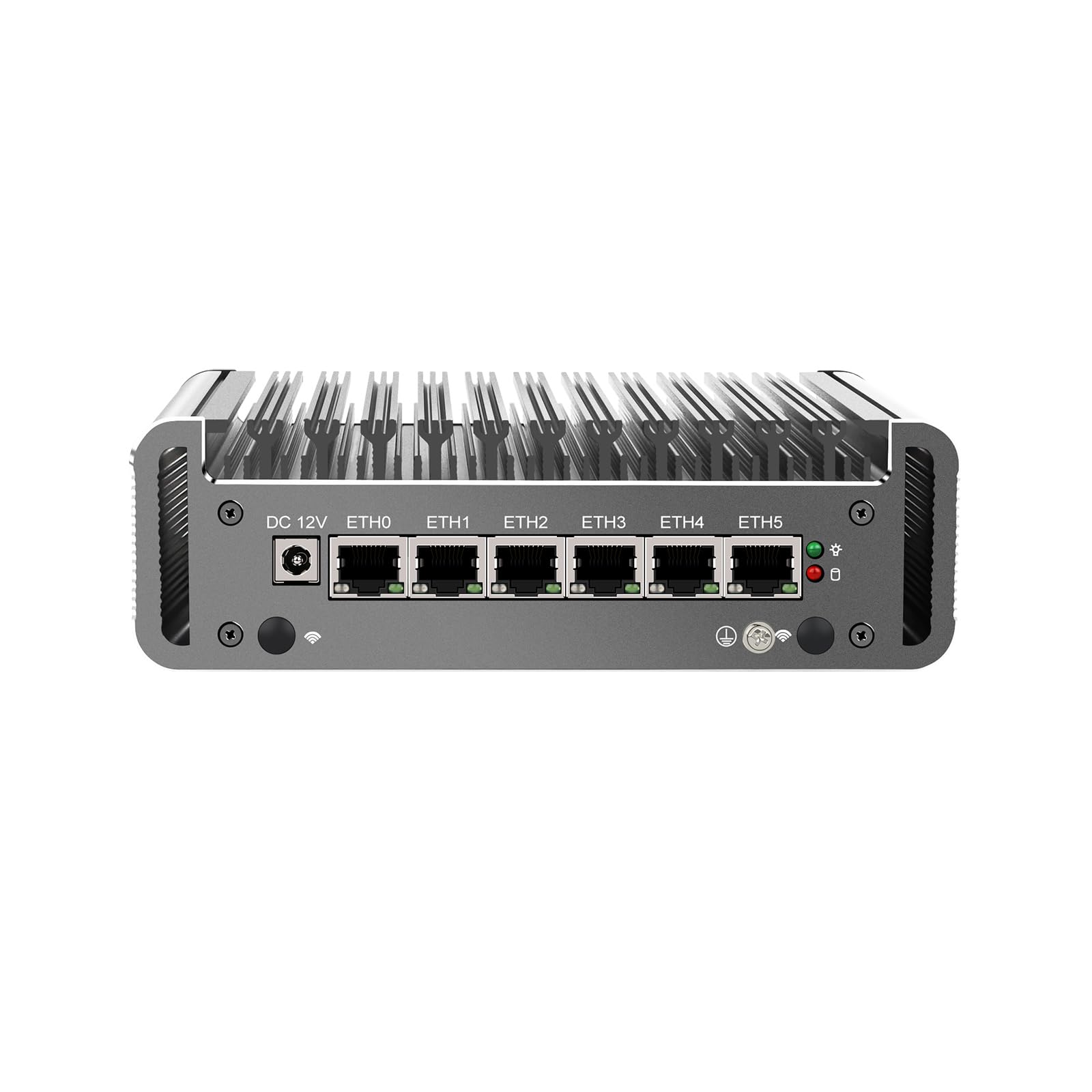
Generál view of the appliance highlights its compact, fanless design, which ensures silent operation and efficient heat dissipation through its aluminum chassis.
5. Specifikace
| Funkce | Popis |
|---|---|
| Model | HUNSN RJ05f |
| Materiál podvozku | Hliník |
| CPU | Intel Celeron N5105 (Quad-Core, 4M Cache, up to 2.90 GHz) |
| Podpora AES-NI | Ano |
| Paměť | 2 x SODIMM DDR4 2933 MHz, Max. 32GB |
| Skladování | 1 x M.2 2280 NVMe, 1 x 2.5 inch SATA SSD/HDD |
| Síťová karta | 6 x Intel 2.5GbE I226-V |
| I/O rozhraní | DP, Power ON/OFF, HDMI, 2 x USB 3.0, 2 x USB 2.0, DC_IN, 6 x LAN |
| Rozšíření | Mini PCIe slot for WiFi/4G (with SIM slot) |
| Moc | DC 100–240 V AC/50–60 Hz, 12 V/5 A |
| Provozní teplota | 0 ~ 70 °C (32 ~ 140 °F) |
| Skladovací teplota | -20 ~ 80 ° C (-130 ~ 176 ° F) |
| Relativní vlhkost | 10%~90% (nekondenzující) |
| TDP | 10W |
| Chladicí systém | Bez ventilátoru |
| Rozměry | 155 × 126 × 53 mm |
| Hmotnost | 1.5 kg |
| Kompatibilita OS | FreeBSD-based router systems (e.g., pfSense Plus, OPNsense), Linux distributions, Windows OS (UEFI only) |
| Funkce | Auto Power-On (default enabled), Wake-on-LAN, System Power Management, Temperature Management |
6. Nastavení
6.1 Hardware Installation (Optional)
The RJ05f may require installation of RAM, M.2 NVMe SSD, 2.5-inch SATA SSD/HDD, or a Mini PCIe WiFi/4G module. Follow these general steps:
- Připravte zařízení: Disconnect the power adapter. Place the device on a clean, static-free surface.
- Otevřete podvozek: Carefully remove the screws securing the bottom cover.
- Instalovat komponenty:
- BERAN: Insert DDR4 SODIMM modules into the slots until they click into place.
- M.2 NVMe SSD: Insert the M.2 SSD into its slot and secure it with the provided screw.
- 2.5-inch SATA SSD/HDD: Mount the drive into the designated bay and connect the SATA data and power cables.
- Mini PCIe Module: Insert the WiFi/4G module into the Mini PCIe slot and connect any necessary antenna cables. If installing a 4G module, insert the SIM card into the SIM slot.
- Zavřete podvozek: Replace the bottom cover and secure it with the screws.
6.2 Připojení periferních zařízení
- Zobrazit: Connect a monitor to the DP or HDMI port.
- Klávesnice/myš: Connect USB keyboard and mouse to the USB ports.
- Síť: Connect Ethernet cables from your modem/router and to your internal network devices to the 2.5GbE LAN ports (ETH0-ETH5).
- Moc: Connect the power adapter to the DC 12V input and plug it into a power outlet.
6.3 Zapnutí
Press the power button on the front panel to turn on the device. The power indicator light will illuminate.
7. Instalace operačního systému
The HUNSN RJ05f does not come with a pre-installed operating system. You will need to install a compatible OS such as pfSense Plus, OPNsense, a Linux distribution, or Windows OS (UEFI only).
- Create Bootable Media: Prepare a USB drive with the desired operating system's installation image.
- Přístup k BIOSu: Power on the device and repeatedly press the DEL or F2 klávesa pro vstup do nastavení BIOS/UEFI.
- Konfigurace pořadí spouštění: In the BIOS/UEFI settings, navigate to the Boot menu and set the USB drive as the primary boot device. Save changes and exit.
- Instalace operačního systému: The device will boot from the USB drive. Follow the on-screen instructions to install your chosen operating system.
- Po instalaci: After installation, remove the USB drive and restart the device. Configure your network settings and firewall rules according to your OS documentation.
8. Základní obsluha
- Zapnutí/vypnutí: Press the front panel power button. For a controlled shutdown, use the operating system's shutdown function.
- Nastavení systému BIOS: To access BIOS settings, press DEL or F2 during startup. Here you can configure boot options, system time, and other hardware settings.
- Auto Power-On: The device supports auto power-on (default enabled) which can be configured in the BIOS.
- Probuzení přes LAN (WoL): This feature allows the device to be powered on remotely via a network signal. Ensure WoL is enabled in the BIOS and configured in your operating system.
9. Údržba
- Čištění: Use a soft, dry cloth to clean the exterior of the device. Do not use liquid cleaners or aerosols. Ensure the heat fins are free from dust accumulation to maintain optimal cooling performance.
- Aktualizace firmwaru: Pravidelně kontrolujte informace od výrobce website for BIOS/UEFI firmware updates. Follow the provided instructions carefully when performing updates.
- Aktualizace softwaru: Keep your operating system and installed software up to date to ensure security and performance.
10. Řešení problémů
- Bez napájení: Check the power adapter and power cord connections. Ensure the power outlet is functional.
- Bez displeje: Verify that the monitor is connected correctly to the DP or HDMI port and is powered on. Try a different display cable or monitor.
- Operační systém se nespustí: Check BIOS boot order settings. Ensure the installed OS is compatible and correctly installed.
- Problémy s připojením k síti: Verify Ethernet cable connections. Check network adapter drivers and configurations within your operating system.
- Přehřívání: Ensure the device is placed in a well-ventilated area and that the heat fins are not obstructed by dust or other objects.
11. Záruka a podpora
Your HUNSN RJ05f Mini Firewall Appliance comes with a warranty. Please refer to the included warranty card for details regarding coverage and duration. For technical support, product inquiries, or warranty claims, please contact your vendor or the manufacturer's official support channels. Keep your purchase receipt as proof of purchase.