
1. Úvod
This manual provides essential information for the setup, operation, and maintenance of your HP Envy 6452e Wireless Inkjet All-in-One Printer. This device is designed for printing, copying, and scanning functions, featuring wireless connectivity and automatic two-sided printing capabilities.
2. Co je v krabici
Po vybalení ověřte, zda jsou přítomny všechny komponenty:
- Multifunkční tiskárna HP ENVY 6452e
- Original HP 67 Black Ink Cartridge
- Original HP 67 Tri-color Ink Cartridge
- Leták s okamžitým inkoustem
- Regulační leták
- Průvodce nastavením
- Referenční příručku
- Napájecí kabel
- Kabel tiskárny (USB)
3. Nastavení
3.1 Fyzické nastavení
- Vybalení tiskárny: Carefully remove the printer from its packaging and remove all protective tapes and packing materials.
- Připojte napájení: Připojte napájecí kabel k tiskárně a poté do zásuvky ve zdi.
- Vložte papír: Open the input tray and load plain paper. Adjust the paper guides to fit the paper size. The input tray has a capacity of up to 100 sheets.
- Instalace inkoustových kazet: Open the ink cartridge access door. Insert the black and tri-color HP 67 cartridges into their respective slots until they click into place.

Obrázek: Přední strana view of the HP Envy 6452e printer, highlighting its compact design and the output tray.
3.2 Instalace softwaru a bezdrátové připojení
The HP Smart app is required for easy setup and mobile printing. It guides you through connecting your printer to a wireless network.
- Stáhněte si aplikaci HP Smart: On your computer or mobile device (iOS compatible), download the HP Smart app from your device's app store or HP's official webmísto.
- Postupujte podle pokynů na obrazovce: Open the HP Smart app and follow the guided steps to connect your printer to your Wi-Fi network. The printer features self-healing dual-band Wi-Fi to help maintain a stable connection.
- Alternativní připojení: For direct connection, use a USB cable. Bluetooth connectivity is also available.
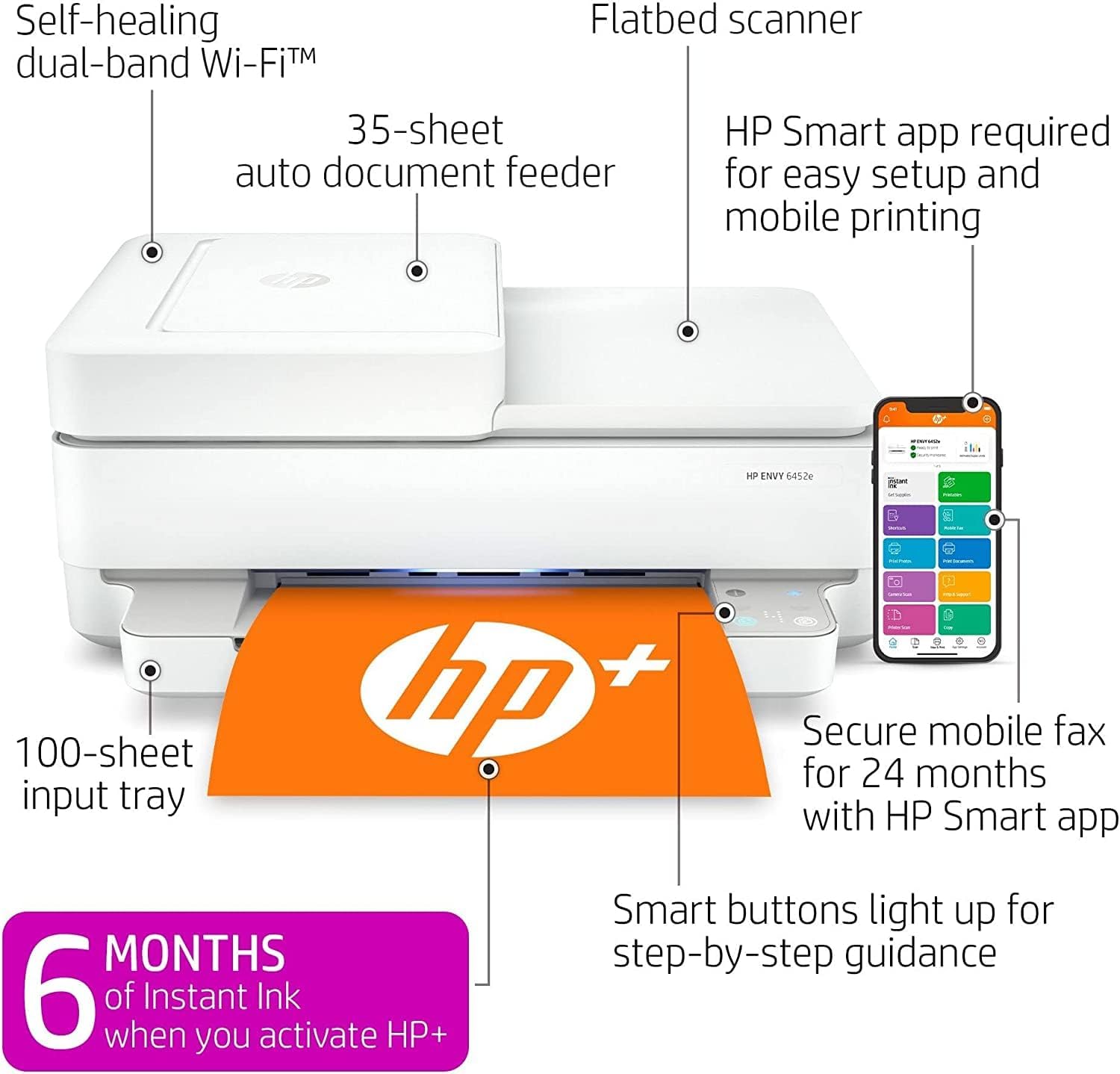
Image: Diagram illustrating key features of the HP Envy 6452e, including the 35-sheet auto document feeder, flatbed scanner, and the HP Smart app interface.
4. Návod k obsluze
4.1 Tisk
Tisk dokumentů nebo fotografií:
- Ujistěte se, že je tiskárna zapnutá a připojená k vašemu zařízení.
- Otevřete dokument nebo obrázek, který chcete vytisknout, v počítači nebo mobilním zařízení.
- Vyberte možnost tisku z aplikace.
- Choose the HP Envy 6452e from the list of available printers.
- Upravte nastavení tisku, jako je velikost papíru, kvalita tisku a počet kopií.
- Klikněte na tlačítko „Tisk“.
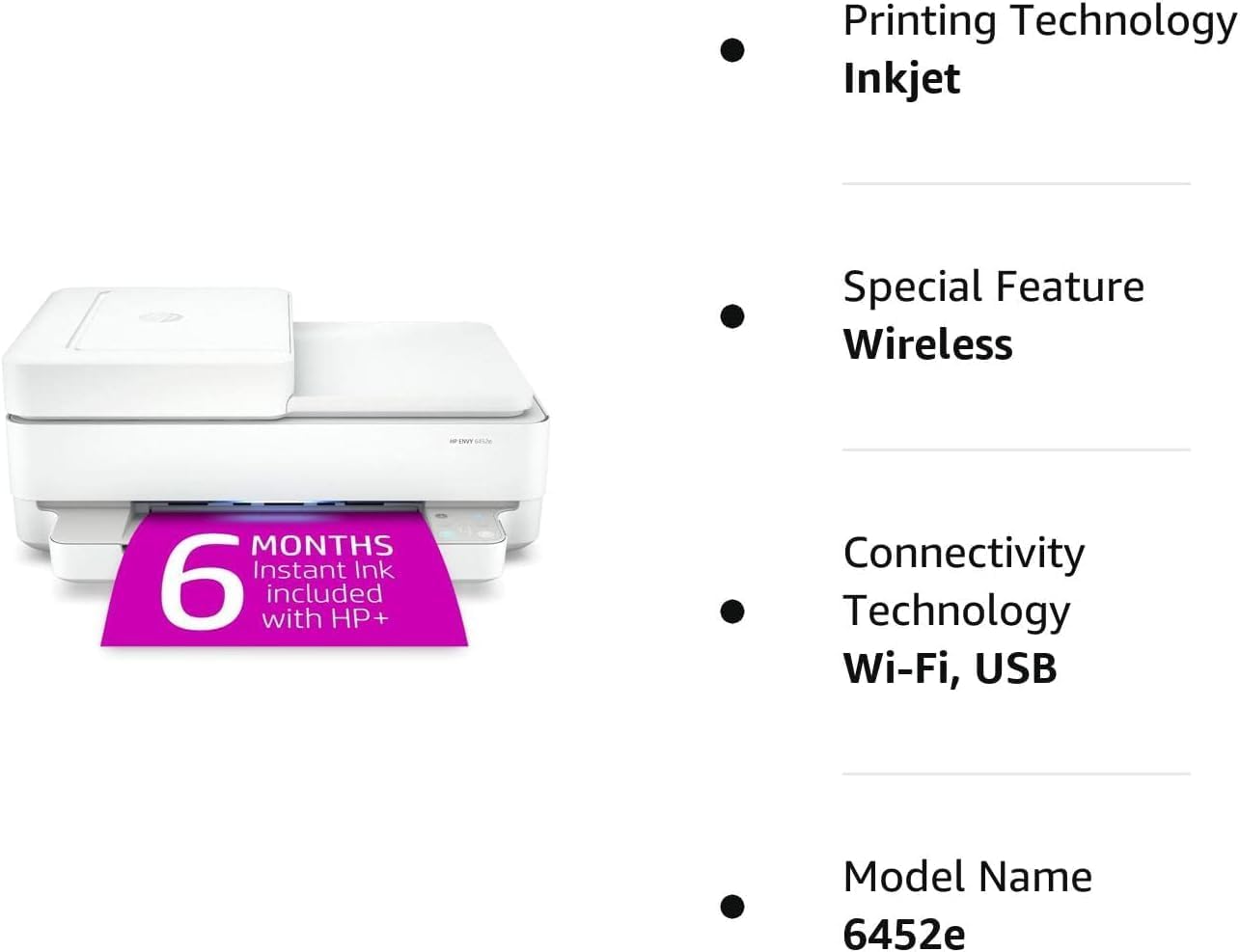
Image: The HP Envy 6452e printer in operation, with a document being printed from the output tray.
4.2 Kopírování
Vytvoření kopie:
- Vložte originální dokument lícem dolů na sklo skeneru nebo lícem nahoru do automatického podavače dokumentů (ADF).
- Use the HP Smart app or the printer's control panel to select the copy function.
- Adjust settings like number of copies, color/black & white, and size.
- Initiate the copy process.
4.3 Skenování
Skenování dokumentů nebo fotografií:
- Vložte originální dokument lícem dolů na sklo skeneru nebo lícem nahoru do automatického podavače dokumentů (ADF).
- Otevřete aplikaci HP Smart v počítači nebo mobilním zařízení.
- Select the scan function.
- Choose scan settings such as resolution, file type, and destination.
- Spusťte skenování.
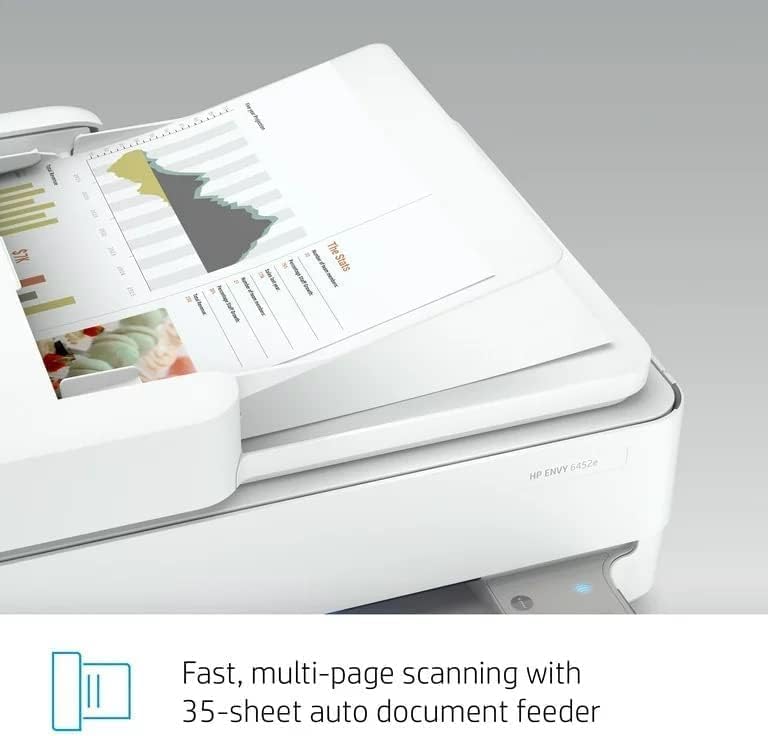
Image: The Automatic Document Feeder (ADF) of the HP Envy 6452e, showing its capability for multi-page scanning.
4.4 Automatic Document Feeder (ADF)
The 35-sheet ADF allows for quick scanning or copying of multiple pages without manual placement. Load documents face-up into the ADF tray.
4.5 Oboustranný tisk
The printer supports automatic two-sided (duplex) printing. Select the duplex printing option in your print settings to save paper.
4.6 Mobilní tisk
Utilize the HP Smart app to print directly from your smartphone or tablet. The app also supports mobile fax for 24 months.
5. Údržba
5.1 Výměna inkoustové kazety
When ink levels are low, the printer will indicate a need for replacement. Only use Original HP 67 Black and Tri-color Ink Cartridges for optimal performance and to maintain warranty validity.
- Ujistěte se, že je tiskárna zapnutá.
- Otevřete přístupová dvířka inkoustových kazet.
- Zatlačte na prázdnou kazetu, abyste ji uvolnili, a poté ji vytáhněte.
- Remove the new cartridge from its packaging, being careful not to touch the copper contacts or ink nozzles.
- Vložte novou kazetu do barevně označeného slotu, dokud nezacvakne na místo.
- Zavřete přístupová dvířka inkoustových kazet.
5.2 Vkládání papíru
Regularly check the paper input tray and replenish paper as needed. Ensure paper guides are snug against the paper stack to prevent misfeeds.
6. Řešení problémů
If you encounter issues with your HP Envy 6452e printer, consider the following:
- Bez napájení: Verify the power cord is securely connected to both the printer and a working electrical outlet.
- Problémy s připojením: Ensure your printer is connected to the correct Wi-Fi network. Restarting your router, printer, and computer/mobile device can often resolve connection problems.
- Printing Blank Pages: Check ink cartridge levels. Ensure the protective tape has been removed from new cartridges.
- Zaseknutý papír: Carefully remove any jammed paper from the input tray, output tray, or inside the printer. Refer to the HP Smart app for specific instructions on clearing jams.
- Špatná kvalita tisku: Check ink levels. Perform a printhead cleaning or alignment through the HP Smart app. Ensure you are using appropriate paper for your print job.
- Skener nefunguje: Ensure the scanner lid is fully closed. Check connections if using USB.
For more detailed troubleshooting, refer to the HP Smart app or HP's official support webmísto.
7. Specifikace
| Funkce | Specifikace |
|---|---|
| Název modelu | 6452e |
| Rozměry produktu (D x Š x V) | 7.64 cm x 14 cm x 17 cm |
| Hmotnost položky | 13.6 libry |
| Technologie tisku | Inkoustové |
| Tiskový výstup | Barva |
| Maximální rychlost tisku (černobíle) | 10 stránek za minutu |
| Maximální rychlost tisku (barevně) | 7 stránek za minutu |
| Technologie připojení | USB, Wi-Fi, Bluetooth |
| Speciální funkce | Wireless, Automatic Duplex Printing |
| Typ skeneru | Valník |
| Maximální vstupní kapacita listu | 35 (ADF) |
| Podpora velikostí listů | Letter, 4x6 in, 5x7 in, 8x10 in, No. 10 envelopes |
| Kompatibilní kazeta | Original HP 67 Black and Tri-color Ink Cartridge |
| Kontrolní metoda | App (HP Smart) |
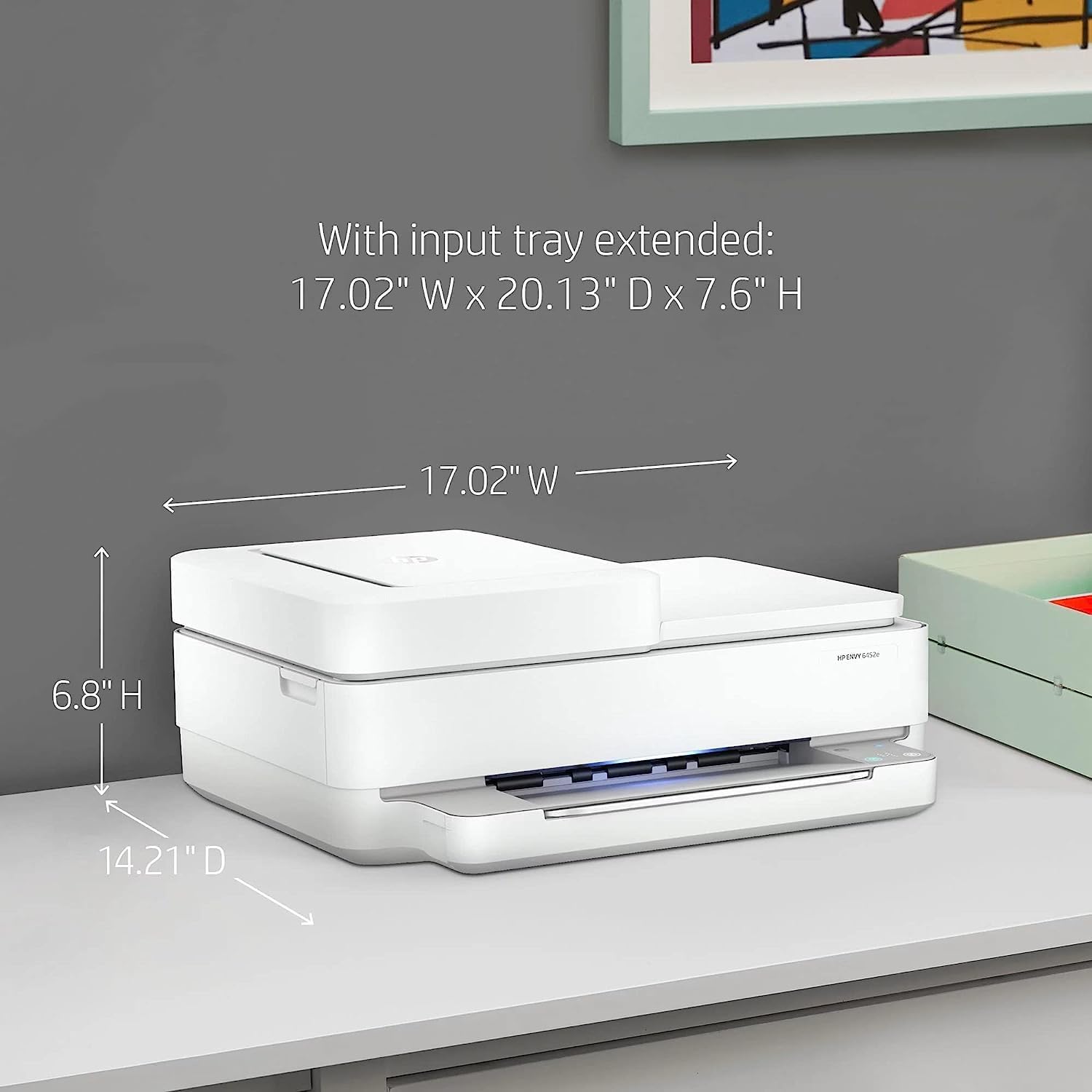
Obrázek: Dimenzionální přesview of the HP Envy 6452e printer, indicating height, width, and depth for placement considerations.
8. Záruka a podpora
8.1 Informace o záruce
This HP Envy 6452e printer comes with a 90-day limited warranty. Please retain your proof of purchase for warranty claims.
8.2 Zákaznická podpora
For further assistance, technical support, or warranty inquiries, please visit the official HP support website or contact HP customer service. The HP Smart app also provides access to support resources and guides.