
KOORUI 15B1
KOORUI 15.6 inch 1080P FHD Portable Monitor User Manual
Model: 15B1
1. Úvod
Thank you for choosing the KOORUI 15.6 inch 1080P FHD Portable Monitor. This monitor is designed to provide a vibrant visual experience with its 1920x1080 resolution IPS display, 178° wide viewing angle, and eye care technology. Its lightweight and slim design makes it an ideal companion for extending your screen space for work, entertainment, or gaming on the go.
This manual provides essential information for setting up, operating, and maintaining your portable monitor. Please read it thoroughly before use to ensure proper functionality and to maximize your user experience.
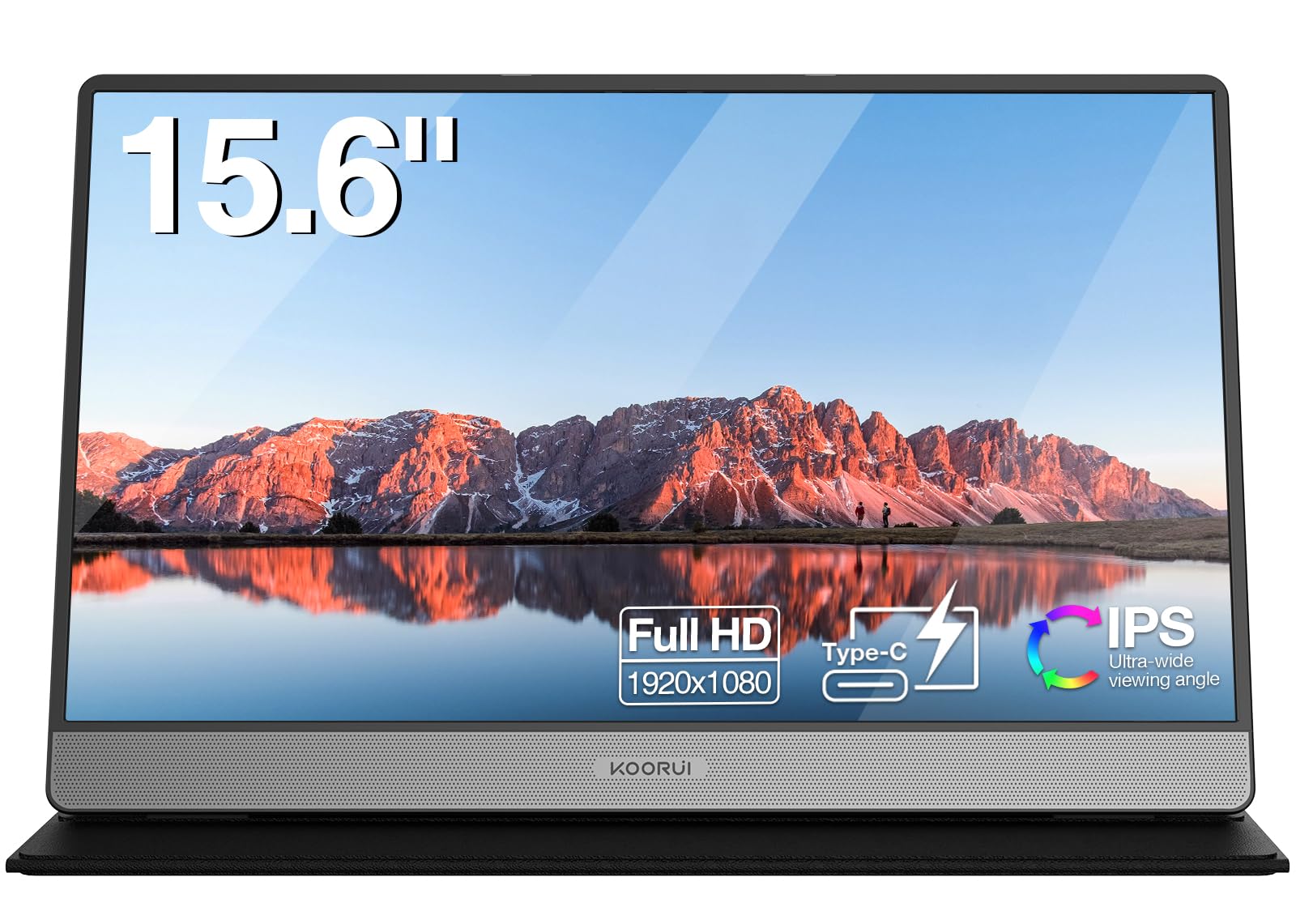
Image: The KOORUI 15.6 inch portable monitor, showcasinjeho elegantní design a integrovaný stojan.
2. Co je v krabici
Zkontrolujte prosím obsah balení, abyste se ujistili, že jsou přítomny všechny položky:
- KOORUI 15.6 inch Portable Monitor (Model: 15B1)
- Ochranné pouzdro / stojan
- Kabel USB-C na USB-C
- Mini kabel HDMI na HDMI
- Uživatelská příručka

Image: A visual representation of the complete package contents, including the monitor, protective case, USB-C cable, Mini HDMI cable, and user manual.
3. Konec produktuview
3.1. Fyzické rozměry a hmotnost
The KOORUI 15.6 inch portable monitor is designed for portability and convenience.
- Rozměry (D x Š x V): Přibližně 36.3 cm x 23.6 cm x 1.6 cm (14.3 x 9.1 x 0.4 palce)
- Hmotnost: Přibližně 1.05 kg (2.3 lb)

Image: A diagram illustrating the monitor's dimensions (14.3 inches wide, 9.1 inches high, 0.4 inches thick) and its weight (1.05 kg).
3.2. Porty a ovládací prvky
Familiarize yourself with the ports and controls located on the sides of the monitor:
- Vypínač: Zapíná/vypíná monitor.
- Menu/Volume Wheel: Navigates the On-Screen Display (OSD) menu and adjusts volume.
- Řečníci: Integrované stereo reproduktory pro zvukový výstup.
- Porty typu C (x2): For power, data, audio, and video transmission.
- Mini HDMI port: Pro video vstup.

Obrázek: Podrobný view of the monitor's side, highlighting the power button, menu/volume wheel, speakers, two Type-C ports, and the Mini HDMI port.
4. Nastavení a připojení
The KOORUI portable monitor offers flexible connectivity options. Ensure your device supports video output via USB-C or HDMI.
4.1. Connecting via USB-C (Single Cable)
If your device (laptop, smartphone) has a full-featured USB-C port that supports DisplayPort Alternate Mode (DP Alt Mode) and power delivery, you can connect the monitor with a single USB-C cable.
- Connect one end of the provided USB-C cable to a full-featured USB-C port on your device.
- Connect the other end to one of the Type-C ports on the monitor.
- Důležitá poznámka: When using a single USB-C cable for both power and display, the monitor's brightness may be limited to 50% due to power constraints from the connected device. For full brightness, an external power source is recommended.

Image: A visual guide for single USB-C cable connection, indicating potential brightness limitation.
4.2. Connecting via Mini HDMI and USB-C (Dual Cable)
For devices with an HDMI output or to ensure full brightness, use the Mini HDMI cable for video and a USB-C cable for power.
- Connect one end of the provided Mini HDMI to HDMI cable to your device's HDMI port.
- Connect the Mini HDMI end to the Mini HDMI port on the monitor.
- Connect one end of the USB-C cable to a power adapter (not included) and plug it into a power outlet.
- Connect the other end of the USB-C cable to one of the Type-C ports on the monitor for power.
- Poznámka: When using HDMI for video, a separate power supply via USB-C is always required for the monitor to function.

Image: A diagram illustrating the dual cable connection method, utilizing Mini HDMI for video input and a separate USB-C cable for power.
4.3. Kompatibilita zařízení
The monitor is compatible with a wide range of devices:
- Laptops (Windows, macOS)
- PC
- Tablety
- Smartphones (with compatible USB-C output)
- Gaming Consoles (PS4, PS5, Xbox, Nintendo Switch)
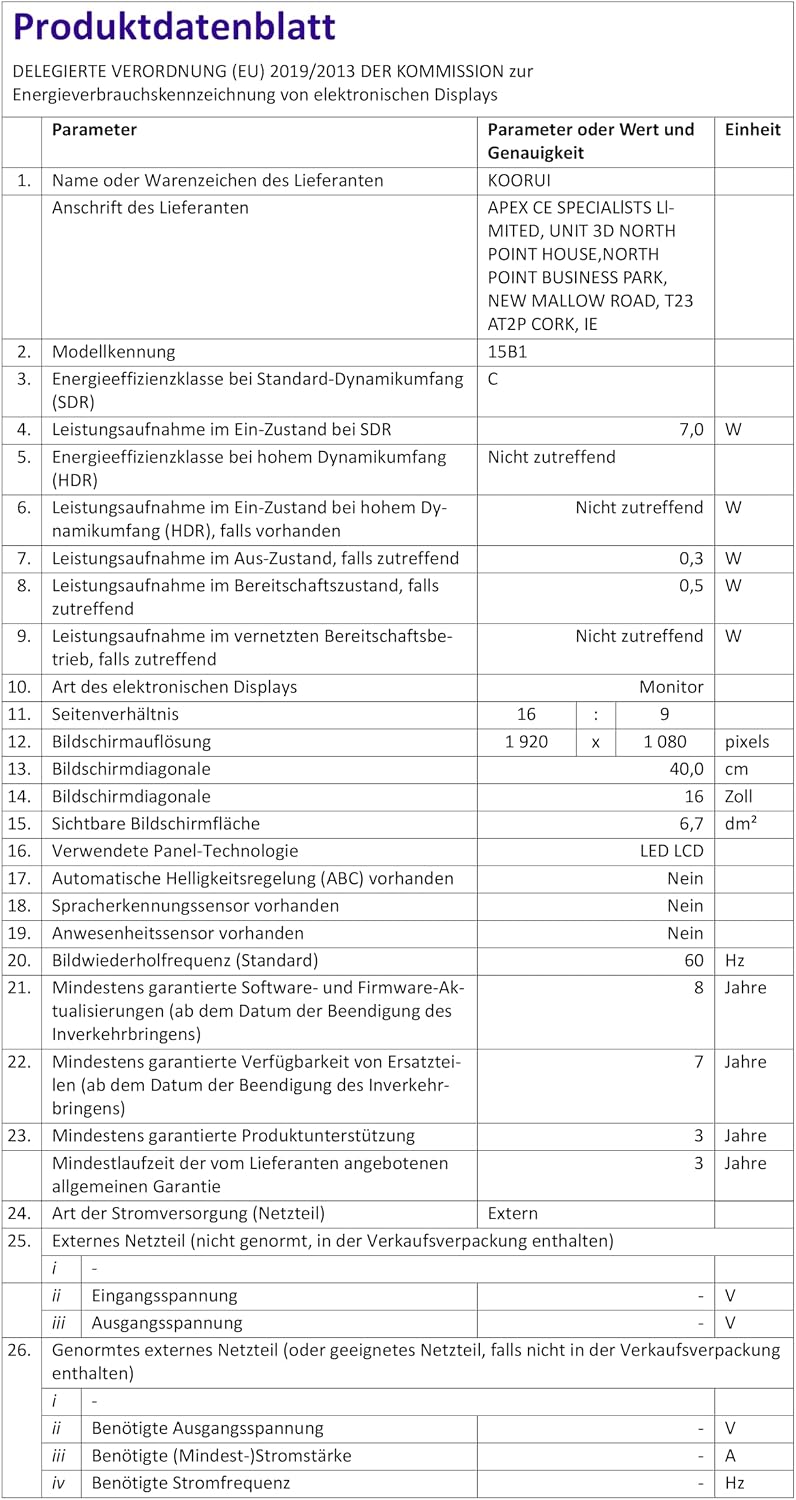
Image: An illustration of the monitor connected to different devices, highlighting its versatility for business and entertainment.
5. Návod k obsluze
5.1. Zapnutí/vypnutí
Stisknutím tlačítka napájení, které se nachází na boku monitoru, jej zapnete nebo vypnete.
5.2. Nastavení jasu a hlasitosti
Use the Menu/Volume wheel to access the On-Screen Display (OSD) menu for various settings, including brightness and contrast. Rotate the wheel to adjust volume directly.
- Jas: Navigate to the 'Brightness' setting in the OSD menu.
- Objem: Rotate the Menu/Volume wheel up or down to adjust the speaker volume.
5.3. Režimy zobrazení
When connected to a computer, you can configure the display mode through your operating system settings (e.g., Windows Display Settings or macOS System Preferences).
- Duplicitní režim: The portable monitor mirrors the content of your primary display.
- Rozšířený režim: The portable monitor acts as an extension of your primary display, providing more screen real estate.
- Režim pouze druhé obrazovky: Only the portable monitor displays content, while the primary display is turned off.

Image: A visual guide to the three common display modes: Copy Mode (Duplicate), Extended Mode, and Second Screen Mode.

Image: The portable monitor in use, extending a laptop's display for enhanced workspace.
6. Údržba
6.1. Čištění monitoru
- Always disconnect the monitor from power before cleaning.
- Použijte měkký hadřík, který nepouští vlákna dampvodou nebo jemným, neabrazivním čističem obrazovek.
- Nestříkejte čisticí prostředek přímo na obrazovku.
- Avoid using harsh chemicals, alcohol, or ammonia-based cleaners, as they can damage the screen surface.
6.2. Screen Cover Care
The included screen cover protects the monitor and functions as a stand. Keep it clean and avoid placing heavy objects on it to prevent damage to the screen.
7. Řešení problémů
If you encounter issues with your KOORUI portable monitor, please refer to the following common solutions:
- Žádný displej / Černá obrazovka:
- Ujistěte se, že jsou všechny kabely pevně připojeny.
- If using HDMI, confirm that a separate USB-C power cable is connected to the monitor.
- Verify your device's USB-C port supports video output (DisplayPort Alt Mode).
- Try connecting to a different device or using different cables to rule out cable or source issues.
- Low Brightness (50%):
- This often occurs when the monitor is powered solely by a single USB-C cable from the host device.
- To achieve full brightness, connect an external power adapter (5V/2.0A or higher) to one of the monitor's Type-C ports.
- Žádný zvuk:
- Check the monitor's volume settings using the Menu/Volume wheel.
- Ensure your device's audio output is directed to the portable monitor.
- Note that some USB-C connections may not support audio output.
- Image Flickering or Instability:
- Ensure the monitor is receiving sufficient power. Connect an external power adapter if flickering occurs.
- Zkontrolujte kabelové spoje, zda nejsou uvolněné nebo poškozené.
- Update graphics drivers on your connected device.
8. Specifikace
| Funkce | Specifikace |
|---|---|
| Číslo modelu | 15B1 |
| Velikost obrazovky | 15.6 palce |
| Rezoluce | FHD 1920 x 1080p |
| Typ panelu | IPS (LCD) |
| Poměr stran | 16:9 |
| Obnovovací frekvence | 60 Hz |
| Doba odezvy | 5 milisekund |
| Kontrastní poměr | 3000:1 |
| Jas | 250 cd/m² |
| Viewúhel | 178 stupňů |
| Konektivita | 2x USB Type-C, 1x Mini HDMI |
| Speciální funkce | Blue Light Filter, Integrated Speakers, Portable, Flicker-Free, FreeSync |
| Rozměry (D x Š x V) | 36.25 x 23.62 x 1.62 cm |
| Hmotnost | 1.46 kg |
| Power Voltage | 240 voltů |

Obrázek: Detailní záběr view of the monitor's integrated dual speakers, emphasizing its audio capabilities.

Image: The energy label for the KOORUI monitor, indicating its energy efficiency class 'C' and consumption of 7 kWh/1000h.
9. Informace o záruce
The KOORUI 15.6 inch Portable Monitor (Model 15B1) comes with a 3-letá záruka od data nákupu. Tato záruka se vztahuje na výrobní vady a zajišťuje kvalitu výrobku.
Uschovejte si prosím doklad o koupi pro případné reklamace.
10. Zákaznická podpora
For any questions, technical assistance, or if you encounter any damages, malfunctions, or missing accessories, please do not hesitate to contact KOORUI customer support. Our team is dedicated to providing premium service and technical support.
Refer to the contact information provided on the KOORUI official webNejnovější kanály podpory naleznete na webových stránkách nebo v dokumentaci k nákupu.
Ask a question about this manual
Ask about setup, troubleshooting, compatibility, parts, safety, or missing instructions. Manuals+ will review the question and use this page’s manual context to help answer it.