
Zavedení
This manual provides essential information for the safe and efficient operation of your Saba SA40S77A11 40-inch Full HD Smart Android TV. Please read these instructions carefully before using the product and retain them for future reference. This television combines Full HD resolution with the Android 11 operating system, offering integrated smart features like Chromecast and Airplay, along with versatile connectivity options.
Důležité bezpečnostní informace
Vždy dodržujte následující bezpečnostní opatření, abyste předešli úrazu elektrickým proudem, požáru nebo poškození televizoru.
- Nevystavujte televizor dešti ani vlhkosti.
- Neotevírejte dvířka televizoruasing; veškerý servis svěřte kvalifikovanému personálu.
- Zajistěte dostatečné větrání kolem televizoru. Neblokujte větrací otvory.
- Umístěte televizor na stabilní a rovný povrch, aby nedošlo k jeho pádu.
- Chraňte napájecí kabel před pošlapáním nebo přiskřípnutím.
- Během bouřek nebo pokud televizor delší dobu nepoužíváte, odpojte jej ze zásuvky.
- Keep small objects and liquids away from the TV to prevent them from entering the unit.
Obsah balení
Ověřte, zda jsou v krabici přítomny všechny položky:
- Saba SA40S77A11 40-inch Full HD Smart Android TV
- Remote Control (with 2x AAA 1.5V batteries)
- Mini AV Adapter Cable
- Napájecí kabel
- TV Stand (if not pre-assembled)
- Uživatelská příručka (tento dokument)
Nastavení
1. Připevnění stojanu (volitelné)
If your TV stand is not pre-assembled, carefully attach it to the bottom of the television using the provided screws. Ensure the TV is placed face down on a soft, clean surface to prevent screen damage during this process.

Obrázek: Přední strana view of the Saba SA40S77A11 TV with its silver stand attached, ready for placement.
Alternatively, the TV can be wall-mounted using a compatible VESA mount (sold separately). Refer to the wall mount's instructions for installation.
2. Připojení periferií
Připojte externí zařízení k příslušným portům na zadní nebo boční straně televizoru.
- HDMI: For Blu-ray players, game consoles, set-top boxes, etc.
- USB: For USB drives to play media or connect compatible accessories.
- Anténa/kabel: Connect an antenna or cable TV signal for DVB-T2/S2/C reception.
- Ethernet: Pro kabelové připojení k internetu.
- Mini AV: Use the provided adapter cable for older analog devices.

Obrázek: Boční view of the Saba SA40S77A11 TV, illustrating the various input and output ports for connecting external devices.
3. Zapnutí a počáteční nastavení
After connecting all necessary cables, plug the power cord into an electrical outlet. Press the power button on the remote control or on the TV itself.
The first time you turn on the TV, a setup wizard will guide you through initial configurations:
- Výběr jazyka: Vyberte preferovaný jazyk.
- Internetové připojení: Connect to your Wi-Fi network or use an Ethernet cable for internet access.
- Účet Google: Sign in with your Google account to access the Google Play Store and other Android TV features.
- Skenování kanálu: Scan for available digital TV channels (DVB-T2/S2/C).
Návod k obsluze
1. Dálkové ovládání Overview
The remote control allows you to navigate the TV's interface and control various functions. Common buttons include:
- Moc: Zapíná nebo vypíná televizor.
- Vstup: Vybere vstupní zdroj (HDMI, AV, TV).
- Navigace (nahoru/dolů/doleva/doprava) a OK: Pro navigaci v menu a výběr.
- Hlasitost (+/-): Nastavuje úroveň hlasitosti.
- Channel (P+/P-): Mění televizní kanály.
- Domov: Návrat na domovskou obrazovku Android TV.
- Zadní: Vrátí se na předchozí obrazovku nebo nabídku.
- Asistent Google: Aktivuje hlasové ovládání.
2. Smart Android TV Features
Your Saba TV runs on Android 11, providing access to a wide range of smart features.

Image: The Saba SA40S77A11 TV screen showing the Android TV home interface with various streaming app icons and content recommendations.
- Obchod Google Play: Download and install your favorite streaming apps, games, and utilities.
- Vestavěný Chromecast: Cast content (videos, photos, music) from your compatible smartphone, tablet, or computer directly to the TV.
- Airplay: Stream content from Apple devices to your TV.
- Hlasové ovládání: Use the Google Assistant button on your remote to search for content, control smart home devices, and get information using voice commands.
3. Výběr zdroje vstupu
Press the "Input" button on your remote control to cycle through available input sources (e.g., HDMI 1, HDMI 2, AV, TV Tuner). Select the desired source for your connected device.
Údržba
1. Čištění televizoru
- Před čištěním vždy odpojte televizor ze zásuvky.
- K otření obrazovky a skříně použijte měkký, suchý hadřík.
- Pro odolné skvrny na obrazovce lehceampOtřete hadřík vodou nebo specializovaným čističem obrazovek. Nikdy nestříkejte tekutinu přímo na obrazovku.
- Nepoužívejte abrazivní čisticí prostředky, vosky nebo rozpouštědla.
2. Aktualizace softwaru
Váš televizor Android TV může pravidelně dostávat aktualizace softwaru, které zlepšují jeho výkon a přidávají nové funkce. Abyste mohli tyto aktualizace dostávat, ujistěte se, že je váš televizor připojen k internetu. Aktualizace obvykle najdete v nabídce nastavení televizoru v části „O aplikaci“ nebo „Aktualizace systému“.
Odstraňování problémů
Pokud se s televizorem setkáte s problémy, podívejte se na následující běžné problémy a jejich řešení:
| Problém | Možné řešení |
|---|---|
| Žádná síla | Check if the power cord is securely plugged into the TV and the wall outlet. Try a different outlet. Ensure the remote control batteries are not depleted. |
| Žádný obraz, ale zvuk je přítomný | Ensure the correct input source is selected. Check cable connections (HDMI, AV). Try restarting the TV. |
| Žádný zvuk, ale obraz je přítomen | Check the volume level and ensure the TV is not muted. Verify audio settings in the TV menu. Check external audio device connections if applicable. |
| Zpráva „Žádný signál“ | Verify the antenna/cable connection. Ensure the correct input source is selected. Perform a channel scan if using the TV tuner. |
| Nelze se připojit k Wi-Fi | Ujistěte se, že je váš Wi-Fi router zapnutý a funkční. Znovu zadejte heslo k Wi-Fi. Zkuste restartovat televizor i router. |
| Dálkové ovládání nefunguje | Vyměňte baterie. Ujistěte se, že mezi dálkovým ovladačem a infračerveným senzorem televizoru nejsou žádné překážky. |
Specifikace
Below are the technical specifications for the Saba SA40S77A11 TV:
| Funkce | Detail |
|---|---|
| Značka | Saba |
| Číslo modelu | SA40S77A11 |
| Velikost obrazovky | 40 palců (100.3 cm úhlopříčka) |
| Technologie displeje | LED |
| Rezoluce | 1920 x 1080 (Full HD) |
| Operační systém | Android 11 |
| Obnovovací frekvence | 60 Hz |
| Konektivita | Wi-Fi, Ethernet, Bluetooth, HDMI, USB |
| Speciální funkce | Flat screen, Chromecast, Airplay |
| Celkový počet portů USB | 1 |
| Zahrnuté komponenty | Mini AV adapter cable, Remote control with 2x AAA 1.5V batteries |
| Rozměry produktu (DxŠxV) | 22.9 x 89.8 x 56.8 cm |
| Třída energetické účinnosti (SDR) | G |
| Spotřeba energie (SDR) | 47.0 W / 1000 h |
| Spotřeba energie (pohotovostní režim) | 0.4 W |
| Minimum Software Updates Guaranteed Until | Informace nejsou k dispozici |
| Minimum Spare Parts Availability | Informace nejsou k dispozici |

Image: EU Energy Label for the Saba SA40S77A11 TV, showing energy efficiency class G and power consumption of 47 kWh/1000h.
Pro více podrobností navštivte Databáze EPREL.
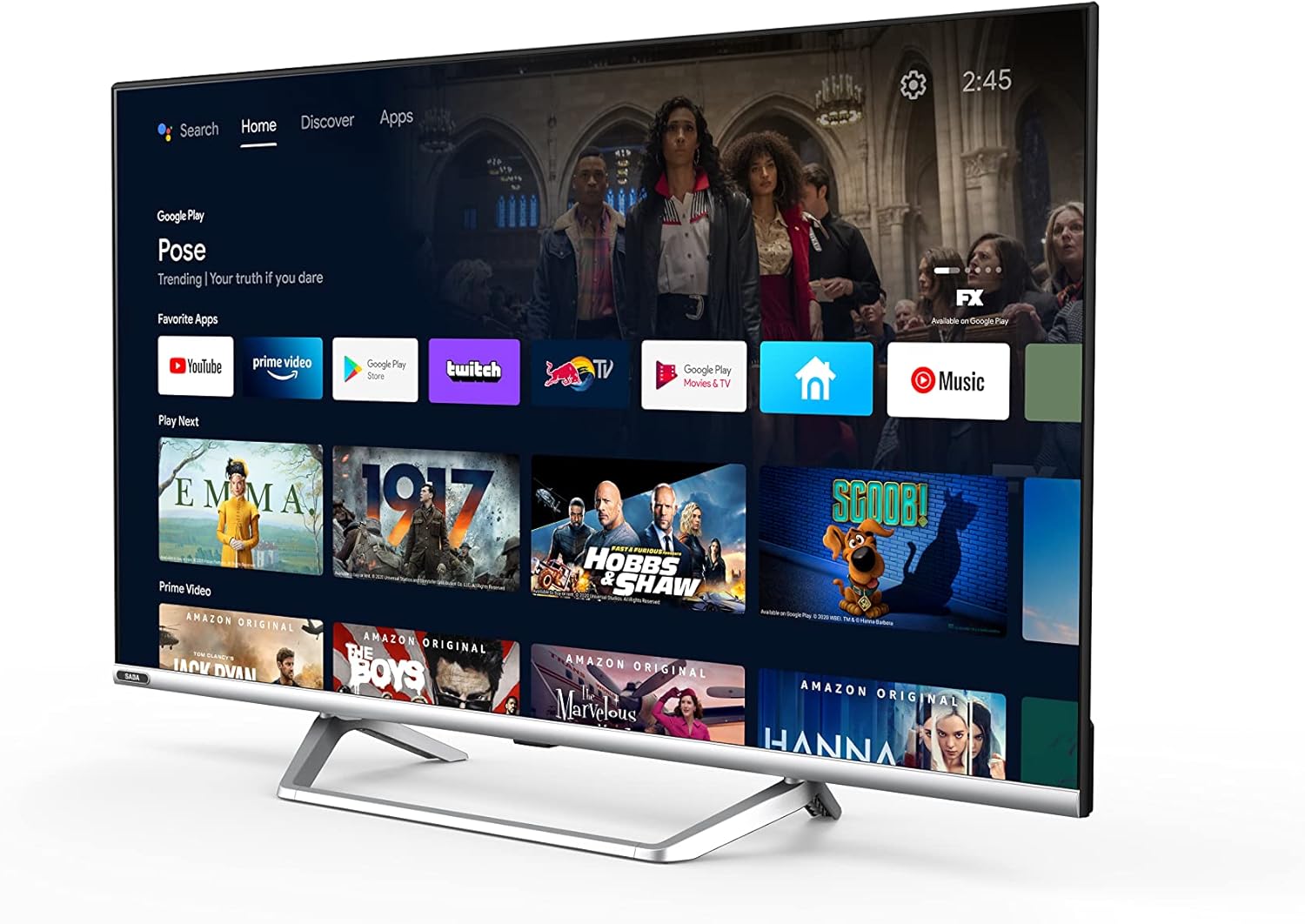
Image: Official product information sheet for the Saba SA40S77A11 TV, detailing various technical parameters and energy consumption data.
Záruka a podpora
The manufacturer provides a minimum general warranty period of 2 roky for this product. For specific warranty terms and conditions, please refer to the warranty card included with your product or contact the retailer where the TV was purchased.
For technical support, troubleshooting beyond this manual, or inquiries regarding spare parts and software updates, please contact Saba customer service or your local dealer. Information regarding the guaranteed availability of spare parts and software updates is not explicitly provided in the product specifications.