
1. Úvod
This manual provides detailed instructions for setting up, operating, and maintaining your HP Smart Tank 794 Multifunction Printer. This device is designed for printing, copying, and scanning, featuring a refillable ink tank system and wireless connectivity options.
Please read this manual thoroughly before using your printer to ensure proper operation and to maximize its lifespan.
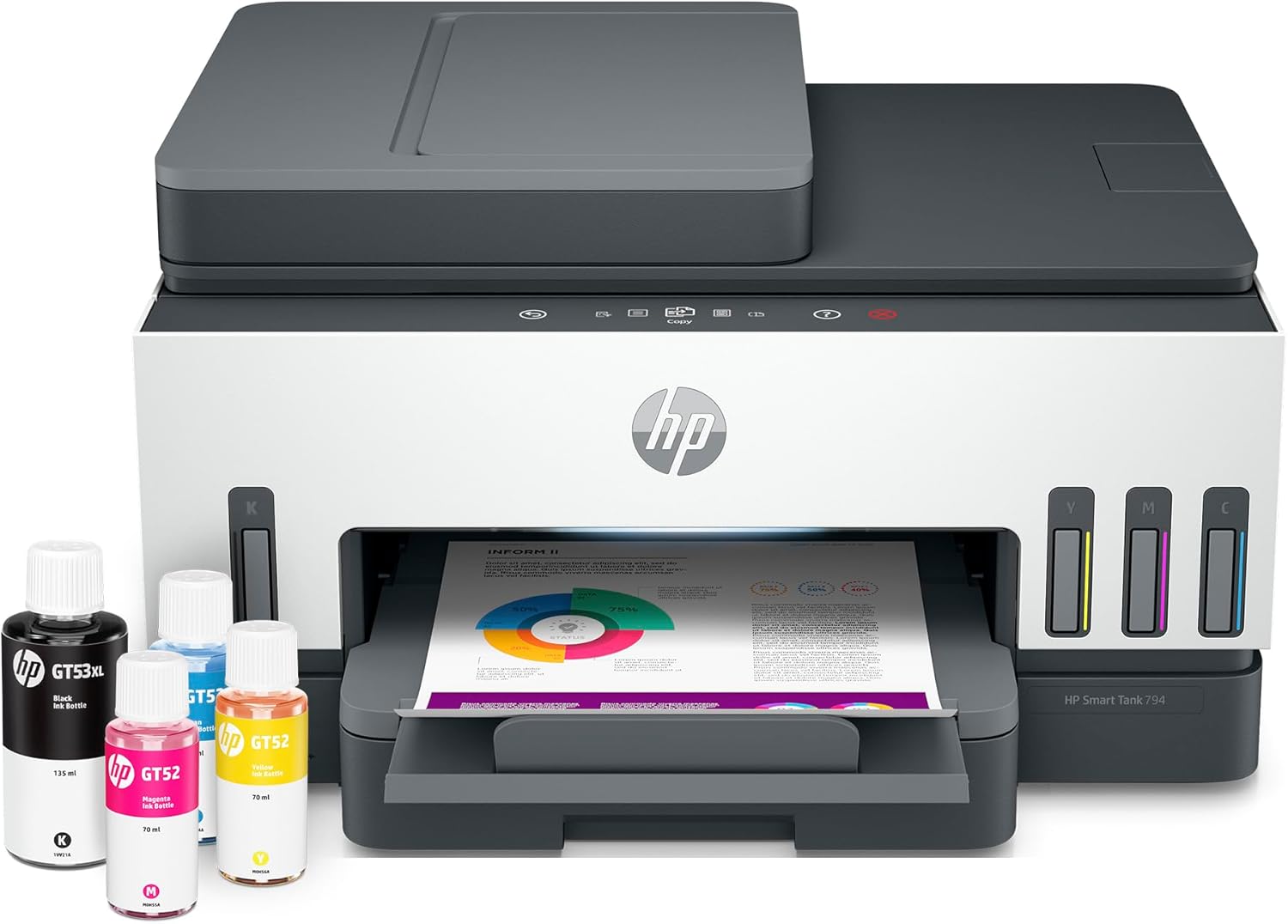
Obrázek 1.1: The HP Smart Tank 794 Multifunction Printer, showcasing its compact design, integrated ink tanks, and a document being printed. Several ink bottles are visible next to the printer.
2. Průvodce nastavením
2.1 Vybalení a počáteční příprava
- Opatrně vyjměte tiskárnu z obalu.
- Odstraňte všechny ochranné pásky a balicí materiály z vnější i vnitřní strany tiskárny. Konkrétní umístění naleznete v úvodní příručce.
- Umístěte tiskárnu na stabilní, rovný povrch poblíž elektrické zásuvky.
2.2 Plnění inkoustových nádržek
The HP Smart Tank 794 uses a refillable ink system. Use only genuine HP ink bottles for optimal performance and to prevent damage.
- Otevřete kryt inkoustové nádržky na tiskárně.
- Otevřete víčko inkoustové nádržky, kterou chcete naplnit.
- Uncap the corresponding color ink bottle. The bottles are designed to fit only their designated tank to prevent incorrect filling.
- Invert the ink bottle and insert it into the tank's nozzle. The ink will flow automatically without squeezing.
- Wait for the ink to completely drain into the tank. Do not squeeze the bottle.
- Remove the empty bottle, recap the ink tank, and close the ink tank cover.
- Repeat for all other ink colors (Black, Cyan, Magenta, Yellow).

Obrázek 2.1: Detailní záběr view of the HP Smart Tank 794's ink tanks, showing the color-coded design and the corresponding HP ink bottles (GT53XL Black, GT52 Cyan, GT52 Yellow, GT52 Magenta) ready for refilling.
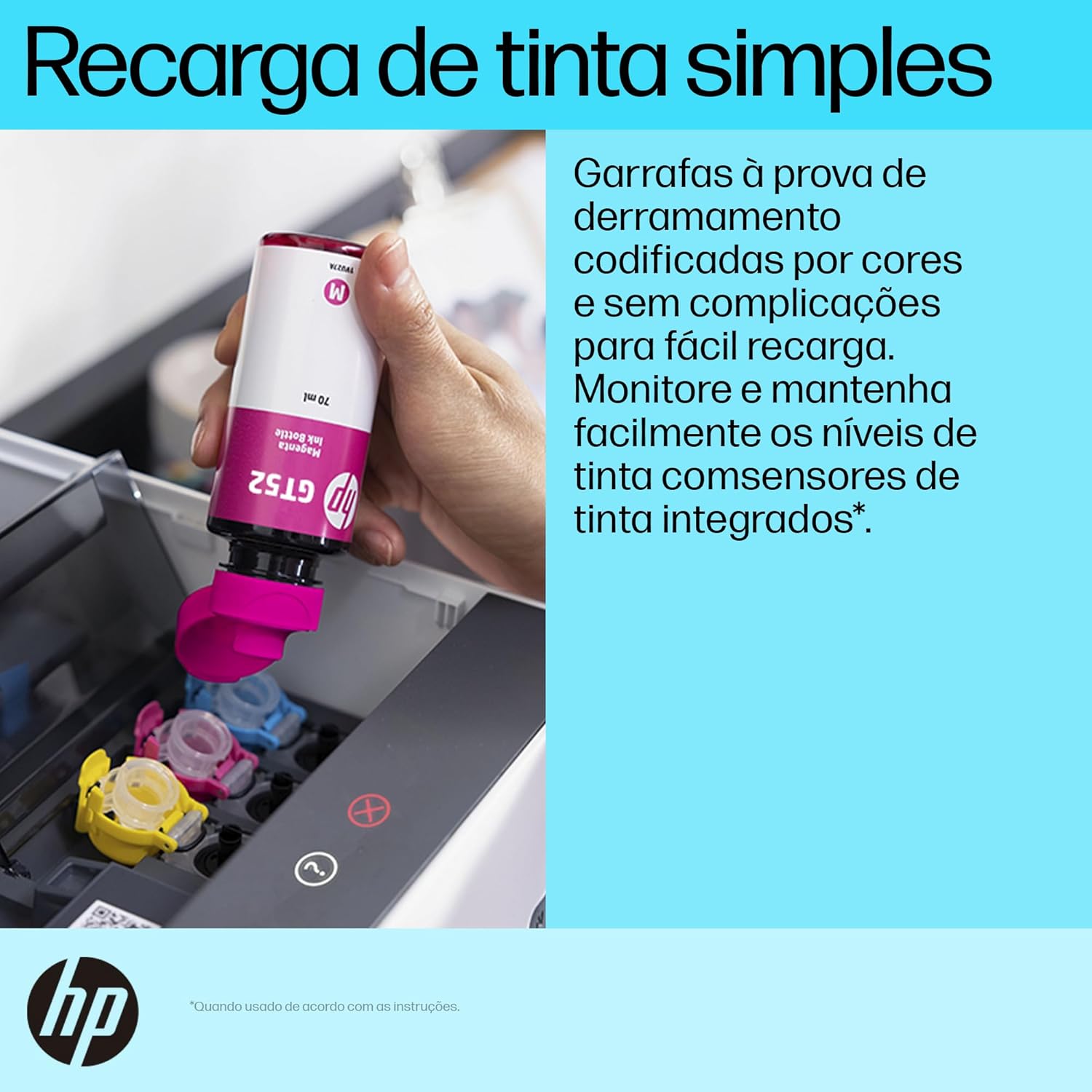
Obrázek 2.2: A hand demonstrating the simple, spill-free ink refilling process for the HP Smart Tank 794, inserting a magenta ink bottle into its designated tank.
2.3 Zapnutí a počáteční nastavení
- Připojte napájecí kabel k tiskárně a poté do zásuvky ve zdi.
- Stisknutím tlačítka Napájení zapněte tiskárnu.
- Follow the on-screen instructions on the printer's display for initial setup, including language selection and printhead alignment.
2.4 Instalace softwaru a připojení
To utilize all printer features, install the HP Smart app and necessary drivers.
- Aplikace HP Smart: Download the HP Smart app from your device's app store (iOS, Android) or from hpsmart.com for Windows/macOS.
- Nastavení Wi-Fi:
- On the printer's control panel, navigate to the Wireless settings.
- Select "Wi-Fi Setup Wizard" and follow the prompts to connect to your wireless network.
- Alternatively, use the HP Smart app to guide you through the wireless setup process.
- USB připojení: Connect a USB cable from the printer to your computer. The necessary drivers should install automatically.
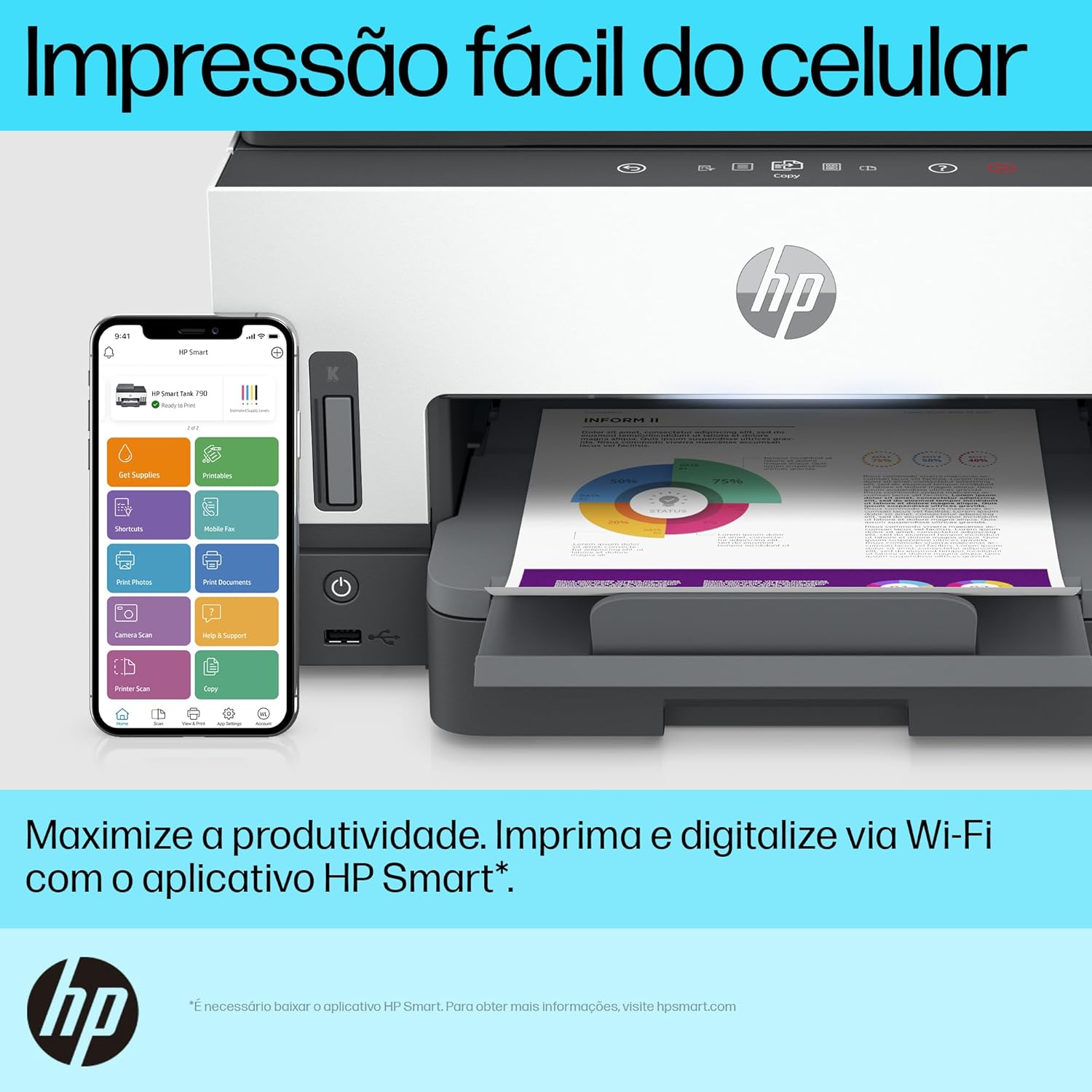
Obrázek 2.3: The HP Smart Tank 794 printer shown alongside a smartphone running the HP Smart app, illustrating the ease of mobile printing and management via Wi-Fi.
3. Návod k obsluze
3.1 Vkládání papíru
Load paper into the input tray with the print side facing down. Adjust the paper guides to fit the paper size.
3.2 Tisk dokumentů
- Z počítače:
- Otevřete dokument, který chcete vytisknout.
- Select "Print" from the application's menu (File > Tisk).
- Choose your HP Smart Tank 794 printer.
- Adjust print settings (e.g., paper size, quality, color/grayscale, duplex) as needed.
- Klikněte na „Tisk“.
- Z mobilního zařízení (aplikace HP Smart):
- Otevřete aplikaci HP Smart.
- Vyberte možnost „Tisk dokumentů“ nebo „Tisk fotografií“.
- Procházejte a vyberte file chcete vytisknout.
- Upravte nastavení tisku a klepněte na „Tisk“.
- Oboustranný tisk: The printer supports automatic two-sided (duplex) printing. Select this option in your print settings.
3.3 Kopírování dokumentů
- Using the Scanner Glass:
- Umístěte dokument lícem dolů na sklo skeneru a zarovnejte jej s vodítkem.
- Zavřete víko skeneru.
- Na ovládacím panelu tiskárny vyberte možnost „Kopírovat“.
- Choose color or black & white, and the number of copies.
- Stiskněte tlačítko „Spustit kopírování“.
- Používání automatického podavače dokumentů (ADF):
- Load documents face-up into the ADF tray.
- Na ovládacím panelu tiskárny vyberte možnost „Kopírovat“.
- Choose color or black & white, and the number of copies.
- Stiskněte tlačítko „Spustit kopírování“.
3.4 Skenování dokumentů
- From the Printer to a Computer:
- Vložte dokument na sklo skeneru nebo do automatického podavače dokumentů (ADF).
- On the printer's control panel, select "Scan".
- Choose your computer as the destination and follow the prompts.
- From a Computer (HP Smart App):
- Open the HP Smart app on your computer.
- Select "Scan" and choose your printer.
- Adjust scan settings (resolution, color, file type) and click "Scan".
- Z mobilního zařízení (aplikace HP Smart):
- Open the HP Smart app on your mobile device.
- Select "Printer Scan".
- Vložte dokument na sklo skeneru nebo do automatického podavače dokumentů (ADF).
- Adjust settings and tap "Scan".
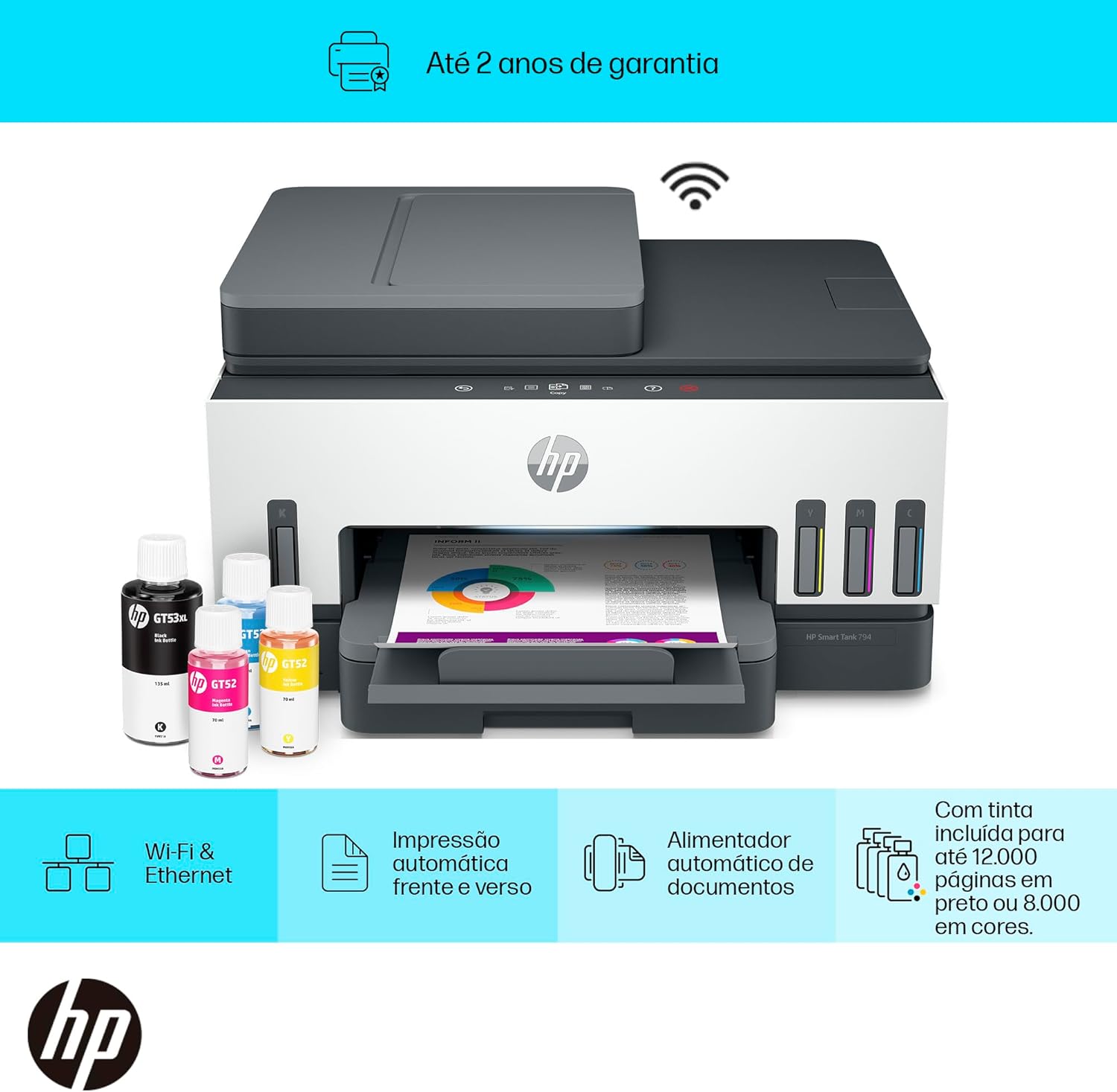
Obrázek 3.1: The HP Smart Tank 794 printer with graphical overlays indicating its features: Wi-Fi & Ethernet connectivity, automatic duplex printing, automatic document feeder, and high ink yield (up to 12,000 black pages or 8,000 color pages).
4. Údržba
4.1 Kontrola a doplňování hladiny inkoustu
Regularly check the ink levels through the transparent ink tanks on the front of the printer or via the HP Smart app. Refill tanks when ink levels are low, following the instructions in Section 2.2.
4.2 Cleaning the Printheads
If print quality degrades (e.g., streaks, faded colors), perform a printhead cleaning. This can typically be done through the printer's control panel menu or the HP Smart app/printer software on your computer.
4.3 Čištění skla skeneru
To ensure clear scans, periodically clean the scanner glass with a soft, lint-free cloth lightly dampOčistěte čističem skla. Vyhněte se abrazivním čisticím prostředkům.
4.4 Odstranění zaseknutého papíru
If a paper jam occurs, the printer display will show instructions. Carefully open access doors and gently pull jammed paper in the direction of the paper path. Avoid tearing the paper.
5. Řešení problémů
Tato část se zabývá běžnými problémy, se kterými se můžete setkat. Podrobnější informace o řešení problémů naleznete v sekci podpory HP. webmísto.
- Tiskárna nereaguje:
- Ensure the printer is powered on and connected to the power outlet.
- Check USB or Wi-Fi connection. Restart the printer and your computer/router.
- Ověřte, zda je v dialogovém okně tisku vybrána správná tiskárna.
- Špatná kvalita tisku:
- Zkontrolujte hladinu inkoustu a v případě potřeby jej doplňte.
- Perform a printhead cleaning and alignment (refer to Section 4.2).
- Ujistěte se, že používáte vhodný papír pro nastavení tisku.
- Zaseknutý papír:
- Follow the instructions on the printer's display or refer to Section 4.4.
- Ujistěte se, že je papír správně vložen a není přeplněný.
- Problémy s bezdrátovým připojením:
- Ujistěte se, že je váš Wi-Fi router zapnutý a funkční.
- Restartujte router a tiskárnu.
- Run the Wireless Setup Wizard again from the printer's control panel.
- Ujistěte se, že je tiskárna v dosahu vašeho Wi-Fi routeru.
6. Specifikace
| Funkce | Detail |
|---|---|
| Značka | HP |
| Název modelu | Sayan (HP Smart Tank 794) |
| Technologie připojení | USB, Wi-Fi |
| Technologie tisku | Termální inkoustová tiskárna HP |
| Speciální funkce | Refillable Ink Tank, Automatic Document Feeder (ADF), Automatic Duplex Printing |
| Barva | Bílý |
| Tiskový výstup | Barva |
| Maximální rychlost tisku (barevně) | 24 stran za minutu (ppm) |
| Maximální rychlost tisku (černobíle) | 30 stran za minutu (ppm) |
| Hmotnost produktu | 7.7 kg |
7. Záruka a podpora
7.1 Záruka na produkt
This HP Smart Tank 794 Multifunction Printer comes with a jednoletá omezená záruka from the date of purchase. This warranty covers defects in materials and workmanship under normal use. For full terms and conditions, please refer to the warranty documentation included with your product or visit the official HP support webmísto.
7.2 Technická podpora
For technical assistance, driver downloads, and additional troubleshooting resources, please visit the official HP support webmísto:
You can also contact HP customer service through the contact information provided on their support portal.