
1. Konec produktuview
The havit GK59 Gaming Microphone is designed for clear audio capture during gaming, streaming, and voice communication. It features a condenser microphone for high-quality sound and a versatile design for ease of use.

Obrázek 1.1: Přední strana view of the havit GK59 Gaming Microphone, showcasing its main body, stand, and control buttons.
Klíčové vlastnosti:
- Snadné použití: Jednoduchá funkce plug-and-play.
- Good Performance: Delivers clear and consistent audio.
- Good Quality: Durable construction for reliable use.
- Přenosný design: Kompaktní a snadno se přenáší.
- Nastavitelný stojan: Allows for flexible positioning.
2. Pokyny k nastavení
2.1 Obsah balení
Zkontrolujte prosím balení, zda neobsahuje následující položky:
- havit GK59 Gaming Microphone
- USB propojovací kabel
- Uživatelská příručka (tento dokument)
2.2 Připojení mikrofonu
The GK59 microphone offers versatile connectivity options for various devices.
- USB připojení: Connect the provided USB cable to the USB-C port on the back of the microphone and the other end to an available USB port on your computer or gaming console. The microphone is plug-and-play and should be automatically recognized by most operating systems.
- Připojení 3.5mm jacku: For devices supporting a 3.5mm auxiliary input, connect a 3.5mm audio cable (not included) to the 3.5mm jack on the back of the microphone and to your device's audio input.
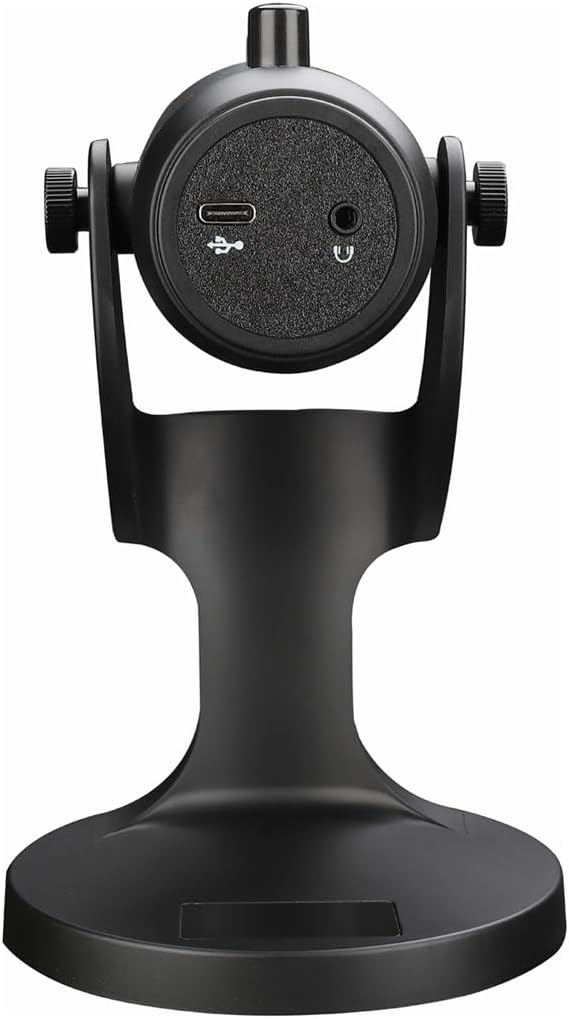
Obrázek 2.1: Zadní view of the havit GK59 Gaming Microphone, highlighting the USB-C port for data and power, and the 3.5mm headphone jack for monitoring.
After connecting, ensure the microphone is selected as the default input device in your system's sound settings or your gaming/streaming software.
3. Návod k obsluze
3.1 Základní ovládací prvky
The havit GK59 features intuitive controls located on the front of the microphone body:
- Tlačítko ztlumení: Press to mute or unmute the microphone. An indicator light will typically show the mute status.
- MIC +/- Buttons: Adjust the microphone input sensitivity (gain). Press '+' to increase, '-' to decrease.
- Tlačítka VOL +/-: Adjust the headphone output volume for monitoring. Press '+' to increase, '-' to decrease.
- ECHO +/- Buttons: Adjust the echo effect level. Press '+' to increase, '-' to decrease.
Obrázek 3.1: Detailní view of the microphone's control panel, including the mute button, microphone gain, volume, and echo adjustment buttons.
3.2 Adjusting Microphone Position
The microphone is equipped with an adjustable stand, allowing you to optimize its position for best sound capture and comfort.
- Gently hold the microphone body and the base of the stand.
- Tilt the microphone forward or backward to achieve the desired angle. The stand's design helps reduce vibration and abnormal sounds during use.
- Pro optimální srozumitelnost hlasu umístěte mikrofon přibližně 15–30 cm od úst.

Figure 3.2: The havit GK59 microphone demonstrating its adjustable tilt feature on the stand, designed for anti-vibration.
4. Údržba
4.1 Čištění
To maintain the microphone's performance and appearance:
- Disconnect the microphone from its power source before cleaning.
- K otření vnějších povrchů použijte měkký, suchý hadřík.
- Nepoužívejte tekuté čisticí prostředky, aerosoly ani rozpouštědla, protože by mohly poškodit povrchovou úpravu nebo vnitřní součásti.
4.2 Skladování
When not in use, store the microphone in a cool, dry place away from direct sunlight and extreme temperatures. Protect it from dust and moisture.
5. Řešení problémů
If you encounter issues with your havit GK59 Gaming Microphone, please refer to the following table for common problems and solutions:
| Problém | Možná příčina | Řešení |
|---|---|---|
| No sound input from microphone | Mikrofon není správně připojen Incorrect input device selected Mikrofon ztlumen | Ujistěte se, že je kabel USB bezpečně připojen. Check system sound settings and select GK59 as input. Press the Mute button on the microphone to unmute. |
| Nízká hlasitost mikrofonu | Microphone gain too low System input volume too low | Press the 'MIC +' button on the microphone. Adjust input volume in your system's sound settings. |
| Zkreslený nebo nejasný zvuk | Microphone gain too high Mikrofon příliš blízko u úst Environmentální hluk | Press the 'MIC -' button on the microphone. Adjust microphone position (6-12 inches from mouth). Snižte hluk na pozadí ve vašem okolí. |
| No headphone monitoring sound | Sluchátka nejsou připojena Headphone volume too low | Ensure headphones are plugged into the 3.5mm jack. Press the 'VOL +' button on the microphone. |
6. Technické specifikace
Below are the technical specifications for the havit GK59 Gaming Microphone:
| Funkce | Specifikace |
|---|---|
| Značka | havit |
| Číslo modelu | 59 GK |
| Technologie připojení | USB, 3.5 mm Jack (Auxiliary) |
| Doporučená použití | Hraní |
| Polární vzor | Jednosměrný |
| Tvarový faktor mikrofonu | Handheld (with desktop stand) |
| Hmotnost položky | 429 gramů |
| Impedance | 250 ohmů |
| Odstup signálu od šumu | 18 dB |
| Zvuková hlučnost | 18 decibelů |
| Zdroj napájení | Elektrické napájení (přes USB) |
| Kompatibilní zařízení | Herní konzole, počítače |
| Rozměry položky (DxŠxV) | 5.59 x 4.92 x 9.06 palce |
| Barva | Černý |
7. Záruka a podpora
7.1 Informace o záruce
The havit GK59 Gaming Microphone comes with a standard manufacturer's warranty. Please refer to the warranty card included in your product packaging or visit the official havit webpodrobné záruční podmínky naleznete na webu.
7.2 Zákaznická podpora
For technical assistance, troubleshooting not covered in this manual, or warranty claims, please contact havit customer support through their official channels. You can find more information and contact details on the Obchod havit na Amazonu nebo jejich úředník webmísto.