
1. Úvod
This manual provides essential information for the proper installation, configuration, and operation of your Teltonika RUT951 4G LTE Router. The RUT951 is a robust industrial cellular router designed for professional applications, offering reliable internet connectivity via 4G LTE, Wi-Fi, and Ethernet. It features dual-SIM support for network redundancy and is powered by RutOS, providing advanced customization and security features.
2. Konec produktuview
2.1 Klíčové vlastnosti
- Dual-SIM 4G LTE cellular connectivity for reliable network access.
- Integrated Wi-Fi (802.11b/g/n) for local wireless networking.
- Four Ethernet interfaces (3x LAN, 1x WAN) for wired connections.
- Powered by RutOS for advanced customization, automation, and security.
- Robust design suitable for various IoT and industrial scenarios.
2.2 Obsah balení
The standard package for the Teltonika RUT951 router typically includes:
- Teltonika RUT951 Router Unit
- Napájecí adaptér
- 2 x Mobile Antennas (SMA)
- 2 x Wi-Fi Antennas (RP-SMA)
- Ethernetový kabel
- Rychlý průvodce
2.3 Router Layout
Familiarize yourself with the router's ports, indicators, and slots.
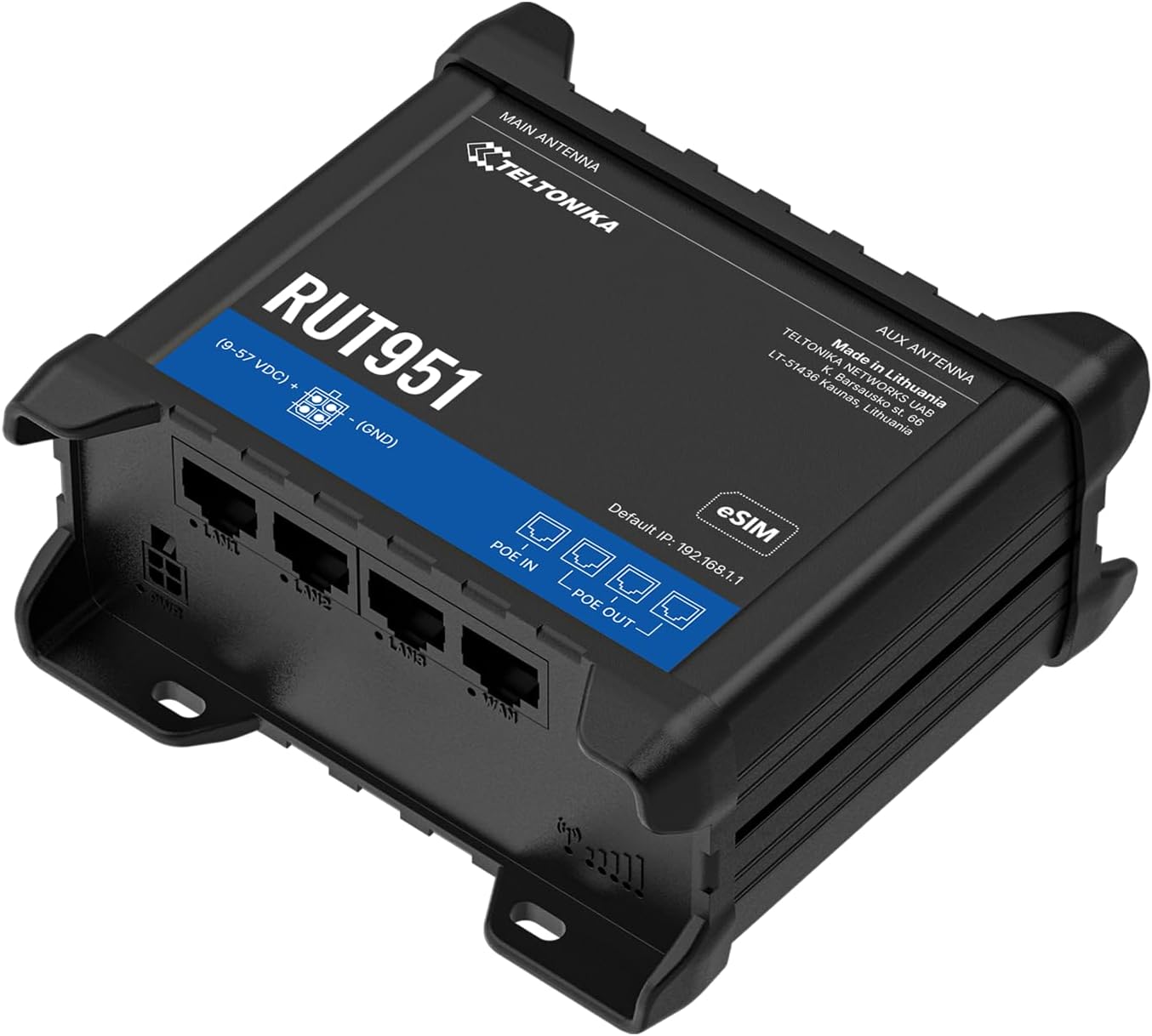
Obrázek 1: Přední view of the Teltonika RUT951 router, showing the model name and general design.

Obrázek 2: Detailed diagram illustrating the various ports and indicators on the Teltonika RUT951 router, including mobile and Wi-Fi antenna connectors, SIM slots, Ethernet ports, power socket, and LED indicators.
- Mobile AUX Antenna Connector (SMA female): For secondary mobile antenna.
- Mobile MAIN Antenna Connector (SMA female): For primary mobile antenna.
- SIM1 / SIM2 Slots: Pro vkládání mobilních SIM karet.
- Tlačítko reset: To restore factory settings or reboot.
- Wi-Fi Antenna Connectors (RP-SMA female): For Wi-Fi antennas.
- Zásuvka: Pro připojení napájecího adaptéru.
- LAN Ethernetové porty: Pro připojení zařízení v místní síti.
- Ethernetový port WAN: For connecting to an external network (e.g., fiber modem).
- Mobile Signal Strength LEDs: Indicate cellular signal strength.
- LED indikátor stavu mobilního připojení: Indicates cellular connection status.
- LED diody LAN: Indicate activity on LAN ports.
- WAN LED: Indicates activity on the WAN port.
3. Pokyny k nastavení
3.1 Instalace SIM karty
- Locate the SIM card slots (SIM1 and SIM2) on the top panel of the router.
- Using a SIM ejector tool or a paperclip, gently press the small button next to the SIM slot to open it.
- Insert your activated Mini-SIM card(s) into the slot(s) with the gold contacts facing down and the notched corner oriented correctly.
- Push the SIM tray back into the router until it clicks into place.

Obrázek 3: Nahoru view of the RUT951, highlighting the SIM card slots and antenna connectors.
3.2 Připojení antény
- Screw the two mobile antennas onto the SMA connectors labeled 'MOBILE' (MAIN and AUX) on the top panel.
- Screw the two Wi-Fi antennas onto the RP-SMA connectors labeled 'WIFI' on the top panel.
- Ensure all antennas are securely tightened for optimal signal reception.
3.3 Připojení napájení
- Connect the provided power adapter to the power socket on the router.
- Zapojte druhý konec napájecího adaptéru do vhodné elektrické zásuvky.
- The router will power on automatically. Observe the power LED indicator.

Obrázek 4: Dno view of the RUT951, showing the Ethernet ports and power input.
3.4 Ethernetové připojení
To connect a device directly to the router:
- Connect one end of an Ethernet cable to any of the LAN ports (LAN1, LAN2, LAN3) on the router.
- Connect the other end of the Ethernet cable to your computer or network device.
- If you are using the router as a WAN gateway, connect your external modem (e.g., fiber modem) to the WAN port.
4. Návod k obsluze
4.1 Initial Access to WebUI
- Ensure your computer is connected to the router via Ethernet or Wi-Fi. The default Wi-Fi SSID and password can be found on the router's label.
- Otevřete a web prohlížeč a zadejte výchozí IP adresu: 192.168.1.1
- Budete vyzváni k zadání přihlašovacích údajů. Výchozí uživatelské jméno je admin. The default password is also admin (or as specified on the router's label).
- Upon first login, you will be guided through a setup wizard to change the default password and configure basic settings.
4.2 Konfigurace sítě
After initial login, you can configure various network settings through the Webuživatelské rozhraní:
- Nastavení WAN: Configure your cellular (4G LTE) connection, including APN settings, or set up the Ethernet WAN port.
- Nastavení LAN: Manage the local network IP address range and DHCP server.
- Nastavení Wi-Fi: Change Wi-Fi SSID, password, security protocols, and channel settings.
- Duální SIM: Configure failover or load balancing between the two SIM cards for continuous connectivity.
- VPN: Set up various VPN protocols for secure remote access.
5. Údržba
5.1 aktualizací firmwaru
Regularly updating the router's firmware is crucial for security, performance, and new features. Firmware updates can be performed via the WebUI under the 'System' or 'Firmware' section. Always download firmware from the official Teltonika Networks webmísto.
5.2 Obnovení továrního nastavení
Pokud se potýkáte s přetrvávajícími problémy nebo zapomenete své přihlašovací údaje, můžete provést obnovení továrního nastavení:
- With the router powered on, locate the RESET button (refer to Figure 2).
- Press and hold the RESET button for approximately 10 seconds until all LEDs flash.
- Uvolněte tlačítko. Router se restartuje s výchozím továrním nastavením.
6. Řešení problémů
- Žádné internetové připojení:
- Check SIM card insertion and activation.
- Ověřte nastavení APN v WebUI.
- Ensure mobile antennas are securely connected.
- Zkontrolujte LED diody síly mobilního signálu.
- Wi-Fi nefunguje:
- Ujistěte se, že je v WebUI.
- Zkontrolujte připojení antény Wi-Fi.
- Ověřte SSID a heslo Wi-Fi.
- Nelze přistupovat Webuživatelské rozhraní:
- Ensure your device is connected to the router (Ethernet or Wi-Fi).
- Ověřte nastavení IP adresy počítače (mělo by být nastaveno automatické získávání IP adresy).
- Zkuste vymazat mezipaměť prohlížeče nebo použít jiný prohlížeč.
- Perform a factory reset if you suspect incorrect IP configuration or forgotten password.
7. Specifikace
| Funkce | Specifikace |
|---|---|
| Značka | Teltonica |
| Název modelu | RUT 951 |
| Technologie připojení | Wi-Fi, 4G LTE, 3G, 2G |
| Standard bezdrátové komunikace | 802.11b, 802.11g, 802.11n |
| Třída frekvenčního pásma | Dvoupásmový |
| Počet portů | 4 (3x LAN, 1x WAN) |
| Šířka pásma LAN portu | 100 Mbps |
| Rychlost přenosu dat | 150 Megabits Per Second (Max Upstream) |
| Operační systém | RutOS |
| Hmotnost položky | 287 gramů |
| svtage | 30 voltů |
| Bezpečnostní protokol | WPS (and others via RutOS) |
| Krytí | Dual SIM network redundancy |
8. Bezpečnostní informace
- Používejte pouze napájecí adaptér dodaný se zařízením.
- Nevystavujte zařízení vodě, vlhkosti ani extrémním teplotám.
- Neumisťujte zařízení do blízkosti zdrojů tepla nebo na přímé sluneční světlo.
- Zajistěte správné větrání, aby nedošlo k přehřátí.
- Do not attempt to open or modify the device. This will void the warranty.
- Zařízení a jeho příslušenství zlikvidujte zodpovědně v souladu s místními předpisy.
9. Záruka a podpora
The Teltonika RUT951 router comes with a standard manufacturer's warranty. For detailed warranty terms and conditions, please refer to the documentation included with your product or visit the official Teltonika Networks website. For technical support, firmware downloads, and additional resources, please visit the Teltonika Networks support portal or contact your vendor.