
1. Úvod
This manual provides detailed instructions for the safe and effective use of your InfiRay P2 Pro Android Type-C Thermal Imaging Camera. The InfiRay P2 Pro is a compact, high-performance infrared thermal camera designed for various applications, including industrial inspections, home diagnostics, and PCB detection. Please read this manual thoroughly before operating the device.

Figure 1: InfiRay P2 Pro Thermal Imaging Camera with Android Phone Interface
2. Konec produktuview a funkce
The InfiRay P2 Pro is engineered for precision and versatility, offering advanced thermal imaging capabilities in a portable form factor.
2.1 Klíčové vlastnosti
- Quick Identification with Magnetic Macro Lens: The P2 Pro includes a magnetic macro lens, enabling close-up observation for detailed analysis of PCBs and microcircuits. This allows for sharp imaging and identification of resistance in the millimeter range.
- Vynikající výkon: Features an IR resolution of 256 x 192 pixels and a fast frame rate of 25 Hz, providing high-resolution thermal imagery. It supports full-frame temperature measurement (Max, Min, Center Spots) across an extensive temperature range from -4 °F to 1022 °F (-20 °C to 550 °C).
- Vysoká přesnost: Offers a measurement accuracy of ±2 °C or ±2% of the measurement range (whichever is greater), suitable for identifying hidden heat-related issues in various settings, including home inspections, HVAC troubleshooting, and professional electrical system checks.
- Batteryless and Secondary Analysis: Operates without an internal battery, drawing power directly from the connected smartphone. Captured infrared images can be used for secondary analysis directly within the software, allowing for point-line-surface analyses.
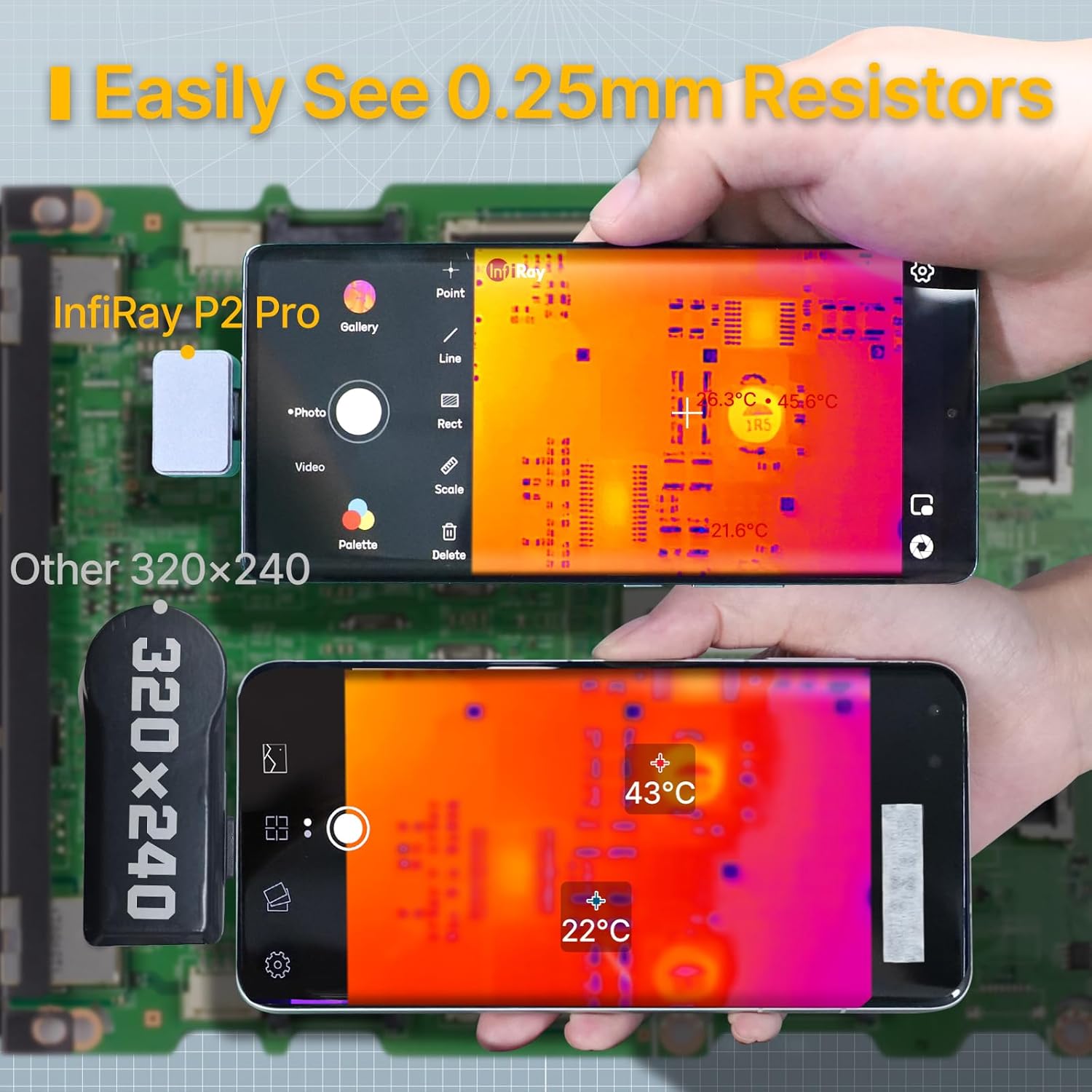
Figure 2: Macro Lens Capability for Detailed PCB Inspection

Figure 3: Comparison of Thermal Image Refresh Rates

Figure 4: Diverse Applications of the P2 Pro Thermal Camera

Figure 5: Low Power Consumption for Extended Use
3. Obsah balení
Upon opening your InfiRay P2 Pro package, please verify that all the following items are included:
- InfiRay P2 Pro Thermal Imaging Camera (latest model)
- Magnetic Macro Lens
- Uživatelská příručka v angličtině (tento dokument)
- Connecting Cable (Type-C)
- Ochranné pouzdro
4. Nastavení
Follow these steps to set up your InfiRay P2 Pro Thermal Imaging Camera:
- Stáhněte si aplikaci: Hledat and download the "P2 Pro" application from your Android device's app store.
- Připojte kameru: Plug the InfiRay P2 Pro camera into your Android smartphone's Type-C port. The camera is designed for direct connection and does not require an external battery.
- Attach Macro Lens (Optional): If detailed close-up imaging is required, attach the magnetic macro lens to the camera. Ensure it is securely seated.
- Spusťte aplikaci: Open the "P2 Pro" application. The camera feed should appear automatically.

Figure 6: Connecting the P2 Pro to an Android Device
Note: The InfiRay P2 Pro is not suitable for Google Pixel Phones.
5. Provoz
Operating the InfiRay P2 Pro is intuitive through its dedicated application.
5.1 Základní termovize
- Once connected and the app is open, the live thermal feed will be displayed on your smartphone screen.
- Observe the temperature scale on the side of the screen, indicating the temperature range being displayed.
5.2 Pokročilé funkce prostřednictvím aplikace
- Měření teploty: Aplikace vám to umožňuje tag specific points, lines, or areas on the thermal image to obtain precise temperature readings (Max, Min, Center Spots).
- Barevné palety: Select from various color palettes within the app to visualize temperature differences according to your preference or application needs.
- Pořizování snímků a videí: Use the app's interface to capture thermal images and videos. These can be saved directly to your device's gallery.
- Secondary Analysis: Captured images can be opened directly within the P2 Pro software for post-analysis, allowing you to add or modify temperature measurement points, lines, and surfaces without needing the physical camera connected.
- Otočení obrázku: Rotate the image within the app to view temperature data from different angles, enhancing flexibility during inspections.
- Pro režim: Utilize Pro Mode to manually combine the infrared image with a visible image for clearer visualization of low-temperature items.

Figure 7: InfiRay P2 Pro App Interface and Features
6. Údržba
To ensure the longevity and optimal performance of your InfiRay P2 Pro Thermal Imaging Camera, follow these maintenance guidelines:
- Čištění: Wipe the camera and lens clean with a soft, dry cloth. Avoid using abrasive materials or harsh chemicals that could damage the lens or housing.
- Skladování: When not in use, store the camera in its protective case to prevent dust accumulation and physical damage.
- Podmínky prostředí: Nevystavujte fotoaparát extrémním teplotám, vysoké vlhkosti nebo přímému slunečnímu záření po delší dobu.
7. Řešení problémů
If you encounter issues with your InfiRay P2 Pro, consider the following common solutions:
- Kamera nebyla detekována: Ensure the camera is securely plugged into your Android device's Type-C port. Try restarting the P2 Pro app or your smartphone.
- Problémy s funkčností aplikace: Ensure your P2 Pro app is updated to the latest version. Clear the app's cache or reinstall it if problems persist.
- Kvalita obrazu: Ensure the camera lens is clean and free from dust or smudges. For close-up work, verify the magnetic macro lens is correctly attached.
- Kompatibilita: Remember that the InfiRay P2 Pro is not compatible with Google Pixel Phones.
8. Specifikace
Detailed technical specifications for the InfiRay P2 Pro Thermal Imaging Camera:
| Specifikace | Hodnota |
|---|---|
| Číslo modelu | P2 Pro |
| Rozlišení IR | 256 x 192 pixelů |
| Snímková frekvence | 25 Hz |
| Teplotní rozsah | -4 °F až 1022 °F (-20 °C až 550 °C) |
| Přesnost teploty | ±2 °C or ±2% (whichever is greater) |
| Tepelná citlivost | ≤40 mK |
| Pole View | 56.0° x 42.2° |
| Technologie připojení | USB Type-C |
| Zdroj napájení | Smartphone powered (Batteryless) |
| Vnější materiál | Kov |
| Rozměry produktu | 8.27 x 1.57 x 1.57 palce; 5.61 unce |
| Zahrnuté komponenty | Thermal Camera, Magnetic Macro Lens, Connecting Cable, Protective Case |

Figure 8: InfiRay P2 Pro Production Comparison
9. Záruka a podpora
Your InfiRay P2 Pro Thermal Imaging Camera comes with a comprehensive warranty and support:
- Záruka: The InfiRay P2 Pro includes a 2-year warranty from the date of purchase. Please retain your proof of purchase for warranty claims.
- Softwarová podpora: For assistance with the P2 Pro application, refer to the in-app help section or visit the official InfiRay webweb s nejčastějšími dotazy a zdroji podpory.