
1. Úvod
This manual provides detailed instructions for the setup, operation, maintenance, and troubleshooting of your HP KE203 300 DPI Direct Thermal Shipping Label Printer. This printer is designed for efficient and high-quality label printing for various applications, including shipping, barcodes, and product labels. It utilizes direct thermal technology, eliminating the need for ink or toner cartridges.

The HP KE203 printer features a 5 inches per second (ips) printing speed and 300 dots per inch (dpi) resolution for clear, fast label output.
2. Co je v krabici
Před zahájením instalace ověřte, zda jsou v balení přítomny všechny položky:
- HP KE203 Label Printer
- Napájecí kabel
- AC adaptér
- USB kabel
- Rychlý průvodce
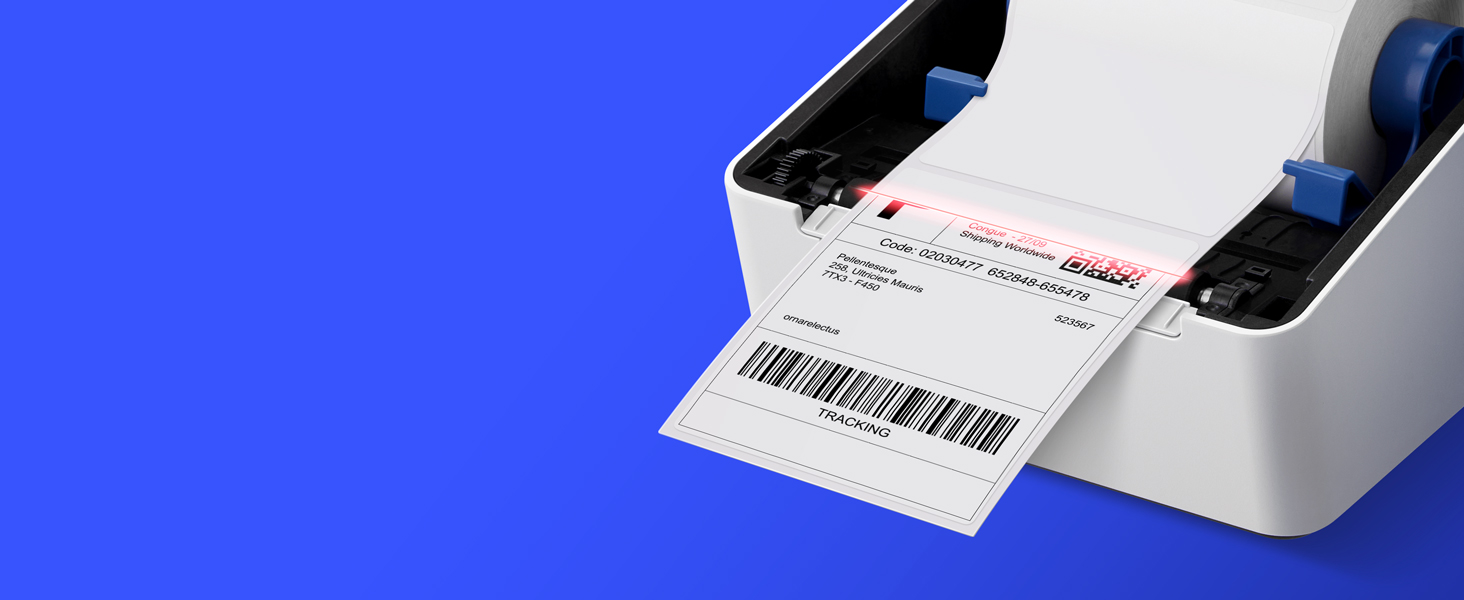
Image showing the HP KE203 printer and its included accessories: power cord, AC adapter, USB cable, and quick start guide.
3. Nastavení
Follow these steps to set up your HP KE203 label printer:
- Připojte napájení: Connect the AC adapter to the printer and then plug the power cord into a power outlet.
- Připojení k počítači: Připojte kabel USB z tiskárny k počítači.
- Načíst štítky: Open the printer cover and position the label roll properly within the adjustable media holder guides. Ensure the labels feed smoothly.
- Nainstalujte ovladače: Download the appropriate drivers for your operating system (Windows or Mac) from the official HP Work Solutions website. Follow the on-screen instructions to complete the driver installation. The printer should be automatically detected if connected via USB.
- Zkušební tisk: After driver installation, go to your computer's printer settings, select the HP KE203, and perform a test print to ensure proper functionality.

Ensure all power components are securely connected.

Připojte tiskárnu k počítači pomocí dodaného kabelu USB.

Properly load the label roll and adjust the guides to prevent jams.

Download and install the printer drivers from the official HP webmísto.
Nastavení Video průvodce
This video provides a visual guide on how to set up your HP Label Printer, including connecting cables, loading labels, and installing drivers.
4. Návod k obsluze
The HP KE203 printer is designed for ease of use. Once set up, you can print labels directly from your computer using various applications and platforms.
Tisk štítků
- Ujistěte se, že je tiskárna zapnutá a připojená k počítači.
- Otevřete dokument nebo aplikaci, ze které chcete tisknout (např. software pro přepravu, textový editor).
- Select the print option and choose the HP KE203 printer from the list of available printers.
- Adjust print settings as needed, such as label size (e.g., 4x6 inches) and orientation.
- Spusťte tiskovou úlohu.

The printer seamlessly integrates with your computer for direct label printing.
Compatible Platforms and Label Types
This printer is compatible with various shipping platforms and can print different types of labels up to 4 inches in width.
- Shipping Labels: Ideal for major carriers like Amazon, UPS, FedEx, USPS, DHL, and platforms such as Shopify, Etsy, eBay, and ShipStation.
- Barcode Labels: Print clear and scannable barcodes.
- Štítky produktů: Create custom labels for products.
- Štítky adres: Generate address stickers for mail.

The HP KE203 is compatible with all major shipping platforms.
5. Údržba
Pravidelná údržba zajišťuje optimální výkon a dlouhou životnost vaší tiskárny.
Čištění tiskové hlavy
- Před čištěním tiskárnu vypněte a odpojte ze zásuvky.
- Otevřete kryt tiskárny.
- Jemně otřete tiskovou hlavu hadříkem, který nepouští vlákna dampzakončené isopropylalkoholem.
- Před zavřením krytu a zapnutím tiskárny nechte tiskovou hlavu zcela vyschnout.
Obecná péče
- Tiskárnu uchovávejte v čistém a bezprašném prostředí.
- Používejte pouze vysoce kvalitní termální štítky, abyste zabránili poškození tiskové hlavy.
- Nevystavujte tiskárnu extrémním teplotám nebo přímému slunečnímu záření.
6. Řešení problémů
Viz následující běžné problémy a jejich řešení:
| Problém | Možná příčina | Řešení |
|---|---|---|
| Tiskárna nereaguje | Uvolněné kabelové připojení, vypnutá tiskárna, problém s ovladačem. | Check power and USB connections. Ensure printer is on. Reinstall drivers if necessary. |
| Špatná kvalita tisku | Dirty print head, incorrect label type, print settings. | Clean the print head. Use recommended thermal labels. Adjust print density or turn off dithering in printer settings. |
| Štítky se nepodávají správně | Improper label loading, media guides not adjusted. | Ensure labels are loaded correctly and media guides are snug against the roll. |
| Počítač nerozpoznál tiskárnu | USB cable issue, driver not installed or corrupted. | Zkuste jiný port USB nebo kabel. Přeinstalujte ovladače tiskárny. |
7. Specifikace
| Funkce | Detail |
|---|---|
| Značka | HP |
| Číslo modelu | HPKE203 |
| Technologie připojení | USB |
| Technologie tisku | Přímé tepelné |
| Tiskový výstup | Monochromatický |
| Maximální rychlost tisku (černobíle) | 5 ips (50 ppm) |
| Rezoluce | 300 x 300 DPI |
| Maximální velikost média | 4 x 6 palce |
| Rozměry položky (D x Š x V) | 8.2"H x 7.29"Š x 6.63"V |
| Hmotnost položky | 1340 gramů |
| Spotřeba energie | 60 wattů |
| Kompatibilní zařízení | Počítač (Windows), Mac |
8. Záruka a podpora
The HP KE203 Direct Thermal Shipping Label Printer comes with a 2-year limited warranty. For technical support, driver downloads, and further assistance, please visit the official HP Work Solutions webwebu nebo se obraťte na zákaznický servis HP.
For the most up-to-date support information, please refer to the Quick Start Guide included with your product or visit the HP support portal online.